If you've ever stared down a pile of bank statements, you know that sinking feeling. The hours of manual data entry ahead are not just tedious; they’re a minefield for costly mistakes. This is where a bank statement converter to Excel completely changes the game, turning a dreaded chore into a swift, automated process.
Why You Should Ditch Manual Data Entry for Good
Keying financial data from bank statements into Excel by hand is a relic of the past. It’s a massive drain on productivity, transforming what should be a quick data transfer into hours of mind-numbing work. Think about it: for every hour spent on copy-paste, your team is losing precious time that could be spent on high-value tasks like strategic analysis, forecasting, or spotting financial trends. It’s not just inefficient—it's a direct hit to your bottom line.

The problems go well beyond lost time. The risk of human error is huge. Transposed numbers, missed transactions, and incorrect date formats create a nasty ripple effect. A tiny mistake can snowball into a flawed financial report, an incorrect tax filing, or hours of frustrating reconciliation work just to hunt down the original error.
The True Cost of Inaccuracy and Inefficiency
The move to digital-first banking has only made these challenges more pressing. Financial workflows have shifted dramatically since 2020, with a 300% surge in PDF usage making bank statement converters more critical than ever. In fact, manual Excel entry errors are now the culprit in an estimated 28% of all reconciliations. To get ahead of this, many businesses now look to systems that can fully automate data entry, fundamentally changing how they manage financial information.
The core issue isn't just the time spent on manual entry, but the opportunity cost. Every minute a skilled professional spends on data entry is a minute they aren't spending on financial strategy, analysis, or client services.
Manual Entry vs Automated Conversion A Quick Comparison
To see the difference in black and white, let's compare the two approaches side-by-side.
| Metric | Manual Data Entry | Automated Bank Statement Converter |
|---|---|---|
| Time Investment | Hours to days, depending on volume. Highly repetitive and slow. | Minutes. Processes hundreds of pages in the time it takes to do one manually. |
| Accuracy Rate | Prone to human errors (typos, omissions, formatting mistakes). | Near 100% accuracy with advanced OCR and parsing technology. |
| Data Security | Can be insecure if sharing files via email or unsecured drives. | High. Offline tools process data locally, never uploading sensitive info. |
| Scalability | Poor. More statements mean linearly more time and higher error risk. | Excellent. Handles growing volumes of data without a drop in performance. |
The takeaway is clear: automation isn't just a convenience; it's a strategic advantage that boosts efficiency, accuracy, and security.
Don't Overlook Privacy When Handling Financial Data
How you convert your statements matters immensely. Many online tools ask you to upload your sensitive financial documents to their servers, which can be a major security vulnerability. With data breaches on the rise, that's a risk most can't afford to take.
This is why privacy-first, offline tools are so important. By processing files directly in your browser, your data never leaves the safety of your own computer.
This client-side approach gives you:
- Complete Confidentiality: Your financial information stays exactly where it belongs—with you.
- No Server Uploads: This eliminates the risk of data interception or a third-party server breach.
- Compliance Peace of Mind: It helps you meet strict data privacy regulations without any extra hassle.
Getting a Handle on Different Bank Statement Formats
First things first: not all bank statements are the same. Before you can even think about getting clean data into Excel, you have to figure out what kind of file you’re actually holding. This is a step where a lot of people trip up, and it’s the difference between a quick conversion and a few hours of pure frustration.
Your bank might give you a PDF, a CSV, or even a scanned image of a paper statement. Each one needs its own game plan. If you try to use a simple text extractor on a scanned document, for instance, you'll get absolutely nothing useful back. The software is looking for text that just isn't there.
Digital PDFs vs. Scanned PDFs: What's the Difference?
The best-case scenario is what we call a digital PDF or a "true" PDF. These are generated straight from your bank's system, so all the text, numbers, and table layouts are real, selectable data.
Here’s a quick test: open the PDF and try to highlight a single line of a transaction with your mouse. Can you copy that text and paste it into Notepad? If so, congratulations—you have a digital PDF, and your life just got a lot easier.
A scanned PDF, however, is just a picture. Think of it as a photo of your paper statement. When you try to click and drag, you’ll probably just draw a big box over the whole page. Basic converters can't do anything with this because there’s no actual text to grab—it's all one flat image.
To pull data from a scanned PDF, you need a tool with Optical Character Recognition (OCR). OCR acts like a pair of eyes for the software, scanning the image, recognizing the shapes of letters and numbers, and turning them back into real text. It's a non-negotiable feature if you deal with paper statements.
And Then There's the CSV File
CSV (Comma-Separated Values) files are a completely different animal. They're basically pre-made spreadsheets, just in a very simple, plain-text format. The data is already structured in rows and columns.
With a CSV, the battle isn't about extracting data, but organizing it. You'll run into little headaches like:
- Mismatched Columns: Your bank's "Transaction Details" column might need to be mapped to your spreadsheet's "Description" field.
- Weird Date Formats: Is it MM/DD/YYYY or DD-MM-YY? You’ll have to get them all singing the same tune.
- Jumbled Cells: I've seen files where the date and description are crammed into a single cell, which requires some careful splitting in Excel.
Sometimes, especially with multi-page PDFs, you might find yourself with extra pages you don't need, like cover letters or marketing fluff. It's always a good idea to trim these out before you start. If you need help with that, check out our guide on how to separate PDF pages. Cleaning up the file first means the converter only focuses on the good stuff—the actual transaction data.
From Raw Data to a Clean Excel File: The Conversion Process
Once you know what kind of file you're working with, it's time for the real magic. This is where a good bank statement converter proves its worth, taking a jumbled document and turning it into structured, clean data you can actually use. The whole journey, from uploading the file to getting a pristine spreadsheet, happens in a few logical steps.
I always recommend using a privacy-first, offline tool like Digital ToolPad for this. The entire conversion runs in your browser, meaning your sensitive financial data never leaves your computer. It gives you a level of security that cloud-based tools just can't promise. You simply drag and drop your statement, and the tool gets to work.
Pulling Out and Organizing the Transaction Data
First things first: the tool has to get the data out of the document. If you have a digital PDF, the software can read the text and tables directly. But for scanned statements, it needs to use Optical Character Recognition (OCR) to scan the image and translate it into text. Modern OCR is shockingly good, even if your scan isn't perfect.
This is a huge time-saver. With 89% of statements globally still coming as PDFs or images, professionals can burn hours on manual data entry. The right tool reduces that slog to seconds, hitting up to 98% accuracy on extracting transactions and even handling batch uploads. For anyone dealing with client data under strict rules like HIPAA or SOX, an offline tool that works entirely in-browser isn't just a nice-to-have; it's a necessity.
After pulling the data, the converter intelligently maps everything into the right columns. It’s trained to spot patterns and assign data to the correct fields, like:
- Date: It figures out different formats, whether it's "Jan 05, 2024" or "05/01/24."
- Description: It grabs the transaction details, even if they're split across multiple lines.
- Withdrawals/Debits: It correctly identifies money going out.
- Deposits/Credits: It isolates the money coming in.
This diagram shows how different formats all lead to the same clean, organized result.
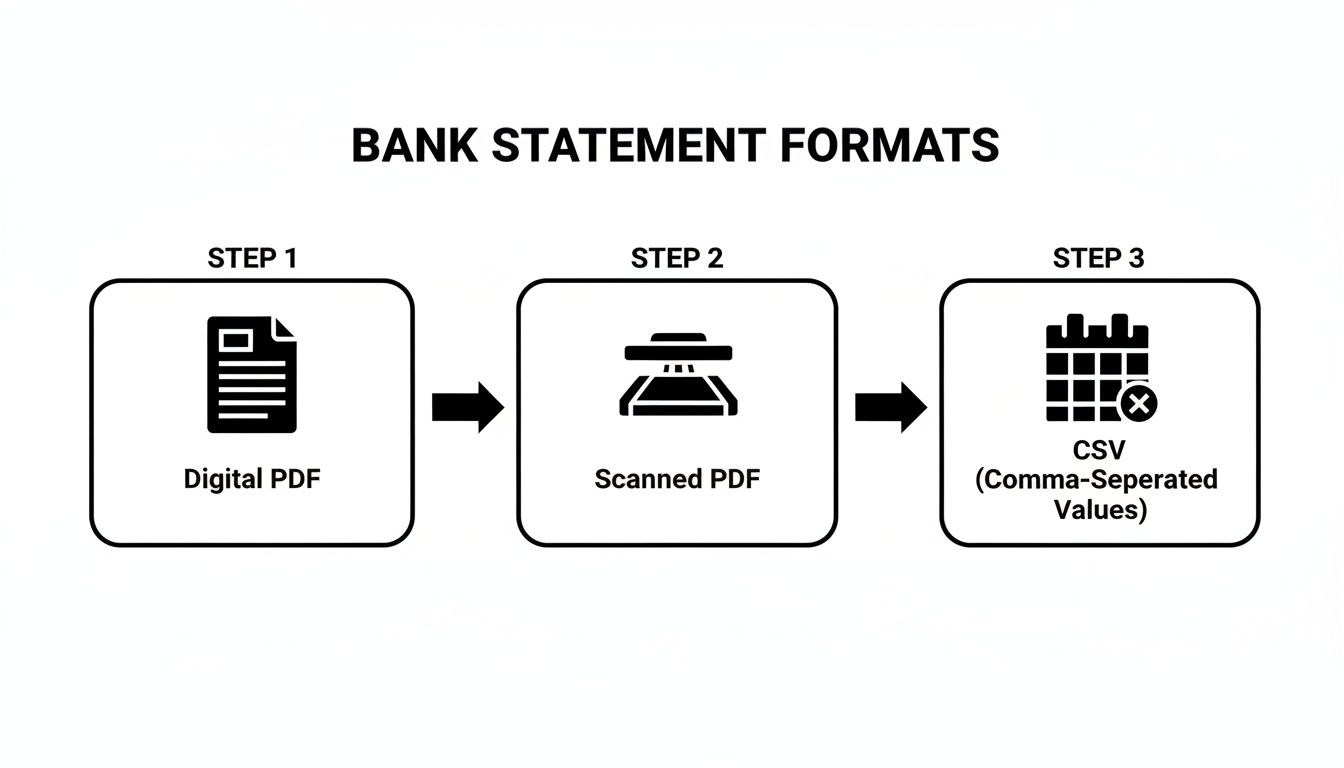
As you can see, whether you start with a digital PDF, a scanned image, or a CSV, the destination is always structured data. The path just changes depending on the source.
Cleaning and Normalizing for Total Accuracy
Getting the data out is only half the job. Raw data is often messy. That’s where normalization and cleaning come in, taking decent data and making it perfect.
The real goal here is to create a dataset you can immediately use for analysis, budgeting, or uploading to accounting software. If you don't clean the data properly, you're just moving the same old problems into a new file.
A solid converter automates a lot of this cleanup. For instance, it will standardize all dates into a single format (like YYYY-MM-DD) so Excel can easily sort and filter them. It also strips out currency symbols and commas, leaving only numbers in the amount columns for accurate calculations.
To make sure your final Excel file is impeccable, it’s a good idea to follow smarter data cleaning best practices. This final polish is what makes the data truly reliable.
From Preview to the Final Excel Export
Before you export, any decent tool will give you a preview of the converted data. This is your chance to give it a quick once-over and spot any obvious mistakes or columns that don't look right. This is especially helpful when you’re working with CSV files, as it lets you confirm all your columns were mapped correctly. If you work with that format a lot, you might find our guide on converting a https://www.DigitalToolpad.com/blog/csv-file-to-xlsx useful.
Once you’re happy with the preview, the last step is just a single click. The tool generates a perfectly formatted XLSX file, with all your transactions lined up in neat rows and columns, ready for whatever you need to do next.
Advanced Techniques for Spot-On Financial Data
Getting your transactions out of a PDF and into Excel is a great start, but the raw data is rarely ready for serious analysis. To get a truly reliable picture of your finances, you’ll need to do a bit of clean-up work. It’s the difference between a rough draft and a polished final report.
Think of it like building a house. The conversion gets the frame up, but now we need to add the finishing touches—merging different statements, hunting down pesky duplicates, and running a final check to make sure every dollar is where it should be.
Merging Multiple Statements into One Master File
Most of us receive bank statements monthly. That’s great for a quick look, but for year-end tax prep or long-term financial planning, you need everything in one place. Trying to copy and paste 12 different files together manually is just asking for mistakes and a major headache.
Here’s a much more reliable way to consolidate your data:
- Convert Each Statement Individually: First, run each PDF or CSV statement through your bank statement converter to excel, saving each one as a separate Excel file. This gives you a clean starting point for each month.
- Create a Master Workbook: Open a brand-new, blank Excel workbook. This will be your single source of truth.
- Consolidate the Data: Open one of your converted files, copy only the transaction data (skip the headers after the first file), and paste it into your master sheet. Repeat this for all your statements until everything is in one place.
This approach keeps your original converted files intact as a backup and consolidates everything neatly. If you’re curious about how different data formats are structured, our article on converting XML to JSON dives into similar principles that are useful for anyone managing complex data.
Hunting Down and Eliminating Duplicate Transactions
Duplicate entries can completely throw off your financial reports, and they’re surprisingly common. They often pop up when statement periods overlap. For example, a transaction from January 31st might show up on both the January and February statements. If you just merge the two files, you've just counted that expense twice.
Thankfully, Excel has a powerful, built-in tool for this: "Remove Duplicates."
- Select Your Data: In your master spreadsheet, highlight the entire range of your transaction data.
- Go to the Data Tab: Find the "Data" tab on the Excel ribbon and click the "Remove Duplicates" icon.
- Choose Your Columns: A small window will pop up. Here, you need to tell Excel what makes a transaction unique. I’ve found that checking the boxes for Date, Description, and Amount is usually enough to catch any real duplicates.
Excel will instantly scan your data for rows where those three columns match perfectly and will delete any extras it finds. It’s a one-click fix that can save you from a world of pain later.
Always run this check after merging multiple statements. It’s a non-negotiable step for data integrity. This single action ensures your final totals are accurate and trustworthy for budgeting or reporting.
Performing a Quick Reconciliation in Excel
This is the final checkpoint. A quick reconciliation confirms that the totals in your shiny new Excel file actually match the summary numbers on your original bank statements. It’s a simple validation that gives you 100% confidence in your data.
A PivotTable is the fastest way to do this.
- Insert a PivotTable: Select your clean, de-duplicated data, then go to Insert > PivotTable.
- Configure the Fields: In the PivotTable Fields pane, drag your "Deposits" (or "Credits") field into the Values box. Then, do the same for your "Withdrawals" (or "Debits") field. Make sure both are set to Sum.
The PivotTable will instantly give you the grand totals for all money in and all money out. Now, just pull up your original bank statements and compare those numbers. If they match, you're golden. Your data is officially verified and ready for anything you can throw at it.
Automate Your Workflow with Batch Processing
For anyone who’s ever stared down a pile of statements at year-end, you know the pain of converting them one by one. It’s a massive bottleneck. This is where a modern bank statement converter to Excel truly shines, and it’s all thanks to batch processing. Forget the tedious, file-by-file slog. You can now process dozens of documents at once, completely changing the speed of your work.
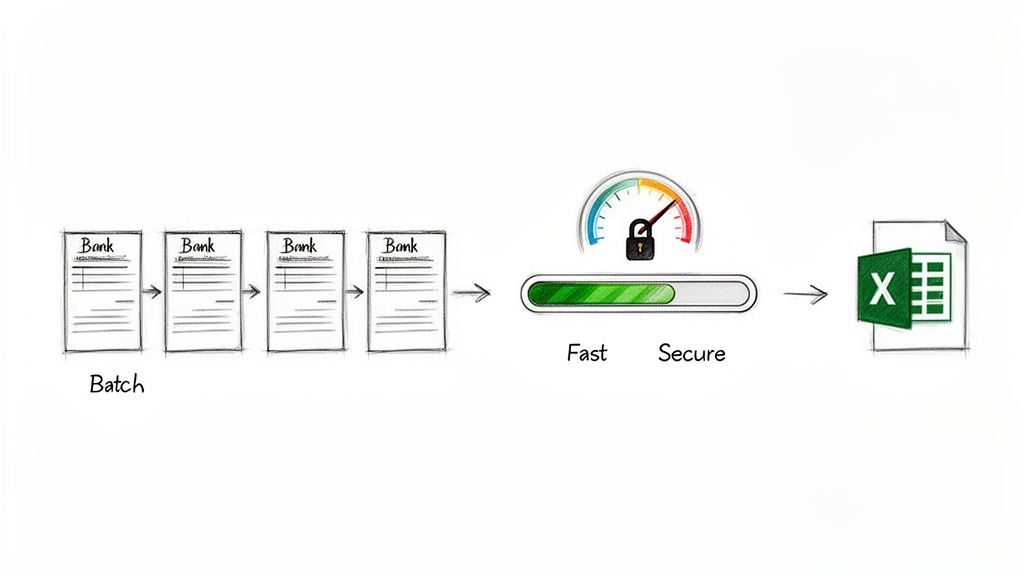
Think about an accountant closing the books for a client. That’s 12 monthly statements right there. Done manually, it could easily chew up a whole day. With batch conversion, you just select all the files, hit go, and the whole job is done in minutes.
The Power of Bulk Conversion
The time savings are staggering. I’ve found this approach to be a lifesaver in a few key situations:
- Quarterly or Annual Reporting: Imagine converting an entire year's worth of statements from multiple bank accounts in one single action. It’s a game-changer.
- New Client Onboarding: You can instantly get a complete financial picture by processing years of historical statements for a new client.
- Audits and Investigations: Need to digitize a mountain of old financial records for a review? Batch processing makes it fast and manageable.
When you handle documents in bulk, you get back hours you can put toward work that actually matters, like analysis and advising your clients. It shifts you from being a data entry clerk to a high-value financial expert.
This move away from manual drudgery is happening everywhere. Accountants and business owners are ditching old methods that used to take up to 10 hours per statement. It’s no surprise converter tools are now handling over 5 million conversions monthly. A huge reason for this shift is batch processing, with people reporting it can slash their reconciliation time by up to 85%. You can dig into the numbers yourself by exploring the data on these powerful bank statement conversion tools.
Keeping Batch Processing Secure
Of course, when you’re dealing with large volumes of data, security is a major concern. The idea of uploading a folder full of sensitive financial documents to some random cloud server is enough to give anyone pause.
This is exactly where offline, browser-based tools have a massive edge.
When you use an offline converter, the entire batch process happens locally on your computer. From the moment you select the files to the final Excel export, not a single byte of your clients' financial data ever touches the internet.
This local-first approach means you can process huge quantities of statements with total confidence. You get all the speed and efficiency of automation without ever risking the security and privacy of the financial data you’re responsible for. It’s the perfect blend of high-powered efficiency and rock-solid protection.
Questions We Hear All the Time
When you're wading through bank statement conversion, a few questions always pop up, especially when it comes to security and different file types. Let's walk through the most common ones so you know exactly what to look for and how these tools really work.
Is It Really Safe to Use an Online Bank Statement Converter?
That's the big one, isn't it? And the honest answer is: it completely depends on how the tool is built. Many online converters ask you to upload your bank statements directly to their servers. This is a huge red flag for me, as it means your sensitive financial data is sitting on someone else's computer, even temporarily, which opens it up to potential security breaches.
The safest approach, by far, is to find a converter that runs entirely offline. These tools work right inside your web browser, meaning your files are processed locally on your own machine. Your data never leaves your computer. This simple difference gives you complete peace of mind and eliminates the risk of your private information being exposed.
Can These Tools Actually Read Scanned PDFs?
Absolutely. A good converter will have Optical Character Recognition (OCR) technology built-in, specifically for turning scanned documents and image-based PDFs into usable data. Think of OCR as a smart assistant that reads the text off the image and converts it into something Excel can understand.
Now, the quality of the OCR output really hinges on the quality of your scan. A crisp, high-resolution scan will give you near-perfect results. If you're working with a blurry or crooked statement, you might need to do a little bit of cleanup afterward. But even then, a solid OCR tool will save you a massive amount of time compared to typing everything out by hand.
Your statement doesn't need to be perfect for OCR to work. Even moderately clear scans can be processed with high accuracy, turning what would be hours of manual entry into a few minutes of review.
What’s the Best File Format for My Accounting Software?
While Excel (XLSX) is perfect for digging into the numbers and running your own analysis, most accounting platforms like QuickBooks or Xero won't import it directly. They usually prefer simpler formats like CSV (Comma-Separated Values) or OFX (Open Financial Exchange).
A truly flexible converter should let you export to multiple formats. In my experience, CSV is often the most foolproof option. It’s a clean, universally accepted format that accounting systems can easily map to the right fields (Date, Description, Amount, etc.). Before you start converting, it’s always smart to double-check your accounting software's import guide to see which format it prefers for a smooth transfer.
Ready to convert your bank statements securely and efficiently? Try the offline tools from Digital ToolPad, which process all your data directly in your browser, ensuring your financial information remains completely private. Get started at https://www.digitaltoolpad.com.