If you've ever had to get data from a bank statement into a spreadsheet, you know the drill. A good bank statement to excel converter is a game-changer, turning a mountain of PDF data into a neat, usable Excel file without all the manual copy-pasting. The best ones do this completely offline, right in your browser, so your financial details never touch an outside server.
Why Manual Data Entry Is Holding You Back
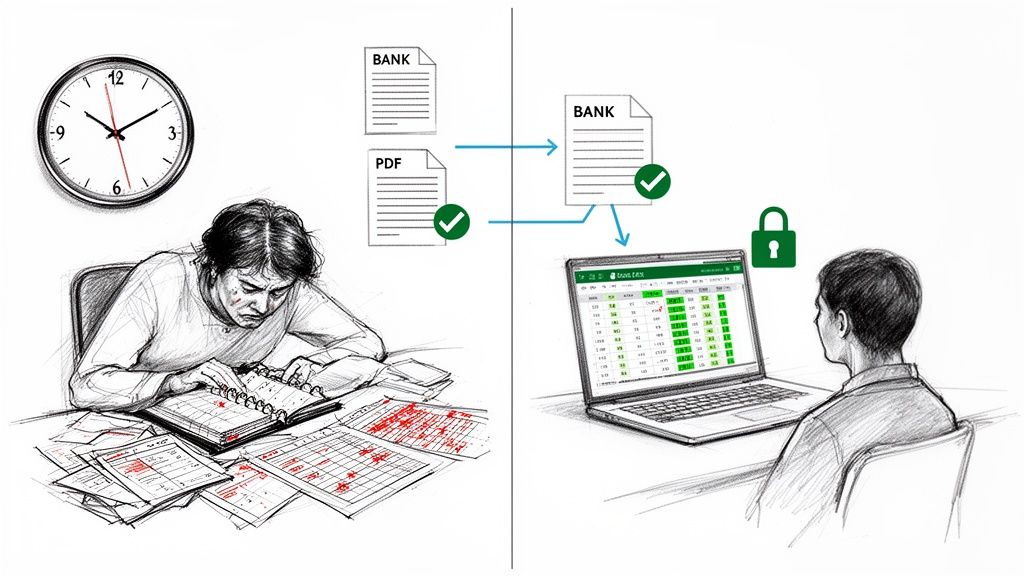
Keying in transactions by hand feels like you're getting work done, but it's a trap. It’s a deceptive time sink, and the hidden costs are a killer. The problem isn't just the hours you lose typing; it's the inevitable human errors that creep in.
A single misplaced decimal or a couple of swapped numbers can throw your entire reconciliation off. Suddenly, a straightforward task turns into a maddening hunt for a tiny mistake buried in rows of data.
Think about it. You spend a whole afternoon trying to figure out why your budget is off by $45, only to find you typed "50.00" instead of "5.00" on a transaction from two weeks ago. For an individual, it's frustrating. For a small business, these kinds of mistakes can lead to incorrect tax filings, bad cash flow projections, and misinformed decisions. All that time spent fixing a preventable error is time you could have spent actually analyzing your finances or growing your business.
The True Cost of Manual Workflows
Here’s the real issue with manual data entry: it makes you focus on the process, not the purpose. Your goal isn't to just get numbers into a spreadsheet; it's to understand what those numbers are telling you. But when you’re bogged down by the sheer mechanics of transcription, all your mental energy goes into just getting it right, not into analysis.
A secure bank statement to excel converter completely flips this on its head. It handles the tedious, error-prone part of the job for you, spitting out clean, structured data in seconds. This shift gives you a few massive advantages:
- Guaranteed Data Integrity: Automation gets rid of typos and transposition errors. Your financial records will be a perfect mirror of your statements.
- Reclaimed Time and Focus: Instead of spending hours on data entry, you can jump straight into categorizing expenses, spotting spending trends, and making smart financial moves.
- Enhanced Security: When you use an offline tool like Digital ToolPad, your sensitive financial data never leaves your computer. This shields you from the security risks of uploading files to random websites.
Shifting from manual entry to an automated, offline converter isn't just about saving time—it's about reclaiming control over your financial data and workflow. You move from being a data transcriber to a data analyst, which is where the real value lies.
In the end, making the switch to a converter is a strategic decision. It’s a direct investment in accuracy, security, and most importantly, your own valuable time.
Choosing the Right Conversion Method for Your Data
When you need to get bank statements into Excel, you'll quickly hit a fork in the road. Not all converters are built the same, and the tool you pick has massive implications for your data's security and privacy. The decision really boils down to one simple question: where does the conversion actually happen?
On one side, you have cloud-based AI converters. These services ask you to upload your sensitive financial documents to their servers. While they can be powerful, this approach adds a layer of risk that's hard to ignore. Every time you hit 'upload,' you’re trusting a third party with your data, creating a potential point of failure.
Then there's the other option: an offline, browser-based converter. This is the approach we champion with tools like Digital ToolPad. It keeps everything local. The entire process—from reading the PDF to creating the final Excel file—happens right there on your own computer. Your bank statement never leaves your device, which completely eliminates any server-side risks.
The Cloud Conundrum: Data Privacy Risks
Let's be honest, uploading financial statements to some unknown server feels a bit unsettling, and for good reason. Even with promises of encryption, the moment your data is in transit or stored on someone else's server, you've lost absolute control. A data breach on their end could expose everything: your transaction history, account numbers, and personal details.
This isn't just a hypothetical problem. For businesses, especially those handling client data, this can create serious compliance headaches. Financial data regulations are strict, and a breach can lead to steep fines and a permanent loss of client trust.
The Offline Advantage: Keeping Your Data Yours
An offline bank statement to excel converter neatly sidesteps all these issues. By processing files locally within your browser, it creates a genuinely private workflow. No upload. No server. No data transmission. This local-first approach brings some clear, immediate benefits.
- Total Privacy: Your financial information stays confidential because it never leaves your machine. This is the highest standard of data security possible.
- Zero Latency: With no upload or download times, conversions feel almost instant. The only limit is your computer's processing speed, not your internet connection.
- Offline Accessibility: You can convert statements anywhere, anytime, even without an internet connection. It’s perfect for working on the go or in places with spotty Wi-Fi.
The core difference is simple: with a cloud tool, you're asking for permission to manage your data. With an offline tool, you retain full ownership and control from start to finish. For sensitive financial documents, that distinction is everything.
The growing demand for bank statement converters highlights a bigger trend toward financial automation, but it also brings data sovereignty to the forefront. The market serves everyone—from freelancers tracking expenses to large firms processing millions of transactions. When you're looking at different options, a good guide on choosing the right bank statement converter software can help you weigh the core features.
To make the choice clearer, here’s a direct comparison of the two approaches.
Cloud-Based AI vs. Offline Browser-Based Converters
| Feature | Cloud-Based AI Converter | Offline Browser-Based Converter (e.g., Digital ToolPad) |
|---|---|---|
| Data Privacy | Relies on third-party server security. Data is uploaded and processed externally. | Maximum privacy. All processing happens locally on your device; data never leaves. |
| Security Risk | Potential exposure from data breaches, server misconfigurations, or transit vulnerabilities. | Minimal risk. No data transmission or external storage eliminates server-side threats. |
| Internet Requirement | Required for uploading files and receiving results. | Not required. Works entirely offline after the initial page load. |
| Processing Speed | Dependent on internet speed, server load, and file size. Can have latency. | Near-instant. Limited only by your computer's local processing power. |
| Accessibility | Accessible from any device with an internet connection, but requires an upload each time. | Accessible anywhere, anytime, without needing an internet connection. |
| Best For | Users comfortable with cloud-based workflows who need advanced AI features. | Security-conscious individuals, businesses, and anyone handling sensitive financial data. |
Ultimately, choosing the right tool comes down to your risk tolerance and workflow. While cloud tools might offer certain conveniences, the security and privacy offered by an offline, browser-based converter provide invaluable peace of mind.
For a deeper dive into how we handle data securely, check out our guide on how our bank statement converter works.
How to Convert Bank Statements Securely Offline
Alright, let's move from theory to practice. Securely converting a bank statement to Excel is all about keeping your financial data under your control from start to finish. When you use an offline tool, the entire process happens locally in your browser—nothing ever gets uploaded to a remote server, which is exactly what we want.
The whole idea is to create a closed-loop system on your own machine. Your data flows from a PDF on your computer, gets processed on your computer, and is saved as an Excel file right back onto your computer.
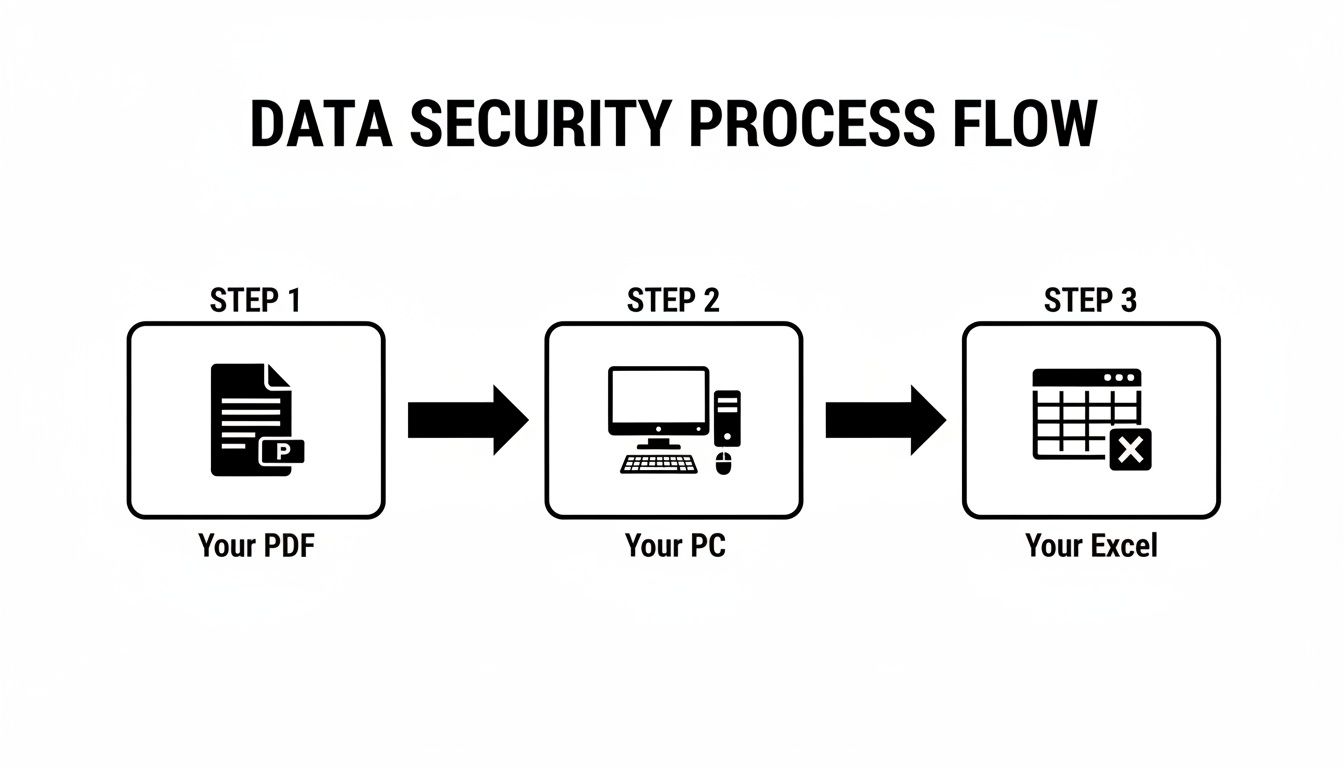
By cutting out external servers, you instantly eliminate the single biggest security risk in the entire conversion process.
First, Know Your File: Digital vs. Scanned PDFs
Before you can convert anything, you have to know what you're working with. Not all PDFs are the same, and the type of file you have dictates how the tool will read it. Your bank statements will almost always fall into one of two categories.
- Digital PDFs: These are the gold standard. Your bank generates them directly, so the text inside is already machine-readable, much like a Word document. A converter can simply parse this data in a flash.
- Scanned PDFs: Think of these as photographs of a paper statement. If you scan a physical copy, the PDF contains an image, not actual text. To pull data from these, the tool has to work a bit harder.
A good offline bank statement to excel converter should handle both types without you having to think about it. For scanned documents, it will automatically fire up its Optical Character Recognition (OCR) engine to "read" the image and reconstruct the text. For the cleanest OCR results, always start with a high-quality scan (300 DPI is a good benchmark) that's straight and free of shadows.
Pro Tip: If you have the option, always download the original digital PDF from your bank's website. It skips the need for OCR entirely, guaranteeing the highest accuracy and the fastest possible conversion.
Extracting and Normalizing the Transaction Data
Once the tool can read the text—either by direct parsing or through OCR—the real magic happens. Bank statements are notoriously inconsistent; every bank has its own layout, column names, and date formats. A smart converter has to cut through this chaos to produce a clean, organized spreadsheet.
This usually unfolds in a few key stages:
- Layout Detection: The tool first scans the document's structure to find the actual transaction table, intelligently ignoring all the noise like headers, footers, and marketing fluff.
- Column Mapping: Next, it identifies the columns that matter: Date, Description, Debits, and Credits. It's built to recognize common variations, like "Withdrawals" instead of "Debits," so it doesn't get tripped up.
- Data Normalization: This is where the cleanup happens. The tool standardizes the extracted data, removing currency symbols from number columns so you can run calculations in Excel and converting different date formats (like "Jan 05, 2024" or "05/01/2024") into one consistent format.
This normalization step is what makes the final Excel file instantly usable for budgeting or analysis, saving you from the headache of manual cleanup.
Validating and Reconciling Your Output
When you're dealing with financial data, accuracy is everything. A single mistake can throw off your entire analysis. That’s why a reliable bank statement to excel converter doesn't just extract data; it validates it.
A common and powerful validation method is to check the running balance. The tool calculates the balance after each transaction and compares its own math to the balance printed on the statement. If the numbers match line for line, you can be confident the extraction was 100% accurate.
This self-auditing feature is a huge deal. It’s your confirmation that no transactions were missed, duplicated, or misread, which is especially critical for multi-page statements where page breaks can cause problems. If you're interested in the security principles at play, you can learn more about what end-to-end encryption means and see how local processing provides a similar level of data protection.
Handling Complex and Multi-Account Statements
In the real world, things get messy. You might have a single PDF that contains statements for both your checking and savings accounts, or one that runs for dozens of pages. A professional-grade offline converter is built for these exact scenarios.
For multi-account PDFs, a smart tool can tell where one account's transactions end and another's begin. It will automatically split them into separate, clearly labeled tabs within the final Excel workbook.
And for those long, multi-page statements, the converter seamlessly stitches the transaction tables together. It knows the table on page two is just a continuation of the one on page one, creating a single, unbroken list of transactions in your spreadsheet. This is a massive time-saver, preventing you from ever having to manually copy and paste data from separate files again.
Working Through Common Conversion Problems
Even the best bank statement to excel converter can hit a snag now and then. But don't worry—most issues are surprisingly easy to fix once you know what you're looking for. I've been doing this for years, and I can tell you that nearly every problem boils down to one of two things: a low-quality input file or a really funky statement layout that needs a little manual guidance.
Let's walk through the most common headaches and how to solve them, so you can get a perfect conversion every time.
Fixing Garbled Text from Scanned Statements
Have you ever converted a scanned statement and ended up with an Excel file full of gibberish? Maybe numbers are missing, or letters are swapped for symbols—like an L where a 1 should be. This is a classic symptom of a poor OCR (Optical Character Recognition) scan.
OCR is the magic that turns a picture of text into actual text, and its accuracy depends entirely on the quality of the image it's reading. A blurry, crooked, or poorly lit scan is a recipe for disaster.
Here’s what I do to fix it:
- Rescan at a Higher Resolution: This is the most important step. Always scan your paper statements at 300 DPI (dots per inch) or higher. That single change provides the crisp detail the OCR engine needs to do its job right.
- Check Your Lighting and Alignment: Make sure the statement is lying completely flat on the scanner bed. Avoid shadows, especially over the transaction table. A straight, evenly lit document is a happy document.
A clean, high-quality scan is the foundation for a good conversion. Seriously, spending an extra 60 seconds to get the scan right can save you a half-hour of manual data entry later. It’s always worth it.
Correcting Misaligned Columns and Mapping Errors
Every so often, a converter gets confused by a bank's unique column layout. You might see transaction descriptions spilling into the "Debit" column or dates showing up in the wrong place. This usually happens with statements from smaller banks or credit unions that don't follow a standard format.
Thankfully, a solid offline tool like Digital ToolPad won't leave you stranded. It gives you manual mapping controls to step in and tell the software exactly what's what. You get to be the boss.
Here’s a real-world example: Imagine your statement has columns labeled "Transaction Detail," "Funds Out," and "Funds In." The automatic detection might struggle, but you can quickly fix it by manually mapping the columns like this:
- Map "Transaction Detail" to the Description field.
- Map "Funds Out" to the Debit field.
- Map "Funds In" to the Credit field.
Once you’ve defined these rules, the tool applies them to the entire document, and just like that, everything lines up perfectly.
Dealing with Password-Protected and Multi-Page PDFs
Password-protected PDFs are a common security measure for financial documents, but they’ll stop a converter cold. Before you can process the file, you have to remove the password. An easy way to do this is to open the PDF, enter the password, and then "print" it to a new, unprotected PDF file using your computer's built-in PDF printer.
Multi-page statements can also throw a curveball. Sometimes a page break cuts right through the middle of the transaction table, causing the software to miss some of your data. If you notice missing transactions, check if they were located at the bottom of a page. While the best tools are built to handle this, a good old-fashioned workaround is to split the PDF into individual pages. For a detailed walkthrough on this, check out our guide on how to separate PDF pages.
Advanced Tips for Power Users and Accountants
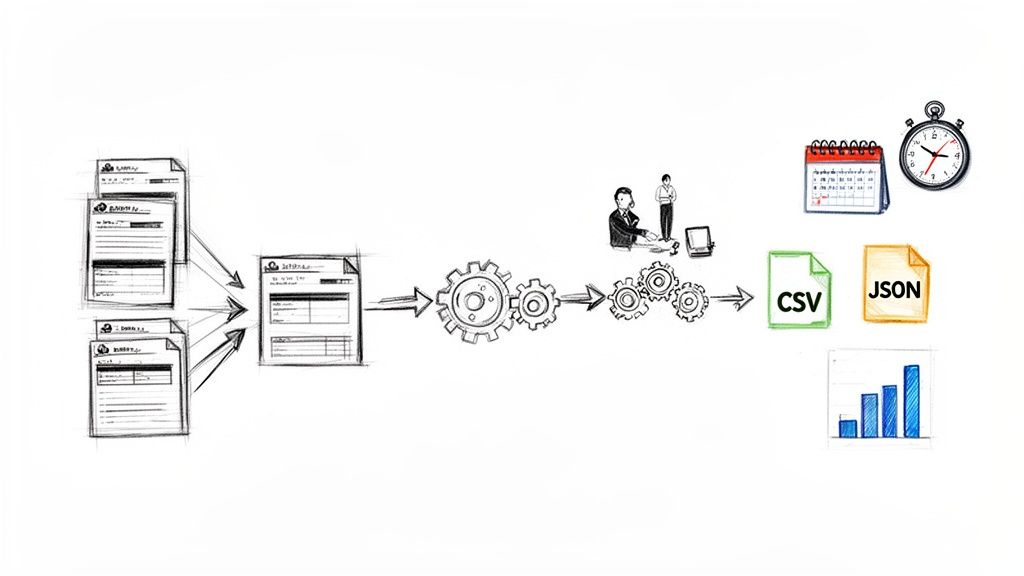
Once you get past converting a single statement here and there, you start seeing the real potential. For accountants, bookkeepers, and savvy business owners, a bank statement to excel converter isn't just a simple utility—it becomes the engine driving a much more efficient financial workflow. This is where you graduate from basic data extraction to real automation and integration.
The mission changes. It's no longer just about getting numbers into a spreadsheet. It's about prepping that data for its next stop, whether that's your accounting software, a custom analytics dashboard, or a secure long-term archive. You're making the data work for you, not the other way around.
Mastering Batch Processing for Multiple Statements
If you’re juggling the books for multiple clients or several different business accounts, processing statements one at a time is a killer of productivity. This is where batch processing isn't just a nice-to-have; it's essential. Picture this: you've got a dozen PDF statements from different banks for one client's quarterly review.
Instead of slogging through the conversion process twelve separate times, a capable offline tool lets you drag and drop all the files in one go. The converter chews through the entire batch in a single operation, handing you back a massive chunk of your day.
- Serious Time Savings: A task that used to eat up an hour of repetitive clicking can be wrapped up in just a few minutes. That frees you up for higher-value work like analysis and advising clients.
- Rock-Solid Consistency: Batch processing means every statement is converted using the exact same rules and formatting. The result is standardized, clean data you can trust, every single time.
This isn't just about convenience. It’s a fundamental change in how you handle your workload. For accounting pros, batch conversion can slash reconciliation time by a staggering 70-80%, transforming a tedious chore into a quick, automated task.
Expanding Beyond Excel With Alternative Formats
While Excel is the old standby for many, it’s not always the final destination for your financial data. Modern workflows need data that's portable and can be easily fed into other systems. That's why the ability to export to different formats is so critical for any power user.
A truly robust bank statement to excel converter should also give you other key formats:
- CSV (Comma-Separated Values): Think of this as the universal language for data. A CSV file can be imported into pretty much any accounting software (like QuickBooks or Xero), database, or even a custom script.
- JSON (JavaScript Object Notation): If you're a developer or part of a team with a custom-built financial dashboard, JSON is your best friend. It’s lightweight, easy for humans to read, and perfect for API integrations or web apps.
For instance, an accountant could batch-convert 20 PDF statements into a single, consolidated CSV file. That file can then be uploaded directly into their client's accounting software, populating the transaction ledger instantly—no manual data entry required. Beyond just the conversion, a key reason power users do this is to reconcile bank statements, making sure the internal books are a perfect match with the bank's records.
Using Converted Data for Deeper Financial Analysis
Let's be honest, the whole point of converting your statements is to unlock the insights trapped inside those PDFs. Once your transactions are neatly organized in a format like Excel or CSV, you can perform powerful analysis that would be next to impossible otherwise.
A great first step is adding a "Category" column to your spreadsheet. Go through each line item and assign a category, like "Office Supplies," "Client Travel," "Software Subscriptions," or "Utilities." This one simple action turns a raw list of transactions into a powerful budgeting tool.
With your data all categorized, you can:
- Build Pivot Tables: Quickly summarize spending by category to get a crystal-clear view of where your money is going each month.
- Track Budget vs. Actuals: Pit your spending against your budget to spot overages and find new opportunities to save.
- Simplify Tax Prep: When tax season hits, you can instantly filter for every tax-deductible expense, saving you and your accountant hours of headaches.
The market for these tools has exploded as financial professionals demand more efficiency. Top-tier platforms now support over 1,000 banks and boast accuracy rates as high as 99.9%—a crucial benchmark when your business relies on that data. Processing is lightning-fast, often taking less than 30 seconds per statement, and robust security is now a standard feature. To see how these platforms are helping over 50,000 businesses, you can check out tools like BankConv.com. This evolution has cemented the bank statement converter as an indispensable tool in any modern financial tech stack.
Common Questions About Converting Bank Statements to Excel
When you're dealing with sensitive financial data, it's natural to have questions. You want to know if the process is safe, what happens when you hit a snag, and how accurate the final result will be. Let's walk through some of the most common questions people ask before they start converting their bank statements.
We've pulled together the queries we hear most often to give you clear, straightforward answers. The goal is to make sure you feel completely comfortable with the process, especially when using an offline tool.
Is it actually safe to use a bank statement converter?
This is the big one, and the answer comes down to one crucial detail: where the conversion happens. The difference between an online cloud-based tool and an offline one is night and day for security.
If a tool asks you to upload your statement, you're sending your private financial data over the internet to a third-party server. That introduces a security risk you just don't need to take.
For true peace of mind, an offline, browser-based converter is the only way to go. A tool like Digital ToolPad runs entirely on your local machine. Your bank statement never leaves your computer, is never transmitted online, and never touches an external server. This approach completely sidesteps any server-side security vulnerabilities.
Can these tools handle my scanned PDF statements?
Absolutely. A good converter is built to handle both "born-digital" PDFs and scanned, image-based ones. For scanned documents, the tool uses a technology called Optical Character Recognition (OCR) to "read" the text from the image of the page.
Just remember, the accuracy of the OCR depends entirely on the quality of the scan. For the best results, make sure your scan is clear, straight, and has a resolution of at least 300 DPI. If you ever get a wonky conversion from a scan, the fix is almost always rescanning it at a higher quality.
Here’s a simple rule of thumb: a clearer scan means a more accurate extraction. Spending an extra minute to get a crisp, legible scan is the single best thing you can do to guarantee a perfect result.
What if my bank's statement format isn't recognized?
While modern tools are trained on thousands of bank statement layouts, you might occasionally run into a unique format that trips up the automatic detection. A professional-grade bank statement to excel converter won't just throw up its hands and leave you stranded.
This is where manual mapping controls become your best friend. This feature lets you step in and point the software to the right columns—telling it, "This is the date column, this one is the description, here are the debits, and here are the credits." Once you set that mapping, the tool is smart enough to apply your rules to the rest of the statement, giving you a perfectly structured export.
How do these converters deal with different currencies?
A sophisticated converter will automatically identify and preserve currency symbols like $, €, or £ in the final Excel file. It pulls the numbers and their associated symbols exactly as they appear on your statement.
It's important to note, though, that the converter's job is to extract data, not perform calculations. It won't convert currencies for you. That part of the process—any currency conversions or other financial analysis—is best handled directly within Excel or your accounting software after you've imported the clean data.
Ready to convert your bank statements with total privacy and control? The Digital ToolPad suite of offline tools ensures your financial data never leaves your computer. Get started for free and experience a faster, more secure workflow today.