
Working with configuration files often means navigating between two worlds: the human-friendly world of YAML and the machine-friendly world of JSON. Converting YAML to JSON is a common task that bridges this gap, taking a clean, readable configuration and transforming it into the strict, universally understood format that APIs and software systems demand.
Why and When to Convert YAML to JSON
In development, choosing between YAML and JSON isn't about which one is "better" but which is the right tool for the job. The need to convert from YAML to JSON pops up when data created for human convenience needs to be fed into a system that thrives on rigid structure and speed. For anyone working with modern infrastructure, this is a daily reality.
YAML is king in the world of configuration management. Its clean, indented syntax is just plain easier for people to read and write. This is exactly why it's the go-to for tools like Kubernetes, Ansible, and Docker Compose. You can map out incredibly complex application stacks or infrastructure setups without drowning in a sea of brackets and commas.
But once that config is ready for a machine to process, JSON's strengths take center stage. JSON is, without a doubt, the language of web APIs. Its strict syntax is less prone to parsing errors and is natively understood by virtually every programming language and browser out there, making it perfect for data interchange.
The Performance Imperative
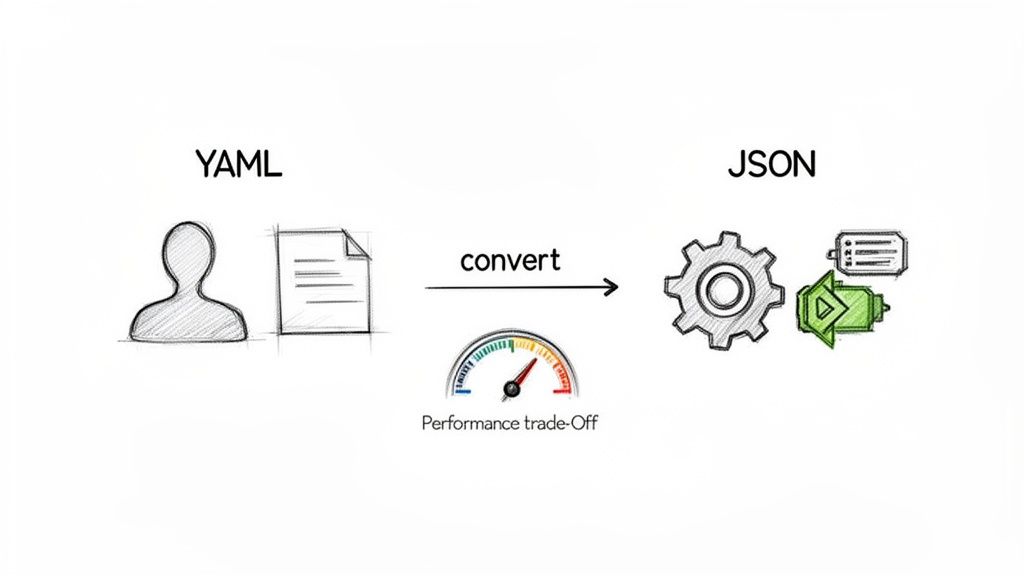
It's not just about compatibility; performance is a huge factor. The need to convert YAML to JSON has exploded alongside the rise of DevOps, largely because of YAML's dominance in tools like Kubernetes, which now runs container workloads for over 70% of Fortune 500 companies. This creates a constant need to translate those human-friendly configs into something a JSON-based API or monitoring dashboard can ingest.
Benchmarks consistently show that parsing JSON is 2-3x faster than YAML. For high-performance applications where every millisecond counts, that conversion is a non-negotiable step. For a deeper dive, you can explore the complete guide to YAML vs JSON.
This decision tree gives you a simple way to think about it:
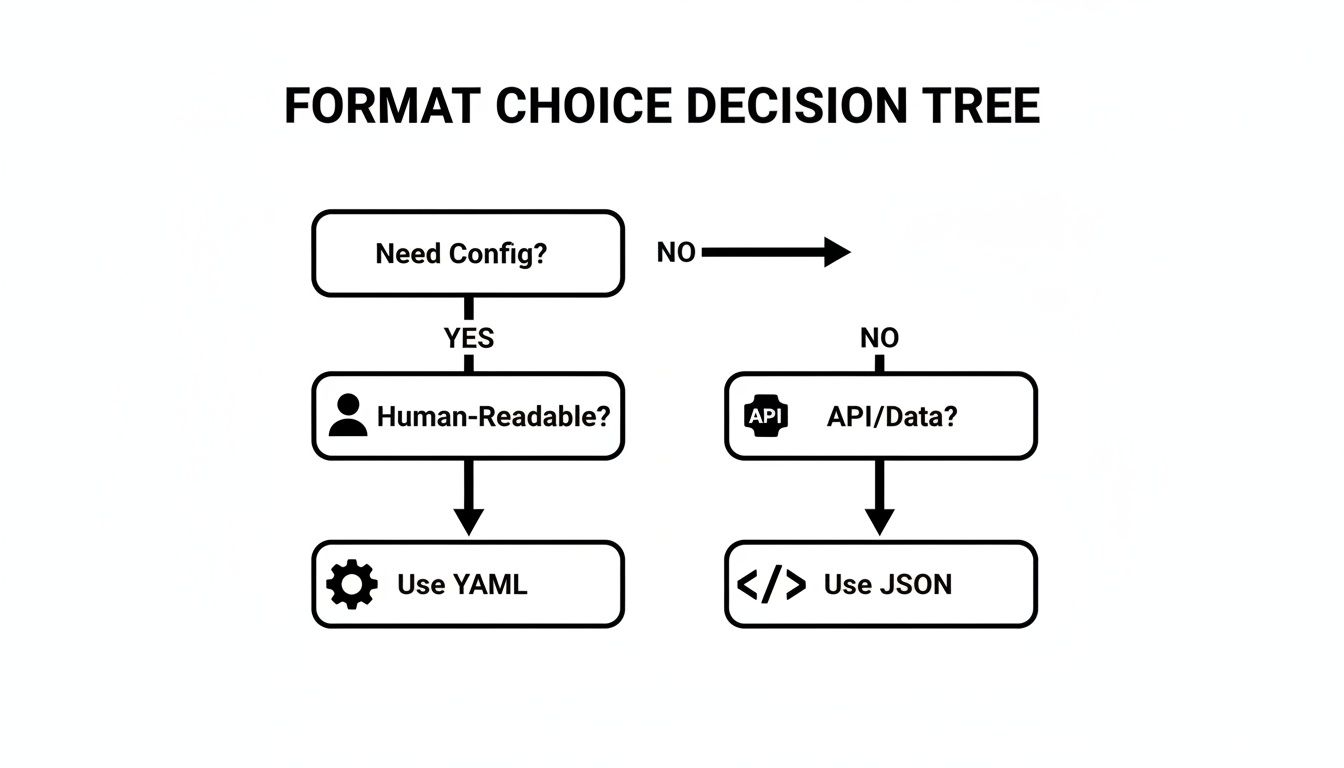
As the diagram shows, if you're writing configuration that a human needs to edit and understand, stick with YAML. If you're sending data between systems or through an API, JSON is your best bet.
YAML vs JSON Quick Comparison
To put it all in perspective, here's a quick breakdown of their core differences.
| Feature | YAML | JSON |
|---|---|---|
| Readability | High; uses indentation and minimal syntax. | Moderate; requires brackets, braces, and commas. |
| Data Types | Rich; supports nulls, dates, and custom tags. | Basic; supports strings, numbers, booleans, arrays. |
| Comments | Supported (#) |
Not supported. |
| Structure | Flexible; indentation defines structure. | Strict; requires explicit delimiters ({}, []). |
| Primary Use | Configuration files, infrastructure-as-code. | APIs, data interchange, web applications. |
| Performance | Slower to parse due to its complexity. | Faster and more efficient to parse. |
This table makes it clear why both formats have their place. You get the best of both by using YAML for its strengths and converting to JSON when its own advantages are needed.
Key Scenarios for Conversion
So, where do you actually see this in action? Here are a few real-world examples I run into all the time:
- CI/CD Pipelines: A pipeline might read a
docker-compose.ymlfile, convert it to a JSON object to programmatically inject environment-specific variables, and then pass that JSON to a deployment script. - API Payloads: An application might store its initial settings in a readable
config.yaml. Before sending those settings to a third-party REST API, it must first convert them into a JSON payload. - Data Analysis: Imagine a data pipeline that collects configuration logs written in YAML from dozens of microservices. To make sense of it all, the pipeline would convert those logs to JSON before loading them into a data warehouse for easier querying.
The core takeaway is this: Write configuration in YAML for clarity and maintainability. Convert to JSON for interoperability, speed, and broad system compatibility. This simple two-step process lets you leverage the best of both worlds.
Secure Conversion with Offline Browser Tools
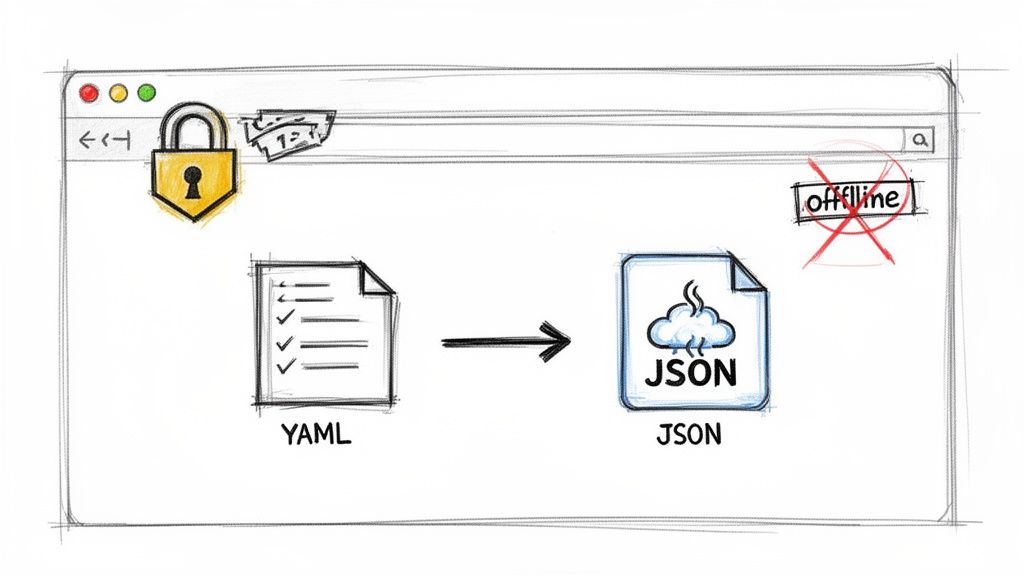
Let's be honest: pasting sensitive data into a random online converter is a huge security gamble. Think about it—application configs, infrastructure secrets, or proprietary data should never, ever be uploaded to a server you don't completely trust. This is exactly why offline, browser-based tools are such a game-changer.
These tools run entirely on your local machine. All the conversion logic happens right in your browser using JavaScript, which means your data never goes anywhere. It's not just about being fast; it's a critical security practice. By keeping everything local, you completely sidestep the risks of server-side logging, data breaches, or someone snooping on your data in transit.
The Privacy Advantage
If you work in an organization with strict data handling rules, this local-first approach isn't just a nice-to-have, it's a necessity. It fits perfectly with compliance frameworks like GDPR and SOC 2, which are all about maintaining control and privacy over company and user data. When no information leaves your computer, you maintain total data sovereignty.
Here’s why this matters so much:
- Zero Data Transmission: Your YAML and the resulting JSON never touch a remote server. Period.
- Instantaneous Results: With no network lag, the conversion is immediate. It’s as fast as your computer can handle it.
- Complete Confidentiality: This makes it perfect for converting sensitive stuff like Kubernetes secrets, API keys, or any config file with credentials.
The principle is simple but powerful: if your data never leaves your machine, it can't be compromised by a third-party service. For sensitive conversions, offline tools are really the only truly safe bet.
A Practical Example with Digital ToolPad
Let's walk through how this works with a tool actually built for privacy. A lot of us in the field use platforms like Digital ToolPad because their tools are designed to run offline, giving you a secure workflow you can count on. You just paste your YAML into one panel, and the JSON pops up instantly in the other—no network requests, no waiting.
Here's what it looks like when you use an offline converter for a typical configuration file.
As you can see, it's a straightforward, two-pane interface where your YAML input is immediately translated into structured JSON, all happening right there in the browser.
This instant, local feedback loop gives you the confidence that your data is staying put. On top of that, a really solid tool will also offer validation. If you're wrestling with complex files, using a dedicated offline YAML editor and validator can help you spot syntax errors before you even try to convert, which saves a ton of time and prevents headaches down the line. That combination of security, speed, and validation is what makes offline browser tools an indispensable part of any modern developer's toolkit.
When a quick browser-based conversion just won't do, it's time to bring the logic directly into your applications. Automating YAML to JSON conversion within your codebase is a standard practice, especially for dynamic systems that need to read configurations on the fly.
Think about a backend service firing up. It often needs to load settings from a human-friendly YAML file and immediately use them as a structured JSON object. This is where programmatic conversion becomes not just useful, but essential.
We'll dive into two of the most common environments for this job: Python and Node.js. Both have fantastic, well-supported libraries that make this process feel almost trivial.
This kind of automation is more than a simple convenience—it's a massive efficiency boost. In workflows involving AI and LLMs, where token costs can make or break a project, every bit of optimization counts. JSON is the lingua franca of APIs—used by 99% of REST APIs, according to a 2024 Postman report—while YAML’s slower parsing has fueled a huge demand for these conversion tools.
Just look at the numbers: Python's PyYAML library gets over 50 million downloads a year, a huge chunk of which is for building these exact kinds of automated data pipelines.
Converting YAML in Python
For any Python developer, the combination of PyYAML and the built-in json library is the bread and butter for this task. It's a clean and powerful way to grab a YAML file, parse it into a standard Python dictionary, and then dump it out as a JSON string.
First, you'll need the library if you don't already have it:
pip install pyyaml
Now for a real-world script. Let's say you have a config.yaml file that looks like this:
Application settings
api: host: "0.0.0.0" port: 8080 retries: 3 database: url: "postgres://user:pass@host/db"
Here’s how you can turn that file into a JSON string with just a handful of Python lines:
import yaml import json
Open and load the YAML file
with open('config.yaml', 'r') as yaml_file: # Use safe_load to avoid arbitrary code execution configuration = yaml.safe_load(yaml_file)
Convert the Python dictionary to a JSON string
json_output = json.dumps(configuration, indent=2)
print(json_output)
Pro Tip: Always, and I mean always, use
yaml.safe_load()instead of the basicyaml.load(). The standardload()function is a major security risk because it can execute arbitrary Python code if a malicious YAML file is passed to it. Stick withsafe_loadto stay secure.
Converting YAML in Node.js
Over in the JavaScript world, the yaml package is the top contender for parsing and stringifying YAML. It's incredibly feature-rich and supports both synchronous and asynchronous operations, so it fits perfectly into just about any application architecture.
Start by adding the package to your project:
npm install yaml
Using the same config.yaml from our Python example, here’s how you’d convert it to JSON synchronously in a Node.js script. This approach is perfect for loading initial app configurations at startup.
const fs = require('fs'); const YAML = require('yaml');
// Read the YAML file from disk const file = fs.readFileSync('./config.yaml', 'utf8');
// Parse the YAML content into a JavaScript object const doc = YAML.parse(file);
// Convert the object to a pretty-printed JSON string const jsonOutput = JSON.stringify(doc, null, 2);
console.log(jsonOutput); As you can see, it's pretty straightforward in both ecosystems to convert YAML to JSON programmatically. This turns what could be a manual headache into a seamless, automated part of your development workflow. And if you're working in a Windows environment and want to automate these kinds of tasks, learning how to run PowerShell scripts effectively can be a great next step.
Command Line Conversion for DevOps Workflows
If you spend your days in the terminal, you know that automation is king. When you need to convert YAML to JSON within a script or a CI/CD pipeline, doing it by hand is a non-starter. This is exactly where command-line interface (CLI) tools shine, collapsing a tedious task into a single, repeatable command.
The need for this conversion is everywhere in modern DevOps. Over 80% of cloud-native teams rely on YAML for its human-friendly configuration, but they often need JSON for machine-to-machine communication. Since Kubernetes launched in 2014, its adoption has skyrocketed, with an estimated 7.5 million developers now using it every week. They're all writing YAML that frequently needs to become JSON for API calls, and for good reason—enterprises have seen 40% faster analytics after standardizing on JSON for data processing.
Using yq for Fast and Simple Conversions
When it comes to command-line YAML processing, yq is my go-to tool. It's a lightweight, portable powerhouse built to do one thing and do it well. Its syntax is intentionally similar to jq, the legendary JSON processor, which makes it feel instantly familiar.
For a quick file conversion, it's just a one-liner. Let's say you have a Kubernetes config file called deployment.yaml. You can flip it to JSON instantly with this:
yq eval '.' deployment.yaml -o=json
Here, ' . ' tells yq to grab the whole document, while -o=json sets the output format. The command reads your YAML and spits out the JSON equivalent right to your standard output, which is perfect for piping into another command.
Chaining yq with jq for Advanced Manipulation
The real magic happens when you start chaining CLI tools together. While yq handles the conversion beautifully, jq is the master of filtering, slicing, and reshaping JSON data. Combining the two is a classic move in automation scripts.
For example, imagine you not only need to convert deployment.yaml but also pull out just the container image name from the resulting JSON. Instead of a multi-step process, you can just pipe the output from yq straight into jq:
yq eval '.spec.template.spec.containers[0].image' deployment.yaml -o=json
This single command converts the file and then navigates the JSON structure to extract a specific value. It’s an incredibly clean way to run automated configuration checks or grab data for other parts of your script. The output will be raw JSON, but if you need to make it more readable, take a look at our guide to pretty-print JSON.
For developers building out automation, creating solid scripts is everything. This mindset aligns perfectly with Infrastructure as Code best practices, which focus on building dependable and scalable systems from the ground up.
This yq and jq duo is a cornerstone of countless DevOps workflows. It offers a fast, scriptable, and reliable method for handling data transformations right where you work—the terminal.
Handling Complex YAML Features in Conversion
When you first convert YAML to JSON, the examples you find are usually straightforward key-value pairs. But let's be honest, real-world config files are rarely that simple. They're often packed with advanced YAML features that can trip up a basic conversion script, leaving you with mangled data or unexpected structures in your JSON.
Getting these complex conversions right is what separates a frustrating afternoon from a smooth, successful process. Features like multi-document streams, anchors, and custom tags are incredibly useful in YAML, but they don't have a direct one-to-one equivalent in JSON. You need to know how they translate.
Managing Multi-Document YAML Files
It's pretty common to find a single YAML file containing several distinct documents, all separated by three dashes (---). This is a go-to practice in tools like Kubernetes, where one file might define a Deployment, a Service, and an Ingress. If your converter is too simplistic, it might just grab the first document and completely ignore the rest.
The right way to handle this is to see the file for what it is: a stream of documents. When you convert it, that stream should become a JSON array. Each element in the array will represent one of the original YAML documents.
Take this multi-document YAML, for example:
Document 1: User Profile
name: Alex role: admin
Document 2: Application Settings
theme: dark notifications: true
A capable conversion tool knows exactly what to do and will output a single JSON array holding two objects:
[ { "name": "Alex", "role": "admin" }, { "theme": "dark", "notifications": true } ]
Demystifying Anchors and Aliases
Anchors (&) and aliases (*) are YAML's secret weapon for keeping your code DRY (Don't Repeat Yourself). You use an anchor to define a reusable chunk of data and an alias to reference it elsewhere in the file. It’s fantastic for keeping configs clean, but it means your converter has to be smart enough to resolve these references.
During the conversion, the tool effectively "unpacks" the alias, replacing it with the anchored content. The final JSON will have the data duplicated wherever the alias was used.
Let's look at this YAML using an anchor for database settings:
Define a reusable database config
db_defaults: &db_config adapter: postgres pool: 5
development: database: *db_config
production: database: *db_config
After conversion, the db_config block gets copied into both the development and production objects. The pointers are gone, replaced by the actual data.
{ "db_defaults": { "adapter": "postgres", "pool": 5 }, "development": { "database": { "adapter": "postgres", "pool": 5 } }, "production": { "database": { "adapter": "postgres", "pool": 5 } } }
The key takeaway is that YAML’s pointers are resolved during conversion. The final JSON will be more verbose, but it will accurately represent the fully expanded data structure.
Handling Custom Tags
Custom tags, which look like !my-tag, are a way to embed custom type information directly into your YAML. JSON doesn't have a built-in feature for this, so what happens during conversion depends entirely on the parser you’re using.
Some parsers might just strip them out, while others could convert them into a special string format or even a nested object to preserve that metadata. If keeping these tags is critical for your application, you'll need to find a tool or library that explicitly gives you control over how they're handled. For other tricky data transformations, you might find our guide on how to convert XML to JSON helpful for tackling similar challenges.
Advanced YAML Feature Conversion Cheatsheet
To help visualize how these more complex YAML structures map to JSON, I've put together this quick reference table. It’s a handy cheatsheet for anticipating the final JSON output.
| YAML Feature | YAML Example | Resulting JSON Structure |
|---|---|---|
| Multi-Document | doc1: val --- doc2: val |
A JSON array: [{"doc1": "val"}, {"doc2": "val"}] |
| Anchors & Aliases | anchor: &id val alias: *id |
The value is duplicated: {"anchor": "val", "alias": "val"} |
| Custom Tags | value: !my-type 123 |
Varies by tool; often stripped ("value": 123) or stringified. |
Merge Keys (<<) |
defaults: &d {a:1} config: {<<: *d, b:2} |
The default keys are merged: {"defaults": {"a":1}, "config": {"a":1, "b":2}} |
This table should give you a solid foundation for understanding what happens "under the hood" when you run a conversion. Knowing these patterns will save you a lot of time debugging unexpected JSON structures.
Common Questions About YAML to JSON Conversion
Even with the best tools, you’ll eventually hit a snag when converting YAML to JSON. It just happens. Let’s walk through some of the most common issues developers face and get you some practical answers so you can keep your project on track.
Can I Convert YAML to JSON and Keep the Comments?
The short answer is no. This isn't a limitation of the converter, but of JSON itself—the format simply has no concept of comments. When a parser reads your YAML file, it sees the # comments as non-essential and discards them because there’s no place to put them in the resulting JSON.
If those comments are critical for understanding the configuration, the best approach is to treat your original YAML file as the source of truth. Think of the generated JSON as a machine-readable artifact, not the primary document. While a few specialized tools might try to shoehorn comments into metadata fields, that's not a standard practice and will likely cause compatibility headaches down the road.
Expert Tip: Always maintain your well-commented YAML as the primary source file. The JSON output is just a temporary, functional representation for systems that need it. This workflow ensures you never lose valuable context.
Why Did the Key Order Change After Conversion?
This is a classic "gotcha" that catches many people off guard. Historically, the official JSON specification defined objects as an unordered set of key-value pairs. That meant parsers could re-sequence keys for their own internal optimization, and many older tools did exactly that. Your beautifully organized YAML could easily become a valid but jumbled JSON object.
Thankfully, most modern JavaScript engines and parsing libraries now preserve the key order by default. However, you can't assume this is universal across all environments and languages. If maintaining a specific order is crucial—maybe for generating consistent checksums or just for human readability—you need to be deliberate about the tools you use.
For example, in Python:
- The standard
PyYAMLlibrary doesn't always guarantee order with its default loader. - A library like
ruamel.yamlis built specifically to handle these details, preserving order, comments, and other nuances.
When order is a deal-breaker, double-check the documentation for your chosen library to make sure it supports it explicitly.
What's the Best Way to Validate YAML Before Converting?
Validating your YAML before you even start the conversion process will save you a world of debugging pain later. One tiny indentation error can invalidate the whole file. For a quick spot-check, an online linter works, but be mindful of pasting sensitive information into a public tool.
For a more robust and professional setup, automation is your friend. Integrate a linter like yamllint right into your CI/CD pipeline. This lets you automatically fail a build if a config file has syntax errors, duplicate keys, or bad formatting, catching issues long before they can cause trouble in production. Within your own application, most YAML parsing libraries will throw a detailed exception on invalid input, which you can catch and handle gracefully.
Ready to tackle your conversions with total confidence and privacy? The browser-based tools at Digital ToolPad run 100% offline, meaning your sensitive data never leaves your computer. Try our secure YAML to JSON converter today and experience a faster, safer workflow.