
A favicon generator is simply a tool that helps you create those little icons you see in a browser tab. An offline favicon generator, specifically, gives you a secure and quick way to crank out all the icons a modern website needs, all without ever having to upload your brand assets to some random server.
Why Developers Are Switching to Offline Favicon Generators
Sure, online tools are convenient, but that convenience comes with a hidden cost: your privacy and control. Every time you upload a logo to a public server—especially for a stealth-mode product or a confidential client—you're creating an unnecessary security risk. This is the big reason why so many professional developers and agencies are moving to a local-first workflow for creating favicons. An offline tool keeps your sensitive assets on your machine, period.
This isn't just a paranoid security take; it's about building a smarter, more efficient development process.
- Total Data Sovereignty: Your brand assets stay on your computer, which means zero exposure to data breaches or prying eyes on third-party servers. This is a core part of sound software development security best practices.
- Instant, Lag-Free Performance: When you cut out the upload and download cycles, icon generation is immediate. That little bit of saved time really adds up over dozens of projects and revisions.
- Repeatable, Deterministic Results: Offline tools are a perfect fit for automated build processes and CI/CD pipelines. You get the exact same output every single time, which is non-negotiable for production consistency.
- No Network Dependency: Need to generate a favicon package from a coffee shop with spotty Wi-Fi? No problem. You can work anywhere, anytime, without an internet connection.
The Problem with Cloud-Based Convenience
There's no denying the demand for these tools. A popular online service like favicon-generator.org pulled in over 93,000 global visits in just one month, which shows how often developers are reaching for a solution. But for teams working with proprietary designs, that reliance means trading data control for a little bit of speed. A local tool gives you all the speed without the compliance headaches. You can dig into traffic data like this yourself over at Semrush.com.
By processing assets locally, you take back complete control. It's the only way to guarantee that pre-launch logos, client branding, and other confidential visuals are never indexed, cached, or stored on a server you don't own.
At the end of the day, an offline favicon generator like the one in Digital ToolPad is about peace of mind. It slots right into a professional developer's toolkit, putting security, speed, and reliability ahead of the risks that come with cloud-based tools. It’s less a matter of preference and more of a strategic choice for modern web development.
Preparing Your Source Image for a Perfect Favicon
The quality of your final favicon is pretty much decided before you even think about a generator. If you start with a fuzzy, poorly-composed image, you're guaranteed to get a blurry, unprofessional result that just doesn't do your brand justice. Getting this foundational step right is the real secret to a crisp, recognizable icon.
Your best bet is to start with a high-resolution, square image. The gold standard here is a 512x512 pixel canvas. This size gives the generator plenty of detail to work with, ensuring it can scale down gracefully for those tiny formats—like the classic 16x16 pixel tab icon—without turning into a pixelated mess. If your logo isn't quite there, a simple browser-based tool like the Digital ToolPad image resizer can get it squared up perfectly.
Simplicity and Contrast Are Key
Think about where favicons actually appear: a crowded browser tab, a long bookmark list, maybe a mobile search result. They’re tiny. All those intricate details and subtle color gradients that look amazing on your landing page will just become an indecipherable smudge at 32x32 pixels.
- Simplify Your Logo: If your logo has a wordmark or tagline, drop it. Zero in on the most iconic, simple shape from your brand identity.
- Crank Up the Contrast: Make sure your foreground and background colors have a strong, clear difference. High contrast is what makes the icon pop and stay legible, even at its smallest.
- Use Your Negative Space: Don't feel the need to fill the entire 512x512 canvas. Leaving a little "breathing room" around the edges keeps the icon from feeling cramped and actually helps it stand out more.
A favicon isn't just a shrunken-down version of your full logo; it's a simplified symbol that represents it. The best ones are bold, simple, and instantly recognizable at a glance.
Choosing the Right Source Format
When it comes to the source file, you’ve got two main choices: PNG or SVG. A PNG is a raster image, which works great if your logo has specific textures or gradients. An SVG, on the other hand, is a vector file. It's perfect for simple, shape-based logos because it can be scaled to any size without losing a drop of quality. For most modern favicons, I'd recommend starting with a clean SVG if you have one.
It can also be helpful to see how other platforms handle their icons. For instance, looking at app icon size guidelines for mobile platforms shows just how critical precise dimensions are for good design. That core principle is universal—start with a well-defined source, and your brand will look sharp everywhere it appears.
Putting It All Together: Generating Your Favicon Package Locally
It wasn't too long ago that all you needed was a single favicon.ico file. Those days are long gone. Today's web requires a whole family of icons to make sure your brand looks crisp and professional everywhere, from browser tabs to mobile home screens. This is where we stop talking theory and start creating a full, production-ready favicon set using a secure, offline tool.
Our goal is simple: generate every necessary asset without sending your logo to a random server on the internet. We'll get that classic multi-resolution .ico file for backward compatibility, the essential PNGs for Apple and Android, and a sharp, scalable SVG for modern browsers.
Here’s a quick visual of the ideal workflow.
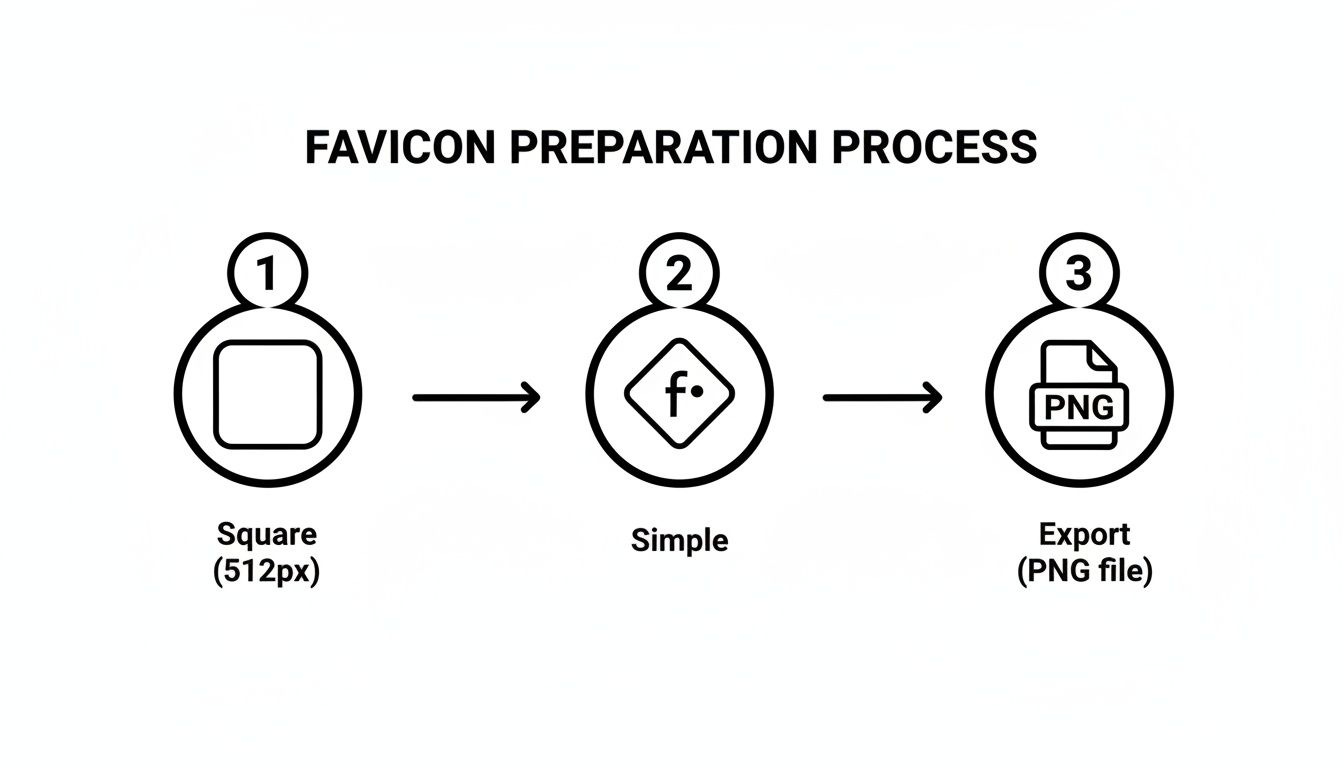
It really comes down to this: start with a high-resolution, simple square image. Export it as a clean PNG or SVG, and you'll have the perfect source file to feed into a generator for a complete set of favicons.
Your Essential Favicon File Checklist
A complete favicon package isn't just one file; it's a collection where each piece has a specific job. An offline generator should handle all the tedious resizing and formatting, spitting out everything you need from that single source image.
This table breaks down the must-have files and what they actually do. It's a handy cheat sheet to ensure you've covered all your bases.
| File or HTML Tag | Ideal Size or Format | What It Does |
|---|---|---|
favicon.ico |
32x32px | The original. A crucial fallback for older browsers, crawlers, and RSS readers. Prevents 404 errors. |
icon.svg |
SVG (Vector) | The modern standard. Scales perfectly on any high-DPI screen. Supported by over 72% of browsers. |
apple-touch-icon.png |
180x180px | Non-negotiable for iOS. This is what users see when they save your site to their iPhone or iPad home screen. |
| PWA Icons | 192x192px & 512x512px | Used by Android for home screen icons and splash screens, defined in your web app manifest. |
Getting this right often comes down to format. Getting a deeper understanding by choosing the best image format for websites can make a huge difference in how well your favicons render across the board.
What's the Deal with the Web App Manifest?
The webmanifest.json file is more than just a list of icons. Think of it as a config file that tells a browser how your web app should look and feel when someone "installs" it on their device. A good favicon generator will create this file for you right alongside your images.
Inside that manifest, you'll find an icons array that points to your PNG assets, like the 192x192px and 512x512px versions. You'll also see a key property: "purpose": "maskable". This is for a specially designed icon with extra padding around the logo. Why? It allows Android to safely crop your icon into different shapes—like circles or squircles—without slicing off part of your design.
By creating the manifest file at the same time as your icons, you ensure every file path is correct right out of the box. It’s what connects your visual identity to your site's installable behavior.
This whole process becomes incredibly simple with an offline tool like the one in Digital ToolPad. You just drop in one high-quality image, and it instantly produces a complete, organized package with every file and the JSON manifest—all created securely on your own machine.
Putting Your Favicons to Work in HTML
Alright, you've used an offline generator to create a professional set of favicons. That’s the hard part done. But they won’t just show up on your site by themselves. You need to tell browsers where to find them, and that happens inside the <head> of your HTML.
This last step is what connects your design work to the real world, bringing your brand to life in browser tabs, bookmarks, and home screens. It's a common stumbling block—a simple typo in a file path can leave you with a generic icon, making your site look unfinished. Let’s walk through the exact code you need to get it right.
The Essential HTML Tags
You'll be adding a few <link> tags to your HTML. They might look similar, but the rel (relationship) attribute is the key, telling the browser what each file is for. Modern browsers are smart, and this code block is designed to give them the best options first.
Pop this snippet into the <head> section of your site's HTML:
<link rel="icon" href="/icon.svg" type="image/svg+xml"><link rel="icon" href="/favicon.ico" sizes="32x32"><link rel="apple-touch-icon" href="/apple-touch-icon.png"><link rel="manifest" href="/manifest.webmanifest">This setup is clean, efficient, and covers all your bases. It prioritizes the crisp, scalable SVG, provides the trusty .ico for older browsers, adds the beautiful home screen icon for iOS, and hooks into your manifest for Android devices.
What Each Tag Actually Does
Just copying and pasting code is one thing, but knowing why it works will save you a headache later. Let's quickly break down each line.
rel="icon"(SVG): This is the modern standard. We list the SVG first because it’s a vector and looks fantastic on any screen. Thetype="image/svg+xml"part is crucial—it tells the browser what kind of file to expect.- The
.icoFallback: The secondrel="icon"tag is our safety net, pointing to the classicfavicon.ico. We addsizes="32x32"as a hint to modern browsers, encouraging them not to pick this pixelated icon over your sharp SVG. rel="apple-touch-icon": This one’s a must for a polished feel on iPhones and iPads. It points to that high-resolution 180x180px PNG, which iOS uses when someone saves your site to their home screen.rel="manifest": This connects to yourmanifest.webmanifestfile. This little JSON file is the heart of a Progressive Web App (PWA) and tells Android devices where to find the 192x192px and 512x512px icons for its home screen.
A Quick Tip from Experience: Always use absolute paths for your icons (starting with a
/). If you use a relative path likefavicon.ico, it will break on any page that isn't at the root of your domain, like/blog/my-awesome-post. An absolute path like/favicon.icoworks everywhere.
Sometimes, in very specific situations, developers need to embed assets directly into a document instead of linking to a file. While not common for favicons, this is done by encoding the file data. If you're curious about the mechanics, you can see how it works with a tool like the Digital ToolPad Base64 Encoder/Decoder.
Testing Your Favicons Across Browsers and Devices
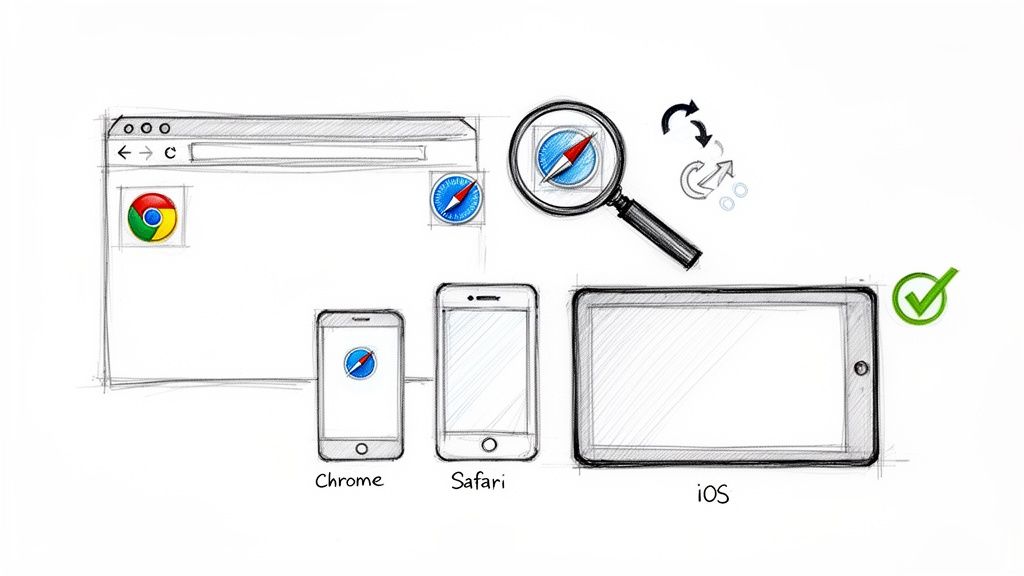
You've generated the icons and dropped the HTML into your site's <head>. Now comes the moment of truth. Putting your favicons live without checking them first is a classic mistake—it's like pushing code you haven't tested. You need to see for yourself that they look sharp everywhere your visitors will see them.
This means firing up all the major browsers: Chrome, Firefox, Safari, and Edge. But don't just stop at your desktop. Grab your phone and check on actual iOS and Android devices. The apple-touch-icon and the icons pulled from your manifest file often behave quite differently than the one in a simple browser tab.
Using Developer Tools to Diagnose Problems
If an icon stubbornly refuses to appear, your browser’s developer tools are the first place to look. Right-click anywhere on your page, hit "Inspect," and head over to the "Elements" tab. This gives you a direct view of your site's <head>.
From here, you can quickly spot the usual suspects:
- Broken File Paths: Are the
hrefattributes in your<link>tags pointing to the right place? A simple typo is the most common reason an icon fails to load. - Incorrect
relAttributes: Make sure you’ve usedrel="icon",rel="apple-touch-icon", andrel="manifest"for the right files. A mix-up here will confuse the browser. - Failed Network Requests: Flip over to the "Network" tab and reload the page. You can filter the list to see if requests for files like
favicon.icooricon.svgare going through. A404 Not Founderror is a dead giveaway that the path is wrong.
Getting this right is more important than ever. The AI image generator market, for example, ballooned to USD 349.6 million in 2023 and is on track to hit $1.08 billion by 2030, which means a flood of new logos are being created that will eventually become favicons. For any developer handling these assets, an offline tool is the only way to process them without exposing client work or sensitive branding to online privacy risks. You can read the full research about this market surge and see why offline tools are becoming critical for compliance.
The Frustration of Aggressive Caching
Sometimes, everything is technically correct, but you still see the old icon. Welcome to the maddening world of favicon caching. Browsers hang onto these tiny images for dear life to reduce load times, which means they often ignore your shiny new updates.
The most bulletproof way to beat the cache is to version your files. Instead of linking to
/favicon-32x32.png, change the link to/favicon-32x32.png?v=2. When you update the icon, just change the number. The browser sees it as a brand-new file and is forced to download it, bypassing the cache completely.
This simple query string trick can save you a ton of headaches. It ensures that when you roll out a branding update, everyone sees it right away, giving you full control over your site's visual identity.
Sorting Out Common Favicon Questions
Even with a good generator, favicons can be a surprisingly tricky part of a project. The standards have evolved so much over the years, and a lot of the advice you'll find online is outdated or just plain wrong. Let's clear up a few of the most common questions I hear from developers.
Getting these little details right makes a huge difference. It's often the final polish that separates a professional-looking site from one that feels slightly off.
Do I Really Still Need a Favicon.ico File?
Yes, you absolutely do. While modern browsers are all about PNGs and even SVGs, the humble favicon.ico file is your universal safety net. Think of it as the ultimate fallback.
Lots of older browsers, web crawlers, and various bookmarking tools don't bother looking for the newer formats. Instead, they just request /favicon.ico at your site's root. If it's not there, you get a 404 error. Including it is a dead-simple way to prevent a flood of useless errors in your server logs and guarantee that something shows up, no matter what.
A good offline generator makes creating this file from a high-res source image a one-click affair, so there's no excuse to skip it.
What's the Difference Between a Regular Favicon and an Apple Touch Icon?
It all comes down to where it’s used and how sharp it needs to be. The standard favicon is that tiny little icon you see in a browser tab, which is often just 16x16 or 32x32 pixels. An apple-touch-icon, on the other hand, is a much bigger, higher-quality graphic made specifically for when someone saves your website to their home screen on an iPhone or iPad.
Here’s a quick breakdown of what makes them different:
- Size: For the
apple-touch-icon, you really want a 180x180 pixel PNG. This ensures it looks crisp and clear on modern, high-resolution Retina displays. - Purpose: It functions just like a native app icon on the user's home screen, offering a premium brand experience outside of the browser itself.
- Design: You should provide a perfect square image with a solid background. iOS will handle rounding the corners and adding any subtle visual effects for you.
You declare this icon with its own specific tag, <link rel="apple-touch-icon">. Honestly, skipping it is a rookie mistake that can make your site feel less polished on mobile.
Forgetting the Apple Touch Icon is a common oversight that makes a site feel less integrated on iOS. It’s a small detail that has a big impact on perceived quality when a user adds your site to their home screen.
How Do I Force a Browser to Update a Cached Favicon?
Ah, the classic favicon problem. This is easily the most frustrating part of the process. Browsers are incredibly aggressive about caching favicons to save on requests, which means your beautiful new icon often won't show up for people who have visited your site before.
The most reliable way to fix this is to "bust the cache" by adding a simple version number to the file's URL in your HTML. When you roll out a new favicon, just change the link in your <head> tag.
For example, you'd update this:
<link rel="icon" href="/favicon-32x32.png?v=1">
To this:
<link rel="icon" href="/favicon-32x32.png?v=2">
By changing ?v=1 to ?v=2, you're telling the browser that this is a totally new file. It has no choice but to ignore its cached version and download the fresh one immediately.
Is SVG a Good Choice for a Favicon?
SVG is an excellent choice for a modern favicon. As a vector format, it brings two major benefits to the table. First, it scales perfectly to any size without getting blurry, so it always looks incredibly sharp, especially on high-DPI "Retina" screens. Second, for simple logos and icons, the file size is often significantly smaller than a comparable PNG.
The only catch is that browser support isn't quite 100% universal yet. While all major modern browsers handle SVG favicons just fine, you still need to provide PNG and .ico files as fallbacks. If you don't, users on older browsers will see a broken icon.
The best practice is to declare the SVG icon first in your HTML. That way, browsers that understand it will use it, and the rest will gracefully move on to the next rel="icon" tag they support.
Ready to create a complete, production-ready favicon package without ever uploading your assets to a third-party server? The tools at Digital ToolPad run entirely in your browser, giving you instant results with total privacy. Generate your favicons securely with Digital ToolPad.