
We’ve all been there: staring at a giant, unformatted blob of JSON from an API response or a messy config file. Trying to make sense of it feels like a nightmare. This is where a good formatter JSON tool becomes your best friend—it's not just about aesthetics; it's about making your workflow accurate, readable, and way more efficient.
Why a Clean JSON Workflow Is No Longer Optional
In day-to-day development, a single misplaced comma or a missing bracket in a JSON file can send you down a rabbit hole of debugging that lasts for hours. I've seen it happen too many times. A clean, well-structured JSON file is fundamental for predictable application behavior, whether you're setting up a service, passing data to a front-end, or talking to an API.
There’s a reason JSON became the go-to standard for data exchange—it demands clarity and precision.
The Real-World Impact
Let’s be honest, nobody enjoys deciphering a one-line string of minified data. A proper workflow instantly solves these common headaches:
- You can actually read it. Properly formatted JSON with clear indentation lets you see the data structure at a glance. You can easily spot nested objects, arrays, and key-value pairs without getting a headache.
- Debugging becomes 10x faster. When something breaks, well-formatted JSON makes it incredibly easy to pinpoint the exact line or object causing the problem. It’s the difference between a five-minute fix and a five-hour investigation.
- Collaboration gets smoother. When everyone on the team uses the same formatting, code reviews and integrations are much less painful. There’s no ambiguity, and everyone is literally on the same page.
The difference between a tangled mess and a clean structure is night and day, as you can see below.
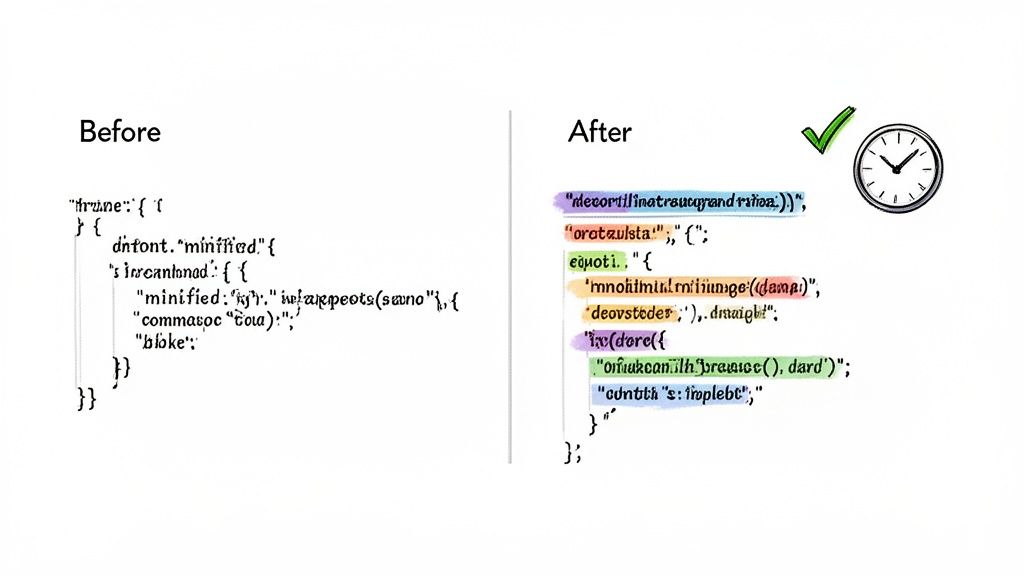
This simple transformation is what a formatter does best. To take it even further, many developers I know swear by tools with advanced code syntax highlighting features to make the structure even more obvious.
JSON’s simple, lightweight syntax is why it’s used in over 90% of modern RESTful APIs, leaving older, clunkier formats like XML in the dust. You can dive deeper into this trend in this detailed comparison.
A solid formatter is essential, and if you’re concerned about privacy, you can find a suite of client-side JSON tools on Digital ToolPad that never send your data to a server.
The Hidden Security Risks of Online Formatters
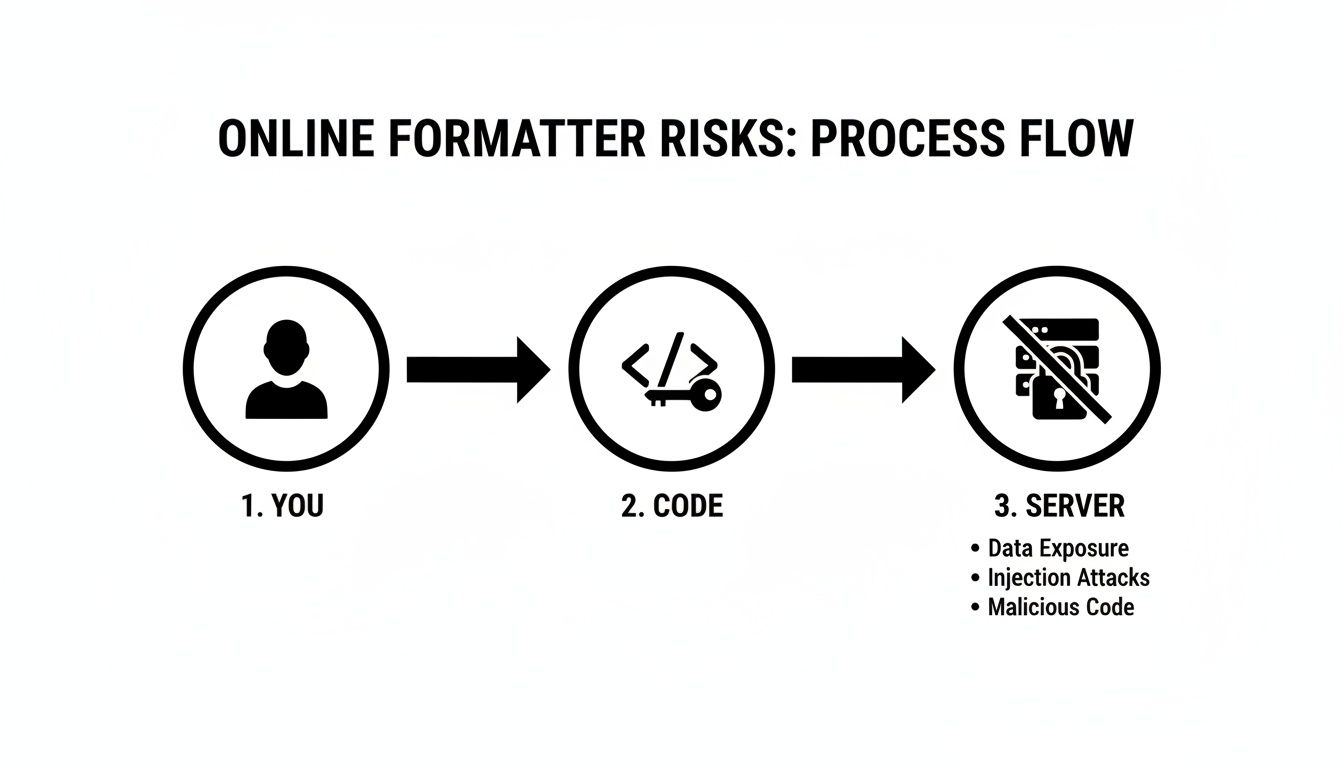
It’s tempting to just copy and paste a chunk of JSON into the first online formatter you find. We’ve all done it. But that convenience comes with a steep, often invisible, cost. Most of these popular web tools are server-based, which means your data gets sent across the internet to their infrastructure for processing.
That's where the problem starts. The second your data leaves your local machine, you've lost control. That snippet with API keys, customer PII, or internal configuration details? It could be logged, stored on their servers, or intercepted along the way. This isn't just a "what if" scenario; it's a real-world vulnerability that can lead to a data breach and put you on the wrong side of compliance standards like GDPR.
Data Exposure Is Not Hypothetical
The ease of a quick format can be a trap. A security audit of popular online formatting tools revealed a shocking truth: over 80,000 saved JSON snippets were left publicly accessible. What’s worse, 25% of them contained high-risk secrets like passwords, private keys, and auth tokens. These are the kinds of tools that top the search results, making it easy for even seasoned developers to make a costly mistake.
This isn't just about bad luck; it’s a systemic issue that requires a change in our habits. For a closer look at the fallout from data exposure, it's worth understanding SOC 2 compliance and data breach costs.
Choosing a secure workflow isn't paranoia; it's professional responsibility. The moment you paste confidential data into a server-based tool, you're trusting a third party with unknown security practices.
This is where client-side, or browser-based, tools make all the difference. They process everything locally, right inside your browser. Your data never gets transmitted to an external server, completely sidestepping the risk of it being logged, stored, or exposed.
This offline-first approach is a cornerstone of modern security and a critical part of overall software development security best practices. It’s a simple distinction that separates a secure, professional workflow from an unnecessary gamble with sensitive information.
Putting Secure, Browser-Based Formatting Into Practice
Making the switch to a secure workflow doesn't have to be complicated. The idea is to ditch risky, server-based tools for a browser-based formatter that keeps your data right where it belongs: on your own machine. This gives you all the convenience of a web tool with the rock-solid security of an offline app.
Let's walk through a real-world scenario using a privacy-first tool like Digital ToolPad. Everything you do—beautifying, validating, and minifying—is handled locally by your browser's JavaScript engine. That means sensitive API keys, PII, or critical configuration files never leave your computer.
From Messy to Readable in One Click
We've all been there. You get a raw JSON response from an API, and it's just a giant, unreadable wall of text. Trying to debug or even understand it is a nightmare.
With a local tool, you just paste that raw data into the input field. The moment you click "Format," it instantly reorganizes the mess into a beautifully structured, color-coded, and properly indented tree. Nested objects and arrays snap into place, and you can finally see the data's hierarchy at a glance.
Catching Errors Before They Wreak Havoc
Any good formatter is also a validator. Think of it as your first line of defense against the kind of syntax errors that can take an entire application down. If you accidentally leave a trailing comma or use single quotes where double quotes are required, the tool will immediately flag the exact error and tell you which line it's on.
This instant feedback is a game-changer. Instead of pushing code and waiting for a deployment to fail or an app to crash, you can spot and fix problems right away. It saves an incredible amount of debugging time down the road.
This kind of proactive validation is a cornerstone of any efficient, secure development process. It's about catching mistakes early and often.
The diagram below drives home why keeping your data local is so important. It shows the server-side exposure you risk with typical online tools.
The key takeaway is simple: once your code hits an external server, you've lost control.
Minifying for Production-Ready Performance
After you’ve validated and structured your JSON, the next step is often preparing it for a production environment. This is where minification comes in. The tool strips out all the unnecessary whitespace, line breaks, and indentation, shrinking the JSON to the smallest possible file size.
This isn't just about neatness; it's a critical performance optimization.
- API Payloads: Smaller payloads mean less data traveling over the network. This reduces latency and transfer costs, making your application feel faster to the end-user.
- Configuration Files: In many applications, especially in resource-constrained environments, compact config files load much more quickly.
A good tool lets you switch between the beautified and minified views effortlessly, so you always have the right format for the task at hand—whether you're debugging or deploying.
For a deeper dive into building these habits, check out our complete guide on how to use an online JSON formatter safely and effectively.
Working with JSON in the Command Line
Let's be honest, for many developers, the command line is home. While browser tools are handy for a quick look, nothing beats the speed and power of handling JSON right in your terminal. It's all about creating an efficient, scriptable workflow that doesn't break your stride.
Working locally from the CLI keeps your data on your machine, which is a huge plus for security and privacy. And when it comes to wrangling JSON on the command line, one tool reigns supreme: jq. It's a lightweight, flexible, and incredibly powerful utility that you'll wonder how you ever lived without.
This quick video gives a great overview of what jq can do:
Instant Formatting with jq
Picture this: you've just hit an API endpoint with curl and gotten back a wall of unreadable, minified JSON. Instead of the copy-paste-dance into a web tool, you can just pipe it directly to jq.
It’s as simple as this:
curl 'https://api.example.com/data' | jq '.'
The . in that command is the secret sauce—it’s the identity filter. It basically tells jq, "take whatever you get and print it out." But jq doesn't just print it; it automatically beautifies it with perfect indentation and syntax highlighting. This one-liner will become your best friend for making sense of API responses on the fly.
Got a local file you need to inspect? No problem.
jq '.' messy_data.json
This command reads your messy_data.json file and prints a beautifully formatted version right to your console. It’s perfect for quickly checking config files or reviewing a saved data dump.
Formatting in Your Automation Scripts
Sometimes you need to generate clean JSON as part of a script. Most languages have simple, built-in ways to handle this without any external dependencies.
Node.js: The global
JSONobject is your go-to. TheJSON.stringify()method has optional arguments to control the formatting.const myObject = { name: "test", data: [1, 2, 3] }; // The '2' tells it to use 2-space indentation console.log(JSON.stringify(myObject, null, 2));
Python: The standard
jsonlibrary comes with a handy command-line tool. You can pipe data to it directly for quick pretty-printing.echo '{"name":"test","data":[1,2,3]}' | python -m json.tool
By weaving these commands into your shell scripts, CI/CD pipelines, or build tools, you build a more robust and efficient process.
Automating this stuff isn't just about saving a few seconds here and there. It’s about eliminating manual chores, reducing the risk of mistakes, and letting you stay focused on what really matters: solving problems and building great software.
Solving Common JSON Errors Like a Pro
We’ve all been there, staring at a vague unexpected token error, feeling that familiar mix of confusion and frustration. More often than not, these issues boil down to a few simple, recurring syntax mistakes. Once you learn to spot them, you can squash these bugs in seconds.
A good formatter json tool is an essential safety net, of course, but knowing the errors yourself makes you a much faster and more efficient developer. In my experience, the same handful of culprits account for the vast majority of validation failures.
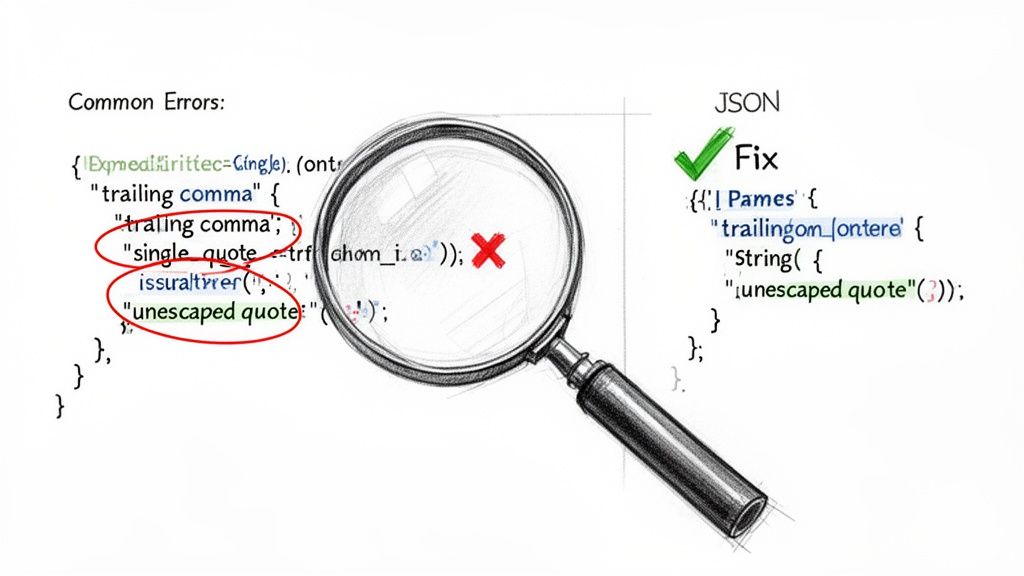
The Usual Suspects
Let's walk through the top offenders I see time and again, along with exactly how to fix them.
Trailing Commas: This is, without a doubt, the most common mistake. While modern JavaScript is forgiving and allows them in arrays and objects, the official JSON specification strictly forbids them. It’s an easy one to miss.
- Broken:
{ "users": ["Alice", "Bob",] } - Fixed:
{ "users": ["Alice", "Bob"] }
- Broken:
Single Quotes: Remember this simple rule: JSON only speaks in double quotes. Both keys and string values must be wrapped in double quotes (
"). Using single quotes is a guaranteed parsing error.- Broken:
{ 'user': 'guest' } - Fixed:
{ "user": "guest" }
- Broken:
A validator will catch these issues instantly, but recognizing them on sight saves you that extra copy-paste step and keeps you in the flow of your work.
- Unescaped Characters: If you need to include a special character within a string—like a double quote or a backslash—it has to be escaped with a preceding backslash (
\).- Broken:
{ "message": "Here's a "quote" inside." } - Fixed:
{ "message": "Here's a \"quote\" inside." }
- Broken:
Common Questions About Working with JSON
Even experienced developers run into snags with JSON formatting. It's a simple spec, but the day-to-day workflow can get messy. Here are some of the most common questions I hear about keeping JSON clean, valid, and secure.
Many modern code editors can also auto-format your JSON on save, which is a great first step toward maintaining consistency across your team.
Beautifying vs. Minifying: What's the Difference?
This is a fundamental concept that trips up a lot of people. Think of it as two sides of the same coin: one for development, one for production.
- Beautifying (or "pretty-printing") adds all the nice indentation and line breaks that make JSON readable for humans. It's what you need when you're debugging or just trying to understand a complex data structure.
- Minifying does the exact opposite. It strips out every last bit of whitespace—every space, tab, and newline—to create the smallest possible file size. This compact output is perfect for production because it reduces payload size and speeds up network transfers.
So, you beautify when you're writing and debugging, and you minify right before you ship it.
Can You Add Comments to a JSON File?
Technically, no. The official JSON specification doesn't support comments, so adding // or /* */ will break most parsers and throw an error. It's a common frustration.
The accepted workaround is to simply add another key-value pair to hold your notes. I usually use a key like "_comment" or "__note" to make it clear that it's metadata and not part of the actual data.
Why Should I Use an Offline Formatter for Sensitive Data?
This one is all about security. When you paste your JSON into a random online tool, you're sending that data to an unknown server. If that JSON contains API keys, user PII, or any other confidential information, you've just created a potential data leak.
Using a secure, local formatting tool guarantees 100% data privacy and helps you stay compliant with regulations like GDPR.
Here’s why a client-side or offline tool is non-negotiable for sensitive work:
- Total Control: Your data never leaves your machine. Period.
- Zero Risk: It eliminates any chance of your data being logged, intercepted, or exposed on a third-party server.
- Instant Speed: There's no network lag, so formatting happens instantly.
Switching to a privacy-first JSON formatter in your browser is a simple change that makes your workflow safer and smoother.
Discover how Digital ToolPad keeps your JSON formatting local and secure at https://www.digitaltoolpad.com