
A generator favicon tool is a real time-saver. It takes your source image and automates the tedious job of resizing and reformatting it into all the different files modern devices and browsers need. For anyone trying to build a brand, these tools are essential for getting that tiny, recognizable icon in front of users on their browser tabs, bookmarks, and home screens.
Why a Great Favicon Still Matters for Your Brand
Ever had a dozen tabs open and instantly spotted the one you needed just by its little logo? That’s the power of a favicon. It might seem small, but this tiny asset is a huge part of your website's identity, acting as a visual anchor that builds familiarity and trust.
In today's crowded digital world, these little icons punch well above their weight.
- Instant Recognizability: A good favicon makes your site pop in browser tabs, bookmark lists, and even search history. This makes it faster and more intuitive for people to get back to your content.
- Brand Cohesion: A sharp, well-designed favicon shows professionalism and a keen eye for detail. It’s another touchpoint where you reinforce your brand’s visual identity.
- Enhanced User Experience: By providing a quick visual cue, favicons genuinely improve usability. This simple addition can lead to a noticeable bump in user engagement and fewer frustrated clicks.
The Modern Favicon Challenge
The real headache for developers isn't just creating one icon. It's creating the dozens of different formats and sizes required today. You need specific files for iOS home screens, Android devices, old-school browsers, and modern progressive web apps. Doing this by hand is a recipe for frustration and easy-to-make mistakes.
This is exactly why a generator favicon tool is a non-negotiable part of my workflow. These tools became incredibly popular during the 2010s as the web fragmented across countless devices. It's estimated that today, around 70% of developers use them to skip the manual image-editing grind. The payoff is huge: a well-implemented favicon set can improve the user experience by 15-20%.
But there's a catch with most online generators: security. Uploading your logo to a random third-party server could expose your brand's intellectual property. This is a major reason why privacy-first, offline tools are becoming the preferred choice, especially when you consider that 85% of enterprises now treat data sovereignty as a top priority.
An offline generator gives you the best of both worlds: it streamlines the creation process without forcing you to compromise on security.
Ultimately, favicons are a critical piece of the user experience and brand recognition puzzle. To see how they fit into the bigger picture of site design, check out our guide on homepage design best practices.
Preparing Your Source Image for Flawless Results
The secret to a sharp, high-quality favicon isn't just about the generator you pick, it's all about the source image you start with. The old saying "garbage in, garbage out" absolutely applies here. If you begin with a poorly prepped file, you'll end up with a blurry, unprofessional icon that can seriously undermine your brand's look.
First things first, let's talk dimensions. Your source image needs to be a perfect square. The absolute minimum you should aim for is 512x512 pixels, but I’ve found that starting even larger, like 1024x1024, gives the generator more data to play with when scaling down. This extra detail makes a big difference for those smaller sizes. If your image isn't square yet, don't worry. You can find some straightforward guidance on how to use an image resizer to get it just right.
Design for Tiny Canvases
What looks fantastic as a full-sized logo often turns into an unreadable smudge at 16x16 pixels. You have to think small from the very beginning.
- Embrace Simplicity: Intricate details, thin lines, and complex textures are the enemy. Stick to strong, simple shapes that will be recognizable even at a glance.
- Prioritize Contrast: Bold, high-contrast colors are your best friend. They make the design pop, whereas subtle gradients or soft color palettes just blend into a muddy mess.
- Ditch the Text: Unless your brand mark is a single, bold initial (like Google's "G"), it's best to avoid text altogether. Words and even short acronyms become completely illegible.
The goal is instant recognition, not detailed communication. Think of your favicon like a road sign: it has to be understood in a split second. A simple, bold shape will always beat a complex, text-heavy design in a crowded browser tab.
Finally, you'll need to choose the right file format. PNG is an excellent choice because it supports transparent backgrounds, which helps your favicon look clean and integrated no matter the browser tab color. If your logo is vector-based, starting with an SVG is even better since it offers perfect scalability without losing a shred of quality.
To make sure everything is loading fast and looking crisp, learning how to optimize images for web is a crucial part of this prep work. A well-optimized source image ensures all the favicons you generate will be as lean as possible.
How to Use an Offline Favicon Generator
Alright, let's get down to brass tacks. You've got your source image ready, so how do you actually turn it into a full-blown favicon package using an offline tool? It’s a lot less complicated than you might think.
Imagine we’re a small startup about to launch a new app. Our logo is still under wraps, and the last thing we want is to upload it to some random online service. This is where an offline generator like Digital ToolPad really shines.
First, you'll need to feed it your high-resolution, square source image. That 512x512 pixel PNG we prepared earlier is perfect. The magic happens right inside your browser; the tool processes the image locally, meaning your file never actually leaves your computer. This client-side approach is a huge plus for privacy and keeps your unreleased designs completely secure.
Choosing Your Icon Formats
Once your image is loaded, you'll see a few options for the kinds of icons you want to create. This is where you decide which bases you need to cover.
- Multi-Resolution
.icoFile: This is non-negotiable. The.icoformat is a classic for a reason: it bundles multiple sizes (like 16x16 and 32x32) into a single file. It’s your safety net for ensuring older browsers and Windows environments display your icon correctly. A PNG to ICO converter can pack those sizes into one file without uploading your logo. - Standard PNGs: This is your go-to for pretty much all modern devices. You'll need a set of PNGs for things like the
apple-touch-icon(what shows up when someone saves your site to their iPhone home screen) and for Android devices, which typically pull icons from awebmanifestfile. - Scalable SVG: If you're targeting modern browsers, an SVG is the gold standard. It's a single, lightweight vector file that scales flawlessly on any screen, from a standard monitor to a high-resolution Retina display. No pixelation, ever.
The prep work you did before this stage is what really sets you up for success.
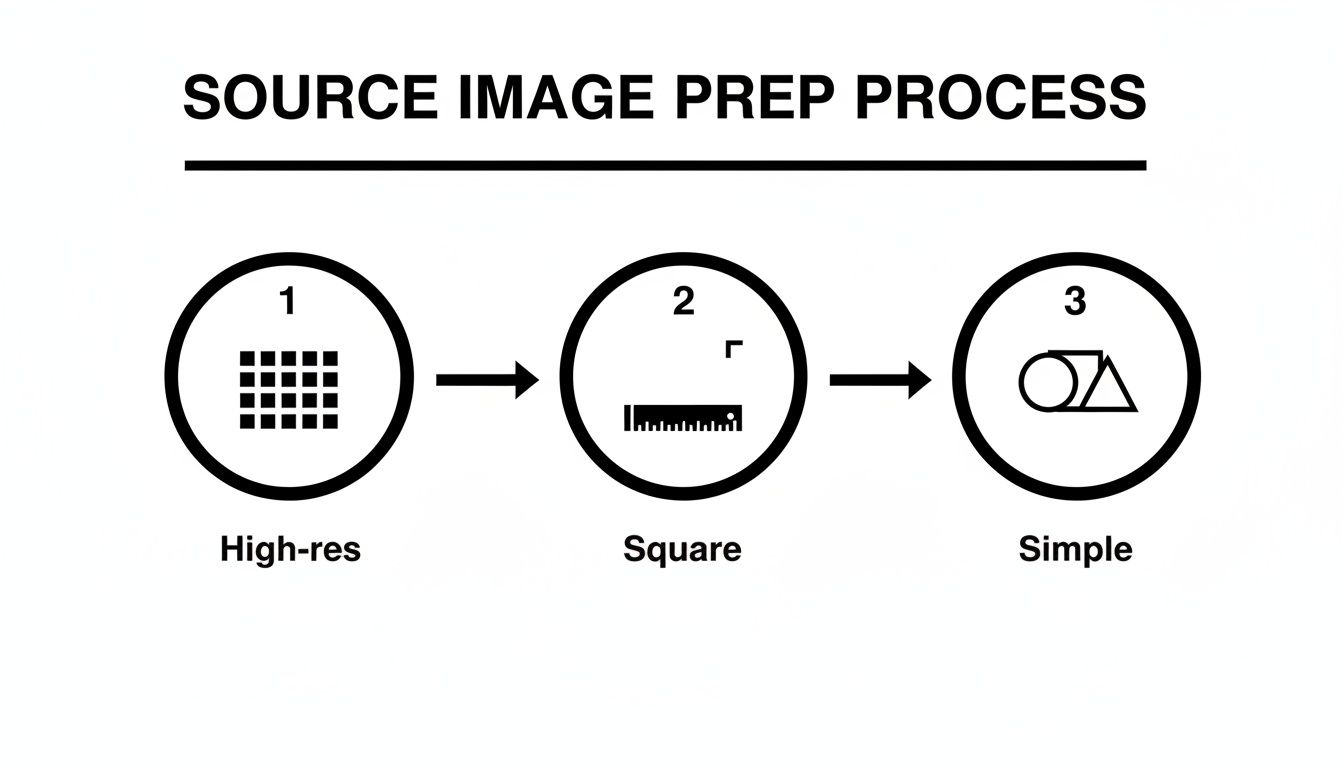
This visual is a great reminder: a high-res, square, and clean design is the bedrock of a sharp-looking favicon set.
Essential Favicon Sizes and Formats
Navigating the world of favicons can feel a bit overwhelming with all the different sizes and formats. Here's a quick-reference table to help you keep track of the most important ones.
| Format | Common Sizes | Primary Use Case |
|---|---|---|
ICO (.ico) |
16x16, 32x32, 48x48 | Traditional browser tabs, bookmarks, and Windows shortcuts. Essential for legacy support. |
PNG (.png) |
180x180 | apple-touch-icon for iOS home screens. |
PNG (.png) |
192x192, 512x512 | Android home screens and splash screens, referenced in the manifest.webmanifest file. |
SVG (.svg) |
Scalable | Modern desktop and mobile browsers that support vector icons. Provides the sharpest result. |
This table covers the heavy hitters, ensuring your site looks professional across the vast majority of devices and browsers your visitors will be using.
A good offline tool automates the creation of this entire package. Manually resizing and exporting over 20 different icon files is tedious and prone to error. An offline generator favicon can cut down this process by as much as 40% by eliminating upload/download lag and keeping everything local. For any team working under an NDA, this isn't just a convenience, it's a security requirement. You can dig deeper into this topic with some excellent insights from the experts at Oberlo.
The beauty of an offline generator is its simplicity and security. You drag, drop, select your formats, and download a zip file containing everything you need. There’s no waiting, no server pings, and zero risk to your confidential designs.
With one click, the generator bundles everything up into a neat zip file. All that's left is to drop the contents into your website's root directory and link them up in your HTML. Just like that, your brand will have a crisp, professional icon greeting every visitor, no matter how they find you.
Getting Your Favicon onto Your Website
Alright, you've used an offline generator favicon tool and now have a neat collection of icon files. So, how do you get them to actually show up on your site? The magic happens in your HTML.
You'll need to add a few simple lines of code into the <head> section of your website's pages. This code acts like a set of signposts, telling web browsers exactly where to look for each type of icon, ensuring your brand looks sharp everywhere from an old desktop to a brand-new iPhone.
The Go-To HTML Markup
To get the best results across the board, you’ll want to use a specific combination of <link> tags. This isn't about throwing every possible tag at it; it's about a clean, modern setup that covers all the important bases without bloating your code.
Here’s the essential HTML you can copy and paste right into your project:
<link rel="icon" href="/favicon.ico" sizes="32x32"><link rel="icon" href="/icon.svg" type="image/svg+xml"><link rel="apple-touch-icon" href="/apple-touch-icon.png"><link rel="manifest" href="/manifest.webmanifest">This snippet is all most sites will ever need. The favicon.ico is your reliable backup, the SVG delivers a crystal-clear icon to modern browsers, and the apple-touch-icon gives iOS users that polished, app-like experience.
Providing these different link types lets the browser pick the perfect icon for the situation. It's a small touch, but it’s one of those details that makes a website feel truly professional and well-crafted.
What’s That webmanifest File?
You probably noticed the last line, rel="manifest". This points to a file called manifest.webmanifest (or sometimes site.webmanifest), and it’s a big deal for modern web experiences, especially for Progressive Web Apps (PWAs) and Android devices.
This is a simple JSON file that holds key information about your site. Inside, you’ll define the paths to your larger 192x192 and 512x512 PNG icons, which Android uses for home screen shortcuts and splash screens.
For those who like to experiment, some developers embed icons directly into the HTML using data URIs. It’s not the standard approach for favicons, but it's a neat trick. If you’re curious, you can dive deeper into the concept in our guide explaining what Base64 encoding is. But for the vast majority of projects, simply linking to the files as shown above is the most straightforward and dependable way to go.
Troubleshooting Common Favicon Problems
So you've followed all the steps, your code looks perfect, but that stubborn favicon just refuses to show up. We've all been there. When your icon goes missing, the culprit is almost always one of three things: caching, a bad file path, or a simple typo in your HTML.
Before you start tearing your hair out, let's tackle the most common issue: the browser cache. Browsers are notorious for aggressively holding onto old favicons. You might have updated everything correctly on your server, but your local machine is still clinging to the old version. Your first line of defense is a hard refresh: that’s Ctrl+F5 on Windows or Cmd+Shift+R on a Mac. If that doesn't do the trick, go nuclear and completely clear your browser's cache and data.
Quick Debugging Checklist
If clearing the cache didn’t fix it, it’s time to play detective. Run through this quick checklist to find the source of the problem.
Verify File Paths: This one gets people all the time. Scrutinize the
hrefattribute in your<link>tags. Does it point to the exact location of your icon files? A single misplaced slash or a typo can break the entire path.Check for 404 Errors: Pop open your browser's developer tools (usually F12) and click on the "Network" tab. Reload the page and watch the requests fly by. If you see a 404 Not Found error next to any of your favicon files, you’ve found your problem: the browser can't find the file where you told it to look.
Test Across Browsers: Is this a universal problem or just a quirk in your main browser? Open your site in a different one, like Firefox, or try a private/incognito window. This helps isolate whether it's a site-wide issue or a caching snag on a single browser.
Getting the implementation right is crucial. A polished favicon isn't just for looks; usability studies suggest its absence can reduce bookmark appeal by 20-30%, a significant number for retaining repeat visitors.
The high engagement on favicon tools underscores their importance in a developer's workflow. For example, some generators see users spending nearly seven minutes per session, highlighting how critical these tools are. You can read more about these website favicon generator statistics to see the user trends for yourself.
For a deeper dive into creating the perfect icon package from the start, check out our complete guide on using a favicon ICO generator.
Common Favicon Questions Answered
Even after you've gone through the steps, a few nagging questions always seem to come up. Getting these little details sorted out can save you a ton of headaches down the road. Let's tackle some of the most frequent sticking points I see.
Should I Use an SVG or PNG for My Favicon?
Honestly, you should use both. An SVG favicon is the gold standard for modern browsers. It's incredibly small in file size and looks razor-sharp at any resolution, which is a huge win. You'll want to declare it in your HTML first, like this: <link rel="icon" href="favicon.svg" type="image/svg+xml">.
But here's the catch: you can't rely on SVG by itself. Not yet, anyway. Some major platforms, especially iOS for the apple-touch-icon, just don't play nice with it. That’s why you still need those PNG fallbacks to make sure your icon shows up everywhere. A solid favicon generator handles this hybrid setup for you, giving you the best of both worlds.
Is the favicon.ico File Still a Thing?
Yes, absolutely. It might feel like a holdover from a bygone era, but the favicon.ico file is your essential safety net. A surprising number of older browsers, web crawlers, and even some RSS readers are hardwired to look for favicon.ico in your site's root directory. If it's not there, they give up.
Think of it this way: including a multi-resolution
.icofile with 16x16, 32x32, and 48x48 pixel versions is a simple, low-effort move. It's a tiny file that guarantees the broadest possible compatibility, and skipping it is just not worth the risk.
Why Isn't My New Favicon Showing Up?
Nine times out of ten, this is a caching problem. Browsers are incredibly aggressive about caching favicons because they don't expect them to change often. Your first move should always be a hard refresh: that’s Ctrl+F5 on Windows or Cmd+Shift+R on a Mac. If that doesn't do the trick, you'll need to go in and clear your browser's entire cache.
To save your users from this frustration when you update your icon later, here’s a pro tip: add a simple version query to the filename in your HTML.
For instance: <link rel="icon" href="/favicon.png?v=2">.
The next time you swap out the icon, just change that number to v=3. This little change makes the browser see it as a completely new file, forcing it to download the fresh version immediately.
Ready to create a flawless, privacy-focused favicon set in seconds? The offline Digital ToolPad favicon generator gives you all the formats you need without ever uploading your sensitive brand assets. Try the free favicon generator now!