So, you need to pull a few pages out of a PDF. The quickest and safest ways are already on your computer: a client-side browser tool that works offline or a built-in OS utility like macOS Preview. Both methods keep your files right where they belong—on your device.
Why Secure PDF Splitting Matters
When you split a PDF, it’s rarely just a random document. You might be extracting a single invoice from a monthly statement, isolating a signed page from a long contract, or separating confidential employee records. Uploading these kinds of files to a generic online tool is a huge gamble, as you’re sending your data to a third-party server with no real control over what happens next.
This is where understanding the difference between server-side and client-side processing becomes critical.
- Server-Side Tools: These are the ones that make you upload your file. The moment it leaves your computer, you've lost control. Who knows if they store it, scan it, or worse?
- Client-Side Tools: These clever tools run entirely in your web browser, using your computer's power to do the work. Your file is never sent over the internet, giving you the ease of a web tool with the robust security of an offline app.
This guide is all about the methods that put your privacy first, so you can confidently manage everything from personal finances to sensitive corporate paperwork. And once you've split your documents, the next step is often learning how to protect PDF files with passwords, watermarks, or even DRM for top-tier security.
Choosing Your Method
Picking the right tool really boils down to how sensitive your document is. For public or non-confidential files, a standard online tool might be fine. But for anything else, you need to be more careful. This decision guide makes it easy to see which path to take.

The takeaway here is simple: if your PDF contains any personal, financial, or confidential information, stick with an offline or client-side tool. It's the only way to be sure your data stays private.
PDF Separation Methods At a Glance
To help you decide quickly, here’s a quick breakdown of the most common methods for splitting PDFs. This table highlights their strengths and weaknesses, so you can match the right tool to your specific needs, from a simple one-off task to a complex, automated workflow.
| Method | Best For | Privacy Level | Technical Skill |
|---|---|---|---|
| Client-Side Web Tools | Quick, one-off tasks with sensitive data | High (files stay on your device) | Beginner |
| Built-in OS Utilities | Everyday splitting on macOS & Windows | High (fully offline) | Beginner |
| Command-Line Tools | Batch processing, scripting & automation | High (fully offline) | Intermediate/Advanced |
| Programming Libraries | Custom application development | High (fully offline) | Advanced |
Each of these approaches has its place. The one you choose will depend on your comfort with technology, the sensitivity of your documents, and whether you need to split one file or one thousand. Now, let’s dive into the specifics of each method.
Splitting PDFs Directly in Your Browser
When you need to split a PDF, your first thought is probably to jump online and find a free tool. It's fast, sure, but it begs a critical question: where is your document actually going? Most free web tools upload your file to their servers, which is a major privacy red flag if you're handling sensitive documents like contracts, financial records, or client information.
The good news is there's a much safer way. Client-side browser tools offer the perfect middle ground. These tools run entirely within your web browser, using your computer's own power to do the work. Your files never get uploaded to a server, giving you the security of an offline app with the convenience of a website. It’s the best of both worlds.
How Client-Side Splitting Works
The beauty of this approach is its simplicity. You open the tool's webpage, drag and drop your PDF, and then tell it which pages to pull out. Since nothing is uploaded, the process is almost instant. No waiting, no progress bars, just immediate results.
Think about a real-world scenario: you have a 100-page project proposal, but a key stakeholder only needs to see the executive summary on pages 2-3 and the budget on page 78. Instead of emailing the whole cumbersome file, you can quickly extract just those pages into a new, tidy PDF. It keeps the rest of your report confidential and makes life easier for the recipient.
This is what a typical interface looks like—simple, visual, and effective.
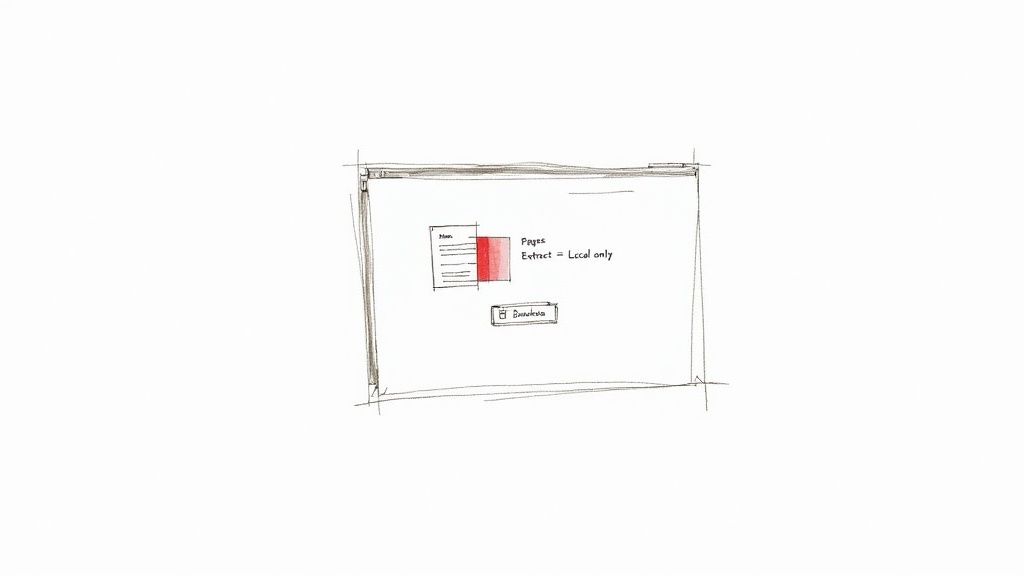
You can usually see thumbnails of each page, so you know exactly what you’re selecting before you create the new file.
Everyday Scenarios for Browser-Based Splitting
You'd be surprised how often the need to split a PDF pops up. Here are just a few situations where a client-side tool is a lifesaver:
- Contracts & Agreements: You've just received a lengthy signed contract but only need to file the final signature page.
- Academic Work: A research paper is 50 pages long, but you only need to save the chapter with the crucial data for your bibliography.
- Financial Paperwork: Your bank statement is a single PDF, but you need to send just one page showing a specific transaction as proof of payment.
Key Takeaway: For most people, most of the time, client-side browser tools are the best choice. They deliver an ideal mix of security, speed, and ease of use, making them perfect for handling sensitive information without a second thought.
This isn't just about personal convenience; it’s a massive part of modern business. The enterprise PDF solutions market is booming, expected to hit multi-billion-dollar valuations precisely because companies need to manage documents at scale. Top global firms process over 100 million PDFs every week, and splitting large files is a core tactic to keep things manageable, saving an estimated 30% in storage costs alone. You can discover more insights about enterprise PDF usage on archivemarketresearch.com.
If you work with documents regularly, having a go-to tool is a must. You can find our privacy-first Split PDF tool, along with other handy utilities, in our suite of secure PDF tools at Digital ToolPad.
Using Your Computer’s Built-In PDF Tools
Before you even think about searching for a new app or a website, it’s worth checking what’s already on your computer. You might be surprised to find that both macOS and Windows have some seriously capable, built-in utilities that can split PDF pages without breaking a sweat. The best part? These methods are 100% offline, making them the gold standard for security and privacy.
Your files never leave your machine, and you don't have to install a single new thing. For those quick, confidential jobs, using these native tools is often the smartest and safest way to go. It’s a simple, reliable solution for separating PDF pages without any extra fuss.
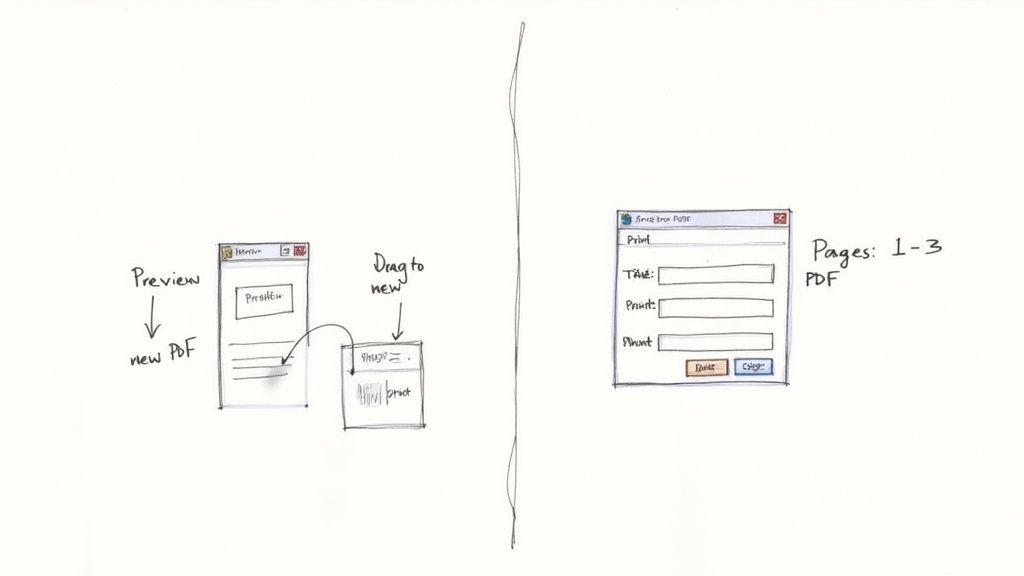
Let's dive into how you can make these powerful features work for you on both operating systems.
Effortless Splitting on macOS with Preview
If you’re on a Mac, you're in luck. You have one of the most intuitive PDF editors right at your fingertips: Preview. Many people dismiss it as a simple image viewer, but it’s an absolute workhorse for basic PDF tasks, especially extracting pages. The whole process is visual and dead simple, built around drag-and-drop.
Let's say you have a 30-page project report but just need to send the three-page appendix to a colleague. Here’s how easy it is in Preview:
- First, open your PDF in the Preview app.
- Head up to the View menu and select Thumbnails. This brings up a handy sidebar showing a small preview of every single page.
- Now, just click on the thumbnail of the first page you want to pull out. To grab more than one, hold down the Command (⌘) key while you click on the others. They don't even have to be in consecutive order.
- Once you have your pages highlighted, simply drag them from the thumbnail sidebar and drop them right onto your desktop.
And that's it. macOS instantly generates a brand-new PDF containing only the pages you selected. I find this method incredibly fast and perfect for visually grabbing a few specific sections without having to guess page numbers.
The Clever Workaround for Windows Users
Windows has an equally effective, though slightly less direct, tool built right in: Microsoft Print to PDF. Think of it as a virtual printer. Instead of spitting out paper, it “prints” whatever you select into a new, clean PDF file. It’s a fantastic trick for extracting a specific range of pages.
Imagine you've downloaded a 200-page user manual but only care about the troubleshooting section on pages 110-115.
- Open the PDF in pretty much any program—Microsoft Edge, Chrome, or Adobe Reader all work great.
- Hit Ctrl + P to bring up the print dialog.
- Find the "Printer" or "Destination" dropdown menu and choose Microsoft Print to PDF.
- Look for the "Pages" section. Instead of leaving it on "All," switch to the custom option and type in your page range, like 110-115. You can even pull out non-consecutive pages by typing something like 5, 12, 23-25.
- Click Print. A "Save As" window will pop up, letting you name your new, much shorter PDF file.
Why Built-In Tools Are Often the Best Choice: Using the tools that came with your OS guarantees your documents are handled in a secure, self-contained environment. There are no uploads, no third-party servers, and no complicated privacy policies to read. When you're dealing with sensitive information, that level of control is priceless.
Advanced PDF Splitting for Power Users
When you're dealing with PDFs at scale, dragging and dropping pages in a GUI just isn't going to work. For developers, data scientists, or anyone who handles repetitive document tasks, automation is the only way forward. This is where command-line interface (CLI) tools and simple scripts come into play, offering a level of speed and precision you can't get with manual methods.
These approaches are entirely offline, so your data stays on your machine—a huge plus for security. More importantly, they let you build repeatable workflows, process whole folders of files at once, and even integrate PDF splitting directly into your own applications. It's a total game-changer for bulk document management.
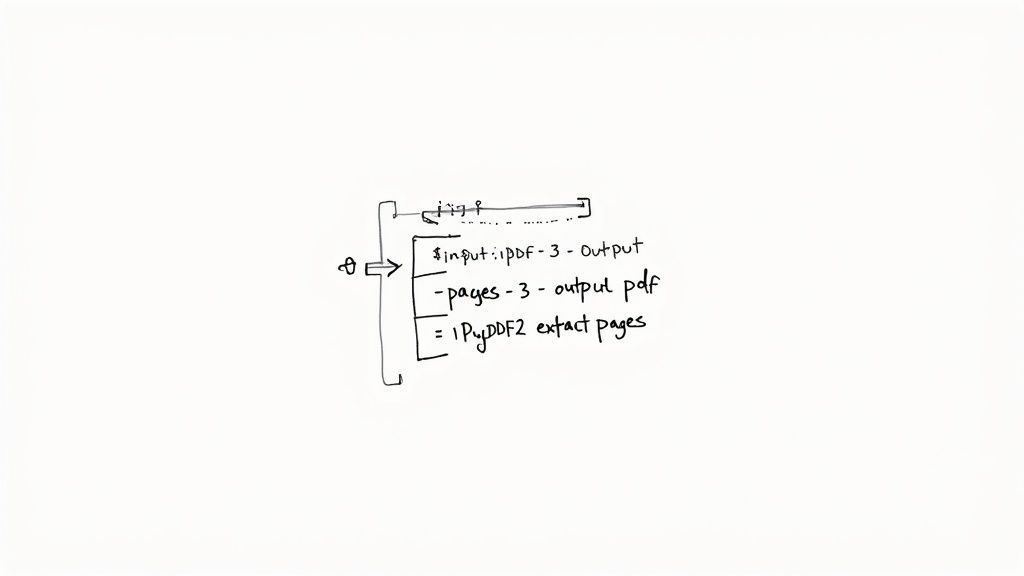
Harnessing Command-Line Utilities
If you're comfortable in a terminal, utilities like qpdf and pdftk are legendary in the document processing world. They’re lightweight, incredibly fast, and give you fine-grained control over just about any PDF manipulation you can think of. Once they're installed, you can run complex operations with a single line of code.
Let’s imagine you're an accountant. Every month, you get a 50-page financial report, but you only need to archive pages 5-10 and page 22. Instead of opening the file and manually picking out those pages every single time, you could run a simple command:
qpdf --empty --pages input-report.pdf 5-10,22 -- archived-pages.pdf
That one line creates a brand-new file, archived-pages.pdf, containing only the pages you specified. You could even put this command into a script and schedule it to run automatically, turning a tedious monthly chore into a background task.
Here are a few more real-world examples:
- Split a PDF into single pages:
pdftk large-document.pdf burst - Extract the first 10 pages:
qpdf large-document.pdf --pages . 1-10 -- output.pdf - Remove the first page:
pdftk input.pdf cat 2-end output output.pdf
For anyone building an automated document pipeline, these tools are absolutely essential.
Programmatic Splitting with Python
For the ultimate level of control and flexibility, nothing beats writing your own script. Python is a fantastic choice for this, thanks to its extensive ecosystem of libraries. A library like PyPDF2, for example, makes it surprisingly easy to read, split, and write PDF files right from your code. This is perfect for when you have complex logic, like splitting documents based on content or processing thousands of files in a batch job.
Say you have a folder full of scanned invoices, and each invoice is exactly two pages long. You need to separate every single one into its own individual file. A short Python script could loop through the folder, read each original file, and write out new two-page PDFs for each invoice. A manual task that could take hours is done in seconds.
Expert Tip: When I’m automating a PDF task, I always start by writing the script to process just a single file. Get the logic perfect on that one file first. Once it’s running reliably, wrap it in a loop to chew through an entire directory. This approach has saved me countless hours of debugging.
This kind of powerful functionality is a big reason why the PDF software market was valued at USD 2.15 billion in 2024 and is expected to reach USD 5.72 billion by 2033. Page separation is a core need for professionals handling multi-page documents. Beyond splitting, many power users also need to extract tables from PDF files for data analysis—another task where scripting excels. And once you have the pages you need, you might need them in a different format; our guide can show you how to convert your new PDF to a DOCX file for easy editing.
Troubleshooting Common PDF Splitting Problems
Even a seemingly simple task like splitting a PDF can hit a wall. When you’re trying to extract pages, a few common issues can bring everything to a halt. Knowing what these problems are—and how to fix them—is the key to getting your work done without the headache.
Most of the time, your troubles will boil down to one of three things: a protected file, a corrupted document, or a PDF that's just a bunch of scanned images. Each one needs its own unique fix.
Handling Password Protected Files
One of the most common snags you'll run into is a password-protected PDF. If a document is locked with an owner password, you'll find that things like splitting, copying, or even printing are often blocked. To get past this, you simply need that password to unlock the file’s permissions.
It's important to remember to only remove passwords from documents you have the legal right to change. Trying to crack a file that isn't yours is a serious ethical and legal issue. Always make sure you have the green light before you try to modify a protected file.
Dealing with Corrupted PDFs
Have you ever tried to open a PDF and gotten nothing but an error message? It happens. A file can get corrupted for all sorts of reasons, from a glitchy download to a hard drive error. If a splitting tool keeps failing on one specific file, there's a good chance corruption is to blame.
Before you throw in the towel, try a few things:
- Re-download the File: The easiest fix is often the right one. Go back to the source and get a fresh copy.
- Use a Repair Tool: Plenty of tools out there are built specifically to fix broken PDF structures. A quick search should give you some options.
- Try a Different Viewer: It's strange, but sometimes a file that won't open in one program will work just fine in another. Try opening it in a browser like Edge or Chrome, or a different PDF reader.
Occasionally, a "corrupted" file is really just a complex data structure that needs to be properly decoded. For developers wrestling with these kinds of issues, our guide on using a Base64 to PDF converter can be a real lifesaver.
Why Scanned Documents Are Different
Another source of confusion comes from working with scanned documents. A regular PDF is a mix of text, images, and vector graphics. A scanned PDF, on the other hand, is basically just a stack of photos, one for each page. You can still split these "image-pages," but you won't be able to edit the text on them because, well, it's not actually text.
Key Insight: If you need to edit or search the text in a scanned PDF, you first have to process it with Optical Character Recognition (OCR) software. OCR is the magic that looks at the image of the text and turns it back into actual, selectable characters.
This is a huge deal in business. The market for PDF editor software is set to grow to an estimated USD 6.19 billion by 2032, and OCR is a major feature driving that growth. While OCR adoption has shot up 45% since 2020, about 33% of scanned PDFs are still just unsearchable images, which creates a big problem for accessibility. You can learn more about these PDF editor market trends at 360iResearch. Without OCR, your scanned documents are essentially digital photographs in a PDF wrapper.
Answering Your Questions About Splitting PDFs
Even with the right tools, a few questions always pop up when it comes to breaking apart PDF files. Let's tackle some of the most common ones I hear, so you can get the job done without any second-guessing.
Are Online PDF Splitters Actually Safe?
This is a big one, and the answer is: it depends entirely on how the tool works. Many free online services ask you to upload your file to their server. That's a huge red flag if your document has any sensitive information. Once it leaves your computer, you've lost control over who sees it and how it’s stored.
If you’re working with anything personal or confidential, your best bet is to find a "client-side" tool. These are clever web apps that do all the work right inside your browser. Your file never gets uploaded, so it stays private. For absolute, iron-clad security, nothing beats a completely offline method like macOS Preview or a command-line utility.
What About Splitting a Scanned PDF?
You absolutely can, but there's a key distinction to make. A standard scanned PDF is really just a stack of pictures wrapped in a PDF container. Splitting it is easy—you're just shuffling the pictures into new files.
The catch is that you can't select or edit the text because, well, it isn't text; it's part of an image. If you need the text to be usable, you first have to run the file through Optical Character Recognition (OCR) software. OCR scans the image, figures out what the letters and words are, and turns them into real, selectable text.
Pro Tip: Many modern PDF editors and even some phone scanning apps include OCR. I always recommend running OCR on scanned documents before splitting them. It’s a simple step that saves a ton of frustration down the road.
How Can I Split a Bunch of PDFs All at Once?
Manually splitting dozens or hundreds of files is a recipe for a very long day. This is where a little automation goes a long way.
- Command-Line Magic: Tools like
qpdforpdftkare built for this. With a single command, you can, for instance, pull the first page from every single PDF in a folder. It’s incredibly fast and efficient once you get the hang of it. - A Simple Script: For more tailored workflows, a bit of Python using a library like
PyPDF2is fantastic. You can write a script to handle complex rules and process thousands of files exactly how you need them.
If you’d rather avoid the command line, some premium desktop PDF programs offer batch processing features through a much more user-friendly interface.
Looking for a completely secure and private way to separate your PDF pages without uploading a thing? Give the free, browser-based tools from Digital ToolPad a try. You get instant results with total peace of mind at https://www.digitaltoolpad.com.