Moving your work from Markdown to Word is a super common task. It’s all about taking a draft written for speed and turning it into a document ready for professional eyes. While command-line tools like Pandoc are powerful, you don't always need that level of complexity to get your .md file into a .docx format. The best method really just boils down to what you need to accomplish.
Why Bother Converting Markdown to Word Anyway?
Everyone loves Markdown for its sheer simplicity and speed. If you're a writer, developer, or content creator, it's a dream. It lets you focus purely on the words, using simple characters like asterisks and hashtags for formatting. This is why it’s the go-to for first drafts, technical docs, and anything you're tracking in Git.
But let's be real—the business world still runs on Microsoft Word. That's precisely where a solid conversion process becomes not just helpful, but essential.
Making Collaboration Actually Work
Picture this: you're a developer and you've just finished writing fantastic documentation for a new feature. It's all neatly organized in a README.md file, perfectly version-controlled. But now, you need the marketing team to review it. They're not cloning repos or opening VS Code; they live and breathe in Word, relying on Track Changes and comments.
If you just email them the .md file, you’ve created a roadblock.
By converting that Markdown file into a Word document, you're speaking their language. The handoff is smooth, and collaboration can happen without anyone needing to learn a new syntax. It allows your non-technical colleagues to jump right in and contribute.
Key Takeaway: The biggest reason for conversion is almost always collaboration. A
.docxfile is the universal currency in most offices, creating common ground for teams who use different tools.
Hitting Professional and Academic Marks
Many companies have strict brand guidelines. Documents need to use specific fonts, headers, and layouts that are all baked into a corporate Word template. In the academic world, it's the same story—theses and research papers often have to be submitted as .docx files that follow very specific formatting rules. Markdown, on its own, just can't handle that level of stylistic control.
Understanding the need for different outputs and the different styles of documentation is what pushes people to find a good conversion workflow. It lets you keep the efficiency of writing in Markdown while still being able to produce a polished, compliant final document. If you're looking to make your process even smoother, it's worth exploring the variety of Markdown tools available that can help with both writing and converting.
The Power User Method With Pandoc
When you need absolute control, consistency, and repeatability for your Markdown to Word conversions, you'll want to reach for Pandoc. It’s a command-line utility, and for many technical writers and developers, it's the undisputed champion for scripting and automating document workflows. It turns a simple conversion into a powerful, reproducible process.
At its core, the command is incredibly simple. To turn a file named report.md into a Word document, you just open your terminal and run this:
pandoc report.md -o report.docx
That single line does the job, but it’s just the beginning. The real power of Pandoc comes from its huge library of options that let you fine-tune the output to meet your exact needs.
This simple workflow—drafting in clean Markdown, running a command, and getting a polished Word document—is a game-changer for anyone tired of manual formatting.
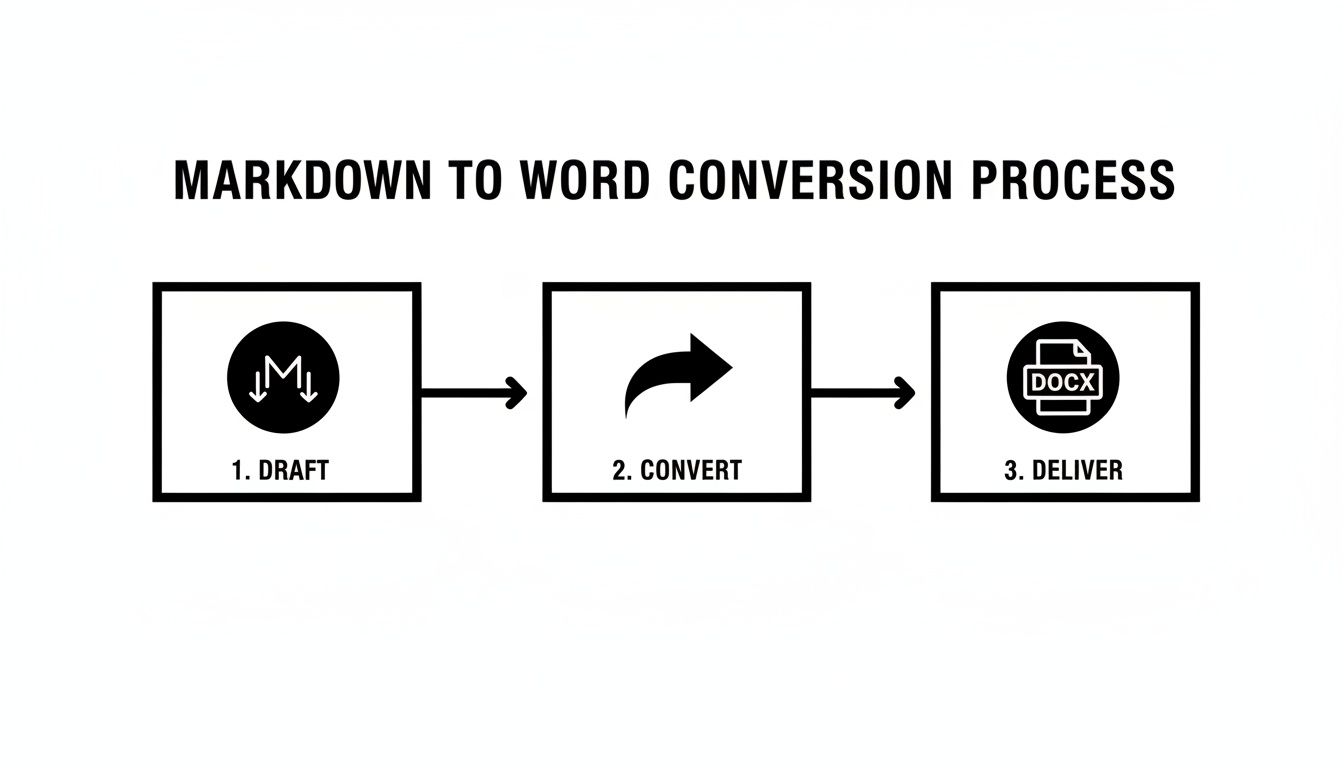
This process shows just how easily a plain text file can become a professional document ready for delivery.
Customizing Your Word Output
Let’s say you need to convert your project’s README.md into a formal report. It needs a table of contents and has to follow your company’s official branding. With Pandoc, this isn't a problem. A few extra flags in the command can completely elevate the final document.
Here are a couple of my most-used customizations:
- Generate a Table of Contents: The
--tocflag is fantastic. It automatically builds a clickable table of contents from the heading structure (#,##, etc.) in your Markdown file. - Apply Custom Styles: If your organization has a standard Word template with specific fonts, colors, and header styles, you can apply it with the
--reference-docflag. Pandoc intelligently uses yourtemplate.docxas a style guide.
When you put these together, the command becomes much more powerful:
pandoc report.md --toc --reference-doc=template.docx -o report.docx
This is where Pandoc truly shines. It makes complex formatting requirements completely repeatable with one command, guaranteeing consistency every time you generate a document. Think about how useful that is for things like weekly status reports or compiling chapters for a technical manual.
Expert Tip: I always recommend creating a simple shell script (like a Bash or PowerShell script) that contains your go-to Pandoc command. That way, you can convert any Markdown file to your company's standard Word format just by running the script, saving you from having to remember and retype all the flags.
Pandoc has been a cornerstone in my own toolkit for years. Its reliability is well-established; benchmark tests show it maintains 98% text accuracy and often outperforms online converters by 30% in fidelity for tricky elements like tables. You can learn more about its performance in this detailed guide on document conversion.
Here's a quick cheat sheet for some of the most essential Pandoc commands.
Essential Pandoc Commands for Markdown to Word
| Command Flag | Description | Example Usage |
|---|---|---|
-o |
Specifies the output file name and format. | pandoc input.md -o output.docx |
--toc |
Automatically generates a table of contents based on your heading structure. | pandoc input.md --toc -o output.docx |
--reference-doc |
Applies the styles from a reference .docx file (template) to your output. |
pandoc input.md --reference-doc=template.docx -o output.docx |
--metadata |
Sets a metadata field, like the document title or author. | pandoc input.md --metadata title="My Report" -o output.docx |
--standalone / -s |
Creates a "standalone" document with a proper header and footer (often needed for metadata to work). | pandoc input.md -s -o output.docx |
--shift-heading-level-by |
Adjusts heading levels. For example, 1 turns <h1> into <h2>, etc. Useful for document merging. |
pandoc input.md --shift-heading-level-by=1 -o output.docx |
This table covers the commands I use most frequently, but Pandoc's documentation has dozens more for nearly any scenario you can imagine.
Handling Advanced Elements Like Images And Metadata
One of the biggest headaches with markdown to word conversions is making sure images are actually embedded in the document, not just linked. Pandoc handles this brilliantly by default. It finds your local images and embeds them directly into the .docx file, creating a completely self-contained document you can share without worrying about broken image links.
You can also embed metadata like the author, title, and date directly in your Markdown file using a YAML block at the very top.
For instance, you could add this to the beginning of your report.md file:
title: Q3 Project Performance Review author: Jane Doe date: October 26, 2024
Project Summary
This document outlines the performance...
When you run Pandoc, it automatically reads this block and populates the corresponding document properties in the final Word file. This level of automation is what makes Pandoc the definitive choice for anyone who needs to produce professional, consistently formatted documents from Markdown, especially at scale. It’s a workflow that works just as well for a single file as it does for an entire library of technical documentation.
Effortless Conversions Within Your Editor
Let's be honest, the command line is powerful, but it’s not always the most convenient tool for the job. If you’re already deep in a writing or coding session, popping open a terminal to run a conversion command can feel like a clunky interruption. It just breaks your flow.
Thankfully, you probably don't have to. Many modern text and code editors can handle markdown to word conversions directly from their interface. These tools often use Pandoc behind the scenes anyway, giving you all its power without ever making you leave the comfort of your editor.
Using Visual Studio Code Extensions
If you use Visual Studio Code, you know it’s a powerhouse. Its real strength comes from a massive ecosystem of extensions that can add pretty much any feature you need—including Markdown conversion.
A great option is the "Markdown Pandoc" extension. Getting it set up is a breeze:
- Head over to the Extensions view in VS Code (Ctrl+Shift+X).
- Search for "Markdown Pandoc."
- Click Install on the one that looks best for your workflow.
Once it's installed, you can usually just right-click your open .md file, find the export option in the context menu, and select .docx. The extension will spit out a Word file right into your project folder. It’s that easy.
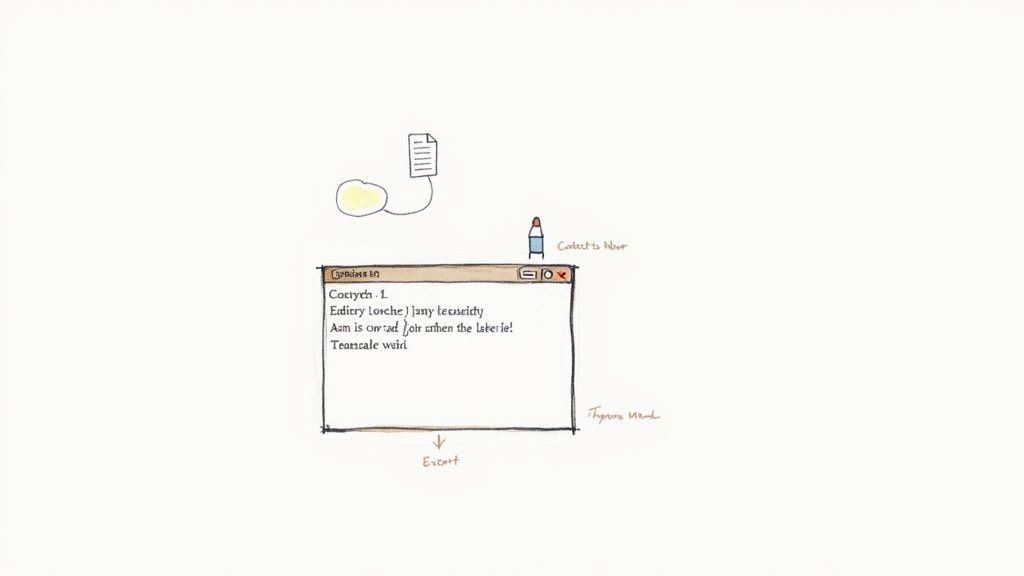
Keeping your entire process inside one application is a huge win for minimizing distractions and staying focused.
My Advice: Before settling on an extension, take a minute to read its documentation. The best ones let you customize Pandoc arguments right in your VS Code settings. This is perfect for setting up a default reference document, which means consistent styling on every single export without any extra effort.
Dedicated Markdown Editors Like Typora
While VS Code is fantastic, sometimes a dedicated, minimalist writing tool is what you really need. Apps like Typora are built from the ground up for writers who love Markdown. They offer beautiful, distraction-free interfaces with live previews that render your formatting as you type.
Typora makes conversion ridiculously simple. It has a built-in export function that supports Word natively. No extensions, no configuration. You just navigate to File > Export > Word (.docx), and you’re done. For writers who don’t want the complexity of a full-blown code editor, this is as straightforward as it gets.
If you like the idea of a live preview without installing new software, a browser-based tool like our Markdown Preview can give you a similar instant-feedback experience.
This approach completely removes the technical hurdles, making Markdown accessible to everyone. You might give up some of the granular control you get with the command line, but for most day-to-day documents, the sheer convenience is a trade-off worth making.
2. Using Quick and Easy Online Conversion Tools
Sometimes you just don’t have the time—or the need—to install something like Pandoc or fiddle with an editor extension. For a quick, one-and-done conversion, nothing really beats a simple online tool. These browser-based converters are all about speed and simplicity.
They’re perfect if you’re not a technical user or just need to get a document converted now.
The workflow is about as easy as it gets. You find a site, paste your Markdown or upload the .md file, click a button, and download your .docx file. It's a nearly zero-friction process that takes seconds. I've been in that exact spot—working on a different machine, needing to turn my meeting notes into a shareable Word doc for the team without any fuss.
But that convenience comes with a few trade-offs you absolutely need to know about.
Picking the Right Online Converter
The two biggest things to watch out for with online tools are conversion quality and, most importantly, privacy.
While most services nail the basics like headings, lists, and bold text, they can trip up on more complex stuff. I've seen tables get completely mangled or embedded images simply disappear during the conversion. It’s a common pitfall.
The real deal-breaker, though, is security. When you upload a document, you're handing your data over to a third-party server. If that document is a sensitive company report or a confidential draft, that's a huge risk. Always, always read the site’s privacy policy before uploading anything you wouldn't want floating around the internet.
Privacy First: Never upload sensitive or proprietary documents to a random online converter. For confidential information, stick with an offline method like Pandoc or use a privacy-focused tool like Digital ToolPad, which processes files locally right in your browser.
Why They’re So Popular
Online Markdown converters are booming because they remove the setup barrier entirely. Tools like StackEdit are handling millions of conversions, attracting a massive number of users who just need a quick solution.
Their efficiency is a huge draw. A good browser-based tool can process a file up to 10MB in under 5 seconds, with an impressive 92% formatting retention for standard elements. For many people, this is a game-changer, turning a Markdown draft into a polished Word document in a snap. You can dive deeper into these trends in Markdown conversion on goinsight.ai.
So, when does an online tool make the most sense?
- Quick Edits: Perfect for turning personal notes or a simple blog post draft into a Word doc.
- Non-Sensitive Content: Great for converting public-facing documents, like a GitHub README file.
- Sheer Convenience: When you're away from your main computer and just need to get it done fast.
Ultimately, these tools strike a fantastic balance between speed and ease of use—as long as you know their limits and always put your data's security first.
Troubleshooting Common Formatting Problems
Getting your Markdown converted to a Word document is one thing, but getting it to look right is another. We’ve all been there: you open the freshly made .docx file, and your perfectly structured masterpiece looks… well, a little wonky. It's a common last-mile problem, but thankfully, most of these formatting quirks are surprisingly easy to fix.

After years of wrangling these conversions, I’ve seen the same issues pop up time and again. Let's walk through the most common formatting headaches and how you can smooth them out, turning that nearly-perfect document into one that's ready for prime time.
When Tables and Images Misbehave
Tables and images are notorious for causing trouble. You might see a wide table getting sliced off at the page margin or a long one splitting awkwardly between pages. With images, the classic problem is weird sizing or alignment that looked perfectly fine in your Markdown preview but is completely out of place in Word.
Here are a few targeted fixes I always turn to:
- For Broken Tables: The culprit is usually Word's default settings. Before you even think about touching your Markdown, open the
.docxfile and right-click the table. Head into "Table Properties," find the "Row" tab, and uncheck the box for "Allow row to break across pages." This one simple click forces your table rows to stick together. - For Disappearing Images: Check your image paths. If you’re using a tool like Pandoc, it needs to know exactly where to find the image file to embed it. Make sure the paths are correct and relative to the
.mdfile you're converting. Absolute paths can be brittle and often lead to broken links. - For Image Sizing: Markdown just doesn't have great built-in controls for resizing images. The most straightforward solution is often a quick manual adjustment after the conversion. Just spend a minute or two resizing the images directly in the Word document to get the placement just right.
Think of these small post-conversion tweaks as part of the process, just like a final proofread.
Fixing Code Blocks and Syntax Highlighting
For anyone writing technical documentation, losing your code block formatting is a deal-breaker. It’s incredibly frustrating when that beautifully highlighted Python or JavaScript snippet turns into a blob of plain, uncolored text in the final Word doc.
Pro Tip: This is almost always a Pandoc issue, and it's easily solved with a command-line flag. When you run your conversion, add
--highlight-styleto inject a coloring theme. For example,pandoc code.md --highlight-style=tango -o code.docxwill embed the code using the popular "tango" theme.
If your converter doesn't offer a similar feature, an old-school workaround is to just screenshot the code in your editor and pop it into your document as an image. It's not text, but it perfectly preserves the visual formatting your readers need.
And of course, sometimes you need to go in the other direction. If you find yourself needing to rescue text from other formats, understanding the challenges of a PDF to DOCX conversion can offer valuable lessons on preserving document structure.
By knowing what to look for, you can build a much more reliable markdown to word workflow. A few small adjustments—whether in your source file, the conversion command, or the final document—are all it takes to get a polished, professional result every single time.
Why This Workflow Matters for Modern AI
Knowing how to convert markdown to word is more than just a neat trick for writers and developers these days. It’s actually a vital skill for anyone working with modern artificial intelligence. The logic behind turning a complex .docx file into clean Markdown is the same principle used to prepare data for Large Language Models (LLMs) and Retrieval-Augmented Generation (RAG) systems.
The whole game is about transforming messy, proprietary data into a simple, structured format that machines can understand without a headache. Imagine an LLM trying to decipher the raw XML inside a Word document—it's like you trying to read a book where every other page is scribbled over with code. When you convert it to Markdown first, you’re giving the AI a perfectly clean manuscript.
This isn’t just about being tidy; it has a real impact on performance and your budget.
Reducing Costs and Boosting AI Performance
The fundamental unit of cost and effort for an AI is the token, which is just a small chunk of text. Every single token you push through an AI API costs money and adds to the processing time. Markdown's beauty is in its simplicity; it ditches all the invisible formatting bloat that makes a .docx file so heavy.
This efficiency pays off immediately in speed and savings. By getting your documents into Markdown before they enter an AI pipeline, you can slash the token count.
A clean Markdown file can reduce token counts by over 50% compared to the raw XML of a DOCX file. This efficiency directly leads to slashing AI processing costs by 35-55% in enterprise RAG systems.
This huge advantage is why specialized tools are popping up. Microsoft’s MarkItDown, for instance, was built specifically to convert files like Word, PDF, and Excel into Markdown for AI pipelines while keeping the structure intact. Big companies are catching on fast, with some reporting 40% cost savings on their LLM operations. You can learn more about Microsoft’s powerful conversion tool and see what it’s capable of.
Building Smarter Documentation Systems
This workflow is about more than just converting single documents. Companies are building massive internal knowledge bases to power their own AI assistants, and a solid pipeline for turning existing files into clean Markdown is essential. It’s the only way to ensure the information feeding your RAG system is accurate, well-organized, and cheap to process.
Looking beyond just file converters, the broader ecosystem of automated documentation tools is becoming central to any serious AI strategy. Learning this skill turns a simple document conversion task into a key part of building a smarter, more efficient enterprise AI.
Ready to streamline your own workflows with tools that respect your privacy? Digital ToolPad offers a suite of powerful, 100% offline utilities that run directly in your browser, ensuring your data never leaves your device. Check out our tools at https://www.digitaltoolpad.com and experience the difference.