
Let's be honest, raw API data is a mess. It usually comes back as one long, jumbled line of text that's perfect for a machine but a total nightmare for a human to read. That's where a good JSON formatter becomes an indispensable part of your toolkit. It takes that chaotic string and instantly turns it into a clean, organized, and navigable tree structure.
This isn't just about making things look nice. It’s about making your job easier, especially when you're deep in debugging mode.
Why a Reliable JSON Formatter Is a Developer's Best Friend
Modern applications live and breathe through APIs, and JSON is the language they almost always speak. When you're trying to figure out why a feature is broken, the first step is often to inspect the API response. Without a formatter, you're just staring at a wall of text.
The clarity a formatter provides is immediate. Picture this: a user's profile data isn't loading, and you suspect the API. You grab the raw response, paste it into a formatter, and instantly you have a perfectly indented structure. Right away, you can see that a crucial field is missing or a data type is wrong. What could have been a painful search becomes a quick find. It’s all about efficiency.
From Clunky XML to Lightweight JSON
To really get why JSON took over, you have to remember what we used before: XML. Back in the day, XML was the standard for data exchange, but its tag-heavy format was incredibly verbose and bloated the data being sent back and forth.
Around 2001, Douglas Crockford formalized JSON as a much leaner, faster alternative. By 2010, it had pretty much replaced XML in the world of web APIs. The switch led to data payloads that were 50-70% smaller and could be parsed 10-20 times faster in JavaScript environments. That's a massive performance win.
Speeding Up Debugging and Collaboration
A solid formatter does more than just prettify your code; it also validates it. It'll instantly catch common mistakes like a misplaced comma or a missing bracket, often pointing you to the exact line number. This simple check can turn hours of frustrating code-scanning into a quick, targeted fix.
This clarity is also a huge help when working on a team. Instead of sending a confusing blob of text to a colleague, you can share a link to a cleanly formatted version. It gets everyone on the same page, fast. The structural and efficiency differences become even clearer when you look at detailed comparisons like this one on JSON vs. XML for API data interaction.
A great JSON formatter doesn't just make data look pretty—it makes you a more effective developer. It saves time, prevents bugs, and simplifies communication, allowing you to focus on building features instead of deciphering raw data.
Ultimately, these tools are about reclaiming your time and catching errors before they ever make it to production. Just one word of caution: if you're working with sensitive information, always choose a privacy-first, offline formatter. The best ones process everything locally in your browser, so your data never has to leave your machine.
Choosing Your Tool: The Online Formatter Privacy Dilemma
It's tempting to just google "online json formatter" and click the first link. We've all done it. But that convenience can hide a massive security risk. The real question you should be asking is: where is my data going?
Pasting anything sensitive—API keys, PII, proprietary business logic—into a random cloud-based formatter is a gamble. Most of these free tools send your JSON to their servers to be processed. The moment it leaves your browser, you've lost control. It could be logged, stored, or worse, exposed. It’s a real concern, and a Deloitte privacy survey found that a whopping 62% of enterprises share this worry about third-party data handling.
This decision tree breaks down the "why" and "when" of using a formatter, highlighting why the choice of tool is so critical.
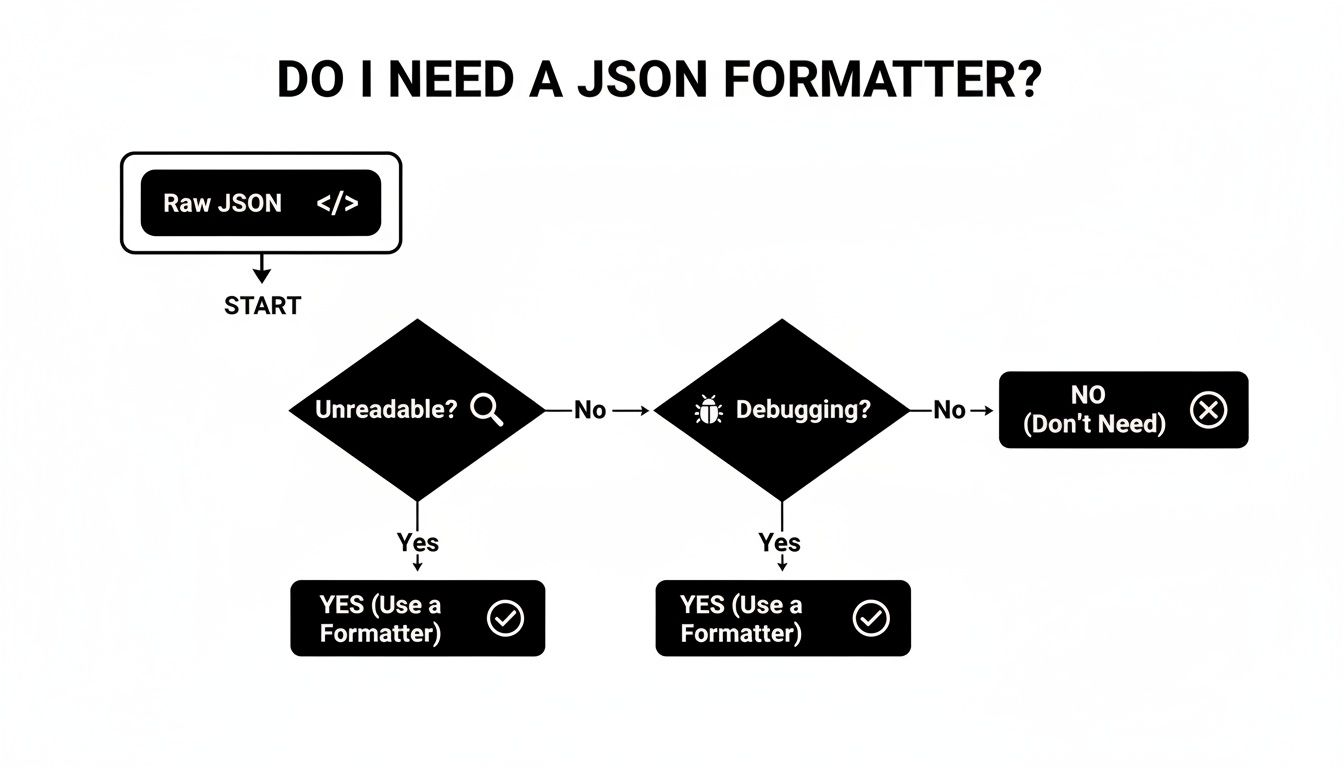
As you can see, the main reasons—readability and debugging—almost always involve working with real, and often sensitive, data.
Server-Side vs. Client-Side: Why It Matters
The entire privacy issue boils down to one simple, but crucial, difference in how these tools work.
- Server-Side Formatters: These are the risky ones. You paste your code, and it gets sent over the internet to their servers. The formatting happens there, and the result is sent back. Your data just took a trip you can't monitor.
- Client-Side Formatters: This is the secure way. Tools like Digital ToolPad operate entirely within your browser. All the formatting logic is handled by JavaScript running on your local machine. Your data never leaves your computer.
The difference is everything. A client-side tool means your work stays compliant with regulations like GDPR and, more importantly, gives you peace of mind. It’s always a good practice to vet any new tool by reviewing privacy policies before pasting a single line of code.
Let's break down the practical differences.
Online JSON Formatter Comparison Server-Side vs Client-Side
This table clearly illustrates why a client-side tool is the superior choice for any professional workflow involving sensitive data.
| Feature | Server-Side Formatter (Typical Online Tool) | Client-Side Formatter (Digital ToolPad) |
|---|---|---|
| Data Privacy | Data is sent to a remote server, creating a potential security risk. | Data is processed 100% locally in your browser and never leaves your machine. |
| Security | Vulnerable to man-in-the-middle attacks and server-side data breaches. | Completely secure. No network transmission means zero exposure risk. |
| Offline Access | Requires an active internet connection to communicate with the server. | Fully functional offline once the page is loaded. |
| Performance | Can have latency due to network round-trips for processing. | Instantaneous. All operations happen at the speed of your local machine. |
| Compliance | May violate data policies (GDPR, HIPAA) by sending data to third parties. | Inherently compliant as no data is ever transmitted or shared. |
Ultimately, the choice comes down to whether you can afford to have your data exposed. For developers and teams handling real-world information, the answer is always no.
Making The Secure Choice
If your JSON contains anything you wouldn't post on a public forum—proprietary code, customer info, auth tokens—then a client-side tool isn't just a nice-to-have; it's a requirement. The potential fallout from a data leak via an unsecured online tool is just too great.
The advantages of a privacy-first approach are undeniable: you maintain total control of your data, you get instant results without network lag, and you can work securely from anywhere, even offline. When you're picking your go-to formatter, always look for tools that explicitly state they are client-side only.
To get a better handle on this, check out our guide on the benefits of using an online JSON formatter that puts privacy first. Arming yourself with this knowledge helps you work faster and smarter.
Mastering the Core JSON Formatting Workflows
Let's get into the three things you'll do constantly with a good online formatter json tool: validating, prettifying, and minifying. Each one solves a different problem, taking messy data and making it something you can actually work with. Knowing how to use these isn't just about clicking a button; it's about understanding which tool to grab for the job at hand.
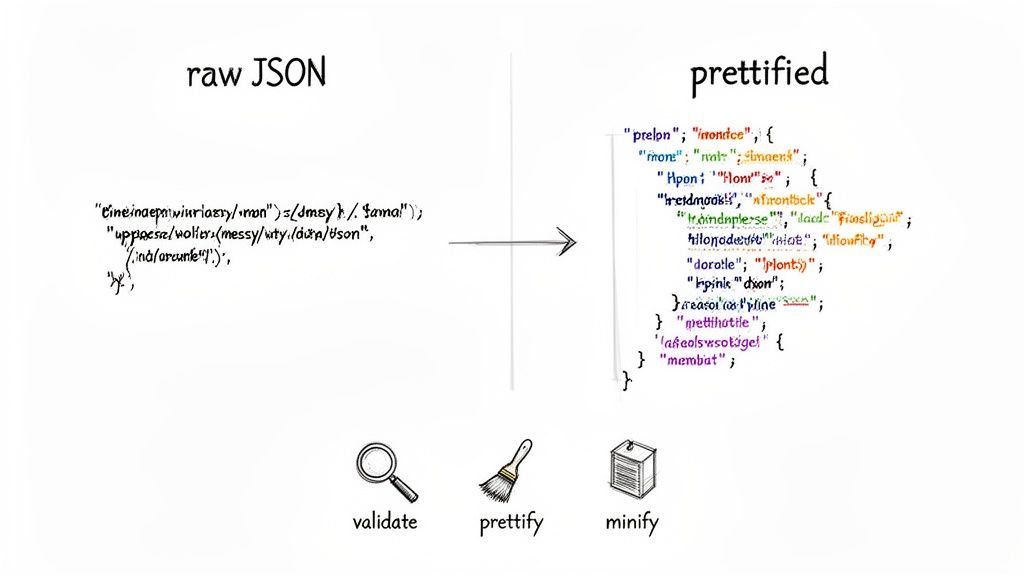
Think of these as your foundational skills for handling data. Whether you're trying to figure out a weird API response or getting a data payload ready for production, these three actions are your bread and butter.
First Things First: Validate Your Syntax
Before you even think about formatting, you have to make sure your JSON is actually valid. This is your first line of defense against bugs that can be a massive headache to track down later. A solid formatter is also a validator, instantly checking your JSON for syntax errors the second you paste it in. It's a lifesaver, because one misplaced comma can break everything.
I've seen it a hundred times: you get a huge configuration file from an API, and your app just chokes on it. Instead of staring at thousands of lines trying to spot the error, you just paste it into a tool and find the problem immediately.
Here are the usual suspects a validator will catch for you:
- Trailing commas: That classic mistake of leaving a comma after the last item in an object or array.
- Mismatched brackets: An unclosed
{or[that throws the whole structure off. - Wrong quote types: Using single quotes (
') when JSON strictly requires double quotes (") for all keys and string values.
A good tool won't just tell you "it's broken." It will pinpoint the exact line and character, turning what could have been an hour of frustrating debugging into a quick, ten-second fix.
Make It Readable: Prettify for Humans
Once you know your JSON is valid, it’s time to make it readable. That’s what "prettifying" (or "beautifying") is all about. The tool takes a dense, single-line string of data and expands it with proper indentation and line breaks, instantly revealing its nested structure.
For instance, this jumbled mess:
{"user":{"id":123,"name":"Alex","isActive":true,"roles":["admin","editor"]}}
Is instantly transformed into this easy-to-scan structure: { "user": { "id": 123, "name": "Alex", "isActive": true, "roles": [ "admin", "editor" ] } } This is absolutely essential for debugging. It lets you visually trace how data is related, check if all the fields you expect are there, and spot logical issues that a simple syntax check would never catch. If you're doing any kind of serious analysis, prettified JSON isn't just nice to have—it's a requirement.
Get It Ready for Production: Minify for Performance
Finally, minification is just the opposite of prettifying. It strips out every single character that isn't strictly necessary—all the extra whitespace, indents, and line breaks—to create the smallest possible version of the data. The only goal here is performance.
When you're sending data over a network, every single byte matters. Minifying your JSON can drastically cut down the payload size, which means faster API responses and a much smoother experience for your users, especially if they're on a slow connection.
The beautifully formatted example from before gets squished right back down to its original one-line state. This is almost always the final step you take before shipping data from your server to a client. You work with the prettified version while you're building and debugging, then minify it right before it goes live.
If you want to try these workflows yourself, check out a tool that runs entirely in your browser, like this JSON formatter and validator. It's a great way to work without ever sending your sensitive data over the internet.
Beyond Formatting: Advanced Moves for JSON Power Users
Once you've got the hang of basic formatting, you'll find that a good online formatter json tool can do a whole lot more than just prettify your code. This is where you can start reclaiming serious chunks of your day and untangle complex data problems. It's about shifting your mindset from just looking at data to actively shaping it and pulling out what you need.
Let's say you've just been handed a massive, deeply nested JSON response from a third-party API. Nobody wants to manually dig through thousands of lines trying to hunt down a specific user ID or product SKU. It’s not just a pain—it’s how mistakes happen. This is exactly where more advanced features come in, completely changing how you deal with big datasets.
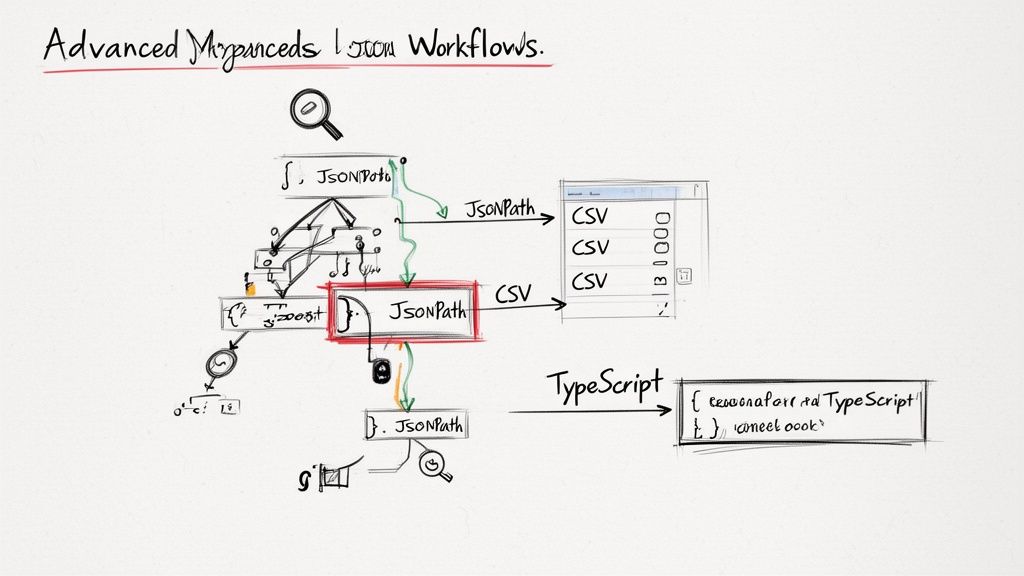
Pinpoint Data Instantly with JSONPath Queries
Think of JSONPath as a secret weapon for your JSON. It's a query language, similar to what XPath is for XML, that lets you zoom in on specific bits of data inside a JSON object. Instead of endless scrolling and Ctrl+F, you write a quick expression to pull out the exact information you need.
For instance, imagine you need the names of all items in a products array. A simple query like $.products[*].name will do the trick.
That one little command instantly yanks out every product name, saving you from a manual search that could have easily eaten up several minutes. For any developer, this means faster debugging and quicker data analysis. It’s no surprise that some engineering reports suggest developers can spend 15-20% of their time just wrestling with data structures like JSON. Tools that automate this kind of extraction are a massive win for productivity.
Mastering a few key JSONPath expressions is like turning a data haystack into a single, perfectly retrieved needle. It’s one of the most high-impact skills for anyone working with APIs.
Transform JSON for Different Jobs
Data is rarely a one-and-done deal. You might need to get API data into a spreadsheet for the marketing team, or maybe you need to generate typed interfaces for a new feature you're building. A truly useful formatter handles these transformations without breaking a sweat.
Here are a couple of common conversions you'll run into:
- JSON to CSV: Instantly pivot an array of JSON objects into a clean, comma-separated values (CSV) file. It's ready to be dropped right into Google Sheets or Excel for analysis.
- JSON to TypeScript: Automatically create TypeScript interfaces from your JSON's structure. This is a huge time-saver that ensures type safety and speeds up development in typed codebases. Our guide on converting JSON to TypeScript dives deep into how powerful this workflow can be.
These features are the bridge between different systems and teams, making your data more portable and immediately useful to everyone.
Navigate Complex Structures with a Tree View
For those truly monstrous, deeply nested JSON objects, even a perfectly formatted wall of text can feel overwhelming. This is where a tree view shines. It gives you a collapsible, hierarchical map of your data.
You can expand and collapse different nodes on the fly, getting a high-level overview while still being able to drill down into the nitty-gritty when you need to. It turns data exploration from a chore into something intuitive and fast.
This kind of efficient data handling is crucial, especially in the business intelligence space—a market projected to grow from USD 38.15 billion in 2025 to USD 56.28 billion by 2030, according to Mordor Intelligence. With so much data being passed around—and Verizon's DBIR noting that 82% of breaches involve data exposed via APIs—having secure, efficient offline tools to manage it all has never been more important.
Troubleshooting Common JSON Errors Like a Pro
Staring at a massive JSON file, trying to find that one tiny syntax error, is a developer rite of passage. It's frustrating. A single misplaced comma or quote can break an entire application, and finding it can feel impossible. This is where a good online formatter json validator becomes your best friend, turning a painstaking manual search into a quick, automated fix.
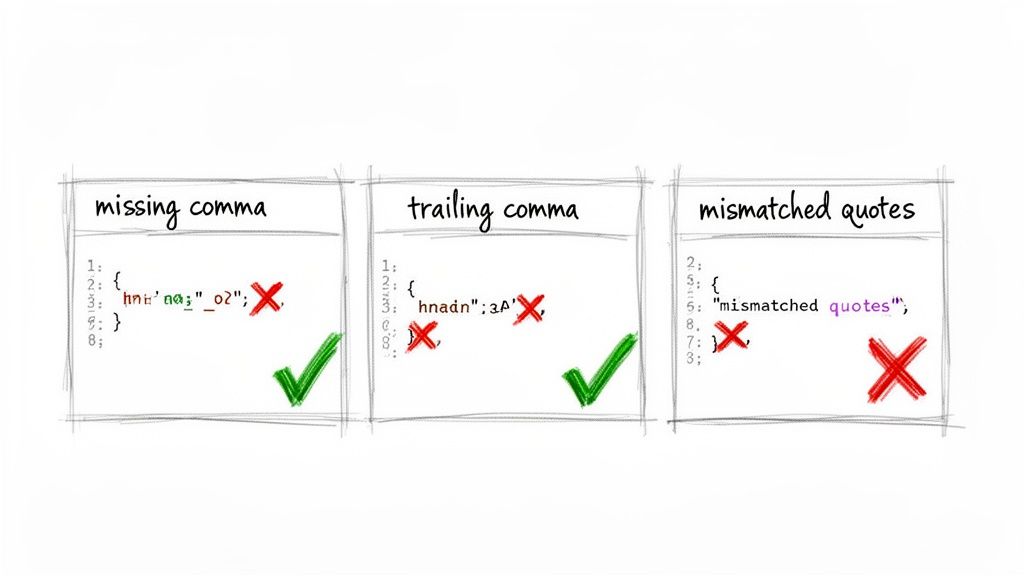
Even seasoned pros run into the same few syntax traps over and over. If you know what to look for, you can start catching these mistakes before they become a problem. Let's walk through the most common offenders that a quality tool will spot in a heartbeat.
The Trailing Comma Conundrum
Ah, the trailing comma. It’s easily the most frequent error I see. You add a comma after the last key-value pair in an object or the final element in an array, and bam—your JSON is invalid. While many modern programming languages just ignore it, the JSON standard is brutally strict.
Here's what this classic mistake looks like in the wild: { "user": "alex", "id": 42, "isActive": true, } A validator will choke on this, usually giving you a cryptic error like "Unexpected token } in JSON at position...". The fix is beautifully simple: just delete that last comma.
Mismatched Brackets and Unclosed Structures
Another common pitfall is forgetting to close your objects and arrays. When you're working with deeply nested data structures, it's incredibly easy to lose track of a closing curly brace } or square bracket ]. This leaves your JSON hanging open and completely unusable.
Think of a validator as an extra pair of eyes that never gets tired. It instantly scans your code, ensuring every opening bracket has a matching closer. It saves you the headache of manually counting them, which is a nightmare in complex files.
The Strict Rules of Quotes and Escaping
JSON's rules for quotes are a frequent source of frustration, especially for developers coming from the more flexible world of JavaScript.
There are really only two rules you have to burn into your memory:
- Double Quotes Only: This is a big one. All keys and all string values must use double quotes (
"). Single quotes (') are forbidden and will cause a parsing error every time. - Properly Escaped Characters: If you need to include a special character inside a string—like a backslash or another double quote—it has to be escaped with a preceding backslash (
\). Forgetting to do so will prematurely terminate the string.
A good formatter flags these issues instantly, highlighting exactly where you slipped up with a single quote or forgot to escape a character. By using a privacy-first tool like Digital ToolPad, you can find and fix these problems in seconds without your data ever leaving your machine. This kind of immediate feedback is the best way to build better habits and write cleaner JSON from the get-go.
Your Questions About Online JSON Formatters, Answered
When you're dealing with data formatting day in and day out, you run into the same questions over and over. Getting straight answers is key, especially when you're deciding which online formatter json tool to trust with your data. Let's dig into the things developers ask most often.
Is It Really Safe to Paste Sensitive JSON into an Online Tool?
This is, without a doubt, the most important question. The honest answer? It completely depends on how the tool is built.
Most standard online formatters work by sending your JSON to their server, which processes it and sends it back. If you're using one of these, then no, it is absolutely not safe for anything sensitive. Think API keys, passwords, personal user data, or confidential business logic. The moment that data leaves your browser, you've lost control.
It's not just a theoretical risk. A recent investigation uncovered over 80,000 data snippets left exposed on popular formatting sites. We're talking about everything from internal Active Directory credentials to customer PII from major financial institutions.
The only way to guarantee safety is to use a client-side formatter. Tools like Digital ToolPad run entirely within your browser. All the formatting and validation happens locally on your machine, which means your sensitive data never touches a network connection. It stays private, period.
What's the Real Difference Between Prettifying and Minifying?
Think of them as two sides of the same coin, each with a specific job in your workflow.
Prettifying is for your eyes. It takes a compressed, unreadable blob of JSON and adds whitespace—indents and line breaks—to reveal its structure. This is your best friend during debugging, code reviews, or any time you need to actually understand what's in the data.
Minifying is for the machine. It does the exact opposite, stripping out every last bit of unnecessary whitespace to make the JSON string as small as possible. This is what you want for production, as it shrinks network payloads and speeds up API responses.
Simply put: you prettify to read it, you minify to ship it.
Will a Formatter Automatically Fix My Broken JSON?
A good formatter is more of a skilled diagnostician than a magician. It's brilliant at pinpointing exactly what's wrong and where—like telling you there's an "Unexpected token on line 52." What it won't do is automatically fix the error for you.
Why not? Because it can't possibly know what you intended to do. Was that trailing comma a simple mistake, or were you about to add a new key-value pair before you got distracted?
By highlighting the precise problem, the validator saves you from a painful, manual search through thousands of lines of code. It turns a needle-in-a-haystack hunt into a quick, targeted fix you can make in seconds.
Ready to format, validate, and transform your JSON with complete privacy? Digital ToolPad gives you a suite of powerful, 100% offline developer tools that run right in your browser. Check them out at Digital ToolPad.