
When you need to create a QR code, the most secure way to do it is with a qr-code generator that works completely offline. These tools process everything right inside your web browser, meaning your data never gets sent to a remote server. This client-side approach guarantees that your sensitive information—be it a URL, a password, or contact details—stays private and entirely in your control.
Why Offline QR Code Generation Is a Game Changer
In an era where data privacy is constantly under threat, the tools we choose have real consequences. Think about the last time you used a free online service. When you enter data into a typical online QR code generator, that information travels across the internet to a third-party server. This is a massive weak point. Your data could be logged, stored indefinitely, or even intercepted without you ever knowing.
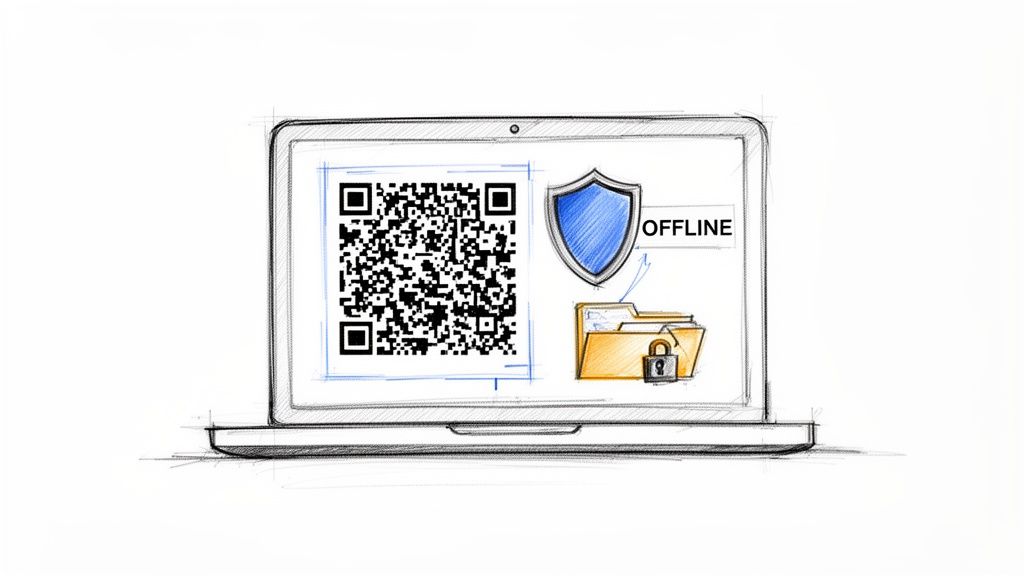
This is the core idea behind how Digital ToolPad's generator works: everything happens on your machine, shielded from the outside world. It’s not just a cool feature; it’s a fundamental rethinking of how to handle personal and professional data securely.
The Problem with Server-Based Tools
Most of the free QR code tools out there are built on server-side processing, which naturally opens the door to several risks:
- Data Logging: The service can easily save the content of every QR code you create and analyze that information later.
- Security Breaches: If the company's servers are compromised, your sensitive data could be exposed to attackers.
- Dependency: The tool is completely useless if their server goes down or if you simply don't have an internet connection.
For a developer generating codes for internal company documents, secure device setups, or confidential client projects, keeping data local isn't just a preference—it's a strict requirement. If you're new to the topic, it's worth taking a moment to understand the basics of what QR codes are and how they work.
Absolute Security and Reliability
An offline, client-side tool like Digital ToolPad completely avoids these issues. Since nothing ever leaves your computer, your data is never exposed. This principle is similar to what makes other robust security protocols so effective. We talk more about this concept in our guide on what end-to-end encryption is and why it matters.
By processing data locally, you eliminate latency, cloud dependencies, and privacy risks. This gives you the instant, reliable results needed for efficient development workflows and genuine peace of mind.
The demand for tools like this is surging. The QR code generator market was valued at USD 1.02 billion and is expected to hit USD 2.95 billion by 2032, growing at a compound annual rate of 15.4%. This explosive growth, driven by everything from marketing campaigns to mobile payments, highlights just how critical secure, client-side generators have become.
Creating Your First Secure QR Code
There's no better way to appreciate an offline QR code generator than to see it in action. Let's fire up Digital ToolPad’s browser-based tool and walk through just how easy it is to create one securely. The best part? There’s nothing to install. Everything happens right in your browser.
When you land on the page, you'll see a clean interface: a text box for your data and a live preview of the QR code. It’s all happening in real time. As you type, the QR code on your screen instantly updates to match your input, which is the real magic of client-side processing.
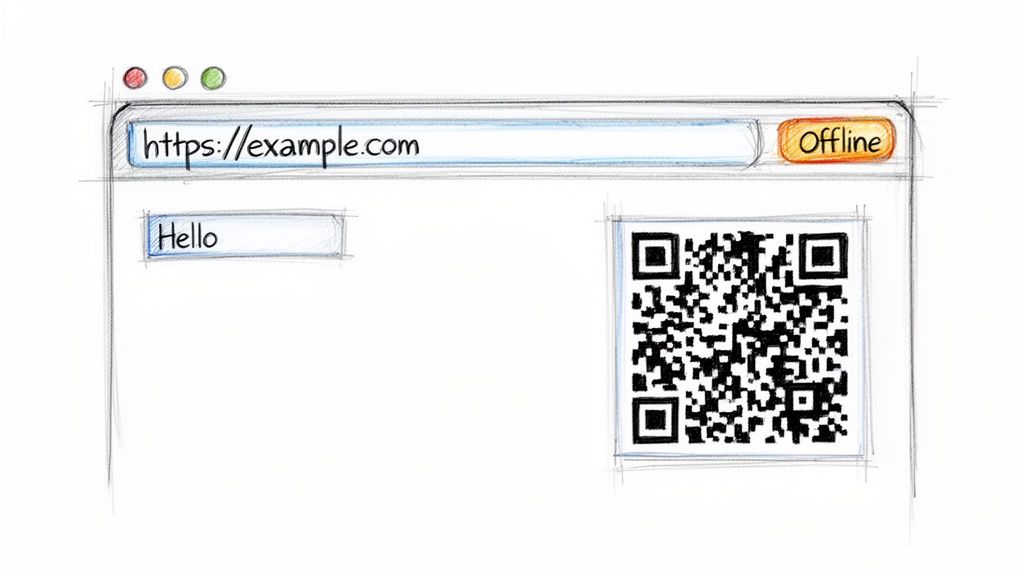
This workflow isn't just for tech pros. It's simple enough for anyone, whether you're making a QR code for your new business cards or an internal link for your team's wiki.
Generating Codes from URLs and Text
Let's dive into two of the most common things you'll do: creating a QR code for a website and one for a simple piece of text.
For a URL:
Just copy the full web address you want to use and paste it directly into the input field. For instance, if you drop in https://www.example.com/product-launch, the tool will generate the QR code for that specific page right away. It's incredibly useful for marketing materials, event posters, or anywhere you need to send people to a landing page.
For a Text Snippet:
You can also just type in plain text. Try something like, Conference Room A Wi-Fi: ProjectPhoenix. Scanning this code will display that exact text on a device—a super-fast way to share bits of information like instructions, equipment IDs, or quick notes without needing a link.
Here's the most important thing to remember: since this is an offline qr-code generator, the URL or text you enter is never sent over the internet. It stays right there on your device, processed entirely in your browser.
This local-first approach proves you don't have to sacrifice security for convenience. You get instant results without ever putting your data at risk.
Why Real-Time Generation Matters
That live-updating preview is more than just a cool visual effect; it's a critical feature for accuracy. It lets you spot any mistakes as you type, so you don't accidentally print a hundred flyers with a QR code that points to a broken link. We've all seen that happen.
This is especially valuable when you're working with more complex data strings, like configuration details or API keys in a development environment. You can find our powerful, secure, and easy-to-use qr-code generator on DigitalToolpad.com. Watching the code morph as you type gives you the confidence that the final output is perfect before you even think about hitting "download."
Tuning QR Codes for Maximum Reliability
A QR code that doesn't scan is more than just an inconvenience; it's a dead end for your user. To make sure your codes work every time, you need to think about more than just the data they hold. The most important setting to master is error correction.
This clever feature is built right into the QR code's DNA, allowing it to work even if it gets smudged, torn, or partially covered. Think of it as a self-repair mechanism. The level you choose directly impacts how much abuse your QR code can take before it stops scanning.
Choosing the Right Error Correction Level
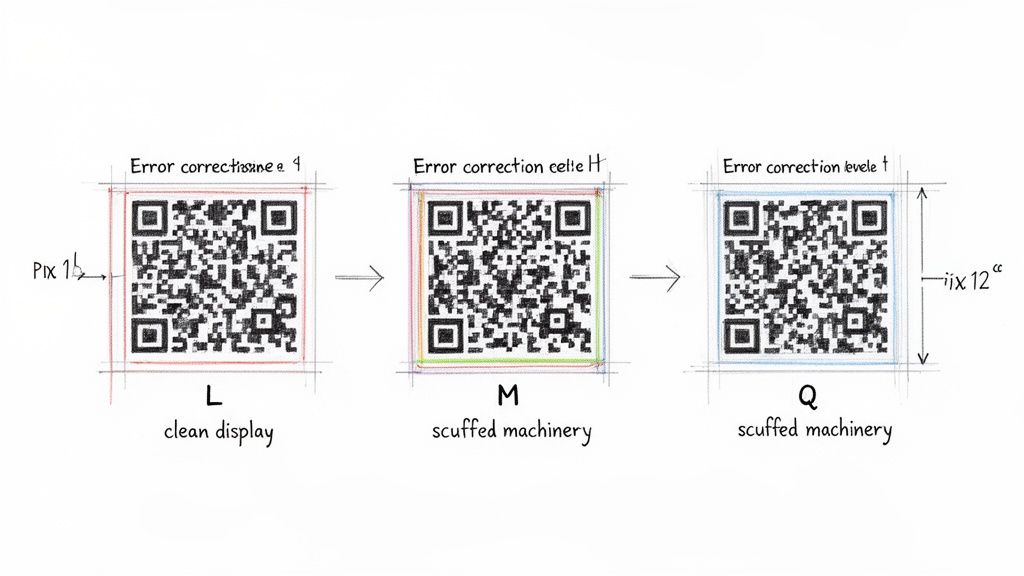
When you use a qr-code generator like Digital ToolPad, you'll see four levels of error correction. Each one strikes a different balance between scannability and how much data it can store. More resilience means a denser-looking code.
This table breaks down how to choose the right level for your project.
QR Code Error Correction Levels Explained
| Level | Data Recovery | Best For | Example Scenario |
|---|---|---|---|
| L | 7% | Clean digital screens | A QR code on a website or in an email signature. |
| M | 15% | Standard print materials | Flyers, business cards, or product packaging. |
| Q | 25% | High-traffic physical environments | Restaurant menus, event badges, or public posters. |
| H | 30% | Industrial or harsh conditions | Outdoor signage or codes on machinery that might get dirty. |
As you can see, the key is to anticipate the real-world conditions your QR code will face. While Level M is a solid default for most situations, cranking it up to Q or H is a smart move for anything that will be handled frequently or exposed to the elements. This foresight ensures a smooth user experience.
The takeaway is simple: match the error correction level to the environment. A higher level is your best defense against scan failures in less-than-ideal conditions.
This isn't just a technical detail—it's a business one. With QR code adoption expected to hit 42.6% of U.S. adult smartphone users by 2025, a failed scan is a lost customer. You can explore more of this data in the latest QR code usage statistics.
Size and Margins Matter for Scannability
Error correction is only half the battle. The physical characteristics of your QR code are just as critical for reliable scanning. You need to get two things right: its size and its surrounding margin.
First, size. A QR code needs to be big enough for a camera to lock onto it without the user having to get awkwardly close. As a rule of thumb, never print a QR code smaller than 1 x 1 inch (2.5 x 2.5 cm). If you're putting it on a billboard or a sign that will be viewed from far away, it needs to be scaled up accordingly.
Second, the margin, or what's technically called the quiet zone. This is the blank border around the code. It’s not wasted space; it’s what tells the scanning app where the code begins and ends. A good, safe margin is about four times the width of one of the tiny black squares in your code. Getting this right prevents scanning errors and ensures your code stands out.
For more on how to apply these concepts across different formats, you can read our article on QR and barcode generators here. By getting these settings dialed in, you're building a QR code that just works, every single time.
Integrating QR Codes into Your Projects
You’ve dialed in the settings and generated the perfect QR code. Great! But that’s just the beginning. The real magic happens when you get that code out into the world, and picking the right file format is a decision that can make or break its effectiveness.
With a local tool like Digital ToolPad, you'll see options like PNG, SVG, and PDF. Each one is built for a different job. Choosing the wrong one can lead to a blurry, pixelated mess that no phone can scan, which just ends up frustrating people and looking unprofessional. Let's make sure that doesn't happen.
Choosing Your Export Format: PNG vs. SVG vs. PDF
Your choice here depends entirely on where this QR code is going to live. Is it for a website? A printed flyer? A massive banner?
PNG (Portable Network Graphics): Think of PNGs as digital photos. They're made of pixels, which makes them perfect for web use where you know the exact size you need. If you're dropping a QR code into an email signature, a PowerPoint slide, or a website sidebar, a PNG is a reliable, no-fuss option.
SVG (Scalable Vector Graphics): This is the gold standard for flexibility. Unlike a pixel-based PNG, an SVG is built from mathematical lines and curves. That means you can stretch it to the size of a billboard or shrink it down to a tiny icon, and it will stay perfectly sharp every single time. If you're a developer embedding a code in an app or a designer prepping a file for print, SVG is almost always the right answer.
PDF (Portable Document Format): When you're ready to print, PDF is your best friend. Exporting as a PDF typically wraps the vector data (just like an SVG) into a universal format that every print shop understands. This is the format you want for business cards, product packaging, event tickets, or any professional print job.
My rule of thumb? When in doubt, export an SVG. It gives you maximum flexibility. You can always convert it to a high-quality PNG of any size later on, but you can't go the other way without losing quality.
Practical Application Tips
Okay, you've got your file. Now what?
For web developers, embedding an SVG directly into your HTML is often the cleanest approach. It loads fast, looks crisp on any device (from a watch to a 4K monitor), and you can even style it with CSS. Want to change the color to match your brand on the fly? You can do that without creating a new image file.
If you're working with a graphic designer for something like a trade show banner or a restaurant menu, always send them the SVG or a high-resolution PDF. Handing over a low-res PNG is a classic mistake that forces the printer to stretch it, resulting in a fuzzy code that’s completely unscannable.
Getting the technical side right is just one piece of the puzzle. To truly make an impact, you need to think about the bigger picture. Exploring powerful QR code marketing strategies can give you some fantastic ideas for weaving these codes into your campaigns in a way that actually gets results.
Ultimately, taking a moment to choose the right format ensures your QR code works flawlessly, creating a seamless link between your physical and digital worlds.
Automating QR Code Generation at Scale
Creating a handful of QR codes one by one is simple enough. But what happens when you need hundreds? Or thousands? For developers, marketing teams, or anyone in operations, that manual approach quickly becomes a serious bottleneck. This is where automation isn't just a nice-to-have; it's a necessity. And for that, a deterministic, offline qr-code generator is the right tool for the job.
Scaling up means ditching the manual point-and-click process and stepping into the world of scripting. Let's say you have a CSV file with hundreds of unique URLs for a new marketing campaign or a long list of device IDs for an IoT rollout. Copying and pasting each one manually would be painfully slow and a recipe for mistakes.
Scripting with a Local Generator
An offline generator shines in automation because it gives you predictable, repeatable results every single time. Since all the processing happens on your machine, you can write scripts without worrying about network lag, hitting API rate limits, or sending potentially sensitive information over the internet.
You could get started with simple JavaScript snippets right in your browser's developer console. For more complex jobs, browser automation tools like Puppeteer or Selenium can read data from a local file, feed it into the generator, and save the resulting QR codes automatically. This is perfect for batch jobs that need to run securely on a local workstation.
Think about the real-world applications. You could build this into an internal admin dashboard. Your team could fill out a simple form to generate event tickets, employee ID badges, or Wi-Fi access credentials on the fly, with the QR codes created and downloaded instantly—all without ever hitting an external server.
Batch Processing from a Data Source
Let's get down to brass tacks. The most common use case for automation is pulling from a structured data source, like a CSV file or a JSON array.
- For Event Ticketing: A script could read a list of attendee IDs from a CSV, create a unique QR code for each, and save the file as
ticket_[AttendeeID].svg. Done in minutes, not days. - For Product Catalogs: Imagine automating the creation of QR codes for every single product on your e-commerce site. You could link each one to its specific product page and use them on in-store signage or flyers.
- For CI/CD Pipelines: In a development workflow, you could automatically generate a QR code pointing to build artifacts or documentation after every new software release and embed it right into the build summary.
The real beauty of using a local qr-code generator for automation is data sovereignty. The entire process is self-contained and secure, which is absolutely critical when you're working with customer data, internal credentials, or proprietary information.
This simple workflow is the foundation of any QR code creation, and it becomes incredibly powerful when you automate it.
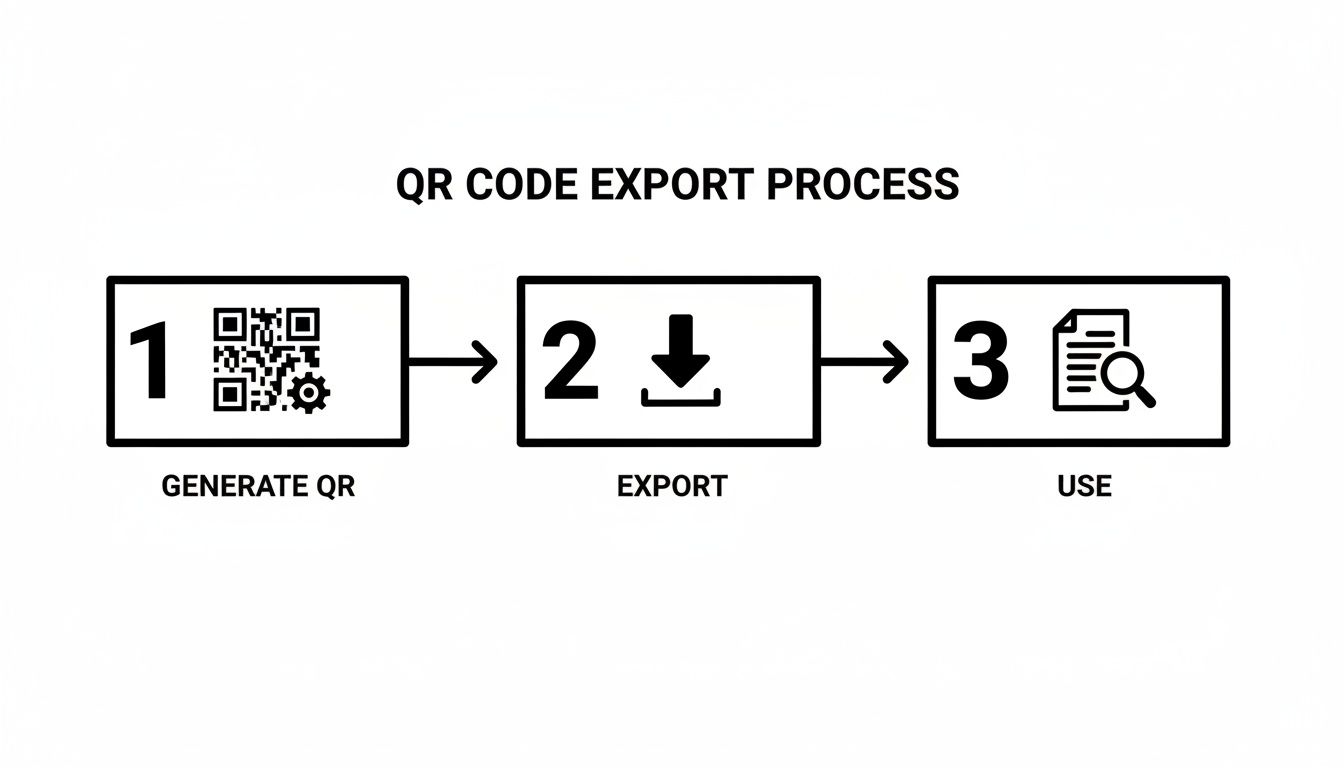
You can loop this "generate, export, use" process thousands of times in a script, turning what would be a monumental task into a simple, automated job. The financial side of this is huge, too. The QR code payments market was valued at $14.7 billion and is expected to hit $38.2 billion by 2030. For any team handling payment integrations or secure transactions, batch generation is key to managing that volume safely.
By scripting this process locally, you can build powerful, scalable, and secure systems that meet today's demands. If you're curious about the numbers, you can discover more insights about these QR code statistics and see just how big this space has become.
Common Questions About Offline QR Code Generators
When you start using a local QR code generator, you'll likely run into a few common questions, especially around things like security, which file format to pick, and what these tools can actually do. This is normal. Whether you're a developer handling sensitive info or a marketer designing a new campaign, getting these details right is key to using the tool effectively.
Let's walk through some of the questions I hear most often about creating QR codes on your own machine. Nailing these concepts will help you get the most out of secure, offline tools.
Is an Offline QR Code Generator Truly Secure?
Yes, absolutely. A client-side, offline QR code generator does all the heavy lifting right inside your web browser. None of the data you enter—be it a simple URL, private Wi-Fi credentials, or critical configuration details—ever leaves your computer. It’s never sent to an external server.
Because everything happens locally, the risk of your data being intercepted, logged, or snooped on by a third party is completely eliminated. This is, hands down, the most secure way to create QR codes, especially when you're working with information that needs to stay private for compliance reasons like GDPR.
The security model is refreshingly simple: if the data never leaves your machine, it can't be compromised externally. This is precisely why developers and security-focused pros rely on offline tools for their critical workflows.
What Are the Advantages of Using SVG Over PNG?
The biggest win for SVG (Scalable Vector Graphics) is its infinite scalability. An SVG is built on mathematical coordinates, not pixels. This means you can resize an SVG QR code to any dimension you can imagine without losing a shred of quality. It will look just as crisp on a tiny app icon as it will on a massive billboard.
PNG, on the other hand, is a raster format made of a fixed grid of pixels. Try to blow up a PNG, and you get that dreaded blurry, pixelated mess that can make the code completely unscannable.
For any professional work, SVG is almost always the better choice. Here’s why:
- Print Quality: It guarantees your QR code will be sharp and readable on business cards, product packaging, or event posters.
- Web Development: SVGs are perfect for responsive designs, ensuring the code looks clean on any screen size.
- Smaller File Size: In many cases, vector files are lighter than high-resolution raster images, which is a nice little boost for web performance.
Can I Generate QR Codes for Wi-Fi Networks Offline?
You bet. A good offline QR code generator isn't just for website links. It can handle all sorts of data types, and that includes Wi-Fi network credentials. And just like with URLs, the entire process is 100% offline and secure.
All you do is plug in the network's SSID (its name), the password, and the encryption type. The tool crunches the numbers and spits out a QR code right there on your machine. It’s a fantastic—and secure—way to share network access in an office, at a conference, or even just with guests at home, without ever having to spell out a password.
How Does Error Correction Affect a QR Code?
Think of error correction as a built-in backup. When you increase the error correction level, you're adding redundant data into the QR code's pattern. This extra information acts as an insurance policy, making the code more resilient so it can still be scanned even if it gets a bit scratched, smudged, or covered up.
But there's a trade-off. All that added data makes the code visibly denser—more black and white squares packed into the same space.
For example, a QR code with Level H (30% recovery) will look much more complex than one with Level L (7% recovery), even if they contain the exact same information. A denser code can sometimes be trickier for scanners to read, especially at very small sizes. The trick is to find the right balance between reliability and visual simplicity for what you're trying to do.
Ready to create secure, private QR codes in seconds? Try the offline tools at Digital ToolPad and see how simple it is to generate what you need without ever sending your data to a server. Get started at https://www.digitaltoolpad.com.