When you're looking for a QR code generator, one of the most important distinctions to understand is the difference between online and offline tools. An offline, client-side generator does all the heavy lifting right inside your web browser. This means absolutely none of the information you encode is ever sent to an external server, giving you a massive advantage in privacy and security.
Why a Privacy-First Approach Is Non-Negotiable
In an era where data privacy isn't just a buzzword but a necessity, the tool you pick for creating QR codes can have real security consequences. Think about it: most online generators ask you to paste your URL, contact info, or Wi-Fi password into a form. The moment you hit "generate," that data travels to their server for processing.
That server-side step introduces a potential weak link. Your information could be logged, stored indefinitely, or even exposed if that company’s security ever gets breached. For any business, developer, or individual handling sensitive information, that's a risk you just can't afford to take.
This is where offline generators, like the tools on Digital ToolPad, completely change the game. They work entirely on your local machine. Because it’s all happening on the client side, your data never leaves your device. It’s the only way to guarantee true data sovereignty. To get a better grasp of how this local processing protects your data, it helps to understand what end-to-end encryption is and why it's considered a gold standard for security.
The Soaring Demand for Secure Tools
The market for QR code generators is booming, which isn't surprising given how deeply they're embedded in everything from marketing campaigns to mobile payments. The industry was valued at a staggering USD 1.02 billion in 2024 and is expected to hit USD 2.95 billion by 2032. This rapid growth highlights a critical need for secure, private ways to create these codes.
For any enterprise setting, client-side generation is more than just a nice-to-have feature, it's a fundamental compliance requirement. It completely eliminates the risks associated with third-party data handling, ensuring that your internal links, employee credentials, or proprietary information stay confidential.
Here’s a simple illustration of how a privacy-first tool keeps your data on your device, with no cloud interaction whatsoever.
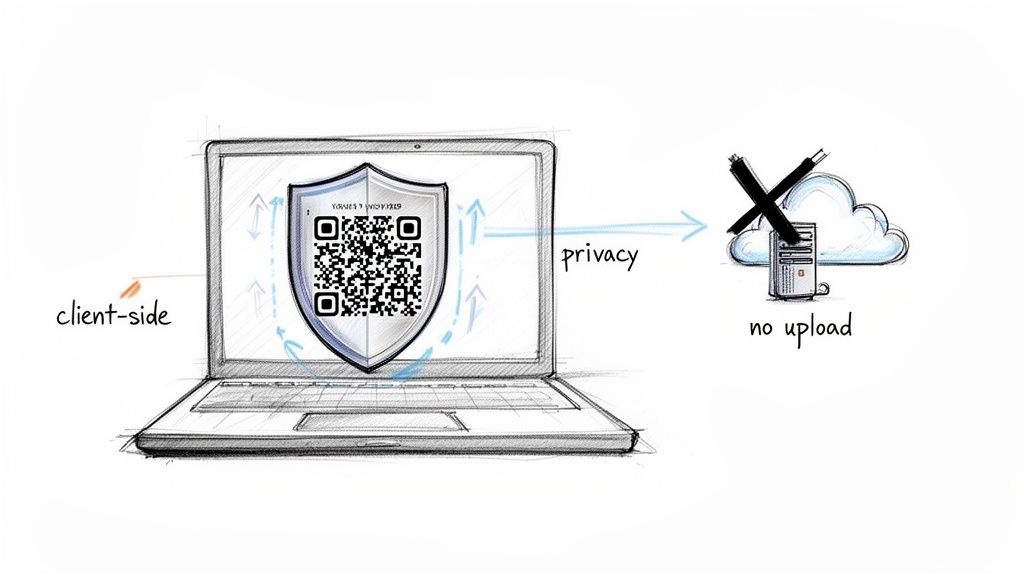
The visual makes the core difference crystal clear: your sensitive data stays on your machine, totally isolated from the outside world.
Choosing the Right Data Type for Your Use Case
The first decision you'll make when creating a QR code is what you want it to do. This "data payload" is the information encoded into the pattern, and it dictates what happens when someone scans it. Using a privacy-first tool like Digital ToolPad is a smart move here, as it processes everything on your machine, ensuring no data is ever sent to a server.
The right format can be the difference between a seamless scan and a frustrating dead end. It’s all about matching the code’s function to your audience’s expectation.
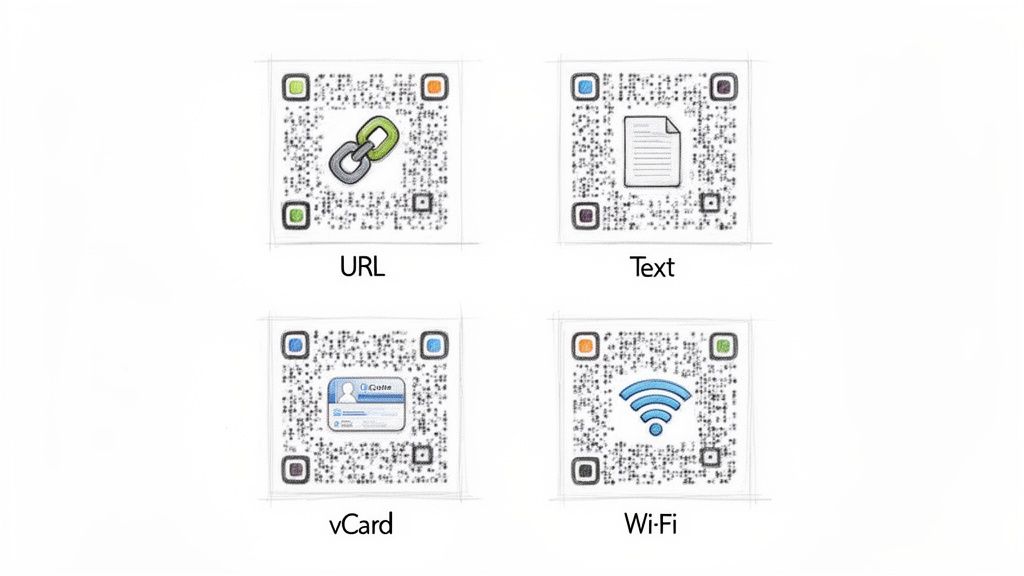
Pro Tip: Picking the right data type directly impacts user engagement and can dramatically reduce scanning errors out in the wild.
URLs: The Go-To for Online Content
Let's start with the most common one: URLs. This is your direct link to any online resource. I’ve used these for everything from linking conference badges to speaker bios, to putting a quick link to API documentation on a project handout.
Here are a few common scenarios where a URL-based QR code shines:
- Driving traffic to a product landing page or marketing campaign.
- Sharing links to online surveys or feedback forms at events.
- Providing instant access to detailed documentation or a GitHub repository.
Plain Text: Simple and Direct Information
Sometimes, you don't need a link. A simple text-based QR code is perfect for delivering a small chunk of information directly to the screen. It's clean, fast, and works completely offline.
I’ve seen this used brilliantly at conferences where a speaker puts a memorable quote and their social media handle in a QR code on their final slide. Cafes also use them to display the "roast of the day" or a quick brewing tip right on the coffee bag.
vCards: Your Digital Business Card
Manually typing contact information is a pain and prone to errors. A vCard QR code solves this instantly. When scanned, it prompts the user to save your contact details (name, phone, email, job title) directly to their phone's address book.
It's an absolute game-changer for networking. Instead of fumbling for a paper card, you can have a consultant or salesperson show a QR code on their phone or badge. One scan, and the connection is saved.
Wi-Fi Access: Connect Without the Hassle
Sharing your Wi-Fi password can be tedious, especially in a public-facing setting like a coffee shop, co-working space, or event venue. A Wi-Fi QR code embeds the network name (SSID), password, and encryption type.
When someone scans it, their phone automatically presents the option to join the network. No more spelling out a complicated password. Guests can just scan the code taped to the counter and get connected in seconds.
To make it even clearer, here’s a quick breakdown of which type to use and when.
QR Code Data Types and Best Use Cases
This table is a handy reference for picking the best data type for what you're trying to accomplish.
| Data Type | Primary Use Case | Example Scenario |
|---|---|---|
| URL | Driving traffic to a website or online resource. | A marketer links a print ad to a campaign landing page. |
| Text | Displaying short, offline information. | A museum provides a brief description next to an art piece. |
| vCard | Sharing contact information instantly. | A consultant shares their digital business card at a trade show. |
| Wi-Fi | Providing seamless network access. | A café offers free guest Wi-Fi without needing a password slip. |
Ultimately, choosing the right data type is about making life easier for the end-user. Think about the context and what action you want them to take. A little forethought here goes a long way in making your QR code genuinely useful.
Balancing Customization with Readability
Once you've plugged in your data, it's time to focus on how your QR code looks and, more importantly, how it performs in the wild. This isn't just about making it pretty; it’s about building a code that won't fail you. The single most important setting here is the Error Correction Level.
Think of error correction as a built-in backup plan for your QR code. It cleverly weaves in extra data so the code still scans even if it gets smudged, scratched, or partially covered. You’ll usually find four options:
- Level L (Low): Can withstand up to 7% damage.
- Level M (Medium): Can withstand up to 15% damage.
- Level Q (Quartile): Can withstand up to 25% damage.
- Level H (High): Can withstand up to 30% damage.
For something purely digital, like on a website, Level M is perfectly fine. But if that code is going on a physical object (a beer coaster, a concert ticket, or a public flyer), you'll thank yourself for bumping it up to Q or H. That resilience is crucial, especially now. With a projected 42.6% of US adult smartphone users expected to scan a QR code by 2025, you can't afford for it to fail. For a deeper dive into these numbers, check out this detailed statistical report.
Sizing and Resolution for Perfect Scans
I've seen this mistake a thousand times: a QR code printed so small it's impossible to scan. As a rule of thumb for print, never go smaller than 1x1 inch (2.5x2.5 cm). On a screen, make sure it’s large enough that people don’t have to pinch-and-zoom.
Resolution is just as critical. A blurry code is a dead code. That's why exporting as an SVG (Scalable Vector Graphic) from a tool like Digital ToolPad is your best bet for print. SVGs can be scaled to the size of a billboard without losing an ounce of quality.
Key Takeaway: The higher the error correction, the more complex and "dense" the QR code pattern looks. This means you need to print it a little bigger so a phone's camera can clearly distinguish the tiny squares.
Adding your logo is a great branding move, but remember, you're physically blocking a part of the code. This is where high error correction becomes mandatory. If you embed a logo, you absolutely must use Level Q or H to make up for the covered data. And never let your logo take up more than 25% of the QR code's surface.
Getting the technicals right is half the battle; the other half is creativity. For some great real-world inspiration, check out these actionable QR code marketing ideas and see how others are putting them to work.
You’ve put in the work to design a great QR code. Now comes the part that really matters: getting it out into the world. How you export and deploy your code makes all the difference in whether it works flawlessly on a business card or slows down your website.
This is where you balance the design choices with real-world reliability. It’s a simple process, but getting it right is critical.
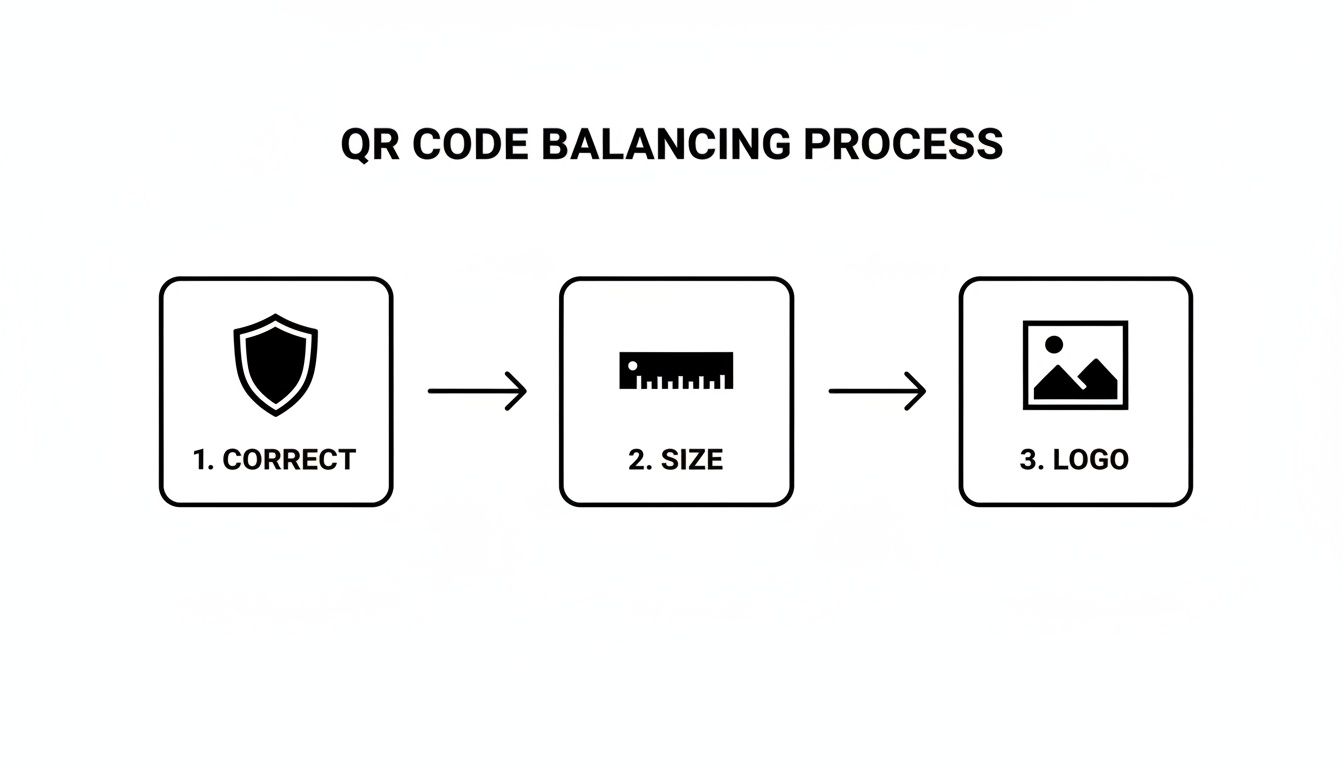
As the diagram shows, it boils down to three things: locking in high error correction, picking a practical size for where it will be seen, and making sure your logo doesn't interfere with scannability.
Picking the Right File Format for the Job
When you hit that export button, you’ll see a few file types. Each one is a tool for a specific task, and choosing the right one will save you a lot of headaches.
SVG (Scalable Vector Graphics): This is your go-to for anything that will be printed. I can't stress this enough. Because SVGs are vector-based, you can scale them up to the size of a billboard or shrink them down for a business card without any loss of quality. They stay perfectly sharp.
PNG (Portable Network Graphics): For digital use, PNG is a fantastic, high-quality choice. It’s a workhorse format that supports transparent backgrounds, which is great for overlaying your QR code on other images or colored backgrounds on a website.
WEBP: This is a newer format built specifically for the web. Its big advantage is excellent compression, meaning smaller file sizes. Smaller files help your website load faster, which is a win for both user experience and SEO. I recommend using WEBP for codes you embed in websites or send in email campaigns.
One of the biggest reasons to use an offline generator like Digital ToolPad is what happens after you export. The file you get is completely self-contained and secure. It holds only the data you put into it: no trackers, no servers to redirect through, no hidden data collection. What you create is exactly what you share.
One Last Check Before You Go Live
Before you send a thousand flyers to the printer or hit publish on a webpage, you have to test your QR code. This is the step people often skip, and it can be a costly mistake.
Grab a few different phones (an iPhone, an Android) and try scanning the code with their native camera apps and maybe a third-party scanner app. Does it work on all of them?
Next, think about the context. If it’s for a poster, step back a few feet and try scanning. If it’s for a small product label, make sure it scans easily up close. A code that only works perfectly when a phone is two inches away isn’t very useful in the real world. This quick test can prevent a massive headache and the cost of a reprint.
For anyone embedding more complex data, it can be helpful to understand how that information gets "packaged." You can learn more about this in our guide on what Base64 encoding is.
Advanced Scenarios for Developers and Technical Teams
When you move beyond just sharing website links, QR codes become incredibly useful for technical workflows. The real power comes from using a privacy-first, offline generator, which lets you create codes without sending your data to some random server on the internet. This unlocks some serious, secure applications for development teams.
Think about this: you need to get a JSON configuration file from your laptop to a mobile device for testing, but they aren't on the same network. Instead of fumbling with cables or trying to type it all out by hand, you can just encode the entire JSON payload into a QR code. The device scans it, parses the text, and instantly has the exact configuration. Zero manual entry, zero risk of data being intercepted in transit.
Private Data Snippets and Internal Access
Another really slick application is encoding Base64 data. This lets you embed small file snippets, API keys, or even a website icon directly into the QR code itself. It’s fantastic for internal tooling and setup scripts. For a related idea, you can see how this works in our guide on creating a favicon generator for your site.
Along the same lines, you can generate QR codes that point to internal, non-public URLs. This is perfect for giving team members quick access to development tools or onboarding scripts. Using an offline qr qr code generator is critical here, as it guarantees those sensitive internal endpoints are never logged by a third-party service.
Pro Tip: You can get dynamic-like results from a static QR code. Just encode a URL that your team controls, like a custom short link. When you need to change where the QR code points, you just update the redirect on your server. The QR code's destination changes instantly, no reprinting required.
This method gives you a great mix of flexibility and security. While it's true that fully dynamic QR codes captured 65% of the market share in 2024, this hybrid approach is often better for enterprise needs. You get total control over the destination without ever exposing your data. With QR code payments projected to hit $38.2 billion by 2030, building secure, private QR solutions is more important than ever. You can read more about these QR code trends to see where things are headed.
Got Questions About Offline QR Code Generators?
Even after walking through the steps, a few questions tend to pop up, especially if you're new to creating QR codes offline. Let's clear up some of the most common ones so you can generate your codes with complete confidence.
Is It Really More Secure?
This is probably the number one question I get. Is an offline tool genuinely safer? The answer is an emphatic yes.
When you use a tool like Digital ToolPad, every bit of data processing happens right inside your web browser. Nothing, not your private URLs, sensitive Wi‑Fi passwords, or vCard details, ever leaves your computer. This design completely eliminates the risk of your information being logged on a server, tracked, or exposed in a data breach.
Can I Still Make "Dynamic" QR Codes?
People often want the flexibility of a dynamic QR code, one that can be updated after it's been printed. Purely offline generators create static codes, meaning the data is baked right into the pattern. But you can easily get the same result without compromising your privacy.
Here's the trick: encode a URL that you control. This could be a redirect link set up on your own website or a short link from a service you manage. When you need to "update" the QR code, you don't change the code itself, you just change where that original link points to on your end.
This simple workaround gives you the best of both worlds: the robust security of an offline-generated QR code and the flexibility to change its destination whenever you need to.
Which File Format Should I Choose?
Finally, let's talk about exporting your finished QR code. The right format really depends on where you plan to use it.
- For Print: SVG (Scalable Vector Graphics) is your best bet, hands down. It's a vector file, which means you can scale it up for a massive billboard or shrink it for a tiny business card, and it will always stay perfectly crisp and clear.
- For Web: PNG is the go-to for digital use. It's universally supported and works great on websites, in emails, or on social media. For an even more modern option, WEBP offers smaller file sizes, which helps your web pages load faster.
Ready to create your own secure, private QR codes in just a few clicks? Give the offline Digital ToolPad QR Code Generator a try and see the difference client-side processing makes.