
A good, secure offline code generator qr does all its work right inside your web browser. This is a game-changer because it means sensitive information—like your Wi‑Fi password or a private link—never actually leaves your computer. This client-side approach keeps your data from ever touching an external server, adding a crucial layer of privacy that you just don't get with most online tools.
Why Offline QR Code Generation Is a Must for Data Privacy
Think about what happens when you use a standard online QR code generator. You paste in your data—a Wi-Fi password, contact details for a vCard, or a link to a private project—and hit "generate." That information travels across the internet to a third-party server, which then creates the QR code and sends the image back to you.
This process introduces a pretty big, and often ignored, privacy risk. The company running that server could potentially log, store, or even snoop on the data you provided. For personal stuff, maybe that's not a huge deal. But for business? It’s a serious vulnerability. Imagine creating QR codes for internal documents, payment systems, or secure login credentials and sending all that sensitive info to a server you know nothing about. It's an unnecessary security gap.
The Shift to Privacy-First Tools
An offline code generator qr flips this model on its head. It uses JavaScript to run everything directly in your browser, ensuring your data stays right where it belongs: on your machine. This local-first approach isn't just a neat feature; it’s a security-by-design architecture that puts you back in control.
This model is all about the principles of self-custodial security, where you and only you hold the keys to your information. There’s no third party to trust because your data never even goes on the network. If you're interested in the tech that makes this possible, our guide on https://www.DigitalToolpad.com/blog/what-is-end-to-end-encryption breaks down the core concepts.
The real beauty of a true offline generator is that you can load the page, disconnect from the internet entirely, and keep making QR codes without any risk of your data leaking. It's the ultimate peace of mind when you're handling sensitive info.
To see what this looks like in practice, here's a look at a tool built from the ground up with this privacy-first philosophy.
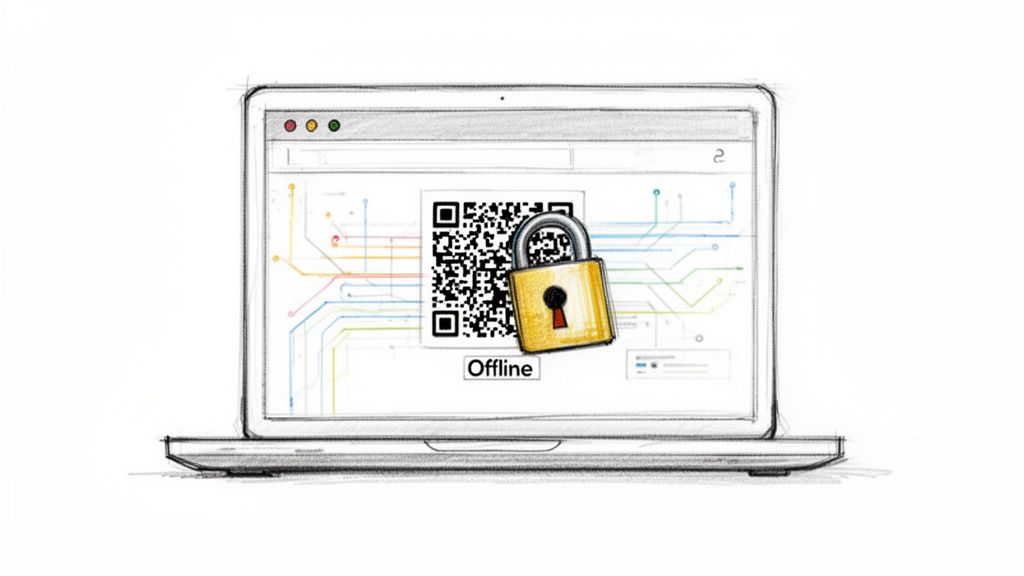
As you can see, everything is self-contained. The interface makes it clear that your data input and the resulting QR code are generated and confined entirely to your own device.
It's helpful to see the key differences laid out side-by-side.
Comparing Online vs Offline QR Code Generators
| Attribute | Standard Online Generator | Offline In-Browser Generator |
|---|---|---|
| Data Privacy | Data sent to a third-party server; risk of logging or misuse. | Data never leaves your device; 100% private. |
| Security | Potential for data interception during transit or breach at the server. | No data transmission, eliminating interception risks. Self-contained security. |
| Offline Use | Requires a constant internet connection. | Fully functional without an internet connection after the page loads. |
| Trust Factor | You must trust the service provider's privacy policy and security. | Zero trust needed. The architecture is inherently secure. |
The move toward local-first tools like this reflects a much bigger trend. The QR code generator market is absolutely booming, jumping from USD 6.79 billion to USD 7.83 billion in a single year. Projections show it hitting USD 16.73 billion by 2030. This explosive growth shows just how deeply these codes are being integrated into critical fields like finance and healthcare, where data security isn't just a feature—it's a requirement.
Making Your First Secure QR Code Offline
Alright, enough with the theory—let's get our hands dirty. The best way to see how a privacy-first QR code generator works is to walk through a few common scenarios. Since the whole process happens right inside your browser, none of the sensitive info we're about to use will ever touch the internet.
This is where you'll see just how easy it is to create secure QR codes for all sorts of things, from dev workflows to simple business needs. We're going to focus on handling private information the right way.
Generating a Link to a Private Repository
Let's say you're onboarding a new developer and need to give them access to a private GitHub repo or an internal staging server. Sure, you could email the link, but putting a QR code on a setup doc or a monitor is just plain faster. The problem? Using a public online generator for that link is a terrible idea—that private URL could easily get logged on some random third-party server.
With an offline tool, it’s completely secure and takes seconds:
- First, select the "URL" type in the generator. This is your standard, everyday option.
- Next, paste your private link right into the input field. Something like
https://github.com/YourOrg/secret-project/invitation. - That's it. The QR code pops up instantly, created entirely on your device.
The final QR code holds that URL data and nothing more. When someone scans it, their phone just opens the link. No external servers were involved in making it, so your link stays private.
Creating a Secure vCard for Digital Business Cards
A vCard QR code is a slick way to share contact info, but let’s be honest: do you really want your personal phone number, email, and home address stored on a server you don't control? Generating it offline puts you back in charge of your own data.
You just fill out the vCard form built into the tool.
- Name Fields: First Name, Last Name
- Company Info: Organization, Position
- Contact Details: Phone (Work, Cell), Email, Website
- Address: Street, City, State, ZIP, Country
The generator neatly packages this information into the standard vCard format. Not a single byte of your personal data leaves your machine. The QR code becomes a self-contained, completely private digital business card.
Pro Tip: I've found it's best to keep vCard QR codes clean. Only include the absolute essentials. While you can pack in tons of detail, an overly dense QR code can be a real pain for some phone cameras to read, which defeats the whole purpose of being quick and easy.
Sharing Guest Wi-Fi Without Exposing Your Password
Here’s one of my favorite uses for secure QR codes: sharing Wi-Fi access. Typing a complex password into a public-facing website is a major security faux pas. An offline generator completely sidesteps that risk. You can see how our offline QR Code generator makes this simple while keeping your credentials locked down.
Here’s how you create a secure Wi-Fi QR code:
- Start by choosing the "Wi-Fi" type from the list of options.
- Enter the Network Name (SSID) exactly as it appears on your network list.
- Type in the Password. The tool will automatically format it correctly.
- Finally, select the Encryption Type—it's almost always WPA/WPA2.
The QR code it spits out lets guests connect to your network just by pointing their camera at it. Your network credentials are never sent over the internet, keeping them totally confidential. This is perfect for setting up in a conference room, a coffee shop, or even for your guest network at home.
Making Your QR Codes Stand Out: Customization, Scannability, and Branding
Getting a QR code to work is easy. The real trick is creating one that not only scans reliably every time but also reinforces your brand. This is where you graduate from basic black-and-white squares to something truly professional, and a good offline code generator qr is the perfect tool for the job.
Let's dive into the settings that matter most. Mastering these will ensure your QR codes are both effective and visually sharp, whether they end up on a business card or a billboard.
The Secret to a Durable QR Code: Error Correction
Ever wonder how a QR code still scans even if it's scuffed, torn, or has a logo plastered in the middle? That’s error correction at work. It cleverly builds redundancy into the code so that a scanner can piece together the information even if part of it is missing.
You'll usually see four levels to choose from:
- L (Low): Can withstand about 7% data loss. Best for clean, digital environments where damage is a non-issue.
- M (Medium): Recovers up to 15% of the data. This is your go-to, all-purpose setting for things like flyers and product packaging.
- Q (Quartile): Handles up to 25% damage. A solid choice when you expect the code to get a bit beat up.
- H (High): Recovers a whopping 30% of the data. This is non-negotiable if you plan to embed a logo. The logo intentionally obscures part of the code, and this high redundancy level compensates for it.
Just remember, a higher correction level means a denser, more complex-looking QR code pattern. For most situations, 'M' or 'Q' is the sweet spot.
Choosing the Right File Type: Print vs. Digital
Your generator will likely offer a few output formats, but the choice almost always comes down to PNG vs. SVG. They might seem similar, but they're built for entirely different worlds.
A PNG is a raster image, made of pixels. It’s perfect for the web—on your site, in emails, or on social media. But if you try to blow up a small PNG for a poster, it will look blocky and pixelated, which can kill its scannability.
For anything destined for print, SVG (Scalable Vector Graphic) is the only way to go. Because it’s based on mathematical paths instead of pixels, you can scale it to any size without losing a single drop of quality. From a tiny sticker to a massive banner, an SVG will always be perfectly sharp. This is the simple, secure workflow you'll follow.
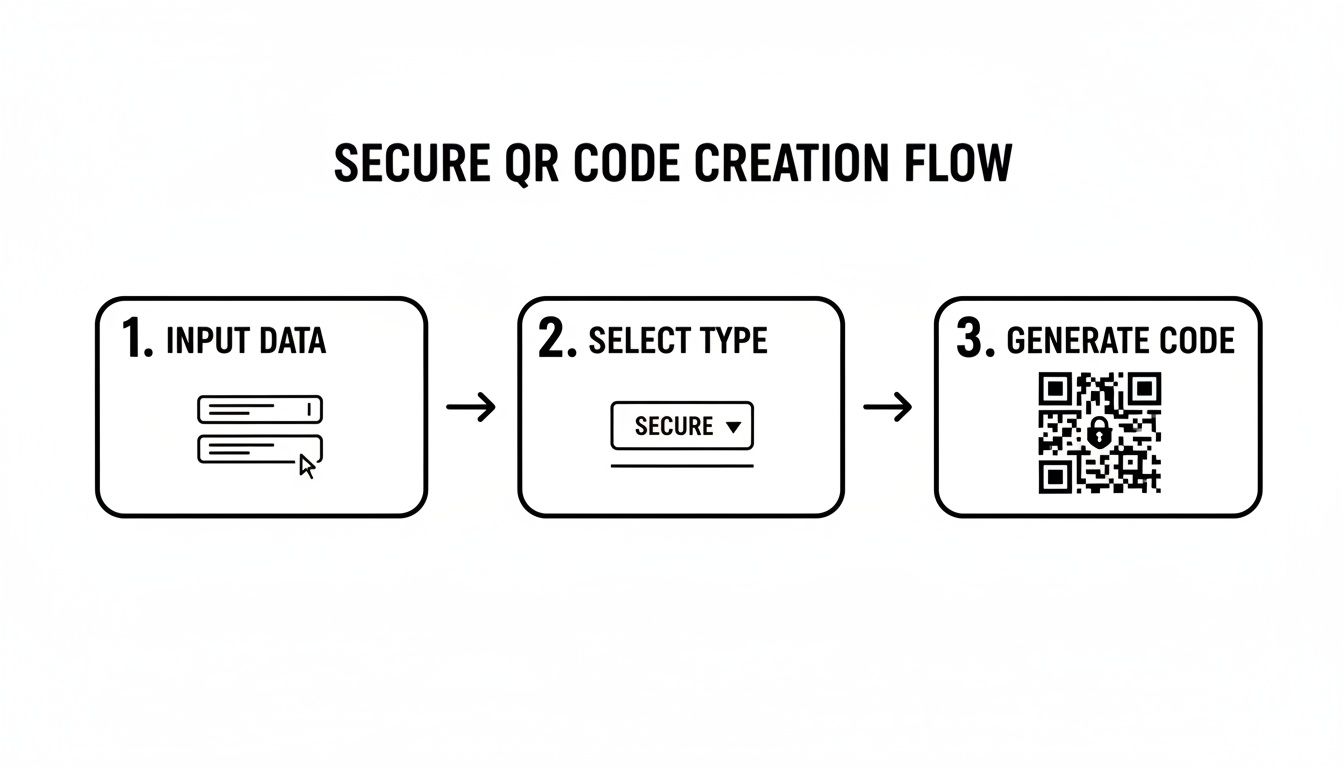
As you can see, the process is straightforward—just three simple stages performed safely on your own machine.
Mastering these skills is more important than ever. QR code usage is exploding, with scans jumping 57% across 50 countries recently. With 4.88 billion smartphone users out there, and scans projected to grow another 22% by 2025, a well-made QR code is a powerful tool.
Pro Tip: Always, always test your final QR code before you go to print. Scan it with a few different phones (both Android and iOS) and from various distances and angles. A beautiful code that doesn't scan is just a fancy box.
If you want to explore the different types of codes you can create, check out our deep dive into the Digital Toolpad QR and barcode generator. Getting these details right is what separates an amateur QR code from a professional one.
Making Sure Your QR Codes Actually Work (and Are Secure)
A slick, custom-branded QR code is a great marketing tool, but it's completely worthless if it fails to scan. I’ve seen it happen—companies spend a fortune on printed materials only to find their QR codes are duds. Before you go to print, running through a quick pre-flight check can save you a world of headaches and money.
The Non-Negotiables for a Scannable Code
Let's start with the absolute basics. The most fundamental rule is high contrast. There's a reason black on white is the classic combo: it gives a phone's camera the clearest possible image to lock onto. You can definitely get creative with brand colors, but steer clear of low-contrast pairings like light gray on white or yellow on green. If it's hard for you to see clearly, a camera will struggle even more.
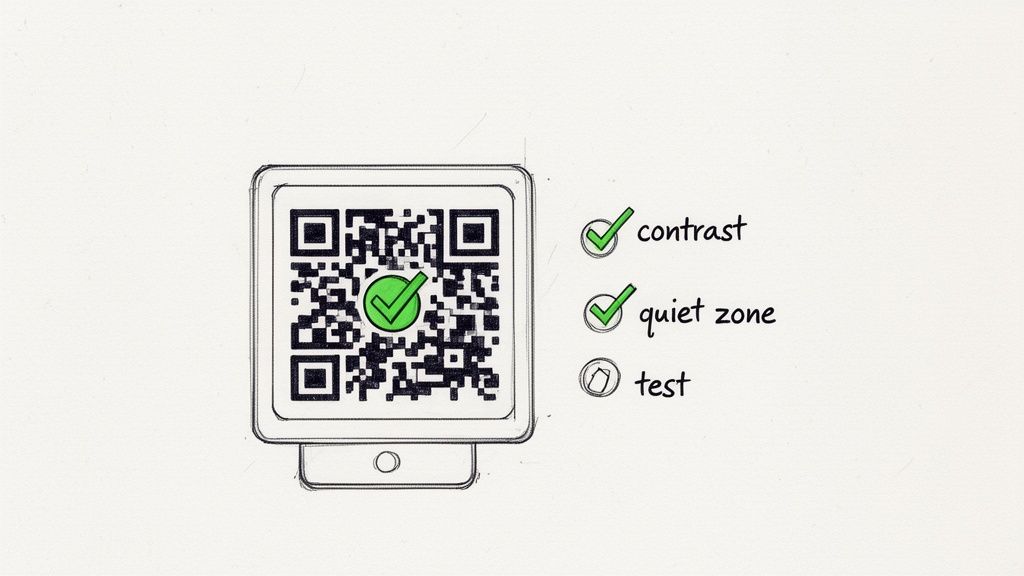
Just as important is what I call the "quiet zone"—that blank margin around the code. This empty space is crucial because it helps the scanner distinguish the QR code from any surrounding text or graphics. A good rule of thumb is to make this margin at least four times the width of one of the tiny black squares (modules) in your code. One of the most common reasons for scan failures is cramming other design elements too close. Give it some breathing room!
Building Trust, One Scan at a Time
Technical reliability is one thing, but security is what builds user trust. When someone points their phone at your code, they're trusting you not to send them somewhere sketchy. This is where using an offline code generator qr like the one we're discussing really shines. It guarantees that the data you embed is exactly what you intended, without any third-party redirects or trackers interfering.
The destination of your QR code is just as important for building that trust, especially if it's a URL. People are understandably hesitant to scan codes that point to weird or unfamiliar domains.
- Stick to Trusted Domains: Whenever you can, link directly to your primary, recognizable website.
- Use Branded Shorteners: If you absolutely need to shorten a long URL, opt for a branded short domain (
yourbrand.co/offer) over a generic, anonymous one. It immediately signals legitimacy and tells users they're heading to a safe place.
Think of a QR code as a digital doorway. By making sure that doorway is clearly marked and leads exactly where you say it will, you don't just improve scannability—you strengthen your brand’s reputation for being secure and trustworthy.
This focus on detail is more important than ever. The QR code market is exploding, valued at USD 15.6 billion and projected to hit an incredible USD 89 billion by 2034. With payments accounting for 46% of that activity, user trust isn't just a nice-to-have; it's the bedrock of the entire system. You can dig into more stats about the booming QR codes market on scoop.market.us.
Automating QR Code Generation in Your Workflow
Making a QR code here and there is simple enough. But what happens when you need hundreds, or even thousands? If you're generating event badges, labeling inventory, or creating unique product identifiers, creating them one by one quickly becomes a massive time-sink.
That’s where automation makes a world of difference. You can hook directly into a browser-based, offline QR code generator to make it part of your existing processes. The best part? You can do it all while keeping your data completely private.
Scripting QR Codes on the Fly in Your Browser
Many of the best offline tools are built with powerful JavaScript libraries. This opens up a fantastic opportunity: you can control the generator with code, right from your browser's developer console. This is a game-changer for building internal dashboards or simple web apps that need QR codes generated instantly, without ever pinging an external server.
For instance, picture an internal web page for managing event attendees. With just a small JavaScript snippet, you could grab a guest's ID directly from the page and generate a unique QR code for their badge in the blink of an eye.
Here's a rough idea of how that might work in practice:
// This is a simplified example to show the concept function generateQRCodeForElement(elementId, outputCanvasId) { const data = document.getElementById(elementId).innerText; // Assuming the generator's library is exposed on the 'window' object const qrCodeLibrary = window.QRCode;
qrCodeLibrary.toCanvas(document.getElementById(outputCanvasId), data, function (error) { if (error) console.error(error); console.log('Success! QR code created for:', data); }); }
// How you'd call it: generateQRCodeForElement('attendee-id-123', 'qr-code-canvas');
Everything happens on the user's machine. The attendee information never leaves the browser, making this a perfectly secure and efficient way to add QR functionality to your private web tools.
Ramping Up With Command-Line Automation
For the really big jobs, the command line (CLI) is your best friend. This is the way to go when you need to batch-process QR codes from a spreadsheet, database, or any other data source. The strategy involves using a script to "drive" the browser, feeding it data and saving the output.
Imagine you have a CSV file filled with hundreds of product SKUs. A simple script could be written to:
- Read each product SKU from your CSV file.
- Fire up a browser automation tool like Puppeteer or Playwright.
- Tell the browser to open your local QR code generator page.
- Inject the SKU into the input field and download the finished SVG or PNG.
This setup gives you a powerful, repeatable engine for creating QR codes in bulk. You can even take it a step further. To keep branding consistent, you can automate your brand workflows to fetch logos and embed them into each code as part of the script.
Automation doesn't mean you have to compromise on privacy. By using browser-based scripting and CLI tools, you can build incredibly powerful, scalable, and completely secure workflows. Your data stays right where it belongs: under your control.
Common Questions About Offline QR Code Generators
Diving into offline QR code creation usually sparks a few questions. While the privacy benefits are a huge plus, it's smart to get a handle on the technical side of things. Let's walk through the most common queries I hear, so you can feel completely comfortable using a browser-based tool.
Is an Offline QR Code Generator Truly Secure?
Yes, it's as secure as it gets. The magic behind an offline code generator qr is its client-side architecture. In simple terms, this means everything happens on your computer, right inside your web browser.
From the moment you type in your Wi-Fi password or vCard details to the final QR code image popping up on your screen, none of that data ever travels across the internet. It never hits an external server, which means there's zero risk of it being logged, stored, or peeped at by a third party. This is a level of privacy that online-only generators just can't promise.
Can Offline Generated QR Codes Expire?
Nope, they're permanent. The QR codes you make with a privacy-focused tool like this are self-contained. The data—whether it's a URL, a contact card, or Wi-Fi credentials—is baked directly into that pixelated square pattern.
This is a key difference from the "dynamic" QR codes you'll find on many online services. Those often just link to a middleman URL that the service provider controls. They can turn it off, change the destination, or put it behind a paywall. Since your offline-generated code holds the actual raw data, it will work forever, as long as the information inside it (like the website link or phone number) is still valid.
The permanence of a static, offline-generated QR code is a core feature. It’s your guarantee that the code will work years from now, with no reliance on a third-party service staying in business.
Do I Need to Install Any Software?
Not a thing. A good offline QR code generator is built to run entirely in your web browser using standard JavaScript. You just load the webpage, and you're good to go.
You can even open the tool's page, disconnect from the internet completely, and it will still work flawlessly. This makes it an incredibly light and portable solution that you can use on any device with a modern browser, no installation required.
Can I Still Add a Logo or Customize Colors?
Absolutely. All the fun customization options happen locally on your machine, too. This means you can:
- Drop your company logo right into the center of the code.
- Tweak the foreground and background colors to fit your brand.
- Fine-tune the error correction level for the perfect balance of style and scannability.
When you upload a logo, your browser handles the image processing and merges it with the QR code locally. That logo file never leaves your computer, keeping both your branding assets and your QR code data completely private.
Ready to create secure, private QR codes in seconds? Try the suite of offline tools from Digital ToolPad and experience the peace of mind that comes with complete data control. Explore the tools at Digital ToolPad.