
Converting a DOCX file to Markdown means taking a complex, proprietary Word document and turning it into a simple, clean plain-text file. This isn't just a technical exercise; it's a crucial step for anyone using modern tools like Git, static site generators, or AI pipelines where simplicity and structure are everything.
Why Modern Workflows Need DOCX to Markdown
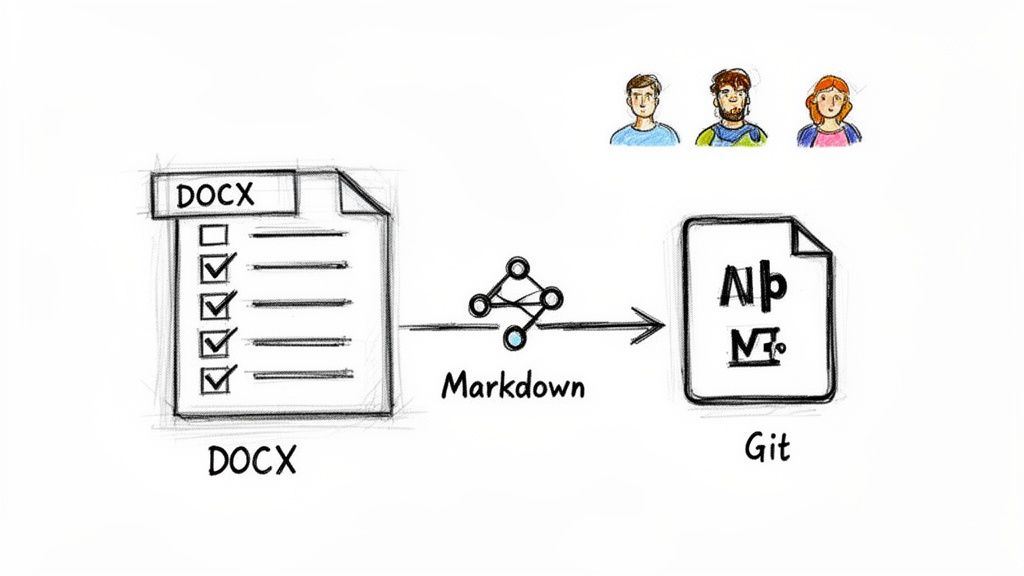
If your team uses platforms like GitHub or relies on static site generators for documentation, you've probably run into the headaches caused by .docx files. It's a classic situation: a non-technical teammate sends over an important document, but its binary format is a black box to your development tools. It doesn't play nice with version control, making it a nightmare to track changes line by line.
This is why converting DOCX to Markdown is less about a file format change and more about a fundamental workflow upgrade. Markdown is a lightweight, human-readable language that slips right into technical environments. Because it's just text, every single change can be tracked, diffed, and reviewed with total clarity in Git.
Unlocking Efficiency and Collaboration
Shifting from DOCX to Markdown bridges the gap that often exists between content creators and developers. Instead of fighting with a format that obscures its own structure, everyone can work with clean text that’s portable and easy to manage. A huge benefit here is the ability to automate repetitive tasks, like pushing documents directly to a company blog or knowledge base without manual intervention.
This conversion is especially powerful for:
- Technical Documentation: Seamlessly integrating user guides and API manuals directly into a codebase.
- Content Management: Using Git as the one and only source of truth for all website content.
- Collaborative Writing: Enabling editors, writers, and developers to review and contribute using the same set of familiar tools.
When you make the switch to Markdown, you’re removing a major bottleneck. Content becomes just as version-controlled and manageable as the code it lives with, leading to a much smoother and more efficient process for the whole team.
Preparing Content for Artificial Intelligence
The benefits don't stop there—they extend deep into AI-powered workflows. With the growing use of retrieval-augmented generation (RAG) systems, converting DOCX to Markdown has become almost essential. According to industry benchmarks from sources like TextControl.com, structured plain text can reduce token usage by as much as 70-80% compared to feeding a raw Word file into a model.
This massive efficiency gain means your content gets processed faster and at a much lower cost. We're not just changing a file extension; we're fundamentally making our content smarter and ready for the next generation of tools.
Using Secure Browser-Based Converters
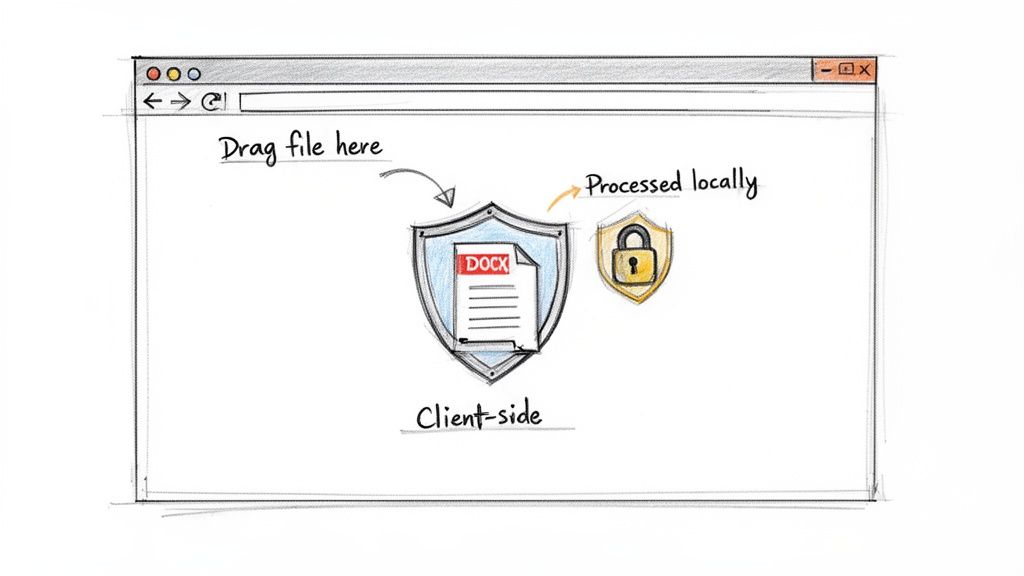
Sometimes you just need a quick, one-off DOCX to Markdown conversion without firing up the command line. Browser-based tools are perfect for this—just drag, drop, and you're done. But there’s a critical question you have to ask first: where does my document actually go?
Many online converters upload your file to a remote server to do the work. For anything sensitive—like internal memos, financial reports, or unreleased product specs—that’s a huge security risk. You're essentially sending your data to an unknown third party.
This is why understanding the difference between server-side and client-side processing is so important. A truly secure browser tool does all the heavy lifting locally, right on your machine.
Using JavaScript, these tools read and convert the .docx file entirely within your browser. Your data never leaves your computer, making the process as secure as any desktop app. You get the convenience of a web tool with the privacy of an offline one.
The Client-Side Advantage in Practice
Let’s say a legal team needs to convert a confidential client agreement into Markdown for their internal knowledge base. The document is filled with sensitive personal and financial data. Using a standard online tool that uploads the file would be a serious compliance violation.
Instead, they can use a privacy-focused, offline-capable tool like those on Digital ToolPad. The workflow is refreshingly simple and secure:
- They open the converter page in their browser.
- The DOCX file is dragged directly onto the page.
- The tool’s local script instantly reads the file and generates the Markdown.
- They copy the output and close the tab, knowing no data was ever transmitted.
This client-side approach isn't just a nice-to-have feature; it's a security guarantee. You retain complete control over your documents, completely sidestepping the risks of sending files to third-party servers.
Why Speed and Security Are Non-Negotiable
The need for fast, safe document conversion is bigger than ever. As content workflows get more complex, teams are ditching manual reformatting for automated solutions. One popular tool, word2md.net, has reportedly processed over 2.5 million documents, with teams reporting time savings of up to 95%.
This massive shift shows that people want tools that are not only fast but also trustworthy. By opting for a client-side converter, you get the best of both worlds: instant DOCX to Markdown conversion without ever having to worry about your data's security. It's the go-to method for quick tasks where privacy is paramount.
Getting Your Hands Dirty with Command-Line Tools
While browser-based converters are great for a quick, one-off file, they can't match the raw power and control you get from the command line. For developers, technical writers, or anyone who needs to convert documents at scale, the command-line interface (CLI) is where the real work happens. This is the world of Pandoc, the undisputed champion of document conversion.
Think of Pandoc as a universal translator for documents. It's a free, open-source tool that can chew through dozens of formats and spit out clean, well-structured files. Its real claim to fame is how well it handles the messy stuff—tables, footnotes, citations, and even complex math—making it a favorite in academic and technical fields.
Getting Pandoc Set Up
Don't let the "command-line" part scare you off; getting Pandoc installed is surprisingly simple. It hooks right into your operating system's package manager, so it's usually just a one-line command.
- macOS (with Homebrew):
brew install pandoc - Windows (with Chocolatey):
choco install pandoc - Debian/Ubuntu Linux (with APT):
sudo apt-get install pandoc
After it's installed, pop open your terminal and run pandoc --version to make sure everything is working. With that simple check, you've unlocked a repeatable, scriptable way to handle conversions.
The most basic conversion is as straightforward as it gets. You just tell Pandoc what file to read and what to call the new one.
pandoc your-document.docx -o output.md
This command takes your-document.docx and creates output.md from it. But that's just the beginning. The real magic of Pandoc lies in its huge library of flags and options, which let you dial in the conversion with incredible precision.
For anyone serious about creating a reliable, high-quality conversion process, learning Pandoc on the command line isn't just a good idea—it's essential. You'll move from manually fixing one file at a time to building a fully automated workflow.
Advanced Conversion Recipes
Let's be honest, real-world documents are messy. They're filled with images, tables, and weird formatting that you need to carry over. This is where Pandoc really shines, as long as you know the right commands.
A classic headache is dealing with images. Pandoc's default behavior can sometimes be unpredictable, but you can easily tell it to extract all images into a folder—perfect for web content.
pandoc your-report.docx --extract-media=./images -o report.md
This command does two things: it converts the DOCX file and it pulls out every image, saving them in a new images directory. It even updates the Markdown image links to point to the right place. If you're working with a static site generator like Hugo or Jekyll, this is a lifesaver.
Another huge win is batch processing. Say you have a folder with a dozen DOCX files from the marketing team. Doing them by hand is a recipe for boredom and mistakes. Instead, a simple script can knock them all out in seconds.
Here's what that looks like in a Bash script:
for file in *.docx; do pandoc "$file" -o "${file%.docx}.md" done
This little loop finds every .docx file in your current folder, runs the conversion, and gives the new file a .md extension. This is the kind of automation that transforms a tedious, multi-hour task into a single command. It's this scalability that makes the command line the go-to approach for any serious DOCX to Markdown pipeline.
Weaving Conversions Directly into Your Code
Let's be honest, manual conversions are fine for a one-off document, but if you're dealing with a regular flow of content, it's a bottleneck. The real power comes from building this capability right into your projects. This is for developers who want to fully automate their documentation pipelines, content management systems, or static site builds.
A fantastic starting point for many developers is right inside their favorite code editor. With 74% of developers using Visual Studio Code, its extension marketplace has become a powerhouse for workflow automation. An extension like Office to Markdown Converter lets you convert DOCX files without ever leaving your IDE. For teams drowning in documentation, its batch processing feature is a lifesaver.
This editor-based approach hits a sweet spot, giving you more power than a browser tool without the complexity of a full-blown programmatic setup.
Going Programmatic with Conversion Libraries
When you need to build truly robust, automated systems, it’s time to bring in the libraries. Adding a conversion library to your project allows you to create scripts that can watch folders for new files, process API uploads, or automatically prep content for a static site generator like Jekyll or Hugo. Success here often comes down to a solid understanding your software stack and knowing where to plug in the conversion step.
Two of the most dependable libraries I've worked with are Mammoth for Python and its counterpart for Node.js.
- Python with
mammoth: This is a clean, straightforward library for handling.docxfiles. It does a great job of keeping basic formatting intact, including headings, lists, and tables. - Node.js with
mammoth.js: The JavaScript version delivers the same reliable performance, making it a perfect fit for backend services or build scripts in a Node.js ecosystem.
Let's walk through a real-world scenario. Imagine your marketing team drops new blog posts as DOCX files into a shared "uploads" folder, and you need to get them into your Jekyll site automatically.
Here's a simple Python script to handle that:
import mammoth import os
Define the source and destination folders
source_folder = "./uploads" dest_folder = "./_posts"
Check each file in the source folder
for filename in os.listdir(source_folder): if filename.endswith(".docx"): docx_path = os.path.join(source_folder, filename) # Create a new markdown filename md_filename = os.path.splitext(filename)[0] + ".md" md_path = os.path.join(dest_folder, md_filename)
    with open(docx_path, "rb") as docx_file:
        # Run the conversion
        result = mammoth.convert_to_markdown(docx_file)
        markdown = result.value # This is the converted Markdown text

        # Write the new Markdown file
        with open(md_path, "w", encoding="utf-8") as md_file:
            md_file.write(markdown)

    print(f"Converted {filename} to {md_filename}")
This little script takes a tedious manual task and completely automates it, ensuring content flows smoothly from creation to publication. You could easily modify this to run on a schedule, trigger from a web app file upload, or integrate it into a CI/CD pipeline. And if you're frequently juggling different formats, our guide on converting HTML to Markdown might be another useful tool in your belt.
By embedding conversion logic directly into your applications, you transform the DOCX to Markdown process from a manual chore into a fully automated, reliable part of your infrastructure. This is how modern content systems are built—programmatically and efficiently.
Handling Complex Images, Tables, and Styles
A truly clean DOCX to Markdown conversion comes down to how you handle the tricky bits: images, tables, and custom styles. Basic text is easy. It's these other elements that often fall apart during the process, leaving you with a mess to clean up manually.
Each of these presents its own unique challenge, from where images get saved to whether your table alignments survive the trip.
Wrestling with Images
Images are probably the most common headache. Different tools handle them in fundamentally different ways, and the best approach really depends on what you're building.
- Embedded Images (Base64): Some converters will embed images directly into the Markdown file itself using Base64 encoding. The upside is you get a single, self-contained file that’s simple to pass around. The downside? These files can get massive and clunky, fast.
- Extracted Images (Separate Folder): Other tools, especially command-line powerhouses like Pandoc, will pull the images out and save them into a separate folder. This keeps your Markdown file lean and tidy, which is perfect for version control systems like Git or for managing web content.
This is where you start to think about integrating the conversion right into your development workflow.
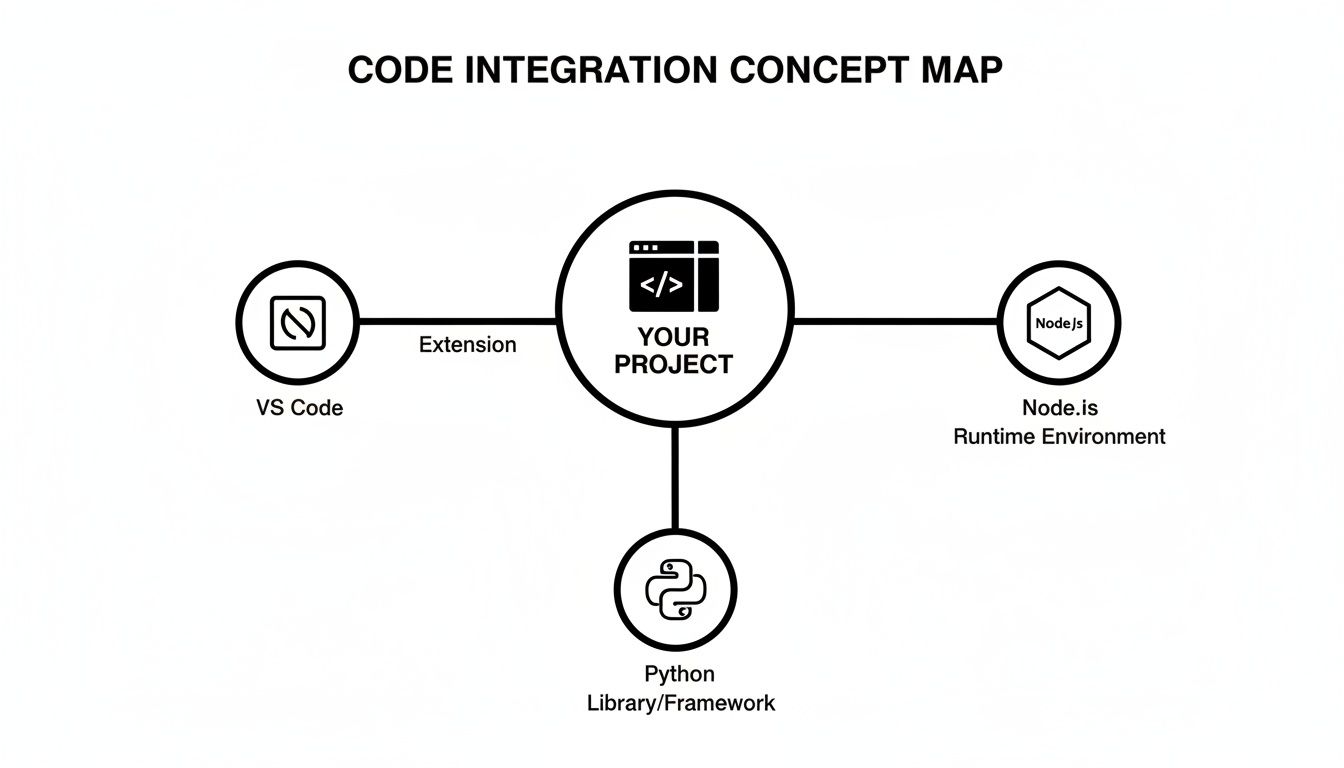
As you can see, whether you're working in VS Code or scripting with Python or Node.js, there are clear pathways to automate this. Once your images are extracted, you'll likely want to optimize them for the web. Our offline image resizer is a great tool for handling that without uploading your assets anywhere.
Preserving Custom Styles and Document Structure
What happens to all those custom styles you painstakingly created in your Word document? Most basic converters just throw them away, leaving you with plain, unformatted text.
This is where more advanced tools really shine. Pandoc, for instance, lets you use "style maps" to translate your Word styles directly into specific Markdown elements. You could, for example, map a Word style you named "CodeBlock" to a proper fenced code block in Markdown. This is a game-changer for technical documentation.
The same goes for metadata. If your document uses YAML front matter for a static site generator like Hugo or Jekyll, you have to be careful. Some conversion methods will strip that information out, so always double-check your tool’s configuration.
Pro Tip: Think of your Word styles as semantic tags, not just formatting. A "Warning" style in Word should map to a blockquote, and a custom "InlineCode" style should be wrapped in backticks. Plan ahead.
Tackling Tricky Tables
Tables are the other major point of failure. A botched table conversion results in a garbled mess of text and pipe characters that’s often faster to rebuild from scratch than to fix.
The best converters do a surprisingly good job of translating standard Word tables into clean, pipe-delimited Markdown, usually preserving column alignments.
But if you run into trouble, the culprit is often something complex within the cells themselves, like merged cells or nested bullet points. These are notorious for breaking converters. In those cases, the most practical solution is often to simplify the table in Word before you run the conversion. It’s a small extra step that can save you a ton of frustration.
Common Questions About DOCX to Markdown Conversion
When you start converting documents, a few common questions always seem to surface. It's totally normal. Getting a handle on how images, tricky formatting, and security work is key to making the whole process go smoothly.
Let's walk through some of the most frequent things people ask when moving a file from DOCX to Markdown.
How Do Images Get Handled?
This is probably the biggest question I hear. The "right" way to handle images really comes down to what you plan to do with the final Markdown file.
- For a Single, Portable File: Some converters will embed your images directly into the Markdown file using Base64 encoding. This is great for creating one self-contained document you can easily email or share, but be warned—it can make your file size balloon pretty quickly.
- For Web Content or Git: Other tools, particularly command-line ones like Pandoc, can extract all the images and save them into a separate folder. This is the standard for web projects or anything you're tracking with version control, as it keeps the Markdown file itself clean and lightweight.
My rule of thumb is simple: If you need one file to send to someone, embed the images. If you're working on a website, a blog, or a codebase, always extract them. It's just better practice.
What’s the Best Tool for Really Complex Documents?
What about those beastly documents? I’m talking about academic papers, technical manuals, or legal contracts filled with footnotes, citations, and tables that stretch for pages. Most simple converters will choke on these.
For heavy-duty jobs like that, Pandoc is the undisputed gold standard. It was built from the ground up with academic use in mind, so it inherently understands how to translate those complex elements accurately. Where an online tool might just strip out your citations, Pandoc will usually convert them perfectly.
Even with Pandoc, you might still need to do a little manual cleanup on super-complex layouts, but it’ll get you 95% of the way there. If you're curious about going the other direction, we have a guide for converting Markdown to DOCX that you might find helpful.
Are Browser-Based Converters Actually Secure?
This is a huge one, and for good reason—especially if you're working with confidential or proprietary documents. The short answer is yes, they can be, but only if the tool runs completely on the client side.
A truly offline, browser-based tool uses JavaScript to do all the processing right there on your own machine. Your file is never uploaded to a server, so your data never leaves your computer. This makes it just as secure as any desktop software you'd install.
Always double-check a tool’s privacy policy, but for sensitive work, a verified client-side converter gives you the best of both worlds: a convenient web tool with the security of an offline application.
At Digital ToolPad, we build our tools specifically for these situations. Our entire converter suite runs 100% offline in your browser, guaranteeing your data stays private. You can check out all our privacy-focused tools at https://www.digitaltoolpad.com.