
You’ve probably hit this at the worst possible time. A service config arrives as JSON, but the tool you need to feed wants YAML. Or a teammate drops a long CloudFormation, Kubernetes, or CI file into chat, and every line is braces, quotes, and commas when what you really need is something you can scan quickly and edit safely.
That’s why json to yaml conversion keeps coming up in real engineering work. It isn’t about changing formats for the sake of it. It’s about getting structured data into the shape your deployment tools, editors, and teammates can effectively work with.
Why Convert JSON to YAML Anyway
JSON is excellent for APIs and machine-to-machine exchange. It’s strict, predictable, and easy for parsers. But once a file becomes a config that humans have to maintain, JSON starts fighting readability. Deep nesting gets noisy fast. Arrays and objects turn into walls of punctuation. Comments aren’t part of the format.
YAML works better for that style of work. It strips away much of the visual clutter, leans on indentation, and reads closer to a configuration document than a serialized object dump. That’s one reason it became common in Kubernetes manifests, GitHub Actions, Ansible playbooks, and other config-heavy workflows.
A big inflection point came when AWS CloudFormation added full YAML support in 2016. AWS noted that YAML templates were 19% shorter on average than equivalent JSON, and gave a concrete example where a 1200-character JSON template became about 972 characters in YAML while keeping the same behavior, which improved readability and helped teams stay under template size limits in CloudFormation (AWS CloudFormation YAML support details).
That matters if you’re working on larger Infrastructure as Code initiatives where readability affects reviews, handoffs, and incident response.
Where yaml helps most
- Configuration files: Kubernetes, Ansible, CI workflows, and deployment descriptors are easier to scan in YAML.
- Team review: A pull request full of indented keys is usually easier to review than one packed with punctuation.
- Manual editing: YAML is friendlier when you’re making small changes under pressure.
- Documentation: Config examples often read better in YAML than in JSON.
Practical rule: Convert to YAML when humans will read and edit the file more often than machines generate it.
If you want to clean up output after conversion, a dedicated YAML editor is useful for reformatting, validating indentation, and making the file easier to maintain.
Secure Online Conversion with Client-Side Tools
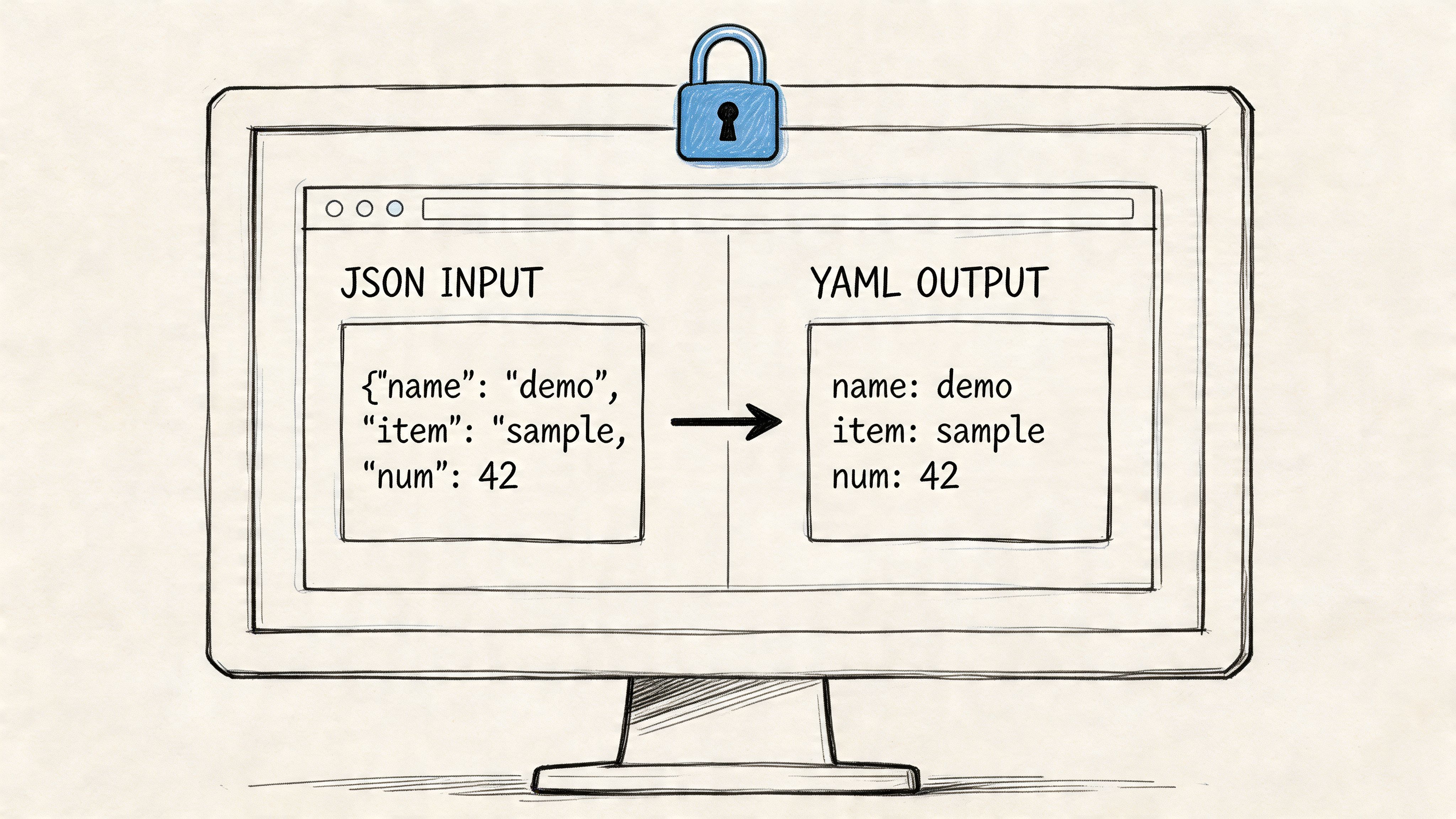
The fastest way to handle json to yaml is usually a browser tool. Paste JSON on the left, get YAML on the right, copy, and move on. For throwaway data, that’s convenient. For production config, credentials, private OpenAPI definitions, or internal manifests, convenience can become the wrong trade-off.
The problem isn’t that online converters exist. The problem is that many don’t clearly say where processing happens. If the conversion runs on a remote server, your input may leave your machine. That’s a real issue for teams handling sensitive config.
A useful market observation from OpenReplay’s review of JSON and YAML tools is that many online converters don’t explicitly guarantee 100% client-side execution, while 68% of developers prioritize local-first tools for sensitive tasks. That’s the right lens for evaluating any browser-based converter.
What to look for in a browser converter
Don’t judge these tools by UI alone. Judge them by execution model.
- Local processing: The converter should run in the browser, not send payloads to a backend.
- No account requirement: If a utility asks you to log in just to transform text, stop and ask why.
- Immediate feedback: Good tools render YAML as you paste or format.
- No hidden “URL import” path: Importing from remote URLs can expose internal specs or credentials.
Here’s a simple way to think about the trade-offs:
| Method | Best For | Privacy | Setup Effort |
|---|---|---|---|
| Browser converter | One-off conversions and quick checks | Varies by tool | Low |
| Local CLI | Scripts, repeatable tasks, CI jobs | Strong when run locally | Medium |
| Application code | Built-in app workflows and services | Strong when handled in-process | Medium to high |
| Editor integration | Fast changes while coding | Strong on local machines | Low to medium |
A practical browser workflow
For a one-off file, the workflow should be boring:
- Paste valid JSON.
- Let the tool render YAML immediately.
- Scan for obvious quoting or nesting issues.
- Copy the result into your repo.
- Run your usual validator or linter before commit.
That gets you speed without changing your editor or shell workflow.
If the input contains secrets, treat the converter as part of your security boundary, not as a disposable convenience.
If you want a quick browser utility for this workflow, use a dedicated JSON to YAML converter. The key reason to prefer a privacy-first option is simple: config files often contain more than structure. They contain environment names, internal endpoints, feature flags, and sometimes secrets that shouldn’t leave your device.
What online tools still don’t do well
Most browser converters handle straightforward object-to-mapping conversion just fine. They’re less helpful when you need idiomatic YAML, careful quoting, or post-conversion cleanup. They also won’t solve structural problems in the source JSON. If your input is malformed or semantically wrong, the browser tool can only convert what you give it.
That’s where the next methods start to make more sense.
Automating Conversion with Command-Line Utilities
For repeatable work, use the shell. A browser is fine for a quick paste job. A terminal is better when the conversion belongs in a script, a pre-commit hook, or a CI pipeline.
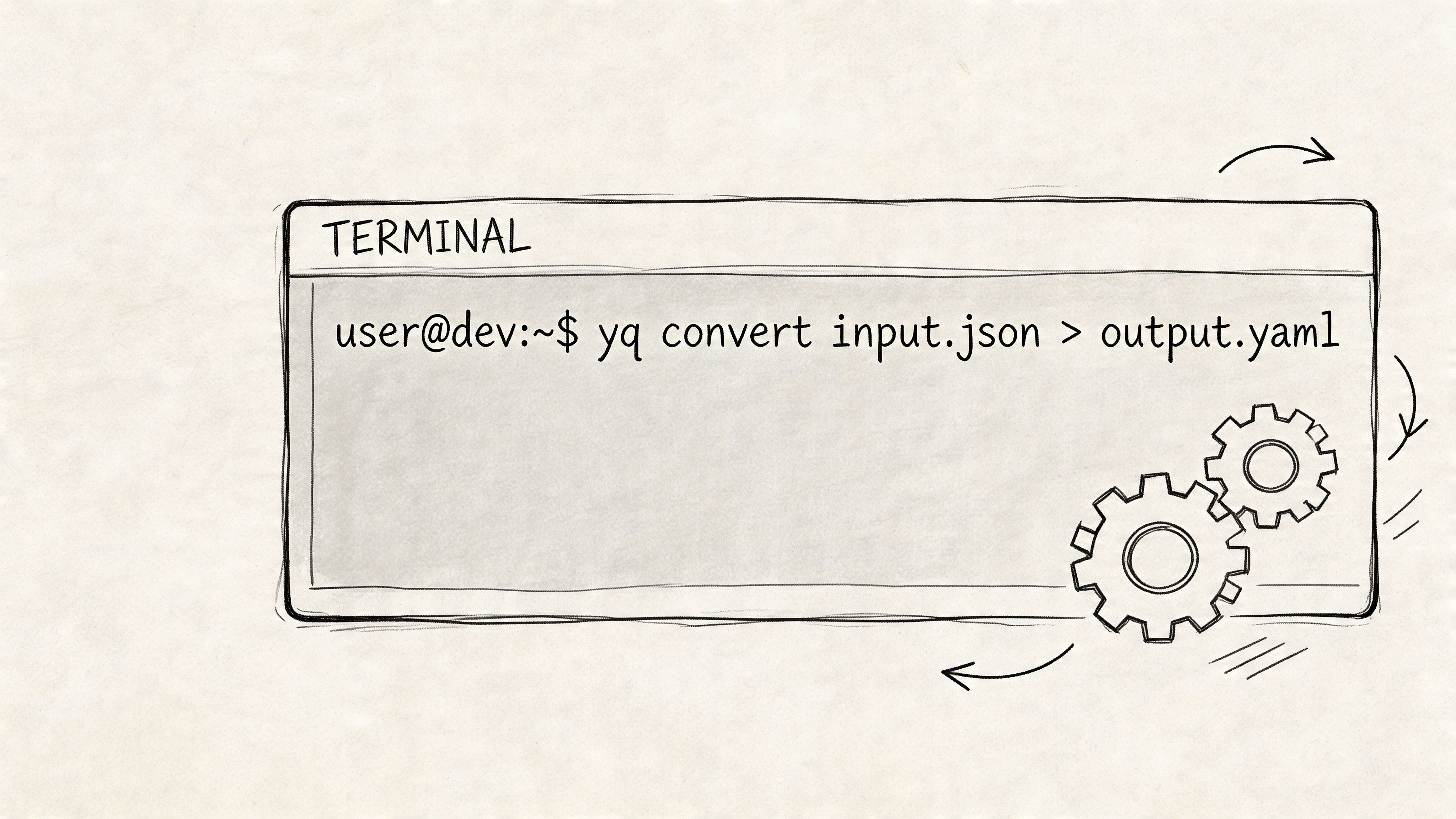
yq is the tool I reach for first because it’s direct, scriptable, and built for this job. For plain conversion, the command is almost trivial.
Basic commands that just work
Convert one file:
yq -P input.json > output.yaml
Validate the JSON first with jq, then convert:
jq empty input.json && yq -P input.json > output.yaml
Convert every JSON file in a directory:
for f in *.json; do
  yq -P "$f" > "${f%.json}.yaml"
done
Pretty-print from stdin:
cat input.json | yq -P
For automation, that first command is the baseline. According to a practical guide on pipeline conversion, yq -P input.json > output.yaml can process a 1MB JSON file in about 15ms, and pairing conversion with JSON Schema validation can catch over 95% of structural errors before deployment (CI-friendly yq workflow guidance).
Where cli conversion fits best
Use the CLI when:
- You need determinism: The same input should always produce the same output in local runs and CI.
- You’re batch-processing files: Shell loops beat manual copy and paste.
- You want validation gates:
jq, schema checks, and test commands fit naturally into a pipeline. - You’re converting during build or deploy: This belongs in automation, not in a browser tab.
A realistic CI step looks like this:
#!/usr/bin/env bash
set -euo pipefail

jq empty deployment.json
yq -P deployment.json > deployment.yaml
yamllint deployment.yaml
That won’t catch every semantic problem, but it does keep malformed input from reaching the next stage.
A better pipeline pattern
Don’t treat conversion as the only step. Treat it as one step in a chain:
- Validate source JSON.
- Convert with
yq. - Lint or parse the YAML output.
- Diff expected structure if the file is critical.
- Only then package or deploy it.
Here’s a video walkthrough if you want a visual take on the CLI approach and surrounding workflow:
Build habit: Never trust conversion output just because the command exited successfully. Validate before and after.
The trade-off is straightforward. CLI tools are fast and reliable, but they assume you’re comfortable in the terminal and willing to wire validation into the process. For a team already living in CI, that’s usually the right trade.
Programmatic Conversion in Python and Node.js
Sometimes the conversion doesn’t belong in a shell script at all. You may need it inside an app, an internal tool, a migration utility, or a worker that reformats config before handing it to another system. In that case, convert in code and keep the whole flow in-process.
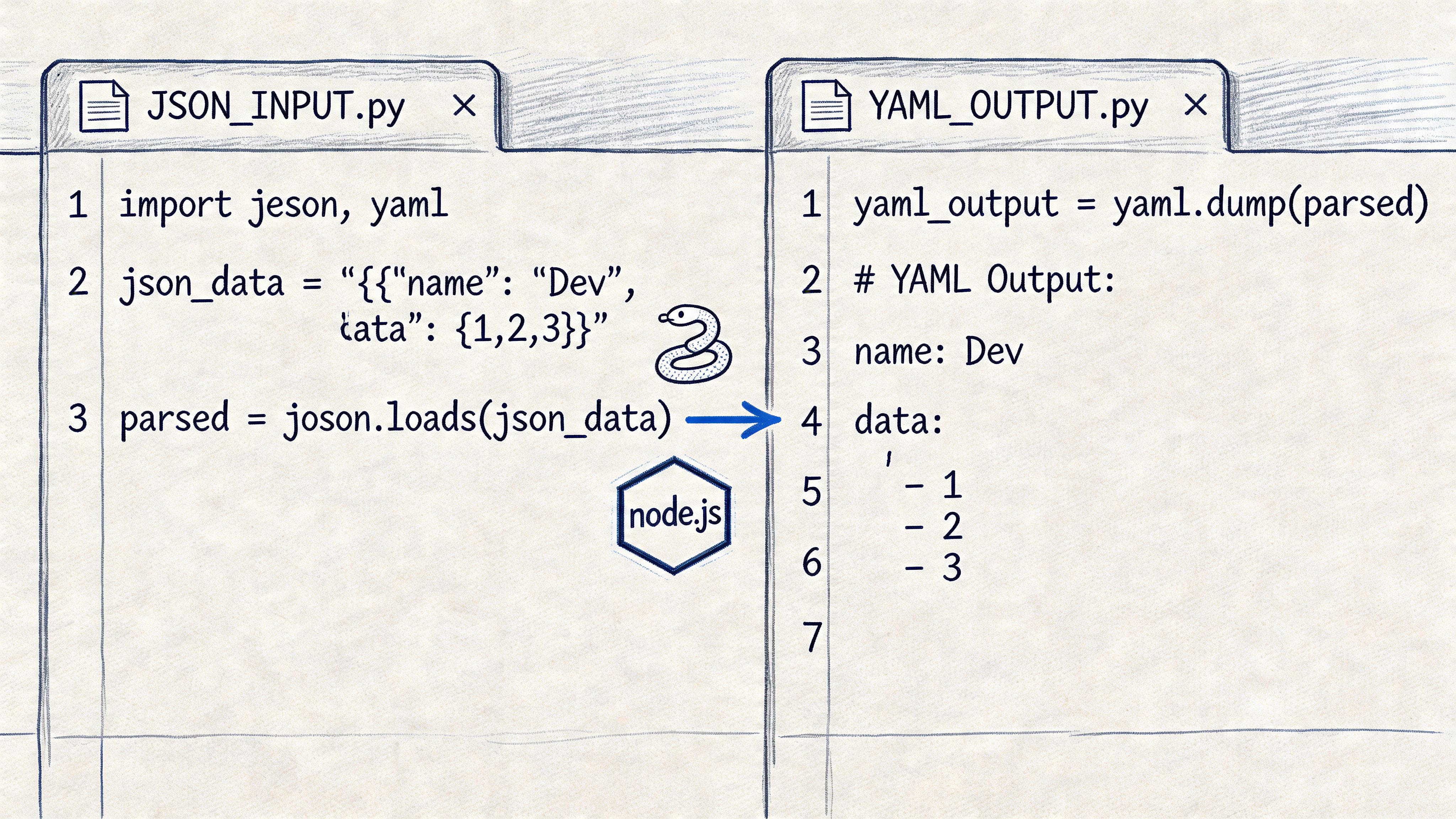
Python and Node.js both handle this well. The core pattern is the same in either language: parse JSON into native objects, then serialize those objects as YAML. The important detail is to stay strict about types and output format.
Python with PyYAML
Install it:
pip install pyyaml
Convert a JSON string to YAML:
import json
import yaml

json_str = '''
{
  "apiVersion": "v1",
  "kind": "ConfigMap",
  "metadata": {
    "name": "app-config"
  },
  "data": {
    "LOG_LEVEL": "info"
  }
}
'''

obj = json.loads(json_str)
yaml_str = yaml.dump(obj, default_flow_style=False, sort_keys=False)

print(yaml_str)
Convert a file:
import json
import yaml

with open("input.json", "r", encoding="utf-8") as f:
    obj = json.load(f)

with open("output.yaml", "w", encoding="utf-8") as f:
    yaml.dump(obj, f, default_flow_style=False, sort_keys=False)
A practical default is sort_keys=False. It helps preserve the original key order, which often matters for readability even when it doesn’t matter to the parser.
Node.js with js-yaml
If your team already works heavily with Node.js technology, this is an easy fit for internal tools and build scripts.
Install the dependency:
npm install js-yaml
Convert a JSON string:
const yaml = require('js-yaml');

const jsonStr = `{
  "apiVersion": "v1",
  "kind": "ConfigMap",
  "metadata": {
    "name": "app-config"
  },
  "data": {
    "LOG_LEVEL": "info"
  }
}`;

const obj = JSON.parse(jsonStr);
const yamlStr = yaml.dump(obj, {
  indent: 2,
  forceQuotes: false,
  quotingType: '"'
});

console.log(yamlStr);
Convert a file:
const fs = require('fs');
const yaml = require('js-yaml');

const jsonStr = fs.readFileSync('input.json', 'utf8');
const obj = JSON.parse(jsonStr);

const yamlStr = yaml.dump(obj, {
  indent: 2,
  forceQuotes: false,
  quotingType: '"'
});

fs.writeFileSync('output.yaml', yamlStr);
The Node.js pitfall people miss
One gotcha with programmatic conversion is non-standard JSON-like values in JavaScript. A practical note from a browser conversion guide is that values like NaN or undefined can end up mapped to null by js-yaml, which can cause subtle data loss and has been noted in about 4% of conversions in data-heavy applications (js-yaml conversion caveats).
That means you should sanitize before dumping:
function sanitize(value) {
  if (Array.isArray(value)) {
    return value.map(sanitize);
  }

  if (value && typeof value === 'object') {
    return Object.fromEntries(
      Object.entries(value).map(([k, v]) => [k, sanitize(v)])
    );
  }

  if (value === undefined || Number.isNaN(value)) {
    return null;
  }

  return value;
}
Treat JSON.parse as the boundary. Once data crosses it, normalize anything that isn’t valid JSON before you write YAML.
If you also need the reverse operation for app workflows, a YAML to JSON converter guide is useful for round-trip testing and sanity checks.
Converting Files Directly in Your Code Editor
For a single file you’re already editing, the fastest path is often your editor. No terminal. No browser tab. No context switch.
VS Code workflow
In Visual Studio Code, install a YAML-aware extension such as YAML by Red Hat. It won’t magically convert every JSON file with one universal button, but it does give you schema support, formatting, linting, and YAML-aware editing once the content is converted. The usual workflow is:
- Open the JSON file.
- Copy the contents into a new
.yamlor.ymlfile. - Use an in-editor command, snippet, or extension-assisted formatting path depending on your setup.
- Run format document.
- Save and validate.
If you want to keep this efficient, pair your editor with a local conversion command or a browser utility that runs locally, then paste the result back into the editor. The gain comes from staying in the same working context while reviewing the output.
JetBrains IDEs
IntelliJ IDEA, WebStorm, and PyCharm make this comfortable too. Their YAML plugins and formatters are strong once the file is in YAML. In practice, many developers use the IDE for the review phase rather than the conversion phase itself:
- convert externally,
- open side-by-side,
- compare structure,
- then refactor into more idiomatic YAML.
That last step matters because raw converted YAML is often valid but not yet pleasant to maintain.
When in-editor conversion is the right choice
Use the editor route when the task is small and interactive.
- You’re changing one file: Opening a shell script is overkill.
- You want immediate side-by-side review: Diffing JSON and YAML in adjacent tabs is fast.
- You’re already in a repo workflow: It’s easier to save, lint, and commit from the same place.
- You expect manual cleanup: Editors are better than converters for polishing output.
A practical pattern is to convert first, then use editor features to finish the job: re-indent, reorder keys if needed, add comments, and simplify repeated sections where YAML gives you better options than JSON ever could.
Navigating Pitfalls and Advanced Formatting
Basic json to yaml conversion is easy. Producing YAML that stays correct after edits is where most problems show up.
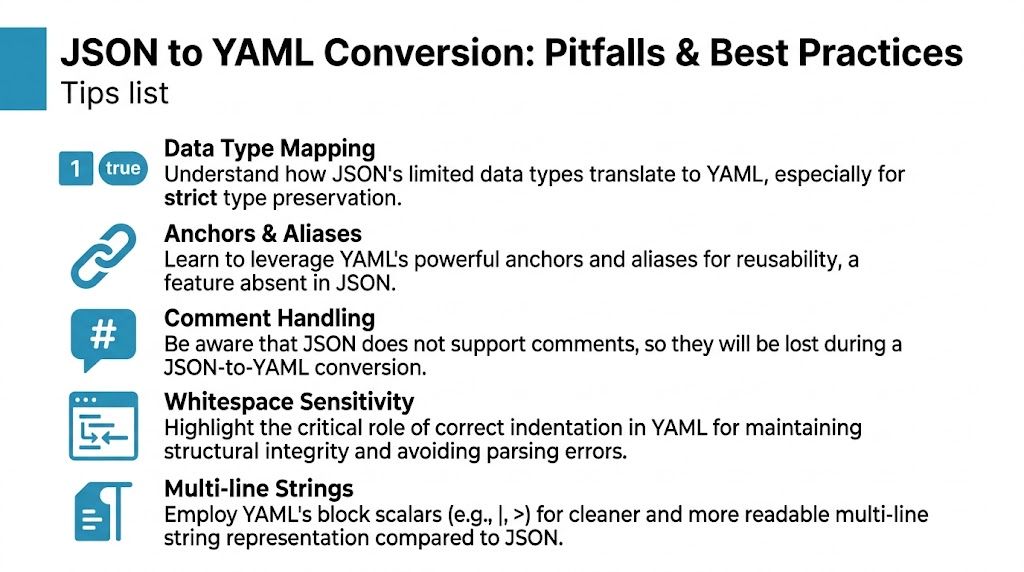
The first category of trouble is type handling. Strings that look like numbers, booleans, or dates can become ambiguous in YAML if you’re not careful with quoting. The second category is structure. YAML depends on indentation, and one bad space can change the meaning of the document or break parsing entirely.
Types that need extra attention
Start with a simple example:
{
  "port": "8080",
  "replicas": 3,
  "enabled": true,
  "dateLike": "2024-01-15",
  "emptyValue": null
}
A naive YAML output may look fine:
port: "8080"
replicas: 3
enabled: true
dateLike: "2024-01-15"
emptyValue: null
That’s safe enough because quoted strings remain strings. Problems start when a converter gets aggressive about removing quotes. If "8080" becomes 8080, or a date-like string is emitted without quotes, the file may still parse but no longer mean exactly what your original JSON meant.
Multi-line strings need human cleanup
JSON usually stores long text as escaped strings:
{
  "script": "echo start\nrun-task\necho done"
}
A plain conversion often gives you a single quoted YAML string. That’s valid, but hard to read. In YAML, block scalars are usually better:
script: |
  echo start
  run-task
  echo done
Use | when line breaks matter. Use > when you want YAML to fold lines for readability. Most automated converters won’t infer your intent here. They’ll preserve data, not style.
Raw conversion gives you equivalence. Clean YAML requires a second pass for readability.
Anchors and aliases are mostly manual
Many guides offer insufficient coverage here. JSON has no native equivalent to YAML anchors and aliases, so converters usually duplicate repeated objects instead of generating reusable YAML structures.
That limitation is well known. A review of online YAML tooling notes that many converters don’t generate anchors and aliases from duplicated JSON objects, even though using them can reduce file size by 30% to 50%, and the lack of support is a recurring point of confusion in developer discussions (limitations around YAML anchors in converters).
Here’s the difference.
Converted output often looks like this:
serviceA:
  image: app:latest
  env:
    LOG_LEVEL: info

serviceB:
  image: app:latest
  env:
    LOG_LEVEL: info
A cleaner hand-refactored YAML version is:
common: &common
  image: app:latest
  env:
    LOG_LEVEL: info

serviceA:
  <<: *common

serviceB:
  <<: *common
Automated tools usually won’t create that pattern for you. If you want idiomatic YAML, you’ll need to refactor repeated blocks manually after conversion.
A review checklist that catches real issues
Before committing converted YAML, check these points:
- Quotes on string-like values: Keep quotes on values that must remain strings.
- Indentation consistency: Use spaces consistently and let your formatter enforce it.
- Null handling: Make sure missing values are still represented correctly.
- Repeated objects: Look for duplication you can replace with anchors or merges.
- Multi-line text: Rewrite escaped text into block scalars when readability matters.
That’s the key distinction between “conversion succeeded” and “the file is production-ready.”
Choosing the Right Conversion Method for Your Task
The best json to yaml workflow depends on what you’re optimizing for.
Use a browser-based converter when you need a quick one-off transformation and you care about speed. Use a local-first browser tool when the file contains anything sensitive. That’s the safest version of the “paste and go” workflow.
Use yq and other CLI tools when conversion belongs in automation. That’s the right choice for CI, scripts, batch processing, and repeatable build steps.
Use Python or Node.js libraries when conversion is part of application logic. If your service accepts one format and emits another, keep the transformation in code and test it like any other boundary.
Use editor-based workflows when you’re changing a file interactively and want to review and clean up the YAML immediately.
The format conversion itself is easy. The primary decision is where the work should happen: browser, shell, app, or editor. Pick the place that gives you the right balance of privacy, repeatability, and friction.
If you want a privacy-first place to handle everyday developer tasks, bookmark Digital ToolPad. It brings together browser-based utilities for format conversion, editing, and data handling in a local-first workflow, which is exactly what you want when configs and internal files shouldn’t leave your machine.