
If you're a developer, you know that your work rarely stays locked inside a Git repository. Code, documentation, and reports inevitably need to be shared with stakeholders who live and breathe in Microsoft Word. This creates a frustrating gap between the clean, simple world of Markdown and the corporate standard of .docx files.
Learning to bridge that gap isn't just a minor convenience—it's a critical skill that saves you from hours of tedious, soul-crushing reformatting.
From README to Report: Why This Matters
The core problem is simple: fidelity. A quick copy-paste from your Markdown editor into Word almost never works. Code blocks get mangled, tables fall apart, and all your careful formatting vanishes. This manual cleanup isn't just annoying; it's a massive time sink that pulls you away from what you should be doing: building great software.
Think about the real-world situations you face all the time:
- Client Reporting: You need to send a polished project update or a final report, and the source is right there in your
README.md. - Legal and Compliance: The legal team needs your technical documentation, but they require it in a .docx file for trackable changes and comments.
- Internal Collaboration: You have to share technical specs with product managers, designers, or marketing folks who use Word for everything.
Being able to reliably convert Markdown to DOCX streamlines communication, cuts out rework, and ensures your technical documentation looks professional, no matter who's reading it.
Finding the Right Tool for the Job
The demand for solid conversion tools has exploded. It's no surprise, really. By mid-2019, tools like Pandoc were already powering over 70% of Markdown-to-DOCX conversions in certain tech environments. Developers love Markdown because the files are incredibly lightweight—often 40-60% smaller than the equivalent .docx—making version control a breeze on platforms like GitHub. You can find more stats on this trend over at cloudconvert.com.
This guide is here to give you the practical solutions you need. We'll cover everything from the command-line mastery of Pandoc to secure, browser-based converters that keep your data private. To really get the most out of this, a deep dive into a resource like this Markdown for Documentation: A Practical Guide is essential for understanding its full potential.
By the end, you'll see this conversion not as a chore, but as a genuine strategic advantage in your workflow.
Using Pandoc for Powerful and Repeatable Conversions
When you need to get serious about creating a reliable workflow, Pandoc is the undisputed heavyweight champion of document conversion. It’s far more than a simple one-off tool. It gives you a level of control that can transform the frustrating task of converting Markdown to DOCX into a powerful, automated process. You can finally stop tinkering with manual fixes and start getting consistent, professional results every single time.
The path from a clean Markdown file to a polished DOCX isn't always a straight line. Often, direct conversions introduce subtle formatting errors that need to be addressed.
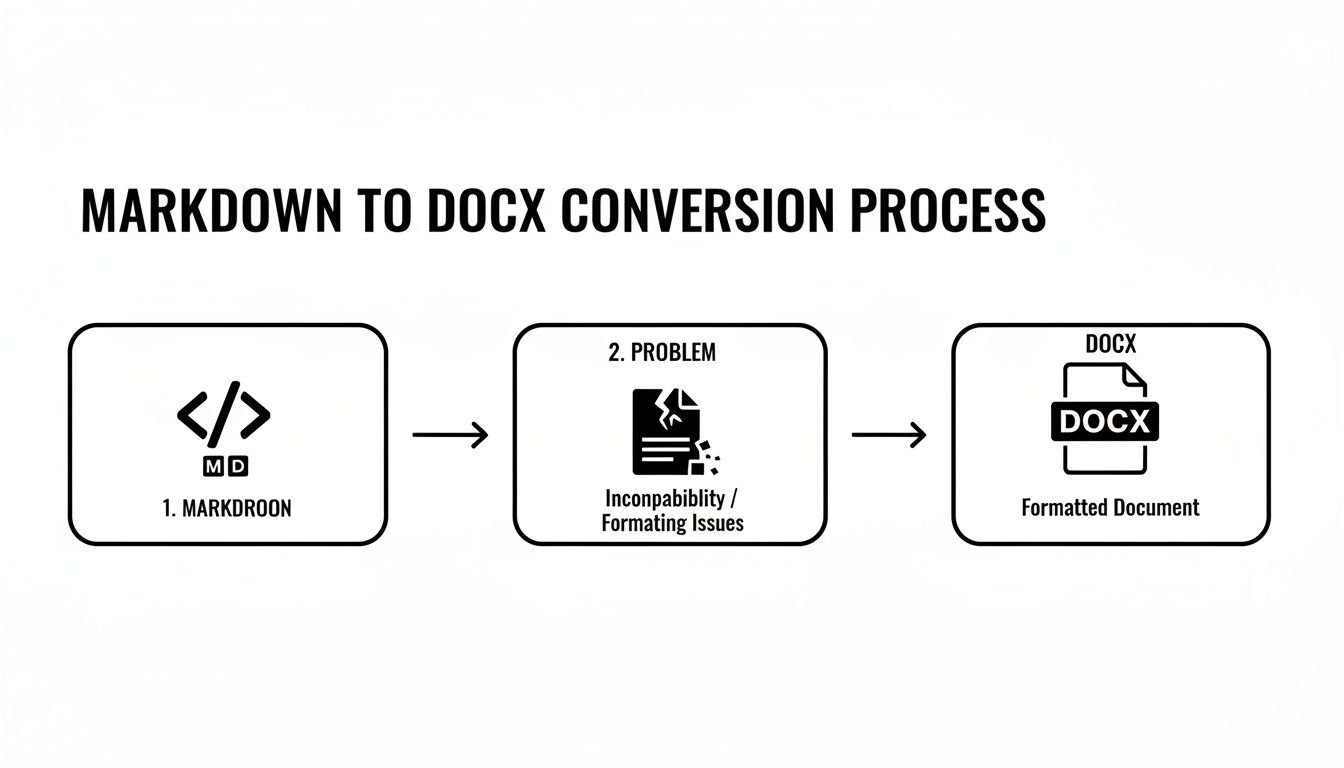
As you can see, a direct conversion can be a bit of a gamble. But by introducing a "reference document," you can effectively bridge that gap and ensure your final document looks exactly how you want it to.
Mastering the Command Line Basics
At its heart, a Pandoc conversion is pretty simple. You just open your terminal, point to your source file, and name your output file.
pandoc my-report.md -o my-report.docx
This command takes my-report.md and spits out my-report.docx using Word's default styling. It works, but the result rarely looks ready for prime time. The real power comes from adding flags to tell Pandoc how to handle your content.
- Handling Images: Just make sure your images are in the same folder or use a relative path. Pandoc is smart enough to embed them directly into the document.
- Managing Tables: It does a fantastic job with standard Markdown tables (the ones made with pipes
|), keeping all your alignment and structure intact. - Code Block Syntax Highlighting: Want to add some color to your code snippets? Use the
--highlight-styleflag. For example,--highlight-style=espressoapplies a nice, readable theme.
The Power of a Reference Document
If I could point to one feature that makes the biggest difference, it's the reference document. This is just a .docx file that you've styled yourself, which Pandoc then uses as a template. It intelligently maps Markdown elements—like headers and paragraphs—to the corresponding styles you defined in your reference file.
Think of a reference document as a style guide for your conversions. You define your company's heading fonts, paragraph spacing, and list styles once in a Word document, and Pandoc applies them automatically to every conversion. This eliminates 100% of manual restyling.
Making one is surprisingly easy. First, generate a basic DOCX with Pandoc. Open that file in Microsoft Word, then go through and modify the built-in styles like "Heading 1," "Normal," and even "Code Block" to match your brand. Save this modified file as something like company-template.docx, and you're done.
Putting It All Together for a Polished Output
Okay, let's combine these ideas into a single command that will take a simple Markdown file and produce a professional, branded document.
pandoc my-report.md --reference-doc=company-template.docx --highlight-style=pygments -o my-report-final.docx
Here’s what this command does in one go:
- It reads your content from
my-report.md. - It applies all the custom styles from your
company-template.docx. - It adds syntax highlighting to your code blocks using the
pygmentstheme.
The result is a .docx file that looks like it was meticulously handcrafted, but it was generated in seconds from plain text. This kind of repeatable workflow is a game-changer for teams that need to produce consistent documentation, reports, or proposals.
While we're focused on DOCX here, these same principles apply to other formats. If you're interested, we have a similar guide on converting Markdown to PDF that uses some of these powerful techniques. Once you script these commands, you can build an automated document pipeline that will save you countless hours down the road.
Secure Browser-Based Converters
While command-line tools offer unmatched power, sometimes you just need a quick, no-fuss conversion. You don't want to install software or fire up a terminal just to turn a simple Markdown file into a DOCX. That’s the appeal of browser-based tools, but there's a critical distinction to make before you drag and drop your files.
The real question is where the magic happens. Many online converters ask you to upload your .md file to their server. For a blog post or public notes, that’s perfectly fine. But if you’re working with sensitive client data, internal memos, or proprietary documentation, uploading it to a random server is a security risk you just don't need to take.
The Privacy-First Advantage of Client-Side Tools
There's a much safer way: tools that perform the entire conversion right inside your browser. This "client-side" approach means the code runs on your machine, and your data never leaves your computer. Think of it as a temporary, self-contained app that you access through a web page.
This gives you the best of both worlds:
- No Installation: It's as simple as visiting a website, with zero setup required.
- Complete Privacy: Your files are processed locally, eliminating any risk of server-side data breaches or interception.
- Blazing Speed: With no upload/download delays, conversions happen almost instantly.
For anyone handling confidential information, client-side conversion isn't just a nice-to-have; it's a non-negotiable security measure. You get the document you need without ever compromising your data.
This is the perfect solution for turning internal reports, technical specs, or sensitive project updates into a DOCX in a matter of seconds.
How They Actually Work
Using one of these tools couldn't be easier. You visit the page, paste your Markdown, or select a local file. The tool immediately processes it and generates a .docx file for you to download. It’s a clean, simple workflow that respects your privacy.
This client-first model has exploded in popularity, with demand increasing by 300% since 2020 as remote work and data security became top priorities for everyone. The technology behind it has also come a long way, with powerful open-source libraries like markdown-docx on GitHub enabling conversion speeds of just 1-3 seconds for a 50KB file.
It’s no surprise that 92% of enterprises consider data sovereignty a major concern. When you choose a privacy-first converter, you don’t have to sacrifice speed for security. Your information stays exactly where it belongs: with you.
If you want to see a secure, browser-based converter in action, check out the Markdown tools at Digital ToolPad, which were built specifically with this privacy-first principle in mind.
Comparing Markdown to DOCX Conversion Methods
To help you decide which approach is right for your needs, here’s a quick breakdown of the most common methods. Each has its place, depending on whether you value automation, privacy, or simplicity.
| Method | Best For | Key Advantage | Primary Drawback |
|---|---|---|---|
| Pandoc (CLI) | Developers, technical writers, automated workflows | Unmatched power, custom templates, total control | Requires installation and command-line familiarity |
| Code Libraries (Node/Python) | Integrating conversion into custom applications | Seamless integration, programmatic control | Requires coding knowledge and dependency management |
| Client-Side Web Tools | Quick one-off conversions, sensitive documents | Zero installation, total privacy, ease of use | Lacks advanced customization and automation |
| Server-Side Web Tools | Non-sensitive files, casual use | Highly accessible and simple to use | Potential data privacy and security risks |
Ultimately, having a variety of tools at your disposal is the best strategy. Use Pandoc for your heavy lifting and automation, and keep a reliable client-side tool bookmarked for those quick, secure conversions.
Automating Document Generation with Scripting
For developers, the real magic happens when you can automate a process. Running a manual conversion is fine once in a while, but the real efficiency boost comes from plugging this capability directly into your applications or a CI/CD pipeline. This is how you build systems that generate documents for you, saving a ton of time and cutting out the risk of human error.
Think about it. You could have a workflow that automatically generates an updated user manual from your README.md file every time you push a new build. Or maybe a web app that lets users download custom reports, created on the fly from a Markdown template. These aren't just neat tricks; they’re a smarter, more scalable way to handle documentation.
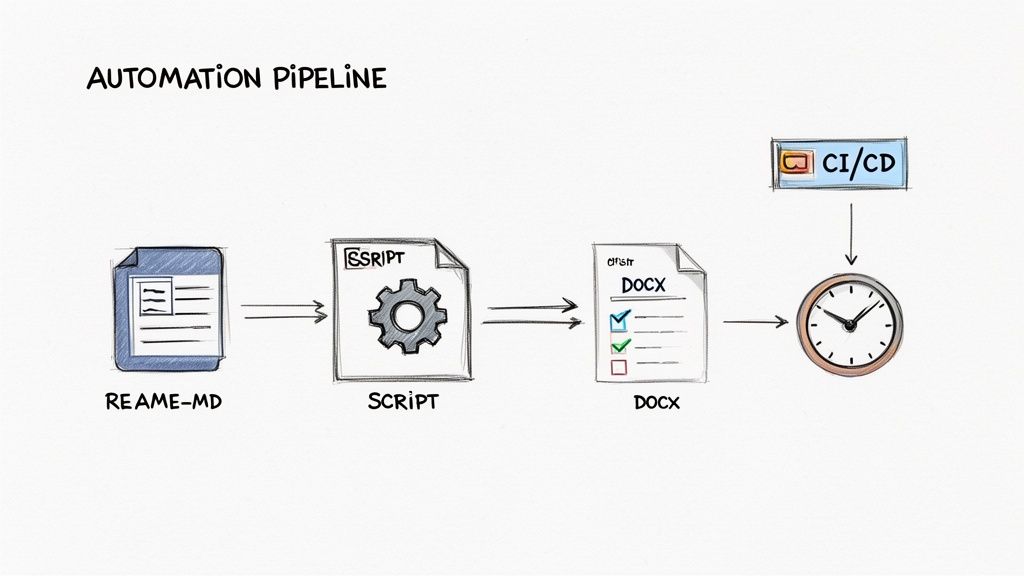
This level of automation is completely within reach using scripting libraries that either wrap a powerhouse like Pandoc or provide their own native functions.
Programmatic Conversions in Python with Pypandoc
If you're in the Python world, pypandoc is your go-to. It’s a lightweight wrapper for Pandoc, giving you all the command-line muscle but from a clean Python API. This makes it a breeze to slot into a Django or Flask web app, a data processing script, or any automated build process.
First, you'll need to install it (pip install pypandoc). From there, the basic use case is dead simple.
import pypandoc
You can use a string of Markdown content or a file
markdown_content = "# Project Report\n\nThis is the latest status update." output_file = 'project-report.docx'
Fire off the conversion
pypandoc.convert_text(markdown_content, 'docx', format='md', outputfile=output_file)
print(f"Successfully created {output_file}")
The real power move here is passing Pandoc arguments directly using the extra_args parameter. This means all the advanced features we talked about, like custom reference documents, are still on the table. You can programmatically apply your company's branded template with a single line.
Using a reference document for styling
pypandoc.convert_file( 'source.md', 'docx', outputfile='styled-report.docx', extra_args=['--reference-doc=company-template.docx'] )
Building Solutions with Node.js and the Docx Library
Over in the Node.js ecosystem, you’ve got a few different paths. You can find Pandoc wrappers similar to pypandoc, but another interesting route is to use a library like docx to build DOCX files from the ground up. This method gives you total, granular control because you're piecing together the document element by element in your code.
This approach is perfect when your documents are highly structured or dynamic—think invoices, complex reports, or anything that doesn't map cleanly from a single Markdown file.
While building documents programmatically offers incredible flexibility, it’s a trade-off. Adding libraries means more dependencies to manage. For straightforward conversions, a simple Pandoc script might be a much lighter and more maintainable solution.
Always weigh the dependencies you're adding, the potential performance hits, and how much control you really need over the output. For most developers, a good Pandoc wrapper strikes the right balance of power and simplicity for automating the markdown to docx conversion process.
7. Troubleshooting Advanced Formatting Challenges
Even with the best tools, converting Markdown to DOCX can sometimes feel like trying to solve a puzzle with missing pieces. You'll inevitably hit a point where a complex table splits awkwardly across a page break, an image stubbornly refuses to align, or your pristine code blocks just look… off. These are the classic headaches that can derail a quick conversion.
The good news is, most of these problems are fixable with a bit of know-how. For example, if your code blocks are wrapping in ugly ways, a simple Pandoc flag like --wrap=none can be a lifesaver. When it comes to tables, trying to force column widths in Markdown is a losing battle. The real trick is to define a "Table" style inside your DOCX reference document, letting Word handle the heavy lifting.
Taming Citations and Structure
If you're writing an academic paper or a technical report, citations can be a nightmare to manage manually. This is one area where Pandoc really proves its worth. By feeding it a Citation Style Language (CSL) file, you can get perfectly formatted bibliographies in APA, MLA, or Chicago style without breaking a sweat.
It all starts with a simple YAML metadata block at the top of your Markdown file:
title: "My Research Paper" author: "Dr. Alex Chen" bibliography: references.bib csl: chicago-author-date.csl
Need a table of contents? Pandoc’s --toc flag does it automatically, building a clean, navigable ToC from your heading structure. Getting comfortable with these features is key, as is understanding how Word handles complex documents—for instance, mastering translations without losing formatting offers insights that apply just as well to conversions.
Handling Equations and Complex Workflows
For scientific and enterprise use, the stakes are even higher. By 2025, tools like Mathpix had already processed 2.5 million conversions, with a staggering 60% targeting DOCX specifically to preserve equations and complex tables. This directly addresses a major bottleneck; a recent survey found that 45% of STEM researchers were losing over 10 hours a week just reformatting documents.
For teams handling sensitive information, using local-first CLI or browser-based tools avoids the 22% data exposure risk associated with some online converters.
The key takeaway: Most formatting glitches happen because Markdown's simplicity clashes with Word's complexity. A well-configured reference document and the right converter flags are your bridge across that gap.
What about compiling a book from separate chapter files? You can pass all your .md files to Pandoc at once, and it will intelligently stitch them together into a single, cohesive DOCX, complete with unified styling and a single table of contents. To see how your structure will look before you commit, a live preview is incredibly helpful. It's always a good idea to use a Markdown previewer to visualize the final output.
Got Questions? We've Got Answers
When you're in the middle of a project, the last thing you want is to get stuck on a conversion snag. I've been there. Let's tackle some of the most common questions that pop up when you're turning Markdown into a polished DOCX file.
These are the real-world sticking points—from getting your branding just right to making sure your sensitive data stays private. Here’s how to solve them.
How Can I Keep My Custom Styles When Converting?
The secret weapon for this is a Pandoc reference document. Seriously, it's a game-changer. Just create a DOCX file and style it exactly how you want your final document to look. Set up your "Heading 1," your "Normal" paragraph text, even how you want code blocks to appear. Save it.
Now, when you run the conversion, just point to that file with the --reference-doc=your-template.docx flag. Pandoc is smart enough to map your Markdown elements (like # Heading) to the styles you defined in your template. It's the most effective way to guarantee consistent, professional-looking documents every single time, without tedious manual cleanup.
What's the Best Way to Handle Complex Tables?
Pandoc's pipe table syntax is a solid start for most tables. But when things get complicated—think tricky column widths or text that just won't wrap correctly—the best approach is to define your table styles directly in that DOCX reference document we just talked about. Let Word’s own layout engine do the heavy lifting for you.
If you need absolute precision, especially in an automated pipeline, a library like python-docx is your best bet. You can run the initial Pandoc conversion and then use a Python script to fine-tune everything programmatically—cell padding, borders, column widths, you name it.
Are Offline Converters Actually Secure?
Absolutely. When a converter processes your files entirely within your browser, it's incredibly secure. The key is that the conversion happens on your machine (client-side), meaning your data never gets uploaded to a server somewhere out on the internet.
This design sidesteps any risk of your information being intercepted or viewed by a third party. For any confidential documents or proprietary information, this is the only way to go. Your data privacy is non-negotiable.
If you’re looking for a toolkit built for this kind of security-first workflow, check out Digital ToolPad. All our converters run 100% offline in your browser, giving you peace of mind alongside powerful features. You can find them at https://www.digitaltoolpad.com.