
You copy a production API key to your clipboard, open a notepad, paste it, and tell yourself it will only stay there for a minute. Then a debugging session drags on. A stack trace joins the key. Then a database connection string. Then a customer payload you meant to sanitize first.
That tiny scratch file just became part of your security boundary.
Developers treat notepad tools as disposable. In practice, they often hold the most sensitive fragments of a workflow: secrets, logs, SQL, tokens, config values, schema notes, and incident breadcrumbs. If the tool autosaves unexpectedly, restores sessions, syncs to a cloud account, or loads a plugin with network access, that “temporary” note may persist far longer than intended.
The hard part is that a notepad rarely looks dangerous. It looks neutral. Plain text feels safe. But security problems usually hide in storage behavior, plugin behavior, recovery files, and sync defaults, not in the editor chrome.
Your Notepad Might Be a Security Risk
A familiar example: an engineer copies a private key fragment into a note while rotating credentials. Another teammate pastes customer JSON into the same file to inspect malformed fields. The file never gets committed, so it feels harmless. But that file may be autosaved, indexed, backed up, restored on next launch, or exposed through a plugin that reaches outside the local machine.
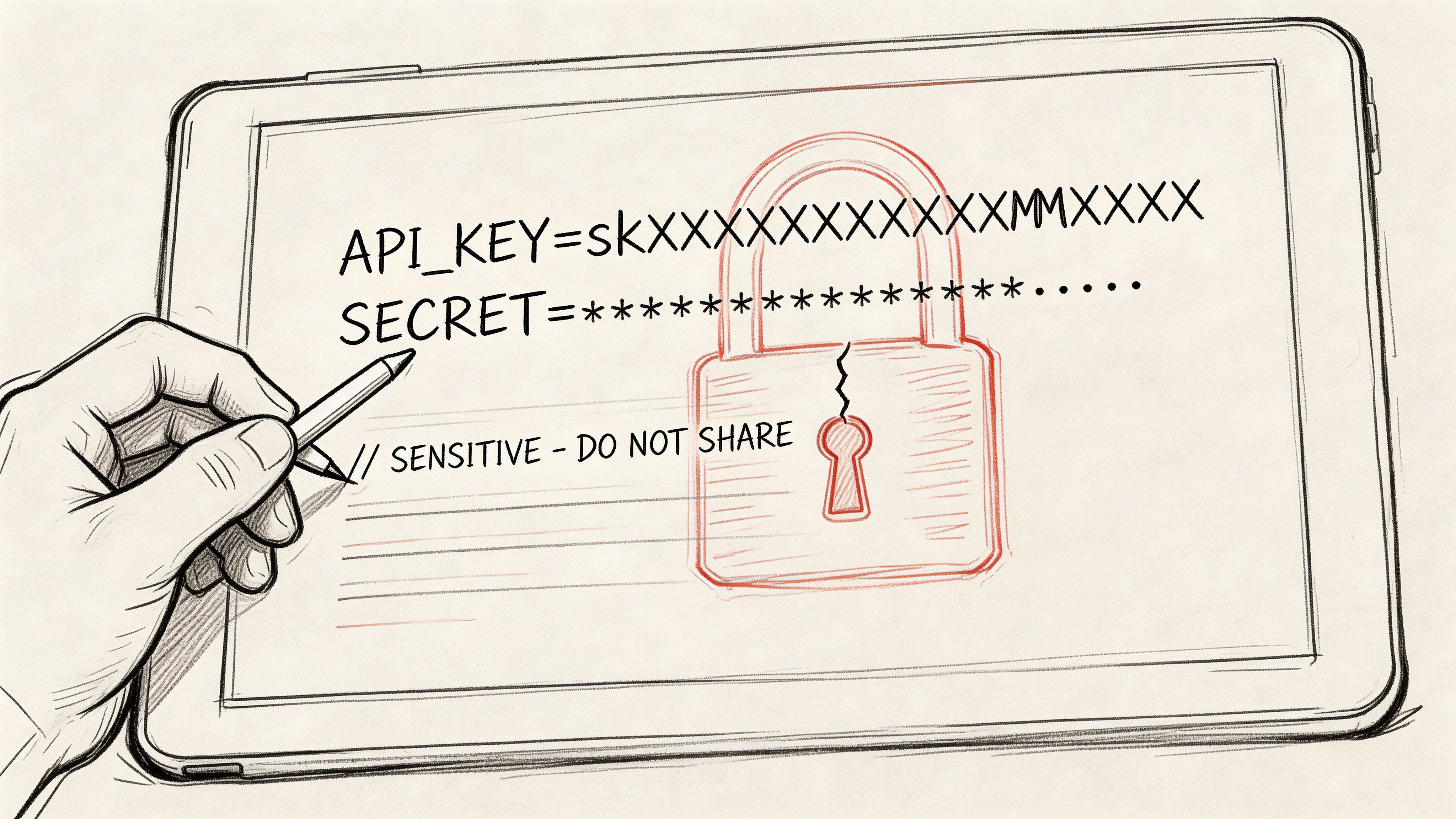
This is why notepad choice matters more than many teams admit. The risk is not just malware or a dramatic breach. The more common problem is quiet persistence. Sensitive text survives in session restore data, temp files, clipboard history, sync stores, or screenshots someone took while asking for help.
Plain text is not the same as private text
A plain text editor only guarantees formatting simplicity. It does not guarantee data minimization, offline behavior, or secure deletion. Those are separate properties.
When I review internal workflows, I usually find sensitive data passing through tools that were chosen for speed, not for containment. That is understandable. During incident response or debugging, speed wins. But teams should at least know the trade they are making.
If a note can contain credentials, production logs, or customer records, treat the editor like part of your security stack, not a casual utility.
For text that must remain local, encryption and local-only processing belong in the same conversation. If you sometimes need to protect a snippet before storing or sharing it, this practical guide on https://www.DigitalToolpad.com/blog/encrypt-decrypt-text is worth keeping nearby.
The Evolution of the Digital Notepad
The notepad started as a simple utility and grew into a developer workbench. That history matters because each generation solved one problem while introducing another.
The original model was simple and narrow
Microsoft’s Windows Notepad began in 1983 as Multi-Tool Notepad, created by Richard Brodie to demonstrate the Microsoft Mouse, then bundled with MS-DOS mouse software before becoming part of Windows 1.0 on November 20, 1985, which made it one of the earliest GUI text editors (history details). Its appeal was obvious: open fast, edit plain text, save, close.
That design still explains why developers reach for a notepad first. It is frictionless. No project model. No workspace metadata. No hidden formatting rules. For quick edits to config files, shell notes, HTML fragments, or raw logs, that simplicity remains useful.
A concise recap of how that tool evolved into modern browser workflows appears in this overview at https://www.DigitalToolpad.com/blog/notepad.
Then developers wanted power without a full IDE
Notepad++ became the bridge between a plain text utility and a coding tool. Tabs, syntax highlighting, snippets, and broad file support made it fast enough for daily development without the weight of a full IDE.
Its architecture also mattered. Notepad++ is built on Scintilla, written in C++, and uses the pure Win32 API and STL, which the official project describes as a reason for higher execution speed, smaller program size, lower CPU use, and reduced memory footprint compared with heavier approaches (official Notepad++ project).
That is the classic desktop notepad ideal for developers:
- Fast startup: useful when you need to inspect a file immediately.
- Low overhead: practical on older systems and remote admin boxes.
- Focused editing: good for one-off scripts, config changes, and quick transforms.
Cloud notes changed the convenience model
Cloud notepads solved a different problem. They made notes available across devices and easy to share. For general knowledge capture, that is often a fair trade.
For engineering work, the trade gets messier. A scratch note is no longer just a file on your machine. It can become an object in someone else’s infrastructure, subject to sync, retention, account access, collaboration defaults, and vendor design choices.
That is where “notepad” stops being one category. In practice, there are now at least three:
| Type | Strength | Main trade-off |
|---|---|---|
| Basic desktop notepad | Minimalism and speed | Few safeguards or advanced features |
| Advanced installed editor | Better coding workflow | More moving parts, especially plugins |
| Cloud note app | Cross-device convenience | Privacy, residency, and exposure concerns |
How Developers Use Notepads Every Day
Notepads persist because they solve messy work that does not fit cleanly inside a compiler, IDE, or ticket system.
The scratchpad is a real production tool
A notepad is where developers stage text before it becomes something else. SQL gets drafted there before running against a database. A regex gets tested mentally before it touches a larger batch of files. JSON gets cleaned before it is fed to an API client. Log fragments get reduced to the few lines that matter.
That usage is not niche. In the 2015 Stack Overflow Developer Survey of 26,086 respondents, Notepad++ was the world’s most used text editor at 34.7% daily usage, rising to 35.6% in the 2016 survey (survey figures summarized here). A tool does not reach that level by being ornamental. It becomes part of daily technical motion.
Common developer use cases
- Query drafting: writing SQL in a scratch file before execution helps catch obvious mistakes, especially during incident work.
- Payload cleanup: raw JSON or XML often needs whitespace fixes, line breaks, or selective redaction before inspection.
- Config comparison: engineers frequently paste two variants of a config block into adjacent tabs to spot differences quickly.
- Credential handling: teams still use temporary notes for short-lived secrets inside tightly controlled environments, even when that practice deserves stronger guardrails.
- Log triage: extracting signal from noisy output often starts with deleting irrelevant lines in a plain text buffer.
Why people do this outside the IDE
An IDE brings context, indexing, extensions, and project assumptions. A notepad does not. That makes it better for transient work.
The same lack of ceremony is why risky data ends up there. Engineers do not open a secure vault to hold a malformed webhook payload for thirty seconds. They open the nearest text box. That habit is rational from a speed perspective and weak from a containment perspective.
The more temporary the task feels, the more likely a developer is to use a tool that was never reviewed for sensitive handling.
There is also a workflow reason notepads remain popular. They sit between categories. They are not just for notes and not quite for software projects. They handle the in-between tasks that fill a real engineering day, especially debugging, sanitizing, staging, and comparing.
The Privacy Dilemma Cloud vs Local Notepads
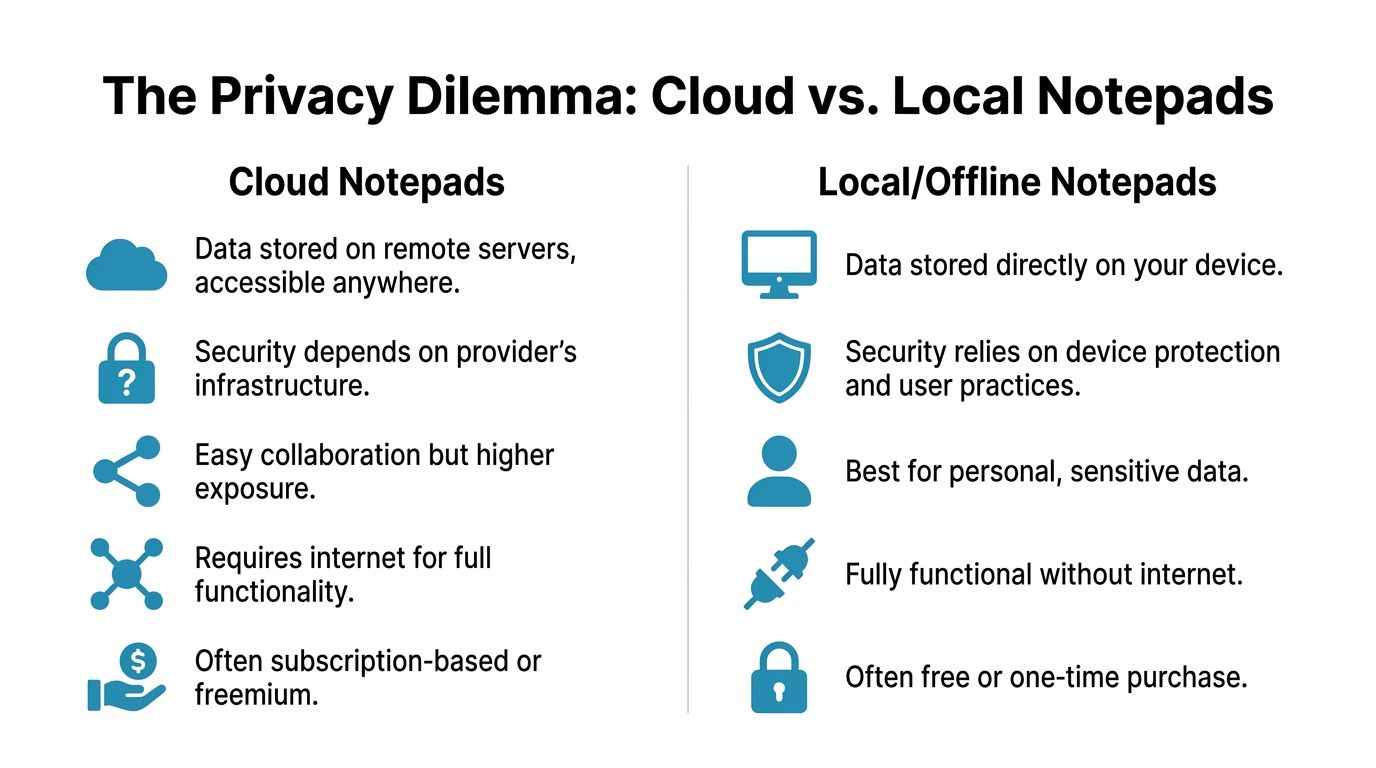
The core trade-off is simple. Cloud notepads optimize access. Local notepads optimize control. Sensitive engineering work usually needs control first.
Where the risk lives
Most feature comparisons miss the operational details that matter for privacy. Key questions are more concrete:
- Where is the text stored?
- Can the tool work fully offline?
- Does it restore prior sessions automatically?
- Do plugins have network reach?
- Can the team explain data residency to compliance and legal stakeholders?
One reason this matters is that even installed editors are not automatically private. Material about secure editing frequently points to a gap in how these tools are discussed. One cited summary says 40% of 12k+ Notepad++ queries involve “secure editing” or “offline mode,” while many tutorials stay focused on interface tweaks instead of plugin and session risks under GDPR and CCPA (referenced here).
Cloud notepad versus local notepad
| Criteria | Cloud notepad | Local or offline notepad |
|---|---|---|
| Data location | Stored on provider infrastructure | Stored on your device |
| Access model | Available across devices and accounts | Bound to local device controls |
| Collaboration | Easier sharing | Usually more manual |
| Compliance burden | Harder to reason about residency and retention | Easier to confine data scope |
| Failure mode | Vendor outage, account issue, sync conflict | Device loss or local mishandling |
| Attack surface | Browser, account, provider, integrations | Device security and tool behavior |
Compliance is where convenience gets expensive
For teams handling customer data, internal source code, regulated records, or secrets, “it syncs everywhere” is not an unconditional benefit. It can create a bigger review problem.
Security teams need to answer predictable questions:
- Residency: which region stores the note?
- Retention: how long does deleted text remain recoverable?
- Access: who inside the provider can theoretically reach metadata or content?
- Auditability: can the organization explain what happened to a sensitive snippet after it was pasted?
If your workflow includes thought work, planning, and durable docs, a comparison like Obsidian vs Notion is useful because it frames the broader tension between local-first control and cloud convenience. That same tension becomes sharper when the “note” is code, secrets, or incident data.
For teams that want a private scratch environment in the browser rather than a synced notebook, https://www.DigitalToolpad.com/blog/notepad-online-notepad covers the local-first model more directly.
For sensitive workflows, the right comparison is not “which editor has more features.” It is “which editor creates the fewest places for sensitive text to spread.”
Evaluating a Modern Developer Notepad
Developers usually discover the quality of a notepad at the worst possible moment. A stack trace needs a quick annotation, a token has to be inspected without leaking into a sync service, or an incident note needs to stay on one machine only. In those moments, theme polish matters far less than how the tool handles sensitive text.
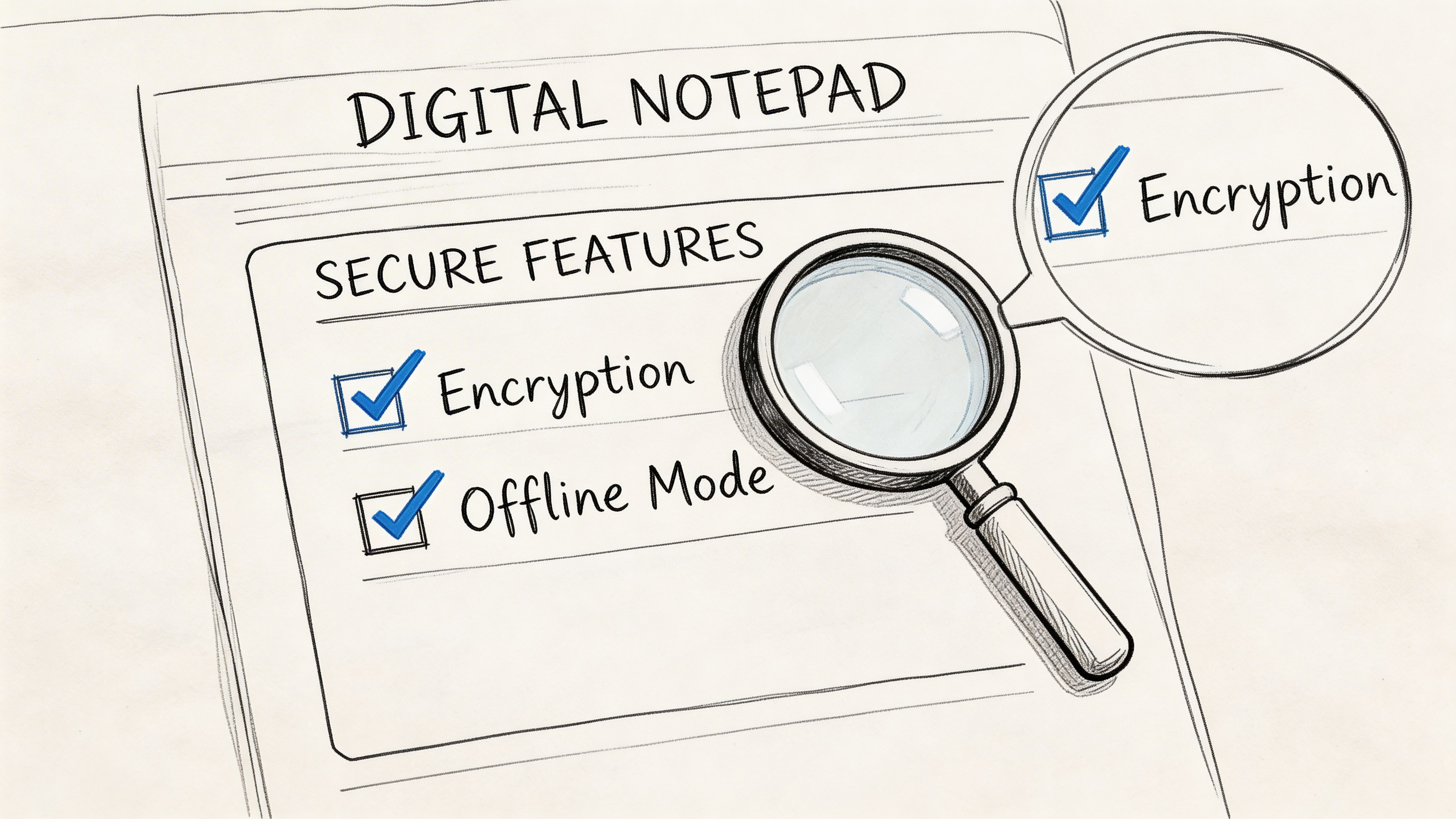
A modern developer notepad earns trust through containment, predictable behavior, and low friction under pressure.
Notepad++ still matters because it is fast, familiar, and useful across many file types. The trade-off is that installed editors often accumulate plugins, helpers, and session behaviors over time. That convenience can widen the attack surface, especially when extensions reach the network or retain more state than the user expects (discussion reference).
What matters more than theme support
For sensitive work, a notepad should satisfy a short practical checklist.
- Client-side execution: text handling stays on the device instead of being sent to a remote service.
- Offline capability: core editing still works with the network disabled.
- Predictable persistence: autosave behavior is clear, local, and easy to clear on demand.
- Import and export in standard formats: plain text should remain plain text, without proprietary packaging.
- Syntax awareness without remote dependence: highlighting and editing assistance should work without calling external services.
Those criteria sound simple. Many tools fail them in small ways that become serious in real workflows. Sign-in gets tied to basic editing. Recovery features keep old content longer than expected. Session restore reopens the exact tab that contained credentials from the previous night.
Features that look helpful but deserve scrutiny
Useful features are not automatically safe features. The implementation matters.
| Feature | Good implementation | Risky implementation |
|---|---|---|
| Autosave | Local, transparent, easy to clear | Hidden persistence or surprise recovery |
| Plugins | Optional, audited, offline-capable | Network-connected extensions with broad access |
| Session restore | Explicit and controllable | Automatic reopening of sensitive files |
| Sync | Deliberate export or encrypted transfer | Always-on background replication |
I usually treat plugins and automatic restore as the first things to inspect. Both are convenient. Both can also undermine the reason developers chose a local tool in the first place.
This short demo is a good reminder that a tool can feel lightweight while still needing a close look at its behavior:
The right standard is boring reliability
Good tools for sensitive notes are usually boring in the best way. They open fast, store data in obvious places, and do not create extra paths for text to spread.
If you cannot explain where a pasted secret lives after you close the tab or app, the tool is not ready for sensitive work.
That standard eliminates more editors than many teams expect. A browser-based offline notepad offers a compelling alternative because it can stay local, avoid plugin sprawl, and reduce desktop-side complexity without giving up speed. For developers handling secrets, incident data, internal code fragments, or regulated text, that is a better baseline than a feature list built around convenience alone.
The Rise of the Browser-Based Offline Notepad
A common failure case looks ordinary. An engineer grabs a desktop notepad for a quick token check, installs one plugin for convenience, and months later nobody can say with confidence what that editor restores, indexes, or exposes to the network. For sensitive work, that is not a small tooling detail. It is an avoidable risk.
Browser-based offline notepads became more credible once browsers matured into stable local runtimes. A modern browser can open a text tool instantly, process content on the device, and keep working without a connection. That changes the usual desktop-versus-browser decision because the browser no longer implies server-side handling.
The practical advantage is less about novelty and more about control. A browser tool can run the same way across Windows, macOS, Linux, and locked-down corporate machines without a separate install path. Teams do not need to bless a different desktop package for every environment, and contractors or incident responders can start with fewer exceptions and fewer workarounds.
That matters in real developer workflows.
During incident response, secrets review, log triage, or quick payload cleanup, the safest tool is usually the one that opens immediately and behaves predictably. Installed editors often grow over time. Session history expands, extensions accumulate, update channels change, and local privacy assumptions get weaker than they looked on day one. A client-side browser notepad avoids much of that drift because the execution model is simpler.
Its strengths are specific:
- Runs locally in the browser, with no requirement to send text to a server
- Works offline, which matters in restricted or high-trust environments
- Stays cross-platform, even across mixed developer and admin devices
- Reduces extension risk, because the core workflow does not depend on a plugin ecosystem
There are trade-offs. A browser-based notepad will not replace a full editor for project-scale coding, deep refactoring, or language-server features. That is not the job. The job is fast, private text handling with less desktop complexity and fewer hidden persistence paths.
For sensitive notes, pasted credentials, internal snippets, or regulated text, that is a better modern default than many traditional notepad setups. Privacy and portability no longer need to compete.
Your Private Workspace with Digital ToolPad
A common failure point in sensitive workflows is not the main system. It is the scratchpad. An API token gets pasted into a text editor with plugin history enabled. A customer log excerpt sits in a recovered session file. A quick decode sends internal data through a third-party web tool. Small conveniences create long-lived exposure.
Digital ToolPad addresses that specific problem with a browser-based workspace built around local handling. It offers a multi-tab notepad with autosave and syntax highlighting, and the publisher states that its tools run 100% client-side so data stays on the device.
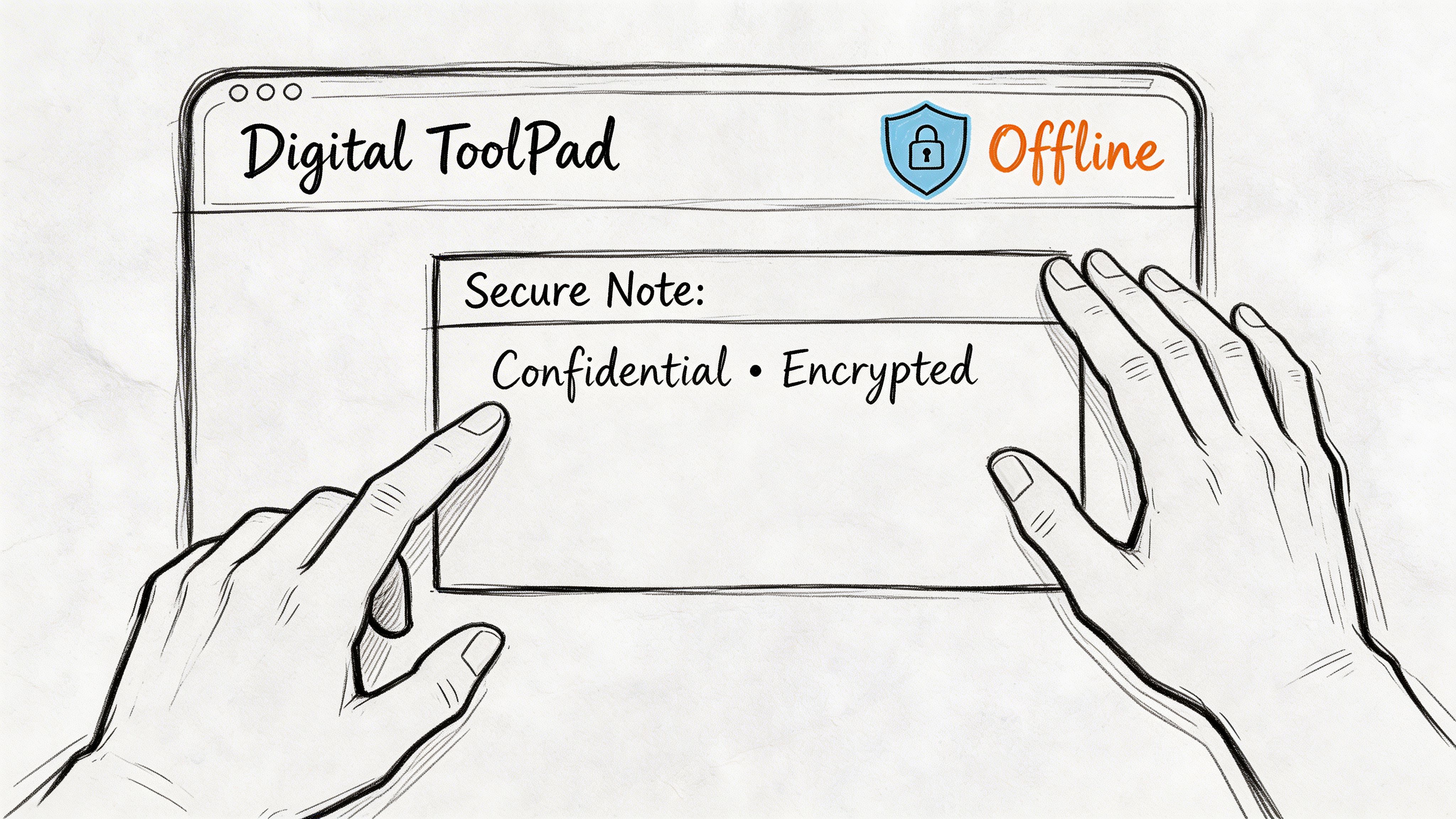
The value shows up during real work, not product demos.
A practical way to use it
Keep the raw text in one notepad tab. Use adjacent local utilities for the transformation work. That setup reduces copy-paste sprawl and makes it easier to keep sensitive material inside one controlled workspace.
- JSON cleanup: paste a payload into the notepad, remove or mask sensitive fields, then send the edited version to a local formatter.
- Base64 inspection: keep the original string in one tab and decode it in another tool without pushing the content to an unrelated site.
- Schema review: capture field notes while checking API structures in a GraphQL schema viewer.
- Snippet staging: separate SQL, regex, config fragments, and rollback notes into different tabs during incident response or change work.
The trade-off is straightforward. This kind of workspace is for transient, sensitive text handling, not full project editing. For that job, the simpler model is an advantage. Fewer moving parts usually means fewer places for private text to persist.
If your current notepad has become a holding area for secrets, logs, and customer data, switch the scratch work to a local-first browser workspace. A practical next step is to use Digital ToolPad for private notes, data cleanup, and developer utilities that run on your device instead of someone else’s server.