A bank statement converter is a lifesaver. It’s a tool that takes your PDF or scanned bank statements and pulls out all the transaction data, neatly organizing it into a spreadsheet like Excel or CSV. This simple act gets rid of the soul-crushing, error-prone manual data entry that eats up hours of your time, letting you get to the important work of analysis, bookkeeping, and reconciliation that much faster.
Moving Past Manual Bank Statement Processing
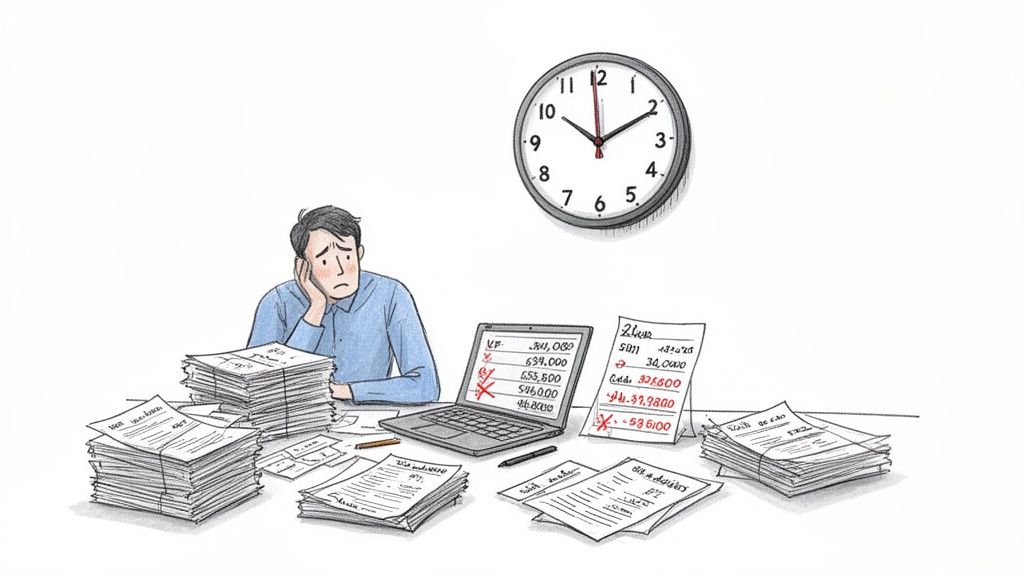
If you've ever manually typed line items from a bank statement into a spreadsheet, you know the frustration. It's a tedious, inefficient grind that almost every small business owner or accountant has had to endure. It's not just boring—it's a recipe for costly mistakes and wasted time, turning a critical financial task into a test of sheer patience. The real pain isn't the monotony; it's knowing a single typo could derail everything.
Picture a small business owner staring down tax season. They have a stack of PDF statements from the past year, and the only way to get their books in order is to manually copy and paste every single transaction—date, description, debit, credit—into Excel.
Hours bleed into one another. A misplaced decimal point or a couple of transposed numbers can throw off an entire reconciliation, kicking off a frantic hunt for one tiny error buried in hundreds of rows. This is more than a minor headache; it's a major operational bottleneck.
The True Cost of Manual Data Entry
That time spent keying in numbers is a direct hit to productivity. Every hour you spend transcribing data is an hour you aren't spending on high-value activities that actually grow the business, like analyzing cash flow or building financial forecasts. This manual slog comes with several hidden costs:
- A Magnet for Errors: Human error is a given with repetitive tasks. These slip-ups lead to inaccurate financial reports, bad business decisions, and potential compliance nightmares during an audit.
- A Drag on Efficiency: Manual processing is slow and simply doesn't scale. As your business grows and transaction volume picks up, the time needed to handle statements explodes, creating a massive roadblock.
- Delayed Financial Insights: When your data is trapped inside PDFs, getting a clear, real-time view of your financial health is next to impossible. This lag time cripples your ability to make agile decisions and react to financial challenges or opportunities.
The Shift Toward Automated Solutions
This universal pain point is exactly why automated tools are no longer a luxury—they're a necessity. The demand for better, faster financial data processing is surging. In fact, the global market for bank statement analyzers was valued at USD 1.2 billion in 2024 and is expected to climb to USD 3.5 billion by 2033, reflecting a compound annual growth rate of 12.5%. This isn't just a trend; it's a fundamental shift away from outdated manual methods.
An offline-first bank statement converter is the perfect answer to these challenges. It gives you all the speed and accuracy of automation while guaranteeing your sensitive financial data never leaves your machine, ensuring total privacy.
For many, the next step after getting the data out is to feed it into modern cloud-based accounting solutions, which make bookkeeping and reporting far more efficient. By first converting your statements into a clean, usable format like CSV or Excel, you build a reliable data pipeline straight into these powerful systems. You effectively transform a mind-numbing chore into a smooth, seamless workflow, bridging the gap between static documents and dynamic financial management.
Choosing Between Online and Offline Converters
When you're searching for a tool to convert bank statements, you’ll quickly run into two very different technologies: online and offline converters. The difference sounds small, but it has huge implications for the security and privacy of your most sensitive financial data.
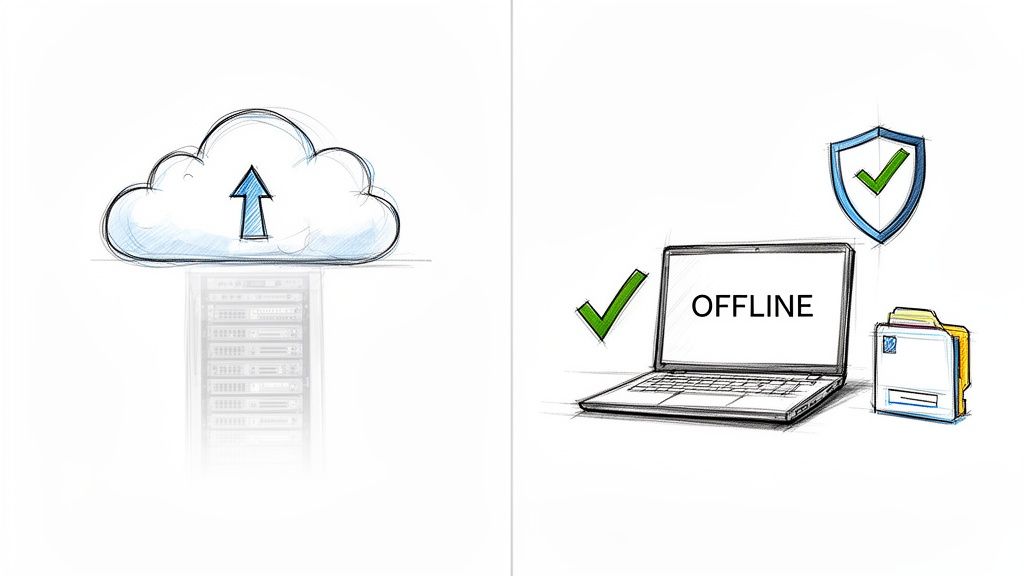
An online converter is server-based. You upload your PDF statement to their website, and all the work—the OCR, parsing, and file creation—happens on their computers. Once it's done, they send the finished file back to you.
On the flip side, an offline converter like Digital ToolPad runs entirely inside your web browser. Nothing ever gets uploaded. All the processing happens right on your own machine, meaning your financial documents never leave your control.
Why Data Privacy is Non-Negotiable
The real fork in the road is data privacy. As soon as you upload a document to an online service, you've handed over control. Your bank statement, filled with account numbers, transaction histories, and personal details, is now sitting on someone else's server.
This immediately opens you up to a few serious risks:
- Vague Data Policies: Do they store your files after converting them? For how long? Many services are deliberately unclear about this.
- Data Mining: The service provider could be scanning your documents for their own analytics or even selling aggregated, "anonymized" data.
- Data Breach Exposure: If their servers get hacked, your financial data is at risk. With the average cost of a data breach hitting $4.45 million in 2023, it’s a risk companies—and their users—can't afford.
Offline, client-side tools sidestep these dangers completely. Since the file is processed locally, the provider has zero access to your information. It’s the digital equivalent of working on a spreadsheet on your laptop with the Wi-Fi turned off.
The principle is simple: if your data never leaves your device, it can't be compromised by a third party. This is the only true privacy-first approach to handling sensitive documents.
To give you a clearer picture, here’s how the two approaches stack up.
Online vs Offline Bank Statement Converter Comparison
| Feature | Online (Server-Side) Converters | Offline (Client-Side) Converters |
|---|---|---|
| Data Privacy | Low. Files are uploaded and processed on third-party servers. | High. Data never leaves your computer; all processing is local. |
| Security Risk | High. Vulnerable to server-side data breaches and unclear storage policies. | Minimal. No upload means no risk of third-party exposure. |
| Internet Required? | Yes, for both uploading and downloading. | No. Works completely offline after the initial page load. |
| Performance | Can be slow depending on server load and your internet speed. | Consistently fast, limited only by your own computer's power. |
| Best For | Non-sensitive, casual conversions where privacy is not a concern. | Confidential financial data, compliance (GDPR, CCPA), and anyone prioritizing security. |
The table makes the distinction crystal clear. For any serious work involving financial records, the offline approach is hands-down the more secure and reliable option.
Performance and Reliability Matter, Too
Beyond the massive security advantages, the architecture of a converter also impacts how it performs day-to-day. Online tools need a constant, stable internet connection. If your connection is slow or drops midway through an upload, you have to start over. Their servers can also get bogged down during peak hours, leaving you waiting.
Offline tools are far more resilient. Once the tool is loaded in your browser, it works perfectly without any internet connection. The speed is determined by your computer's own processor, which for most modern devices makes the conversion feel instantaneous. This is a huge benefit when you're working on the go or dealing with spotty Wi-Fi.
This local-first processing is based on the same principles that secure modern communication. You can explore this topic further in our guide explaining what is end-to-end encryption.
So, Which One is Right for You?
The choice really comes down to your tolerance for risk.
If you’re handling financial data for a business or need to comply with regulations like GDPR or CCPA, an offline tool isn't just a good idea—it's the only responsible choice. It ensures you maintain a verifiable chain of custody over the data.
Even for personal use, the convenience of an online tool isn't worth the privacy trade-off. Your financial history is incredibly sensitive. Opting for a secure, offline converter is simply the smarter, safer bet.
Getting Your Bank Statements Ready for Conversion
Alright, let's move from theory to practice. This is where you see how to take that static, hard-to-use PDF statement and turn it into something you can actually work with—all without your data ever leaving your computer. We'll use Digital ToolPad as our guide to walk through the process.
The goal here is simple: transform a PDF into a flexible Excel (XLSX) or CSV file. Doing this unlocks your financial data, making it ready for accounting software, financial modeling, or just getting a handle on your personal budget.
Prepping Your PDF: The First and Most Important Step
Before you even think about converting the file, a little prep work can make a world of difference. The quality of your source file is everything; it directly impacts how accurately the data gets pulled out.
The absolute best-case scenario? A clean, text-based PDF downloaded straight from your bank's online portal. These are the gold standard and almost always convert without a hitch.
But what if you have a scanned paper statement? If your PDF is just an image, you can't select any of the text. An offline converter needs that text to work its magic, so you'll first need to run the file through an Optical Character Recognition (OCR) tool. Many modern PDF readers have this built-in. After running OCR, just save the new text-enabled version, and you're good to go.
Here are a couple of other things to check first:
- Is it password-protected? If your bank adds a password to the statement, you'll need to remove it. Most PDF software lets you save an unprotected copy.
- Is it all in one file? Make sure your statement is a single, multi-page PDF. If you have separate files for each page, combine them first. For more on that, our guide on how to separate PDF pages also covers the basics of merging.
The Conversion: Putting the Tool to Work
With your PDF ready, the actual conversion is surprisingly fast. Because tools like Digital ToolPad run entirely in your browser, your file is never uploaded to a server. This guarantees complete privacy from start to finish.
This is what you'll see when you're ready to convert.
As the screenshot shows, the layout is clean and simple. You can drag and drop your file, pick your bank from the list, and immediately get a preview of the extracted transactions.
Once you upload the file, the tool's deterministic engine—which is built on pre-defined rules for each bank's unique statement layout—gets to work. It instantly finds the transaction table, reads each line, and intelligently sorts the data into neat columns: Date, Description, Debits (Money Out), Credits (Money In), and Balance.
Reviewing and Validating Your Data
This is the most critical part of the process: making sure the output is correct. A good bank statement converter will always show you a preview of the parsed data, letting you quickly cross-reference it with your original PDF.
The real power of a deterministic, rule-based tool is its reliability. It’s not guessing like some AI extractors might. It follows a precise blueprint, meaning the same input file will produce the exact same, correct output every single time.
When you're looking at the preview, keep an eye on these details:
- Column Sanity Check: Are the dates in the date column? Are debits and credits in their proper places?
- Handling Multi-Line Descriptions: Often, a long transaction description will spill over into two or three lines on the PDF. The tool should be smart enough to merge these into a single cell for that transaction.
- Correct Date Formats: Make sure dates are standardized (e.g., MM/DD/YYYY) and recognized correctly.
For instance, a transaction that appears as "Online Purchase AMAZON.COM AMZN.COM/BILL WA" across two lines on the statement should be combined into one clean description in your spreadsheet. The converter handles this automatically, placing the purchase amount in the "Debits" column and leaving "Credits" blank for that row.
If your bank recently changed its statement format or isn't on the supported list, the extraction might not be perfect. But for supported layouts, the accuracy is incredibly high, saving you the headache of manually cleaning up the data later.
Exporting Your Clean Data
Once you’ve confirmed everything looks good, the final step is to download your file. You’ll typically get two choices: CSV or XLSX.
- Choose CSV for maximum compatibility. It's the perfect format for importing into accounting software like QuickBooks or Xero, or for use in databases.
- Choose XLSX if you're heading straight to Microsoft Excel. This is ideal for doing your own analysis, building charts, or working with formulas.
And that's it. In just a few moments, you can turn a locked-down PDF into a structured, usable dataset, all while keeping your sensitive financial information safely on your own device.
Advanced Techniques for Pristine Financial Data
Getting the data out of a PDF is a huge win, but let's be honest—it's only half the job. Raw data is often a mess. It's filled with inconsistencies that make it useless for your accounting software or financial models until you clean it up.
This next phase is all about refinement. It’s where you transform that jumbled data dump into clean, reliable financial records. This involves some hands-on cleanup and validation to make sure every single number and description is accurate and standardized. If you skip this, you’re just carrying errors from the PDF straight into your financial systems.
The whole point is to prepare your data, run it through a solid bank statement converter, and then double-check the final output.
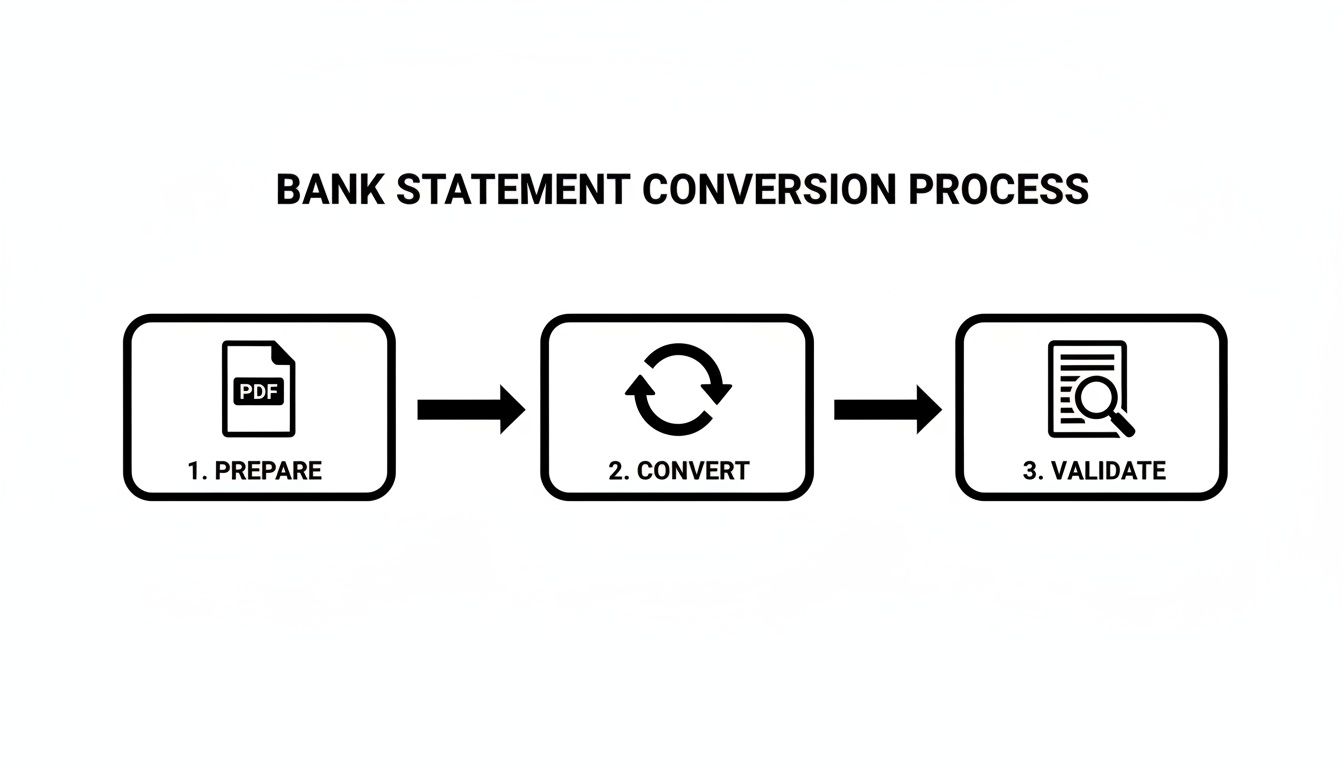
As you can see, the conversion itself is just the middle step. The real magic happens in the prep work before and the validation after, which is what guarantees data you can actually trust.
Tidying Up Transaction Descriptions
We’ve all seen it. Bank statements are filled with cryptic transaction descriptions. A purchase from your local coffee shop might show up as "SQ *COFFEE SHOP" one day and "SQUARE INC COFFEE" the next. Trying to automatically categorize that is a nightmare.
Standardizing these descriptions is one of the most impactful things you can do. A simple find-and-replace in Excel or Google Sheets can work wonders here. For example, you can search for all variations like "AMZN," "AMAZON.COM," and "AMZN Mktpl" and replace them all with a single, clean "Amazon Marketplace."
This small step makes it possible to accurately group and sum transactions by vendor, giving you a much clearer picture of where your money is going. For more on this, check out our guide on how to get the most out of converting your bank statement to Excel.
Splitting and Normalizing Data Fields
Sometimes, a converter lumps data into a single column when it really belongs in two. A classic example is a description field that contains both the vendor and the location, like "STARBUCKS #12345 - DALLAS TX."
If you want to do any kind of granular analysis, you’ll want to split that into separate "Vendor" and "Location" columns. Most spreadsheet programs have a "Text to Columns" tool that does this for you automatically. You just tell it to split the text at the hyphen, and you're done.
Date formats are another common culprit. One bank might use "MM/DD/YYYY," while another uses "DD-Mon-YY." It's crucial to normalize all dates into a single, consistent format. This is non-negotiable for sorting transactions chronologically or running any kind of time-based financial report.
The ultimate goal of post-conversion cleanup is to achieve data consistency. When every entry follows the same rules and format, your analysis becomes faster, your reports are more reliable, and your accounting software can process the data without errors.
Validating Your Output for Total Accuracy
Never, ever assume the converted data is 100% perfect without a quick check. Even with incredibly accurate deterministic tools like Digital ToolPad, a quick sanity check is just smart practice.
The most powerful way to validate the data is to reconcile the totals. Just sum the debit and credit columns in your spreadsheet and compare those numbers to the summary totals on the original PDF statement. If they match, you can be confident the extraction was a success.
This final check is fundamental to good bookkeeping. Once your statements are in a clean, usable format, it becomes much easier to master bank account reconciliation and ensure your records are always balanced. It’s the final step that gives you peace of mind, knowing your financial data is flawless before it goes into your official records.
Why Predictable Tools are a Must for Financial Data
When you're working with financial documents, "close enough" just doesn't cut it. One tiny error in a bank statement conversion can snowball into hours of painful reconciliation work, throw off your entire financial reporting, or even land you in hot water with compliance. This is precisely why the type of bank statement converter you choose matters so much.
The real difference boils down to how they operate under the hood. On one side, you have deterministic tools. Think of them as master craftsmen with a specific set of blueprints. Tools like Digital ToolPad are built on these rule-based systems; they're programmed with precise instructions for every bank's unique statement layout. When they see a known format, they apply a specific, pre-defined rule.
What does that mean for you? It means that if you feed it the same bank statement, you will get the exact same, correct output. Every single time. No surprises, no guesswork. It’s a rock-solid, repeatable process you can absolutely depend on for tasks where mistakes are not an option.
The Hidden Risks of AI Guesswork
On the other side of the fence are probabilistic tools, which are usually driven by AI and machine learning. These models are impressive—they're trained on massive amounts of data and learn to spot patterns. But instead of following a strict set of rules, they make an educated guess about where your data is and what it represents.
While that's great for a lot of things, it brings a level of uncertainty to the table. AI models can occasionally "hallucinate" or misread the data, creating small but significant errors that are incredibly easy to overlook. A number might be off by a decimal point, or two transaction descriptions might get mashed together. For financial data, a 99% accuracy rate sounds great until you realize that the last 1% is what causes all the headaches.
When it comes to accounting and financial reconciliation, consistency is everything. A deterministic tool guarantees that two plus two always equals four. A probabilistic one might occasionally suggest it's 4.01, and that’s a gamble most finance professionals are simply unwilling to take.
This isn't some abstract debate. It's a practical problem that has created a real demand for tools that deliver reliability above all else.
The Market Votes for Reliability
The success of dedicated bank statement converters proves just how much people value accuracy. Take the SaaS platform Bank Statement Converter. It was started by a solo founder in 2021 and has seen explosive growth. By mid-2023, the service was pulling in $9,700 in monthly recurring revenue. That number shot up to over $18,000 by the end of the year. You can read more about the founder's successful journey on FounderReports.com. This isn't a fluke; it shows a strong, growing market for tools that do one thing and do it perfectly.
Ultimately, choosing the right tool comes down to a simple trade-off: do you need the creative interpretation of an AI, or do you demand the unshakeable precision of a deterministic engine?
Here’s a simple way to think about it:
Go with a Deterministic Tool if:
- You need 100% accuracy for accounting, audits, or tax filings.
- Your results must be repeatable and verifiable every time.
- You're working with a consistent input format (like a specific bank's statement layout).
Consider an AI Tool if:
- You're dealing with a jumble of unstructured documents where clear rules are impossible to set.
- The task is less critical, and you can afford to manually correct a few small errors.
For almost any serious financial workflow, the choice is clear. A deterministic tool gives you the peace of mind you need to build trustworthy financial records, ensuring your data isn't just converted, but converted correctly—every single time.
Got Questions About Bank Statement Converters? We’ve Got Answers.
Even when you see the clear value in a new tool, it's natural to have a few questions before you dive in. And when you're dealing with sensitive financial information, being thorough isn't just smart—it's essential. Let's walk through some of the most common things people ask about bank statement converters, from security to the nitty-gritty technical details.
Getting these questions answered will help you pick the right tool and use it with total confidence.
"Is It Actually Safe to Use an Online Converter?"
This is the big one, and the answer comes down to one thing: where your data gets processed. Most online tools are server-based, meaning you have to upload your bank statement to their cloud. Once it leaves your computer, you've lost control. That file could be stored, scanned, or worse, exposed if they have a data breach. It’s a genuine risk.
This is where an offline-first tool like Digital ToolPad completely changes the game. It runs entirely in your web browser, on your own machine. Your file is never uploaded, never sent across the internet, never even seen by a third-party server. Because all the magic happens locally, your financial data remains 100% private and secure.
My advice? For something as sensitive as financial records, always opt for a client-side tool that keeps your data firmly on your device.
"What About Scanned PDF Statements? Can I Convert Those?"
Absolutely, but there's a crucial first step involved. Most converters are built to read "text-based" PDFs, where the numbers and letters are already digital text. A scanned statement, however, is basically just a picture of a document. The converter can't read an image.
To get around this, you need to run the scanned PDF through an Optical Character Recognition (OCR) tool first. OCR software is designed to look at an image, identify the characters, and turn them into actual, selectable text.
Once you’ve done that and saved the new text-based PDF, the converter can jump in and pull the data into a CSV or Excel file. Just be sure to give the OCR'd file a quick once-over to catch any small errors before you convert it.
"Which Output Format Is Best for My Needs?"
The best format really depends on what you plan to do with the data after you've extracted it. It usually boils down to two excellent choices.
- CSV (Comma-Separated Values): Think of CSV as the universal language of data. It's a simple, lightweight text file that can be imported into just about anything—spreadsheets, databases, and accounting software like QuickBooks or Xero. If your goal is to get your transaction data into another system, CSV is almost always the right call.
- XLSX (Excel Workbook): If you're planning to stay in Microsoft Excel to analyze the numbers, XLSX is your best friend. It supports all the powerful features you need for a deep dive, like formulas, charts, conditional formatting, and organizing data across multiple sheets.
For most day-to-day accounting and reconciliation tasks, a clean CSV file gives you the most flexibility.
"How Is an Offline Converter Different from an AI Extractor?"
This is a great question, and the difference is fundamental: one is deterministic, and the other is probabilistic.
An offline converter, like the ones we build, is a deterministic tool. It’s been programmed with a precise set of rules for specific bank statement layouts. Give it the same file a hundred times, and it will produce the exact same, correct output every single time. There's no guesswork. This reliability is non-negotiable for financial data.
An AI extractor, on the other hand, is probabilistic. It uses a machine learning model to predict the document’s structure based on patterns it has seen in the past. While incredibly powerful, it's essentially making an educated guess. This can sometimes lead to subtle errors or inconsistencies that are hard to spot.
For critical tasks like tax preparation, financial audits, or reconciliation—where 100% accuracy is the only acceptable standard—a deterministic offline converter is the safer, more trustworthy choice.
Ready to convert your bank statements with absolute privacy and rock-solid accuracy? The Digital ToolPad suite of offline tools gives you fast, reliable results without ever compromising your data. Try our secure, browser-based tools today and take back control of your financial data.