Converting a CSV to an XLSX file seems simple on the surface—just open it in Excel and hit "Save As." But that small action is a huge leap in capability, transforming a flat, plain-text file into a dynamic tool for analysis, formatting, and visualization.
Why Bother Converting CSV to XLSX?
CSV files are the lingua franca of data exchange. They're simple, lightweight, and universally compatible. But that simplicity is also their greatest weakness. A CSV is just raw data in a text file, nothing more. The moment you need to do something with that data, you'll hit a wall. That's when converting to XLSX becomes non-negotiable.
This isn't a niche problem; it's a daily reality for businesses and developers. Industry reports from 2023 found that while over 70% of global enterprises rely on CSV for exporting data, a staggering 85% of data analysts require XLSX for essential features like formulas, charts, and pivot tables. This gap shows just how often a simple conversion is the critical next step.
The Hidden Pitfalls of Plain Text
Imagine you've just exported a list of products. A CSV can easily store your product SKUs, prices, and inventory counts. But what if one of your SKUs is "00789"? Open that CSV directly in a spreadsheet program, and it will likely "helpfully" strip those leading zeros, turning your unique identifier into a meaningless "789."
It gets worse. Long numbers, like a credit card or phone number, can be mangled into scientific notation (think 1.23E+15), making the data completely unusable. XLSX prevents this chaos by letting you set specific data types for each column, preserving your data exactly as it was meant to be.
The real reason to convert from CSV to XLSX is to trade a static, plain-text file for a living, feature-rich spreadsheet. It's about protecting your data's integrity while unlocking its analytical potential.
This decision tree helps visualize when the jump to XLSX is necessary.
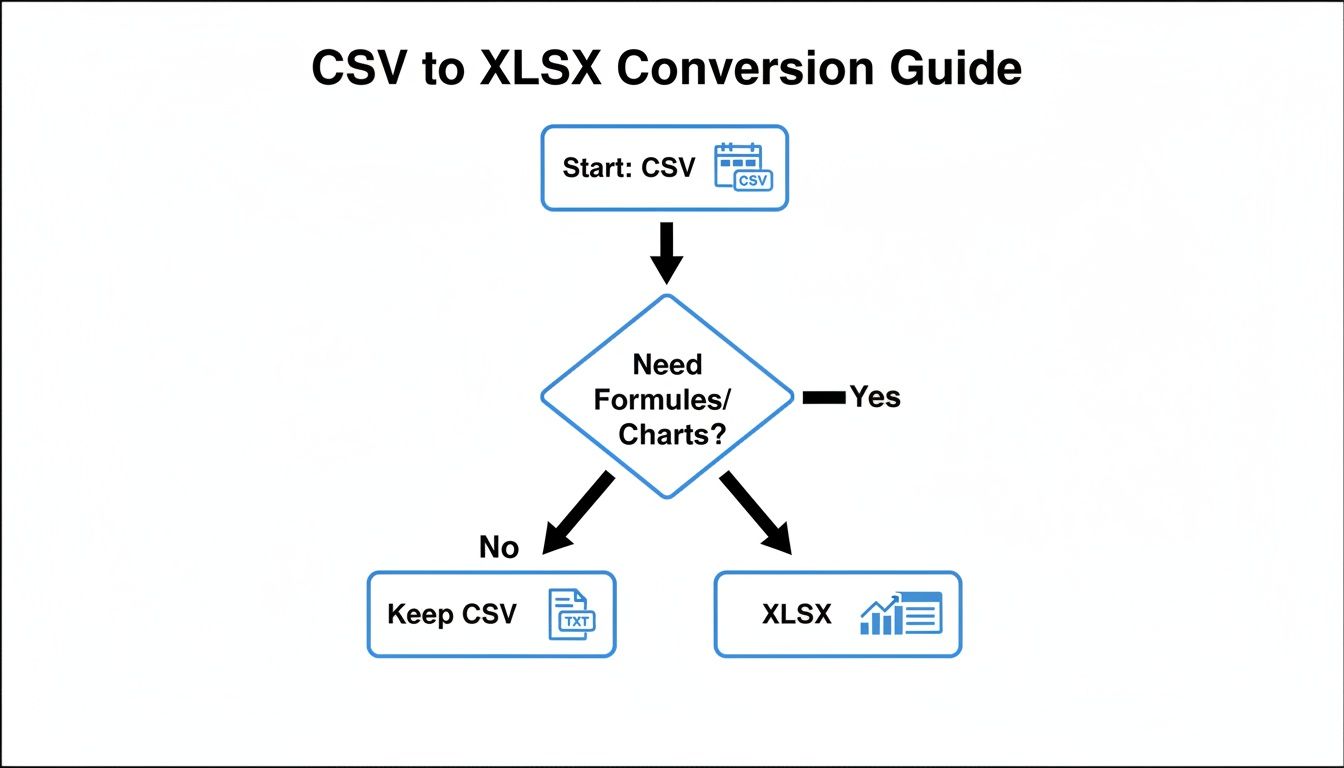
As the flowchart shows, if your workflow involves any kind of data manipulation, calculation, or presentation, XLSX is the only way to go.
CSV vs XLSX: A Quick Feature Comparison
To really understand the "why," it helps to see the two formats side-by-side. CSV is fantastic for raw data transfer, but XLSX is built for hands-on work.
| Feature | CSV (Comma-Separated Values) | XLSX (Excel Open XML) |
|---|---|---|
| Data Types | None. Everything is treated as plain text. | Supports specific types like Text, Number, Date, Currency, etc. |
| Formulas & Functions | Not supported. Cannot perform calculations within the file. | Fully supported. Allows for complex calculations and data analysis. |
| Formatting & Styling | Not supported. No colors, fonts, or conditional formatting. | Extensive formatting options to improve readability and highlight data. |
| Charts & Visualization | Not supported. Cannot embed charts or graphs. | Full charting capabilities for data visualization. |
| Multiple Worksheets | Not supported. A single CSV file is a single flat table. | Allows for multiple worksheets within one workbook file. |
| File Size | Typically smaller, as it's just plain text. | Larger, as it contains data, formatting, formulas, and more. |
| Human Readability | Can be opened and understood in any text editor. | A complex XML-based format that requires a spreadsheet program. |
| Data Integrity Risk | High risk of data corruption (e.g., leading zeros, long numbers). | Low risk. Data types preserve the integrity of the information. |
The table makes it obvious: while CSVs are great for machine-to-machine data dumps, XLSX is built for human interaction and deep analysis.
Beyond Just Keeping Your Zeros
The need to convert from CSV to XLSX goes far beyond just fixing number formats. The real power comes from what you can do with the data once it's in a proper spreadsheet format.
Formulas and Functions: You can finally run calculations directly on your data, from a simple SUM to a complex VLOOKUP that pulls in information from another table.
Multiple Sheets: Keep related data organized in one place. This is a lifesaver for financial reporting, where you might use a bank statement converter to put transactions, summaries, and charts on separate sheets within a single, tidy workbook.
Charts and Graphs: Turn rows of numbers into insightful bar charts, pie charts, and scatter plots. Visualizing your data is often the fastest way to spot a trend or an anomaly.
Styling and Formatting: Use colors, bold fonts, and conditional formatting rules to make your data easy to scan and understand. Highlight all sales over $1,000 in green, for example. You just can't do that with a CSV.
Converting by Hand with Excel and LibreOffice
When you just need to convert a single CSV file, the most straightforward route is often the spreadsheet program you already have installed. Whether you're using Microsoft Excel or the free and open-source LibreOffice Calc, the process is well within reach. But be warned: it's not always as simple as just opening the file.
The real challenge—and where most people trip up—is during the import step. A simple double-click might seem like it works, but it lets Excel make all the decisions about your data. This can lead to all sorts of problems, like dropping the leading zeros from your product IDs or misreading postal codes as plain old numbers.
This is especially critical when you're working with financial data, like filling out an expense report template in Excel. Getting that initial data import right is the foundation for everything that follows. To sidestep these common pitfalls, you need to take control of the import process yourself.
Taming the Text Import Wizard
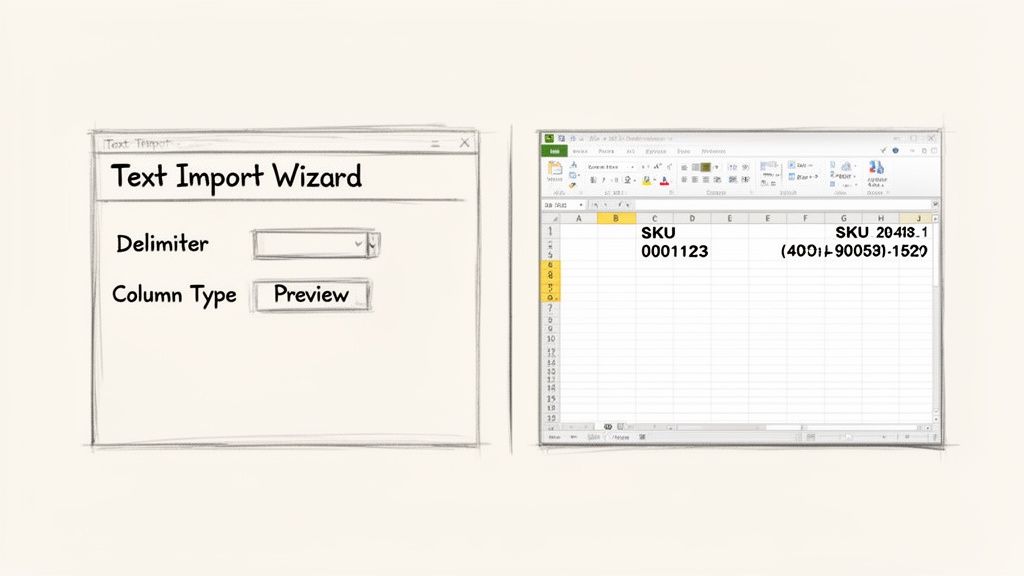
Instead of double-clicking the CSV, start by opening a fresh, blank workbook in Excel or Calc. From there, head over to the Data tab and look for an option like "From Text/CSV." This simple action triggers the Text Import Wizard, a tool that puts you in the driver's seat.
Think of this wizard as your best defense against mangled data. It walks you through a few crucial settings to make sure your file is interpreted correctly.
- Character Encoding: This tells the program how to read the characters in your file. UTF-8 is usually the right choice for modern files, but if you see strange symbols, you may need to match the source encoding.
- Delimiter: Is your data separated by commas, tabs, or something else? Getting this wrong is the classic reason all your data gets jammed into a single column.
- Data Type: This is the most critical step by far. The wizard gives you a preview of your columns and lets you assign a data type to each one before anything gets imported.
For instance, if you have a column of ZIP codes like "01002" or employee IDs like "00451," you absolutely must select that column and set its data type to Text. If you don't, Excel will assume it's a number and "helpfully" change it to "1002" or "451," and that original data is gone for good.
Once you've carefully guided the import wizard and your data looks correct in the spreadsheet, the final step is easy. Just go to "Save As" and choose "Excel Workbook (.xlsx)" from the dropdown menu to complete the conversion.
Where Manual Conversion Breaks Down
This hands-on approach is fantastic for the occasional file. It’s reliable and gives you precise control. But its weaknesses become glaringly obvious as soon as you need to do this more than once. The process is entirely manual, which makes it a non-starter for any kind of automated workflow.
The manual approach is solid for a one-off conversion but simply doesn't scale. It demands your attention every single time, making it a poor choice for batch processing or building into a larger data pipeline.
If your job involves converting dozens of CSVs every week, this method will quickly become a major time sink. It’s also susceptible to human error—forget to set a single column's data type just once, and you could compromise your entire dataset. For anything repetitive or large-scale, it's time to look at more powerful, scriptable solutions.
Automating Conversions with Python and Pandas
Manually opening and saving a file is fine now and then, but it quickly becomes a massive time-sink in any real data pipeline. When you need to process a csv file to xlsx on a set schedule, convert a whole folder of files, or build this step into a larger application, scripting is your best friend.
In the world of Python, one tool stands head and shoulders above the rest for this kind of work: the Python Pandas library. It’s built from the ground up for data manipulation, which makes turning a CSV into an XLSX file almost laughably easy. With just a few lines of code, you can create a reliable, repeatable process that sidesteps manual work and the errors that come with it.
Your First Conversion Script
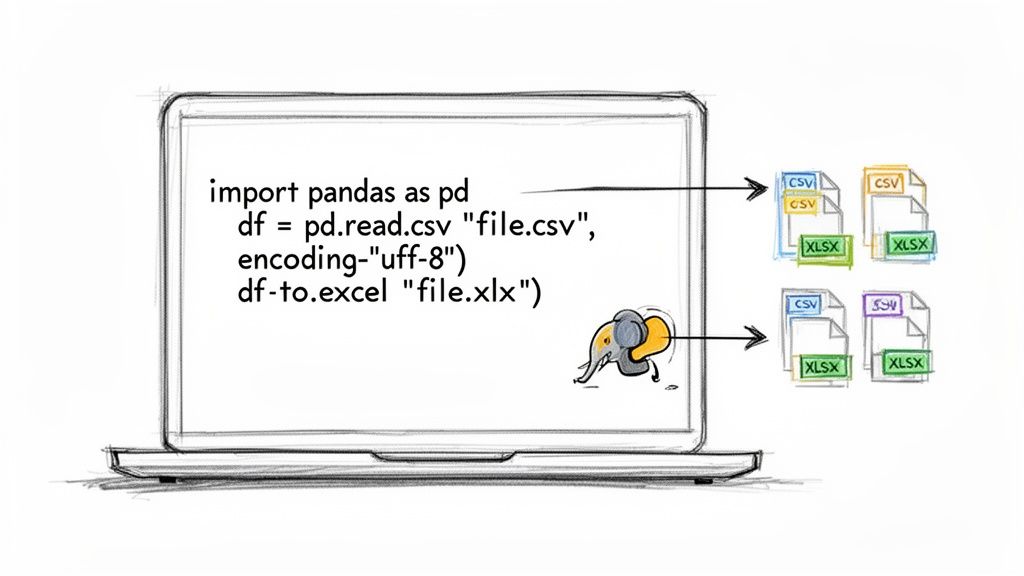
Getting a basic script running is surprisingly straightforward. As long as you have Python and Pandas set up on your machine, the whole process boils down to two key steps: reading the CSV into a special table-like structure called a DataFrame, and then telling that DataFrame to save itself as an Excel file.
Here's a simple, copy-and-paste script to get you started:
import pandas as pd
First, define where your files are
csv_file_path = 'source_data.csv' xlsx_file_path = 'output_data.xlsx'
Read the source CSV file into a pandas DataFrame
df = pd.read_csv(csv_file_path)
Now, write that DataFrame to an XLSX file
'index=False' is important—it stops pandas from adding an extra numbered column
df.to_excel(xlsx_file_path, index=False, engine='openpyxl')
print(f"Success! Converted {csv_file_path} to {xlsx_file_path}")
This little script is the foundation for any automated conversion you'll build. You can expand on this to handle all sorts of real-world data quirks.
The real magic of Pandas isn't just the file conversion itself. It's the power to clean, reshape, and validate your data in between reading the CSV and writing the Excel file. This transforms a simple format change into a powerful data processing step.
The need for programmatic solutions like this has absolutely exploded. As businesses grapple with more data, the demand for automated conversions has skyrocketed. File conversion service Zamzar, for instance, projects it will process over 1.2 billion files by 2025. A huge chunk of that—an estimated 35% of traffic—is from CSV-to-XLSX conversions alone.
Tackling Real-World Scenarios
Let's be honest: real-world CSV files are often a mess. They come with weird character encodings, use semicolons instead of commas, and have all sorts of other oddities. The good news is that Pandas was built to handle this chaos gracefully.
Weird Characters? Check the Encoding: If your output file has garbled text (like
â€instead of a currency symbol), it's almost certainly an encoding mismatch. Many systems, especially older ones, export files using encodings likelatin1instead of the modernutf-8. You can easily tell Pandas how to read it:df = pd.read_csv('data.csv', encoding='latin1')Not Comma-Separated? No Problem: Sometimes a "comma-separated" file actually uses tabs, pipes (
|), or semicolons. Thesep(separator) argument lets you specify exactly what character to use as the delimiter:df = pd.read_csv('data.csv', sep=';')Got a Whole Folder of Files? What if you need to convert 50 CSVs? Instead of running the script 50 times, you can wrap the logic in a simple loop to process every file in a directory automatically.
This kind of flexibility is a lifesaver for anyone working with data from different sources. And if you find yourself needing to work with other common formats, the principles are the same. In fact, we have another guide that shows you how to convert JSON to CSV, which uses many of these same data-wrangling techniques.
What If Your Data Is Too Sensitive for an Online Tool?
Manual methods can be slow and scripting takes some setup, but what happens when you need to convert a CSV file that’s full of sensitive information? Think about financial records, customer lists, or proprietary business data. Uploading that to a random online converter is a massive security gamble. The moment that file leaves your machine, you've lost control over it.
This is where a privacy-first approach isn't just nice to have—it's essential. Modern, secure converters are built to run entirely within your web browser. This is called client-side processing, and it means your data is never uploaded to a third-party server. You get the ease of a web app with the security of desktop software, which is a must-have for handling data under regulations like GDPR or HIPAA.
The Magic of Client-Side Processing
The benefit here is simple but incredibly important: your data stays yours. By processing files locally on your machine, these tools completely sidestep the risks of data breaches, snooping, or misuse that come with cloud-based services.
For any organization handling sensitive information, a client-side converter isn't just a preference; it's a fundamental security requirement. Your files are processed on your device, ensuring complete confidentiality from start to finish.
The move from CSV to XLSX reflects Excel's own journey. While CSV has been a go-to portable format since the 1980s, the launch of the Open XML (XLSX) format in 2007 was a big deal, reportedly boosting its use by 300% within five years. Today, while an estimated 78% of developers convert CSV to XLSX files weekly, a surprising 73% still run into formatting problems without the right tools. You can find more of these insights over at CloudConvert.com.
The clean, drag-and-drop workflow you see in these tools simplifies the entire process. This design makes it easy for even non-technical users to perform secure conversions without needing any special training or setup.
More Than Just Security: Smarter Features
Beyond the critical privacy benefits, these modern tools are built for pure efficiency. They often bake in smart features that solve the classic headaches of manual conversion.
- Automatic Delimiter Detection: The tool figures out on its own whether your data is separated by commas, semicolons, or tabs. This prevents that all-too-common problem where everything gets dumped into a single column.
- Batch Conversion: Instead of converting files one by one, you can just drag a whole folder of CSVs into the converter and process them all at once. It’s a huge time-saver.
- Instant Performance: Since there’s no upload or download time, the conversion happens almost instantly. The only limit is your own computer's processing speed.
If you handle structured data regularly, a reliable offline tool is a game-changer. And if your work involves other sensitive financial documents, you might also find our guide on using a bank statement converter helpful. This mix of security and speed makes browser-based converters the perfect fit for modern data workflows.
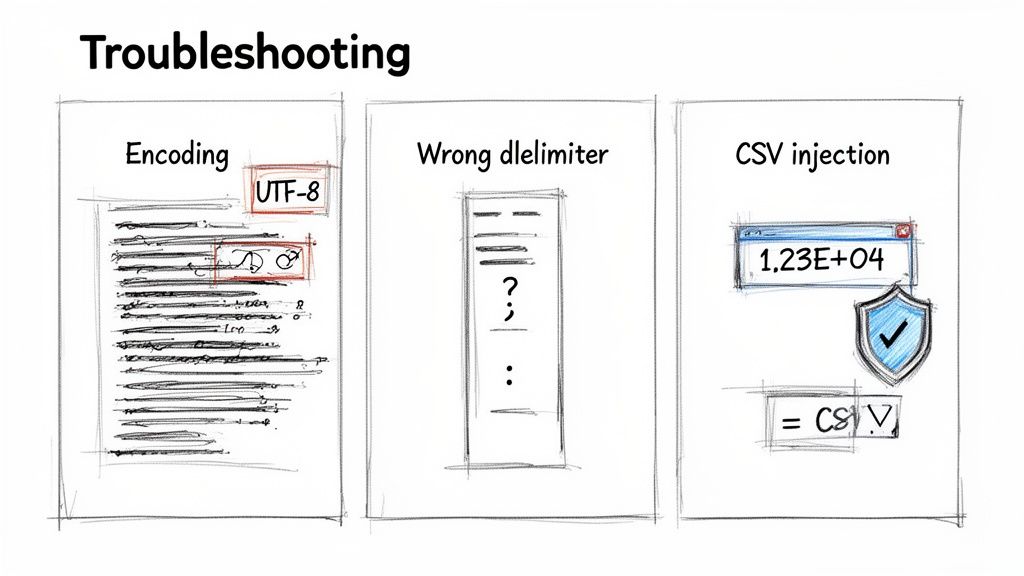
Troubleshooting Common Conversion Issues
Things don't always go smoothly when you're converting a CSV to an Excel file. Even with the best tools, you can end up with a spreadsheet that looks like a mess. When your output is… unexpected, the problem usually boils down to a few common culprits. Let's walk through how to diagnose and fix them.
Why Does My Text Look Garbled?
Ever open a file and see strange symbols like †or � instead of accented letters or punctuation? That’s a classic sign of a character encoding mismatch.
This happens when your source CSV file was saved in one encoding (like latin1 or windows-1252), but the tool you're using to open or convert it is assuming a different one, usually UTF-8. It’s like trying to read a message written in one code with the key to another.
To fix it, you need to tell your tool the correct encoding to use. If you're using a Python script, you can specify this with an encoding parameter. If you're importing directly into Excel, the Text Import Wizard has a dropdown menu where you can choose the right encoding format.
Why Is All My Data in a Single Column?
This is another all-too-common headache. You open your shiny new XLSX file, only to find all your data crammed into column A.
This is almost always a delimiter issue. CSV might stand for "Comma Separated Values," but in the real world, data gets separated by all sorts of characters. Semicolons (;), tabs, and even pipes (|) are frequently used, especially in files exported from European systems.
If your tool is looking for a comma but the file uses a semicolon, it just sees one long chunk of text per line. The fix is simple: find the option in your tool to specify the delimiter. Whether you're using a command-line utility or Excel's import wizard, there will be a place to tell it exactly what character separates your data.
The best way to figure out what's really going on is to open the CSV in a plain text editor like Notepad, Notepad++, or VS Code. This shows you the raw, unformatted data. You'll immediately see the real delimiter and get clues about any funky encoding that might be causing you trouble.
Preventing Data Corruption and Security Risks
Some of the trickiest problems are the subtle ones. You might not notice them at first, but they can wreak havoc on your data's integrity.
A big one is how spreadsheets handle numbers. Have you ever seen a 16-digit credit card number get rounded off at the end? Or product codes that are supposed to start with 007 suddenly become just 7? This happens when a program sees a column of digits and automatically formats it as a number, stripping leading zeros and losing precision on very long numbers.
The solution is to be proactive during the import. Always define columns containing IDs, ZIP codes, or any long string of digits as Text. This tells the program to leave the data exactly as it is.
Finally, there’s a serious security risk you need to know about: CSV Injection. If a cell in your file starts with a character like =, +, -, or @, Excel might try to execute it as a formula. A malicious CSV could be crafted to run commands on your computer the moment you open it.
The safest approach is to sanitize your data before converting from csv to xlsx. A simple but effective fix is to check for any cells that begin with those characters and prepend a single quote ('). This little trick forces Excel to treat the cell as plain text, neutralizing the threat.
Got Questions About Converting CSV to XLSX? We've Got Answers
Even with a good process, converting a csv file to xlsx can throw a few curveballs. I’ve run into my fair share of them over the years, so let's tackle some of the most common questions that pop up.
Can I Convert a CSV to XLSX Without Losing Data?
Absolutely, as long as you're careful. The key is to remember that a successful conversion is about preserving data integrity, not visual styling (since CSVs don't have any).
The most common snag I see is when spreadsheet programs get a little too smart for their own good and misinterpret data types. For instance, a product ID like "00123" can easily be turned into the number 123, stripping away those crucial leading zeros. The same thing happens with long numeric strings that get converted into scientific notation.
To prevent this, you have to take manual control. During the import process in Excel or LibreOffice, explicitly define columns with sensitive numbers as 'Text'. This forces the program to accept the data exactly as it is, without making its own, often incorrect, assumptions.
When you do this, every piece of information—from account numbers to unique identifiers—arrives in your spreadsheet completely intact.
What's the Best Way to Handle Really Big CSV Files?
If you're dealing with a massive CSV file, we're talking gigabytes in size, forget about standard desktop software. Microsoft Excel, for example, will choke or crash. Its hard limit of just over one million rows simply isn't built for the scale of many modern datasets.
For the big stuff, scripting is your most reliable friend. Using Python with the Pandas library is a fantastic approach because you can process files in manageable chunks, which sidesteps memory limitations entirely. Command-line tools like csvkit are also built from the ground up for performance with large files.
Don't want to code? Your best bet is a modern, client-side browser tool. These are great because they process the file locally on your machine, so you avoid the frustratingly slow upload and download cycles you get with traditional cloud-based converters.
How Can I Keep My Data Secure During Conversion?
This is a big one, and the answer is simple: never let your data leave your machine. The only way to guarantee your information stays private is to use a method where your files are never transmitted to an external server.
That leaves you with two solid options:
- Desktop Software: Sticking with programs like Excel or LibreOffice Calc means everything happens locally. No internet connection, no problem.
- Client-Side Browser Tools: These web apps run all the conversion code directly in your browser. Your data is processed on your computer and is never uploaded anywhere.
I can't stress this enough: avoid those generic "free online converter" websites when you're working with anything sensitive. Think financial reports, customer lists, or proprietary business data. The moment you upload a file to a random third-party server, you've lost control over it.
For a secure, fast, and dead-simple way to convert your files, check out the offline utilities from Digital ToolPad. Every tool runs 100% in your browser, so your data stays private by default. You can find them at https://www.digitaltoolpad.com.