If you've ever spent an afternoon meticulously copying transaction lines from a bank statement PDF into an Excel spreadsheet, you know the feeling. It's a slow, mind-numbing task that’s become a painful ritual for anyone handling bookkeeping, expense tracking, or financial analysis.
But the real cost of this manual grind goes far beyond just a wasted afternoon.
Why Manual Data Entry Is Holding You Back

Every single number you type by hand is an opportunity for a mistake. A misplaced decimal point, a couple of transposed digits—it's incredibly easy to do. That tiny slip-up can snowball, leading to flawed budgets, incorrect tax filings, or even a failed audit. These aren't just minor headaches; they're serious business risks hiding in a process we've all been taught to accept.
The modern bank statement PDF to Excel converter is designed to eliminate this risk entirely, transforming a tedious, error-prone chore into a quick, accurate, and automated workflow.
The True Cost of Inefficiency
The problems with manual entry stack up fast. Every bank seems to use a slightly different PDF layout, so you can never quite get into a smooth rhythm. And if you're working with scanned statements? Forget it. You're left trying to decipher blurry text, which just makes errors more likely.
This manual bottleneck directly impacts your ability to make sharp, timely decisions based on your financial data. While the push for automation in banks has streamlined things on their end, that efficiency often stops the moment they send you a PDF. It’s up to us to bridge that final gap.
Think about the hours. Many small businesses lose up to 30 hours per month just keying in transactions from PDFs. An AI-powered converter, on the other hand, can process a statement in about two minutes. That's a staggering 989% efficiency boost with an accuracy rate of 99.9%.
Let's look at what that difference actually means in practice.
| Metric | Manual Data Entry | Automated Converter (e.g., Digital ToolPad) |
|---|---|---|
| Time per Statement | 20-40 minutes (or more for complex statements) | 1-2 minutes |
| Accuracy Rate | 96-98% (with high potential for human error) | 99.9% or higher |
| Error Source | Typographical errors, missed lines, misinterpretation | Software-based OCR and parsing |
| Scalability | Poor; more statements mean proportionally more time | Excellent; can process hundreds of statements quickly |
| Consistency | Varies by person and fatigue level | Consistently structured output every time |
The table makes it clear: the jump from manual to automated isn't just an improvement, it’s a total game-changer for anyone who values their time and their data's integrity.
The real issue isn't just the time you spend on data entry; it's the opportunity cost. Every hour you're transcribing is an hour you're not spending on strategic analysis, client relationships, or growing your business.
From Frustration to a Solid Foundation
Making the switch to a dedicated bank statement PDF to Excel converter fundamentally changes your relationship with financial data. It takes a high-risk, low-value task and turns it into a fast, reliable, and automated workflow.
Here’s what you gain almost immediately:
- Drastic Error Reduction: Automation nearly erases the human errors that are almost guaranteed with manual transcription.
- Massive Time Savings: What once took hours can now be done in minutes, freeing you and your team up for work that actually matters.
- Standardized, Usable Data: A quality converter gracefully handles various bank formats, giving you a clean, consistent dataset that's ready for analysis right away.
In the end, adopting an automated solution isn't just about convenience. It’s about building a foundation of trustworthy data for all your financial activities. For a deeper look at the tools that can make this happen, check out our complete guide on the https://www.DigitalToolpad.com/blog/bank-statement-converter-to-excel.
Choosing Your Converter: The Online vs. Offline Dilemma
When it comes to picking a bank statement PDF to Excel converter, the most important question you can ask is: where does the conversion actually happen? The answer—whether it's on a remote server or right on your own computer—has huge implications for the security of your financial data.
Many of the most common converters are online, cloud-based tools. They seem convenient, but they require you to upload your sensitive bank statements to their servers. The moment your file leaves your machine, you’ve lost control. You're essentially handing over your entire transaction history, account numbers, and personal details, trusting a third party to keep it safe from hackers, data breaches, or simple misuse.
The Security Risks of Cloud-Based Converters
That drag-and-drop ease of web tools is definitely tempting, but it comes with a hidden price. When you upload financial documents, your data travels across the internet and gets stored, even if only for a moment, on a server you don't own. This opens your information up to being intercepted during the upload or exposed if that company's security ever fails.
For freelancers, small businesses, or anyone handling client financials or operating under regulations like GDPR, that's a risk that’s just not worth taking. Even a small chance of a data leak can lead to serious trouble. This is where offline converters come in, offering a fundamentally more secure way of doing things.
Why Offline Tools Offer Superior Privacy
An offline or browser-based converter works on a simple but powerful idea: your data never leaves your device. These tools process everything locally, using your own computer’s power to extract the data and build the spreadsheet. The entire job is done right inside your browser, which means you have complete privacy and control from beginning to end.
This "client-side" processing model gets rid of the biggest security flaw of online tools. There's no data sent to a third-party server, no cloud storage, and therefore, no risk of your financial information being exposed in someone else’s data breach.
The core benefit of an offline converter is data sovereignty. You maintain 100% control over your sensitive financial information because it is never uploaded or shared with an external service.
For any security-conscious professional, this is a game-changer. Offline tools shine by processing data only on the client-side, which prevents the data leaks that cybersecurity reports show affect as many as 20% of cloud converters. This approach also offers better performance and easier integrations, turning what was once a risky task into a secure advantage. You can dig deeper into how AI and offline processing are changing financial workflows in this detailed industry report.
In the end, it all comes down to your comfort level with risk. If you're working with sensitive financial data—whether it's your own or a client's—an offline tool gives you a level of security that online services just can't match.
You can see the difference firsthand and explore how a privacy-first, browser-based bank statement converter works. While online tools might offer access from anywhere, offline converters deliver true peace of mind, making them the clear winner for anyone who puts security first.
How to Convert Your PDFs Using an Offline Tool
When you're dealing with bank statements, security isn't just a feature—it's everything. This is where an offline bank statement PDF to Excel converter really shines. Instead of uploading your private financial data to a server somewhere on the internet, these tools do all the work right inside your web browser. Your information never leaves your computer.
Let's walk through how this actually works in practice. The whole idea is to give you a clean, usable Excel file without ever compromising your privacy. No uploads, no cloud processing, and absolutely no data left behind on a third-party server. It's the best of both worlds: the convenience of a web tool with the security of a desktop app.
This flowchart breaks down the decision pretty clearly.
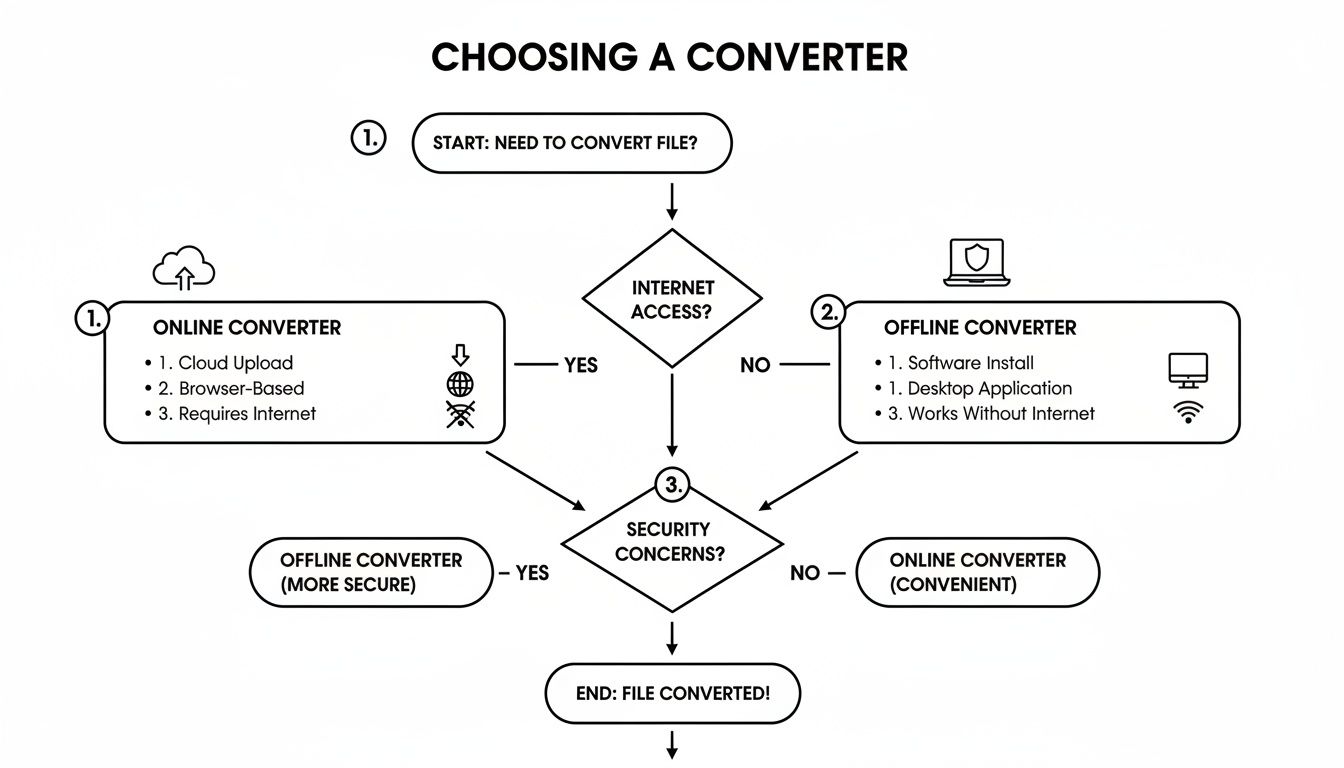
As you can see, the offline route keeps everything contained locally on your machine, completely sidestepping the risks that come with sending files over the internet.
Getting Your PDF Ready
First things first, you need to have your bank statement PDF on hand. The best kind is a "native" PDF—the one you download directly from your bank's online portal. These are great because they contain actual text data, which means the conversion will be incredibly accurate.
What if you only have a paper copy? You'll need to scan it. When you use a scanned document, the converter will rely on Optical Character Recognition (OCR) to read the text. For the best OCR results, make sure your scan is high-quality: lay the paper flat, use good lighting, and aim for sharp, high-contrast text. A blurry or skewed scan will only lead to headaches later.
Kicking Off the Conversion
Once you have your file, you just need to drop it into the tool. A good offline converter like Digital ToolPad keeps the interface simple, usually with a drag-and-drop area. The moment you select your PDF, the conversion starts immediately.
Because everything happens in your browser, it's remarkably fast. There's no time wasted uploading the file or waiting in a queue on a remote server. The software is smart enough to find the transaction table and figure out which columns are the date, description, debits, credits, and balance.
Here are a few common situations you'll run into and how a solid offline tool should handle them:
- Password-Protected PDFs: Banks often password-protect statements. The tool should prompt you for the password locally, allowing it to open the file without ever sending your password over the internet.
- Multi-Page Statements: Your statement is likely several pages long. The converter should automatically scan all pages and pull the transaction data from each, merging it all into one clean spreadsheet.
- Different Bank Formats: No two banks format their statements exactly alike. The software needs to be flexible enough to recognize various layouts and correctly map the data to the right columns.
The entire process usually takes just a few seconds. Once it's done, you'll get a download prompt for your brand new, cleanly formatted Excel (XLSX) file.
My Go-To Tip: Before you start running numbers, always do a quick spot-check. I always compare the total number of transactions and the closing balance in the Excel sheet against the original PDF. It takes less than a minute and gives me total confidence that the data is 100% accurate.
And that's it. From start to finish, the entire workflow happens in a secure bubble on your own computer. You get the quick, no-install convenience of a web tool with the peace of mind that comes from knowing your financial data stayed right where it belongs.
Mastering High-Volume and Batch Conversions
When you're juggling multiple clients or trying to wrap up year-end financials, converting bank statements one at a time just isn't an option. The sheer volume makes it a slow, mind-numbing task. This is exactly where a modern bank statement PDF to Excel converter shines, thanks to a feature called batch processing.
Batch conversion is simple: you process an entire folder of PDF statements in one shot. Forget the tedious cycle of uploading, converting, and downloading each file individually. You just select all your documents, and the tool does the heavy lifting, merging every transaction into a single, clean Excel spreadsheet ready for action.
This is a game-changer for accountants, bookkeepers, and analysts, especially during crunch times like tax season or quarterly reporting. A job that used to eat up days of manual data entry can now be knocked out in a matter of minutes.
The Power of Consolidated Data
The most obvious win with batch processing is the huge amount of time you save. But it's not just about speed; it's also about consistency. When a tool processes a whole stack of statements from the same bank, it uses the same extraction logic and formatting rules for every single file. The result? Your final dataset is completely uniform and clean.
This simple step sidesteps the little inconsistencies and errors that inevitably sneak in when you're doing things by hand. Every date, description, and amount lands exactly where it should, giving you a single, reliable source of financial data.
To put it in perspective, some tools can process over 100 statements in parallel, merging them into one file and slashing turnaround time from days to minutes. Imagine a mid-sized accounting firm at quarter-end, instantly pulling data from dozens of client files and importing it directly into QuickBooks. That’s the kind of efficiency we're talking about. Tools like BankDab have really changed the game for these kinds of high-volume workflows.
Best Practices for Batch Conversions
A little bit of prep work can make a big difference in getting a smooth, accurate conversion. Getting your files in order before you start is key.
Here are a few tips I've picked up:
- Organize by Account: It's best to group all statements for a single bank account into one dedicated folder. This keeps the final output much easier to manage.
- Check for Consistency: Try to make sure all the PDFs in a batch are from the same bank. This helps ensure the columns align perfectly. While some smarter tools can handle mixed formats, keeping them separate is a cleaner approach.
- Rename for Clarity: Use a straightforward naming convention like
ClientName_Account_Month_Year.pdf. It makes tracking the source of each transaction in your final spreadsheet a whole lot easier.
By batching your conversions, you’re not just saving time—you're creating a powerful, aggregated dataset that's immediately ready for deeper financial analysis, trend spotting, or audit preparation.
This approach turns a messy pile of individual statements into a clear, cohesive financial overview. You can learn more about finding the right tools for this job in our post on a https://www.DigitalToolpad.com/blog/free-bank-statement-converter.
Cleaning and Verifying Your Data After Conversion
Pulling data out of a PDF is a huge win, but the job isn't quite finished. The true power of a bank statement PDF to Excel converter is unlocked when you have total confidence in the numbers you're about to use for budgeting, forecasting, or tax filings. A quick verification and cleanup routine is that final, essential step to ensure your data is absolutely reliable.
This isn't about re-doing the work—it's just a simple quality check. I always start with a quick bird's-eye view. Does the total number of transactions in your Excel file match what's on the original PDF statement? It only takes a second to count.
Next, I cross-reference the opening and closing balances. If the balances in your spreadsheet line up perfectly with the original document, you can be 99% certain that every single transaction was extracted correctly. This two-minute check is the fastest way to trust your converted data.
Refining Your Extracted Data in Excel
Even with a flawless extraction, raw data often needs a little polishing to become truly useful for analysis. Banks are notorious for inconsistent descriptions or messy formatting that can slip through, and this is where a few simple Excel skills make a massive difference.
Start by scanning for anything that looks out of place. A common culprit I see is a transaction description that was split across multiple lines in the PDF, which can sometimes create extra, unwanted rows in your spreadsheet.
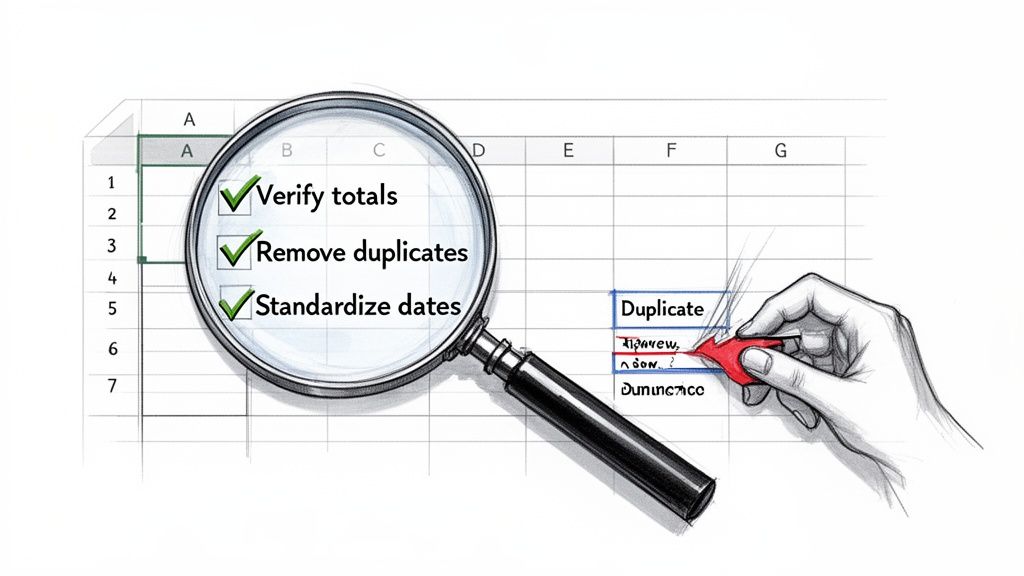
Here’s a quick checklist I run through after every conversion:
- Remove Duplicates: Use Excel's "Remove Duplicates" feature to catch any accidental double entries. This can sometimes happen when processing multi-page statements.
- Standardize Dates: Make sure the entire date column follows one consistent format (e.g., MM/DD/YYYY). This is non-negotiable for sorting transactions chronologically or building pivot tables.
- Split Combined Columns: Occasionally, the date and description might get jammed into a single column. Excel’s "Text to Columns" tool is your best friend for separating these into their proper places.
- Categorize Transactions: This is where the magic happens. Add a new column and start assigning categories like "Rent," "Utilities," or "Software." Now you can actually see where your money is going.
Pro Tip: I highly recommend creating a simple Excel template with your preferred formatting and category columns already set up. After each conversion, you can just paste the raw data into your template, saving yourself from repetitive busywork every single time.
These cleanup steps transform your raw data from a simple transaction list into a powerful analytical tool. Once your converted bank statement data is clean and verified in Excel, you might want to integrate it with other financial systems or databases for advanced analysis. For instance, if you're working with PostgreSQL, learning how to import CSV into PostgreSQL is a fantastic next step for managing larger datasets. By taking a few extra minutes for verification, you build a solid, error-free foundation for all your financial decisions.
Still Have Questions? Let's Clear a Few Things Up
It's smart to have questions when you're dealing with financial data. Converting bank statements isn't just a technical task—it's about handling sensitive information correctly. Here are some of the most common things people ask when using a bank statement PDF to Excel converter.
What About Scanned Statements? Are They a Problem?
Not at all, assuming you're using a modern tool. Good converters come equipped with Optical Character Recognition (OCR), a technology that essentially reads the text from an image. This is exactly what’s needed for scanned statements, which are basically just pictures of the document.
The catch? The quality of the scan is everything. A crisp, high-resolution scan will give you clean, accurate data. On the other hand, a blurry, crooked, or poorly lit scan will likely result in jumbled text and extraction errors.
My advice: if you have the choice, always start with the original digital PDF from your bank's website. It skips the OCR step entirely and guarantees perfect accuracy from the get-go.
How Can I Be Sure My Financial Data Stays Secure?
This is probably the most critical question, and the answer comes down to one thing: where the conversion actually happens.
Online/Cloud-Based Tools: These services make you upload your bank statement to their servers. As soon as you hit "upload," your private financial data is out of your hands. It's now sitting on someone else's computer, introducing a security risk you have no control over.
Offline/Browser-Based Tools: This is a much safer approach. Tools like Digital ToolPad run the entire conversion process right inside your web browser. Your statement is never uploaded and never leaves your computer, which is the gold standard for privacy.
When sensitive information is on the line, an offline converter is the only way to be 100% sure your data remains yours and yours alone.
The golden rule for financial data security is simple: if your files never get uploaded, they can never be compromised by a third-party breach. Local processing is the key to true privacy.
My Bank Statement Is Password-Protected. Now What?
That's actually a good thing! It’s a standard security measure. A well-built offline converter is designed for this.
When you open the file, the tool should simply ask for the password right there in your browser. This lets it unlock the document locally to read the data. Your password isn't sent over the internet or stored anywhere, keeping the entire process secure.
Will This Work With Statements from My Specific Bank?
Almost certainly, yes. The best converters are built to be "bank-agnostic."
Instead of being hard-coded for one specific layout from Chase or Bank of America, they use smart algorithms to recognize the universal patterns of a bank statement. They look for columns with dates, text descriptions, and of course, debit and credit amounts.
So, while every bank’s statement looks a little different, the underlying structure is usually similar enough for a good tool to figure it out. You shouldn't need a special converter for every bank account you have.
Ready to convert your bank statements with total security and privacy? The Digital ToolPad bank statement converter runs 100% offline in your browser, ensuring your financial data never leaves your computer. Try it now for fast, accurate, and secure conversions.