The term HTML pretty print is simply the process of taking messy, hard-to-read code and automatically reformatting it into a clean, well-structured document. It adds the proper indentation and line breaks, transforming a tangled mess into something you can actually work with. Think of it as the first, essential step in taming chaotic or minified HTML.
Why Clean HTML Is a Developer's Best Friend
We've all been there—staring at a wall of unformatted HTML. It’s a familiar headache for any developer. It's more than just an eyesore; it's a genuine bottleneck that slows down debugging, makes collaboration a nightmare, and hides tiny errors that can take hours to track down. Ever tried to make sense of a minified API response? Without formatting, it's just one long, unreadable line of code.
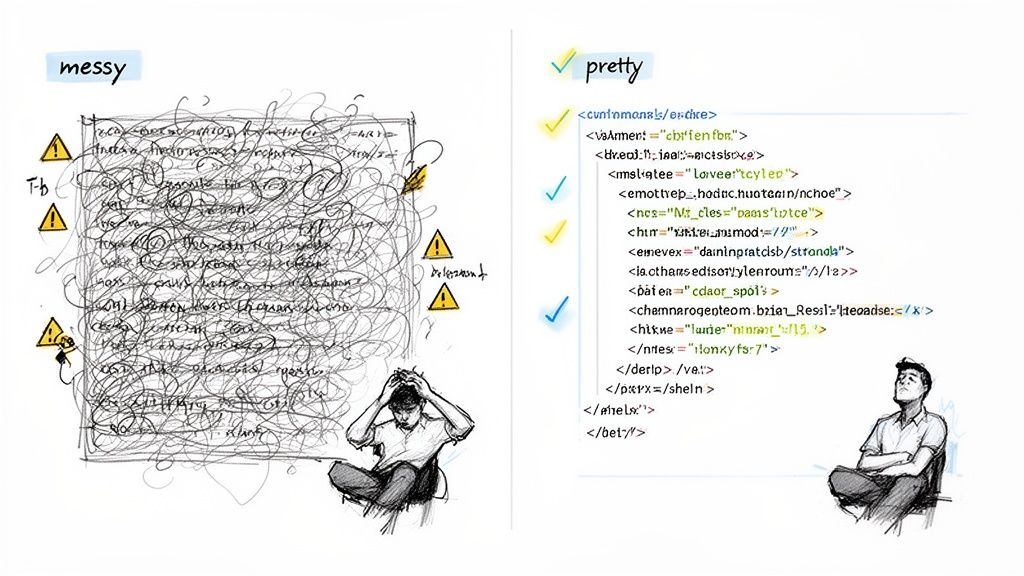
This is precisely where a good HTML pretty print process works its magic, bringing instant order to chaos. By applying consistent indentation and logical structure, it turns that tangled code into a clear, hierarchical document you can scan and understand at a glance. This isn't just about making things look nice; it's about making your work more efficient and accurate.
The Impact of Readable Code
Clean, readable code has a direct impact on your productivity and the stability of your projects. When your HTML is properly formatted, the benefits are immediate.
You can:
- Spot errors faster: A missing closing tag or a misplaced attribute practically jumps off the page.
- Collaborate effectively: Your teammates can easily pick up your markup and contribute without getting lost.
- Debug with clarity: Navigating the DOM tree in your browser’s DevTools becomes a straightforward task instead of a frustrating puzzle.
Ultimately, applying Clean Code Principles is fundamental to writing robust, maintainable HTML. In any fast-paced development environment, struggling with poorly formatted code is a massive time-sink. In fact, some studies show developers can spend around 19% of their time just reformatting code. A pretty printer automates this, giving you a huge chunk of that time back.
A Note on Security: For teams working with sensitive information—like customer data or internal documents—pasting code into random online formatters is a huge security risk. An offline, browser-based tool like Digital ToolPad keeps your data on your machine, giving you total peace of mind without sacrificing convenience.
This guide is all about showing you practical and secure ways to format your HTML, no matter the situation.
Using Browser DevTools for Instant Formatting
Sometimes the best tool for the job is the one you already have. Your web browser—whether it's Chrome, Firefox, or Safari—has a powerful set of Developer Tools built right in that can instantly clean up messy HTML with zero setup. It’s my go-to for quick inspections or when I just need to make sense of a live webpage’s structure right now.
Getting there is easy. Just right-click anywhere on a webpage and hit "Inspect" (or simply press F12). This pops open a panel, and what you’re looking for is the "Elements" tab in Chrome or the "Inspector" tab in Firefox. Voila! You'll see the page's complete HTML, perfectly formatted into a clean, collapsible tree.
This isn't just a static block of code; it's a visual map of the Document Object Model (DOM). The browser’s renderer automatically organizes everything, which makes spotting parent-child relationships and untangling layout problems a breeze. I find the ability to expand and collapse nodes invaluable, especially when I’m digging through deeply nested code.
Going Beyond Just Viewing
Now, here's where DevTools really shines. You're not just looking at the code; you're interacting with the live, rendered page. This means you can edit things on the fly and see the results immediately, which saves an incredible amount of time.
Here are a few things I do all the time:
- Live Editing: Double-click any element to change its text, add an attribute, or even swap out the HTML tag. Your changes will instantly appear on the page.
- Copying Formatted Code: Need a clean copy of the whole page? Just right-click the
<html>tag at the very top of the tree and select "Copy" > "Copy outerHTML." This puts the entire, beautifully formatted HTML source onto your clipboard. - Reordering Elements: You can literally drag and drop elements in the panel to test out a new layout without touching the source files. It’s perfect for quick experiments.
This is what it looks like in action. In Chrome's DevTools, you get the structured HTML on the left and all its corresponding CSS styles on the right.
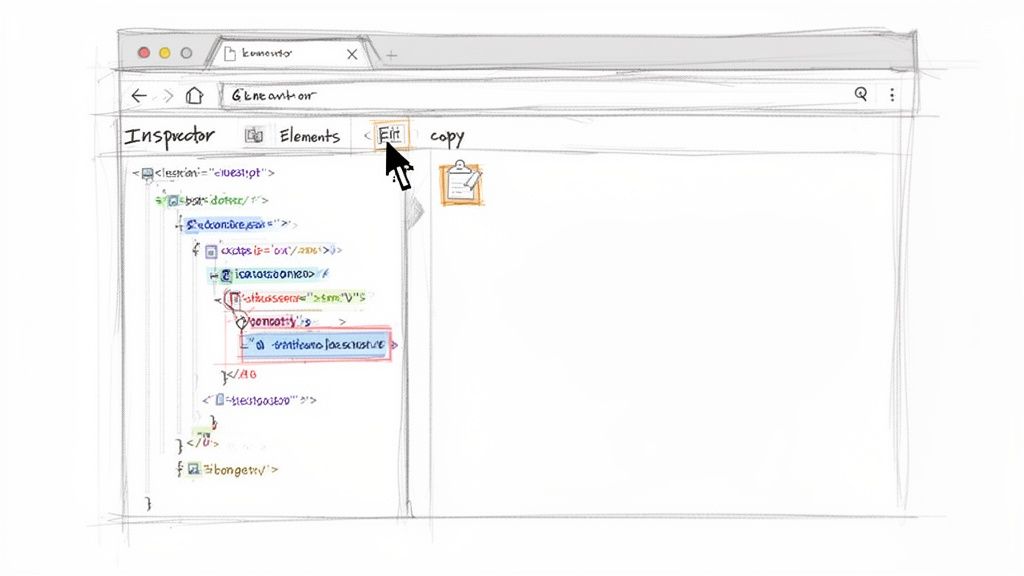
This tight integration between the visual page and the code behind it is exactly why DevTools is such an incredible debugging environment.
Pro Tip: If you're trying to find a specific element's code, just hover over it in the Elements panel. The browser will highlight the corresponding element right on the webpage. It's the fastest way I know to connect what you see with the code that creates it.
While the native DevTools are fantastic on their own, you can take them even further. There are tons of useful Chrome extensions out there that add more specialized formatting options and other handy utilities. This turns your browser from a simple viewer into a full-blown environment for debugging and fine-tuning your work.
Using Command-Line Tools for Better Automation
While browser tools are fantastic for a quick, one-off formatting job, they just don't scale. When you need to format HTML repeatably and reliably, you need to turn to the command line. For developers who practically live in their terminal, command-line interface (CLI) tools offer a powerful, scriptable way to pretty-print HTML with both speed and precision. This is where real automation begins.
When it comes to command-line HTML formatters, the undisputed champ is tidy-html5. It’s a robust, time-tested utility built to clean up and reformat even the most chaotic markup. It's the perfect tool to bake into your build scripts, CI/CD pipelines, or any automated workflow where code quality and consistency are a must.
Getting Started with Tidy
Getting Tidy installed on your machine is usually a one-line command, thanks to modern package managers.
- On macOS (with Homebrew):
brew install tidy-html5 - On Debian/Ubuntu:
sudo apt-get install tidy - On Windows (with Chocolatey):
choco install tidy-html5
Once it's installed, you can clean up a file right from your terminal. Let's say you have a messy file called index.html. The command to fix it is surprisingly simple.
tidy -i -w 80 -q index.html
Here's what that does: the -i flag tells Tidy to add proper indentation, -w 80 wraps lines at the 80-character mark, and -q keeps the output quiet by suppressing non-essential messages. This command actually overwrites the original file with the clean version, making it incredibly efficient for batch processing. Of course, you can always redirect the output to a new file if you want to keep the original untouched.
Making Your Workflow More Powerful
The real magic of CLI tools is how you can string them together. You can "pipe" the output from one command directly into another, creating powerful one-liners that get a lot done. For example, you could grab the HTML from a live website using curl and immediately pass it to tidy for formatting.
curl https://example.com | tidy -i -q
This simple command downloads a webpage's source code and prints a beautifully formatted version directly to your console, all without ever saving a file. It’s perfect for quickly inspecting a site’s structure or for embedding into larger scripts. This kind of command-line chaining is common in development, and if you've ever had to format JSON, you can see the parallels in our guide to pretty printing JSON.
Adopting a command-line tool for pretty printing HTML is more than just a convenience—it's a productivity multiplier. Developers who integrate tools like these into their workflow often report up to a 50% reduction in debugging time. Why? Because clean, well-formatted code makes errors much easier to spot.
This level of efficiency is critical in industries like the commercial printing market, a massive $480.4 billion industry as of 2023, where flawless HTML previews are essential for quality control. Automated formatters ensure that what a developer sees is exactly what the customer gets, preventing costly mistakes down the line. You can find more insights into this growing market and its statistics.
By mastering a few CLI tools, you can build a more reliable and efficient development process from the ground up.
Integrating Formatting Directly Into Your Code
Browser DevTools and command-line utilities are great for one-off jobs, but what happens when you need to pretty-print HTML automatically? Think about an app that generates reports, cleans up user-submitted HTML from a WYSIWYG editor, or builds markup for an API response. In those cases, you need a solution baked right into your code.
Integrating a formatting library is the only way to go for scalable, repeatable results.
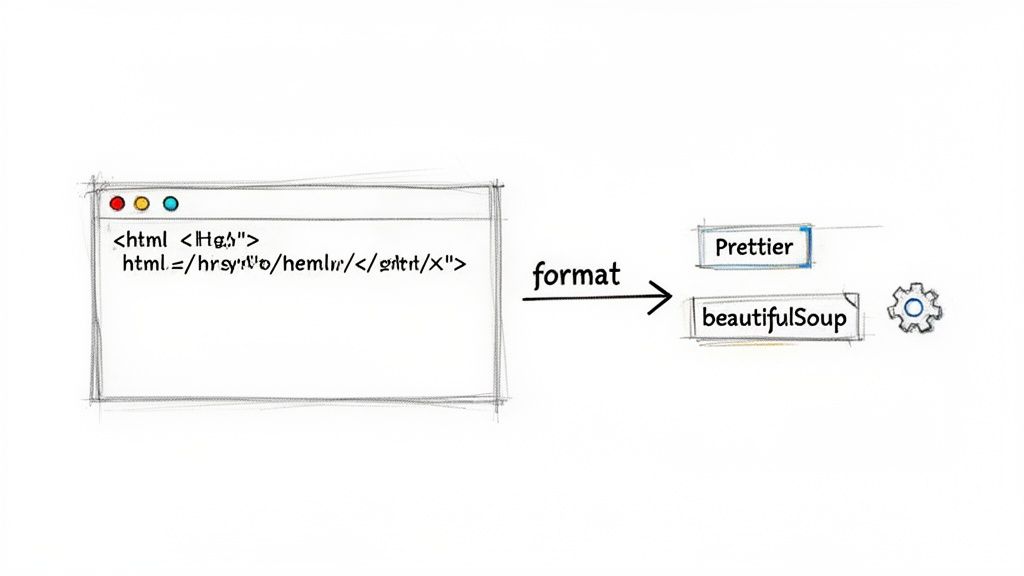
This approach turns formatting from a manual chore into an automated, invisible part of your workflow. It guarantees that any HTML your system touches comes out clean, readable, and properly structured, enforcing a consistent style across the entire application.
Formatting With JavaScript Libraries
If you're in the JavaScript or Node.js world, you’re in luck. A couple of excellent libraries dominate the scene: Prettier and js-beautify. Both are simple to install via npm and can be tweaked to fit your project’s style guide.
- Prettier: This is what’s known as an “opinionated” formatter. It supports HTML, CSS, JavaScript, and a whole lot more. Instead of giving you a million options, it enforces a single, consistent style, effectively ending debates over code formatting.
- js-beautify: For those who need more fine-grained control, this library is a better fit. You can configure things like indentation size, line wrapping behavior, and other specific rules. It’s perfect when you need to match a pre-existing or very particular coding standard.
Getting Prettier running in a Node.js script is straightforward. First, install the package:
npm install prettier
From there, you can format an HTML string right inside your code. This is a game-changer for any server-side process that generates dynamic markup before sending it off to a browser.
const prettier = require("prettier");
const messyHTML = "
This is atest.
const formattedHTML = prettier.format(messyHTML, { parser: "html" });
console.log(formattedHTML);
Pretty Printing in Python With BeautifulSoup
Python developers have a secret weapon for this: BeautifulSoup. While it's famous as a top-tier library for web scraping and parsing messy HTML, it also has a handy prettify() method that does a fantastic job of organizing markup into a clean, indented structure.
First, you'll need to install it with pip:
pip install beautifulsoup4
One of BeautifulSoup's biggest strengths is its ability to make sense of broken or malformed HTML. This makes it incredibly useful for sanitizing and formatting unpredictable inputs. The prettify() method takes that parsed structure and outputs a clean string, with each tag on a new line and nested correctly.
from bs4 import BeautifulSoup

html_doc = "<html><head></head>" \
           "<body><p>Here is <b>some text</b>.</p></body></html>"

soup = BeautifulSoup(html_doc, 'html.parser')

print(soup.prettify())
You can really see the value of programmatic formatting in complex systems. For example, the web-to-print market—which is projected to hit USD 36.58 billion by 2031—relies heavily on automated pretty printing. Developers use it to generate clean HTML for print previews, ensuring pixel-perfect layouts without any manual cleanup.
Whether your stack is based on JavaScript or Python, these libraries give you the power to make html pretty print an automated, seamless part of your application. It’s a move that not only saves a ton of time but also dramatically improves the quality and long-term maintainability of your code.
And once your HTML is clean, you might want to convert it. If you're interested in transforming your HTML into other formats, check out our guide on how to convert HTML to Markdown.
The Secure Approach with Offline Browser Tools
When you're working with sensitive HTML, the rules of the game change entirely. Think about formatting a customer invoice, an internal financial report, or proprietary application code. In these cases, pasting your data into a random online tool isn't just a bad idea—it's a massive security risk. You simply don't know where that data is going, who's looking at it, or how it's being stored.
This is where a modern, secure solution is non-negotiable. Offline, browser-based tools hit that sweet spot between convenience and privacy. These are web apps that run 100% on your local machine, which means your data never, ever leaves your computer. Nothing gets sent to a server for processing.
The Power of Client-Side Processing
Tools like Digital ToolPad's HTML formatter are built with a privacy-first architecture from the ground up. All the heavy lifting—the parsing and formatting—is handled directly in your browser using JavaScript. This client-side approach guarantees your confidential information stays completely under your control, wiping out any risk of data exposure or a breach.
The workflow couldn't be simpler:
- Copy your HTML: Just grab the raw, messy code from its source.
- Paste into the tool: Drop the code into the tool's input field.
- Click to format: The tool instantly processes and pretty-prints the HTML right in front of you.
This "copy, paste, format" cycle is incredibly quick because there's zero network lag. You aren't waiting for your data to travel to a server and back. The formatting happens in a blink, making it a seriously productive way to handle daily tasks.
This secure, offline method is the gold standard for security-conscious developers and organizations. It gives you all the benefits of an easy web tool without ever compromising on data integrity or confidentiality.
Key Benefits of an Offline Approach
Opting for an offline browser tool for your html pretty print needs has some clear wins over other methods, especially when you stack it up against server-based online formatters. The biggest benefit is, without a doubt, security. Your data stays with you. Period. This is critical for complying with data privacy regulations and protecting your company's intellectual property.
Beyond security, you get unmatched reliability. Since the tool runs entirely in your browser, it works even if your internet is spotty or completely offline. With no cloud dependencies, you can count on it being available whenever you need it. This local-first approach delivers consistent, predictable performance every single time.
This principle is just as vital for developers working with other sensitive data structures. You can learn more about formatting different data types securely in our guide to using an online JSON formatter that also runs completely offline.
Common Questions About HTML Pretty Print
Even after you've got the basics down, a few common questions always pop up when you start to really integrate HTML pretty print into your workflow. Nailing down the answers to these will help you clean up your markup with confidence, sidestepping common issues along the way.
Let's dive into some of the most frequent queries I hear from developers.
This simple decision tree is a great starting point. It helps you decide right away whether you need an offline or online tool, which is usually the most important first step.
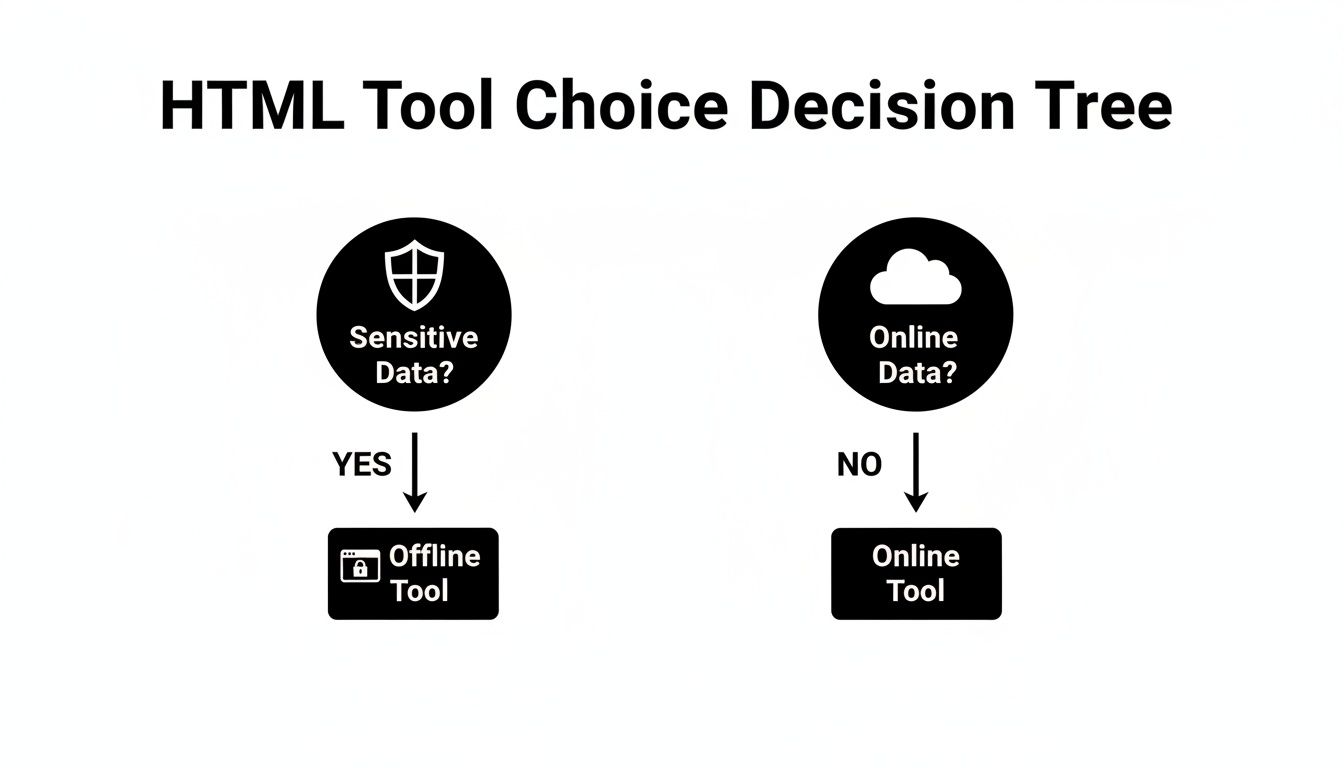
The main takeaway here is pretty clear: if your code is confidential, always start with a secure, offline tool.
What Is the Difference Between HTML Pretty Print and Minification?
This is a really important one to get straight. Pretty printing and minification are two sides of the same coin, but they serve opposite purposes.
Think of it this way: pretty printing is for humans. It adds whitespace—spaces, tabs, newlines—to make messy code structured and easy to read. It's something you do during development and debugging.
Minification, on the other hand, is for machines. It aggressively removes every unnecessary character, including all that nice whitespace and even your comments, to shrink the file size. This is purely a production-level optimization to make your site load faster for users. You pretty print for your team; you minify for your audience.
Can Pretty Printing My HTML Break My Website Layout?
It’s incredibly unlikely. Modern browsers are built to ignore extra whitespace when rendering a page. All the indentation and line breaks added by a formatter won't change how your page elements look.
The only time you might see an issue is inside a <pre> tag, which is designed to preserve whitespace by default. You could also run into trouble with certain CSS rules for inline-block elements, where the added space between tags can sometimes create a visible gap. But for 99% of typical HTML, pretty printing is completely safe and won't touch your layout.
Key Takeaway: Using an HTML pretty print tool is all about improving code quality for developers. While it won't directly boost your search rankings, clean code makes it far easier to implement on-page SEO best practices correctly.
Which HTML Pretty Print Tool Should I Choose?
The "best" tool really boils down to your specific situation. There’s no single right answer for everyone.
Based on my experience, here's a good rule of thumb:
- For a quick, one-off job: Just use your browser's DevTools. It's fast, easy, and already there.
- For automation in your projects: A command-line tool like
tidy-html5or a Node.js library like Prettier is definitely the way to go. - For sensitive or proprietary code: A privacy-focused, offline tool that runs locally in your browser is the most secure and reliable choice.
Does Using an HTML Pretty Printer Help with SEO?
Indirectly, it absolutely does. Search engines can parse minified, messy HTML just fine, but pretty printing helps you write and maintain clean, error-free code.
This makes it much easier to spot issues and correctly implement SEO fundamentals like proper semantic tags (<article>, <nav>), a logical heading structure, and alt text on images. Well-structured code leads to fewer bugs and a better user experience—and that's something search engines definitely care about.
For developers who need to work with sensitive data without sacrificing efficiency, Digital ToolPad offers a suite of powerful, 100% offline tools. You can format your HTML and other code directly in your browser with total confidence, knowing your information never leaves your machine. Check out the tools at https://www.digitaltoolpad.com.