
A JSON pretty print simply means taking a dense, single-line string of JSON and transforming it into a neatly formatted, human-readable version with proper indentation and line breaks. For anyone working with APIs, config files, or complex data, it’s an absolutely essential practice.
Why Readable JSON Is a Developer’s Best Friend
Minified JSON is great for machines. It’s small, efficient, and travels across networks with minimal overhead. But for a human, it's a nightmare—a wall of text where finding a single missing comma feels like an impossible task. This is where pretty-printing saves the day. It’s not just about looks; it’s about making your job easier and faster.
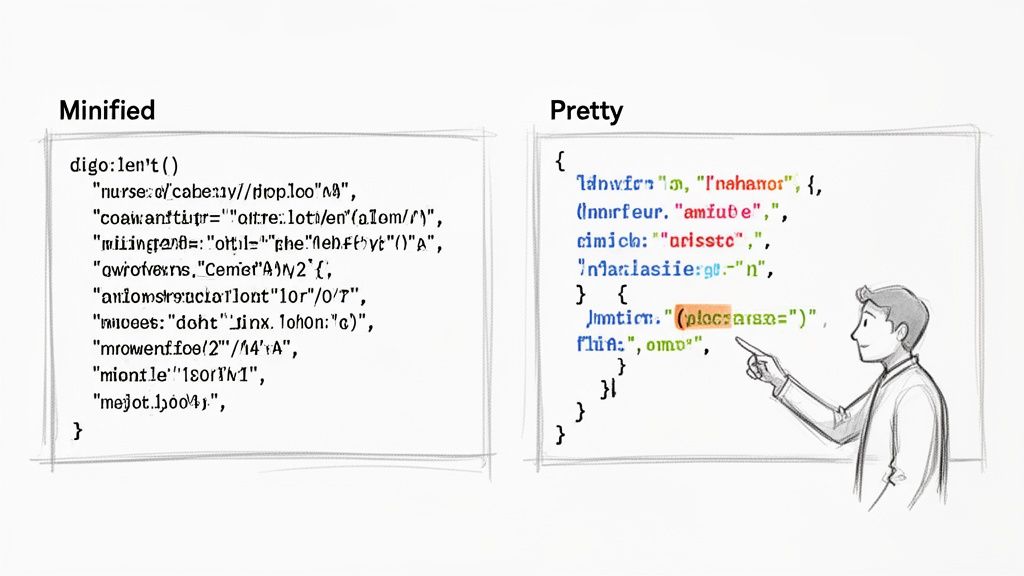
Think about the last time you had to debug a webhook payload from some third-party service. Without formatting, you’re stuck squinting at a single, massive line of code. A quick pretty-print command, and that mess instantly becomes a clean, structured tree you can actually understand.
Spot Errors and Reduce Mental Strain
The biggest win from pretty-printing is how much it reduces your cognitive load. You stop having to mentally trace brackets and braces and can just see the structure. This makes common problems jump right out.
- Syntax Errors: A missing comma or an extra bracket becomes obvious when every object and array is on its own indented line.
- Data Validation: You can quickly scan to confirm a key exists or check if a value is a string when it should have been a number.
- Structural Understanding: Following the flow of deeply nested objects becomes second nature, letting you trace data relationships without losing your place.
This readability is what makes all the difference. Formatted JSON makes debugging, code reviews, and even just writing a config file so much simpler. I've seen teams report that just by formatting their data, they cut down the time it takes to find schema errors by 20–50%.
"The difference between staring at a minified JSON blob and a pretty-printed one is the difference between deciphering ancient hieroglyphs and reading a well-organized book. One is a chore; the other is a productive task."
Make Team Collaboration Smoother
The benefits go way beyond your own workflow. In any team setting, clear formatting is a form of professional courtesy. When you commit a package.json file or a deployment configuration to a shared repository, a pretty-printed version ensures your colleagues can review your changes without friction.
It removes ambiguity and helps prevent silly mistakes from slipping through. This becomes especially critical when you're tackling more complex tasks like comparing and synchronizing JSON data from multiple APIs, where clarity is everything. Clean formatting just leads to smoother code reviews and a happier team.
Instant Formatting with Your Browser and Offline Tools
Sometimes you just need to format a chunk of JSON right now, without installing new software or firing up the terminal. The great news is that powerful pretty-printing tools are probably already built into the software you use every single day. Your web browser is a prime example.
If you work with APIs, your browser's developer tools are your best friend. Just pop them open (usually with F12), head over to the "Network" tab, and watch the API calls fly. When you click on a request that serves up a JSON payload, browsers like Chrome and Firefox automatically render it in a clean, collapsible tree view. It’s an incredibly fast feedback loop for debugging API responses on the spot.
Privacy First: Offline Formatting
Browser dev tools are perfect for inspecting live network traffic, but what about a blob of JSON you've copied from somewhere else, like an error log or a config file? Pasting that data into a random website can be a huge security risk, especially if it contains sensitive info like API keys, PII, or internal credentials.
This is where privacy-focused, client-side tools really shine. A well-built JSON formatter and validator that runs entirely in your browser keeps your data safely on your machine. All the processing happens locally, so nothing ever gets sent to a third-party server. While there are plenty of online JSON Formatter tool options available, you should always double-check that they operate client-side before pasting in sensitive data.
The screenshot above shows a great example of a client-side tool that processes everything locally. This design is what allows security-conscious developers to format and validate JSON without exposing it to the internet.
Key Takeaway: Processing data locally eliminates cloud egress and potential audit exposure. For developers in regulated industries like finance or healthcare, this isn't just a nice-to-have; it's a critical requirement.
Why Offline Tools Are a Smart Choice
Opting for an offline, browser-based tool for your JSON pretty-print needs gives you more than just peace of mind.
- Speed: With no network round-trip, the formatting is instantaneous. You paste your code, and it’s beautified in a flash.
- Accessibility: These tools work wherever you have a modern browser. No installations, no admin rights needed. Just open a tab and go.
- Reliability: You're never at the mercy of a flaky internet connection or a server outage. Your formatter just works.
The developer community has built a vast ecosystem of free JSON pretty-printing tools, and many of them are constantly maintained and used by millions. Integrating robust, offline formatting directly into platforms gives you immediate value, letting you inspect data locally with the same powerful features found in popular public tools. This commitment to offline-first functionality makes them an indispensable part of any modern developer's toolkit.
Getting Your Hands Dirty: Pretty-Printing JSON on the Command Line
If you live in the terminal like I do, you know the command line is where the real work gets done. It’s fast, scriptable, and perfect for wrangling data. When a messy, single-line JSON string from an API response lands on your screen, a few trusty command-line tools can instantly whip it into shape.
The absolute champion in this space is jq. Think of it as sed or awk, but built specifically for JSON. It’s lightweight, incredibly fast, and its ability to slice, dice, and reformat JSON is second to none. For a quick and dirty format, you just pipe your data into it.
A classic example: grab some data and make it readable
curl 'https://api.github.com/users/stedolan' | jq '.'
That simple . filter tells jq to take the input and output it as-is, but with beautiful indentation and line breaks. This one command is a daily driver for anyone working with APIs from the terminal. But that's just the start.
Going Deeper with JQ
Basic formatting is great, but jq really shines when you start using its more advanced features to query and transform the data on the fly. You can not only format the JSON but also colorize it for better readability or pull out just the tiny piece of information you actually care about.
A few things I use all the time:
- Colorized Output: Add the
-Cflag, and your terminal lights up with syntax highlighting. Suddenly, strings, numbers, and booleans are easy to distinguish at a glance. It makes a huge difference. - Drilling Down: Need to find a specific value buried deep in a nested object? Just specify the path. For instance,
jq '.user.profile.name'will grab just the user's name, saving you from manually scanning hundreds of lines. - Chaining It All Together: The real power comes from combining these.
curl ... | jq -C '.results[0]'will format the JSON, add color, and give you only the very first item from theresultsarray. It’s incredibly efficient.
Deciding which tool to use often comes down to where your data lives and how sensitive it is. A quick look at this flowchart can help you make the right call.
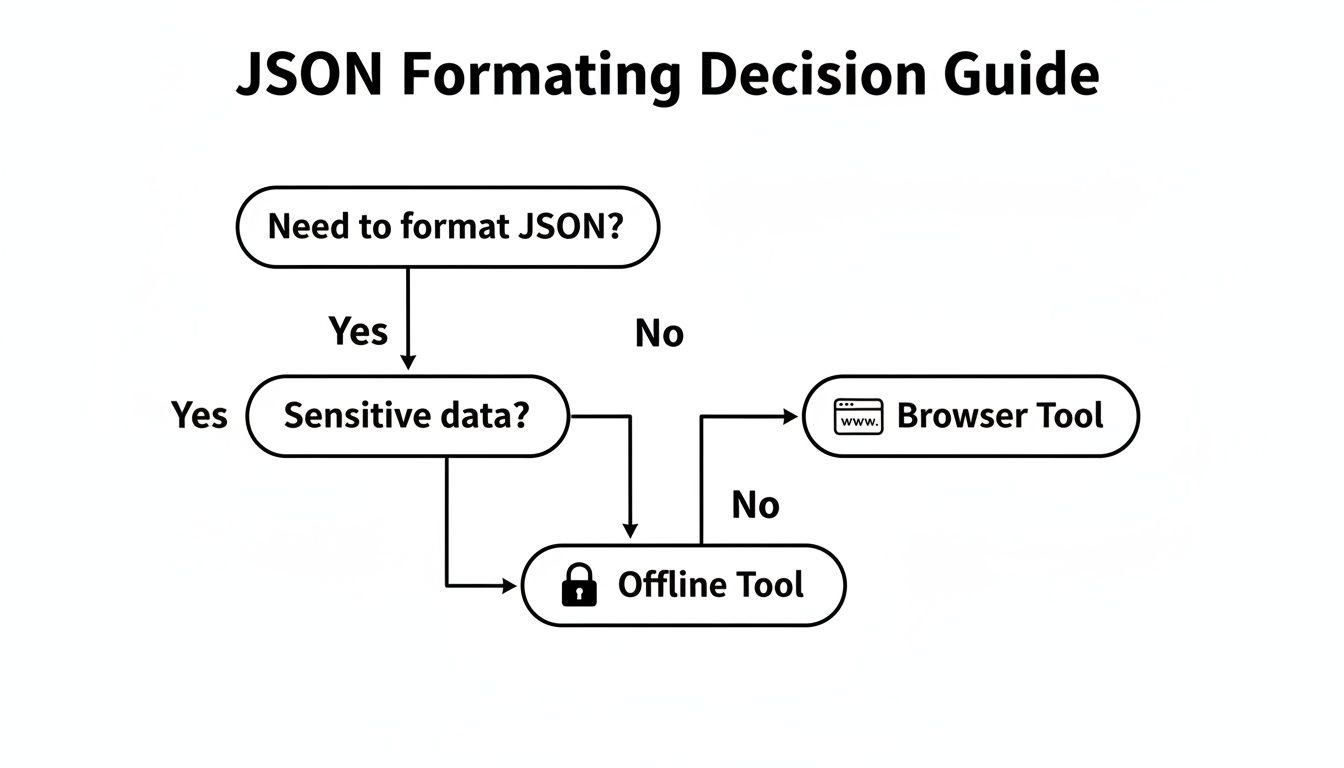
The main takeaway here is simple: for anything sensitive, keep it offline. Command-line tools are perfect for this, as the data never has to leave your machine.
Command-Line JSON Pretty-Printing Comparison
When jq isn't available or you're already in a specific language context, a few other tools can get the job done. Here’s a quick rundown of my go-to options.
| Tool | Example Usage | Key Feature | Best For |
|---|---|---|---|
jq |
curl ... | jq '.' |
Powerful filtering & transformation | The default choice for any serious JSON manipulation in the terminal. |
| Python | ... | python -m json.tool |
Built-in to most systems | Quick formatting when you don't have jq installed. |
| Node.js | ... | node -e "..." |
Native JavaScript engine | JavaScript/Node.js developers who need to debug format consistency. |
Ultimately, jq is the most powerful and flexible, but knowing the Python and Node one-liners is a great trick to have up your sleeve.
Quick One-Liners with Python and Node.js
While jq is a fantastic dedicated tool, sometimes you just want to use what's already installed. Both Python and Node.js offer simple, no-fuss one-liners for pretty-printing JSON right out of the box.
My two cents: Using a language's native JSON tool is a great way to check how your application will actually parse the data. If it formats correctly with
python -m json.tool, you can be confident your Python app will read it just fine.
If you’re a Python developer, you can lean on the built-in json.tool module. It’s been a lifesaver for me on fresh systems where I haven’t installed my usual toolkit yet.
Pass a JSON string to Python's built-in tool
echo '{"key":"value","nested":{"id":1}}' | python -m json.tool No extra installations needed. As long as Python is on your PATH, you’re good to go. It's perfect for quickly formatting a config file you're editing.
For the JavaScript crowd, Node.js can do the same thing with a little bit of inline code.
A slightly longer but effective one-liner for Node.js
echo '{"key":"value"}' | node -e "console.log(JSON.stringify(JSON.parse(process.stdin.read()), null, 2))"
This command is a bit of a mouthful, but it does the job perfectly: it reads from standard input, parses the string into a JavaScript object, and then re-stringifies it with a clean 2-space indentation. I recommend saving this as a shell alias (alias ppjson='...') if you plan on using it frequently.
Integrating Pretty Printing Into Your Code Editor
Your code editor is your digital workbench, the place where you spend most of your day. So, why would you constantly switch out of it for a simple task like formatting JSON? Building a JSON pretty print function directly into your editor workflow is a huge time-saver and keeps everything consistent.
Visual Studio Code, a favorite among developers, has this capability baked right in. You can instantly tidy up any open JSON file with a quick keyboard shortcut. On Windows, it's typically Shift + Alt + F, and on macOS, it's Shift + Option + F. Just a quick key press, and your messy JSON is perfectly organized.
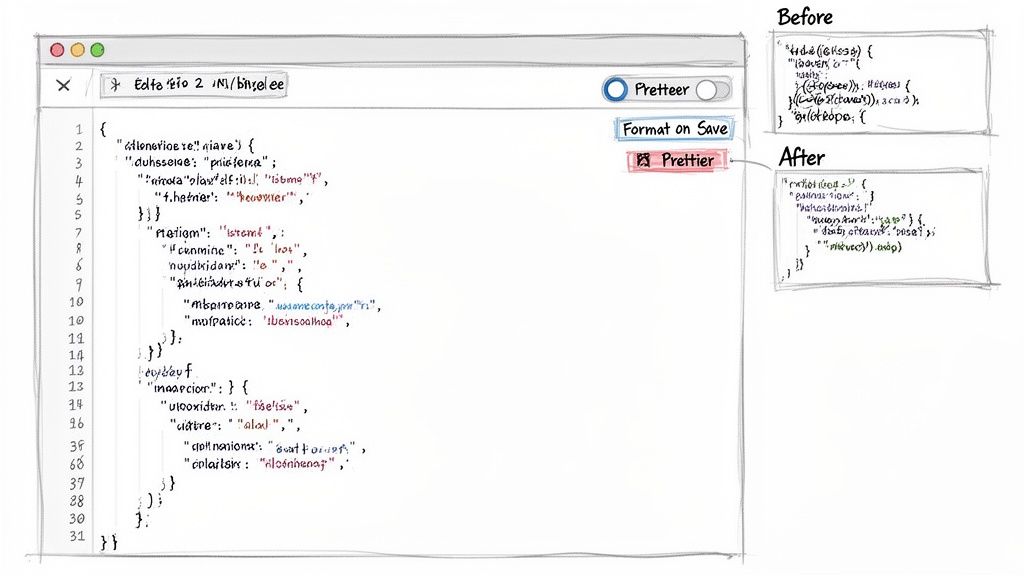
As great as manual formatting is, the real magic happens when you make this process automatic. That way, you don't even have to think about it.
Automate Formatting on Save
Manually hitting a shortcut is good, but automating it is even better. I highly recommend setting up VS Code to "format on save" for your JSON files. This small tweak ensures that every time you hit save, your file is instantly and automatically prettified.
To get this going, you just need to add a small snippet to your settings.json file. It's a one-and-done setup that pays off immediately.
Here’s the configuration you'll need:
"[json]": {
"editor.defaultFormatter": "vscode.json-language-features",
"editor.formatOnSave": true
},
"[jsonc]": {
"editor.defaultFormatter": "vscode.json-language-features",
"editor.formatOnSave": true
}
This tells VS Code to use its built-in JSON language features to format both .json and .jsonc (JSON with comments) files every single time you save.
Add Advanced Control with Extensions
While the built-in formatter is great for most cases, sometimes you need more fine-grained control, especially when working on a team. This is where extensions like Prettier - Code formatter come in. It's essentially the industry standard for maintaining a consistent code style across projects.
After installing the extension, you can set Prettier as your default formatter for JSON. This unlocks the ability to define project-specific rules in a .prettierrc configuration file. You can customize things like:
- Tab Width: Choose between 2 or 4 spaces for indentation.
- Trailing Commas: Decide whether to enforce or remove them.
- Bracket Spacing: Control the whitespace inside object literals.
By using a shared
.prettierrcfile, you completely eliminate those "style debates" in code reviews. Everyone on the team produces identically formatted JSON, which keeps your version control history clean and focused on what really matters—the code changes.
Once your JSON is perfectly formatted, the next logical step, especially when dealing with complex data, is to bring it into your application as strongly-typed code. Utilities that can generate interfaces from your data, like a JSON to TypeScript converter, can be a massive help here.
Weaving Formatting into Your Development Workflow
Manually pretty-printing JSON is fine every now and then, but the real win is making it an invisible part of your daily routine. When formatting becomes automatic, you stop wasting time and mental energy on it, freeing you up to focus on the actual work.
A fantastic, easy-to-implement trick is creating a shell alias. If you're constantly piping output through jq '.' or some other command, just create a shortcut for it in your .bashrc or .zshrc file.
Something as simple as alias ppjson='jq "."' can be a game-changer.
Once that's set up, you can just pipe any command's output into ppjson for instant, clean formatting. It’s a tiny tweak that adds up to a massive quality-of-life improvement in the terminal.
Enforcing Consistency with Git Hooks
Aliases are great for your personal workflow, but what about keeping an entire team on the same page? This is where Git pre-commit hooks shine. Using a tool like Husky, you can set up a script that automatically formats every staged JSON file before it even gets committed.
This is perfect for keeping files like package.json or various tsconfig.json configurations consistent across the board.
Getting it running is pretty simple:
- First, add Husky and a formatter like Prettier to your project's dev dependencies.
- Next, configure a pre-commit hook that tells Prettier to run on any staged
.jsonfiles.
This one-time setup eliminates style arguments from code reviews forever. No more nagging about indentation or trailing commas in config files. The hook just takes care of it, ensuring every commit is perfectly formatted without anyone having to think about it.
This kind of automation acts as a guardrail for your repository, keeping all your JSON files clean and readable without any manual effort from the team. For a closer look at different tools and techniques, our guide on using an online JSON formatter has even more tips. By building these checks into your process, you let developers get back to solving real problems.
Performance and Security Considerations
While a clean JSON pretty print is a lifesaver during development, it’s a completely different beast in production. The convenience we gain in readability comes with very real trade-offs that can slow down your application and frustrate your users. Every single space, tab, and newline character you add for formatting makes the payload bigger.
That extra data might seem like nothing for a single request, but it adds up—fast. Larger payloads mean more bandwidth for your users and higher data transfer bills for you. For anyone on a spotty mobile connection, this directly translates into a sluggish, laggy app experience.
The Hidden Cost of Pretty Printing in Production
It’s not just about file size; there's a processing cost, too. Asking your server to generate a beautifully formatted JSON string takes more computational horsepower than just spitting out a minified one. Again, for a handful of requests, who cares? But when you're handling real traffic, that overhead can become a serious performance bottleneck.
In fact, some recent benchmarks found that generating a pretty-printed JSON string can be roughly three times slower than creating its compact cousin. That extra CPU time per request can force you to scale up your infrastructure sooner than you'd like, all for the sake of formatting that your end-users will never even see. You can dig into the numbers in this practical API benchmark analysis.
The golden rule is simple: serve minified, compact JSON by default in production. Readability is for developers, not for the high-speed chatter between your servers and clients.
A great middle-ground is to offer pretty-printing on demand. You can easily implement a query parameter like ?pretty=true in your API. This way, developers get the readable format they need for debugging, but your main production traffic stays lean and fast. It's the best of both worlds—efficiency for your application and clarity for your team.
Why You Should Never Use Public Formatters for Sensitive Data
The other massive consideration here is security. We’ve all been there: you're staring at a tangled mess of JSON that contains something sensitive—API keys, user credentials, personal data—and the urge to just paste it into the first online formatter Google serves up is strong. Don't do it.
Pasting confidential data into a random, public web tool is an enormous security risk. You have absolutely no idea what's happening to that data once it leaves your machine. It could be:
- Logged on their server: The website could be quietly storing every piece of data you paste.
- Intercepted in transit: If the site isn't using a secure connection, your data is exposed.
- Leaked through a breach: The server hosting the tool could get compromised, handing your sensitive information right over to attackers.
For any data that isn't explicitly public, your default should always be a secure, offline tool. Stick to the formatters built into your code editor, a trusted command-line utility like jq, or a privacy-first web tool that guarantees all the processing happens locally in your browser. It’s a simple habit that protects you, your company, and your users from a completely preventable data leak.
Common Questions About Pretty Printing JSON
Even seasoned developers hit the same snags when it comes to formatting JSON. Whether you're wrestling with a gnarly API response or just trying to make a config file readable, a few questions pop up time and time again. Let's get you some quick, practical answers.
Minified vs. Pretty Printed JSON
What's the real difference here? It all comes down to who—or what—is reading the data.
Minified JSON is for machines. It’s been stripped of all unnecessary whitespace, like spaces and line breaks, to make the file as small as possible. This is exactly what you want for production APIs, as it saves bandwidth and makes data transfer faster.
Pretty-printed JSON, on the other hand, is for us humans. It adds indentation and line breaks back in, making the structure easy to follow. It’s the go-to format for debugging, development, and any config file you'll ever have to look at.
Are Online JSON Formatters Safe to Use?
This is a big one. Using a public, online formatter for anything sensitive—like API keys, personal user data, or proprietary information—is a serious security risk. When you paste your data into a random website, you have no idea if it's being logged, stored, or intercepted.
My advice? Stick to offline tools for anything that isn't public data. Use command-line utilities like
jq, your code editor's built-in formatter, or a privacy-first web tool that guarantees all processing happens locally in your browser.
How Do I Format a Nested JSON String?
Ah, the classic "JSON inside of a JSON string" problem. This happens all the time, especially when dealing with log files or systems that embed one payload inside another. You can't just format the outer object and expect the inner string to magically pretty-print itself.
The solution is usually a two-pass approach. Using a tool like jq, you first need to parse the outer object and extract the raw value of the inner JSON string. Then, you take that string and pipe it back into a second jq command to be parsed and formatted as its own JSON object.
A typical command looks something like this: cat data.json | jq -r '.key_with_json_string' | jq '.'.
Can I Customize the Indentation?
Absolutely. Most developer-grade tools give you control over this.
For example, in Python's json.tool, you can specify the indent level with a simple argument. While jq defaults to two spaces, you can easily combine it with other command-line utilities for more complex formatting. And if you need deep, project-wide configuration, a scriptable formatter like Prettier is your best bet.
At Digital ToolPad, we build privacy-first, client-side tools that help you work smarter and safer. Explore our suite of offline utilities that run directly in your browser, keeping your sensitive data secure on your local machine. Find our free tools at Digital ToolPad