
Resizing images is a constant necessity for everything from optimizing website performance to prepping photos for social media. Finding the right tool can save you hours of work, but choosing the perfect free image resizer from countless options is challenging. Many online tools require you to upload sensitive files to their servers, creating potential privacy risks and performance bottlenecks. Others are clunky, ad-ridden, or lack essential features like batch processing.
This guide cuts through the noise. We have curated a definitive list of the 12 best free tools, evaluating each for its strengths, weaknesses, and ideal use cases. Whether you need a privacy-first, browser-based tool that works offline, a powerful desktop app for bulk processing, or a simple web-based solution for a quick one-off task, you will find it here. Beyond dedicated resizers, specialized free tools like a free professional headshot generator can also help create images perfectly sized for specific needs like LinkedIn profiles.
We will explore the critical differences between server-side and client-side processing, helping you make an informed choice that protects your data while streamlining your workflow. Each review includes direct links and key details to help you find the best platform for your specific task, fast.
1. Digital ToolPad: The Privacy-First Offline Free Image Resizer
Digital ToolPad stands out in the crowded field of online tools by offering a free image resizer that operates entirely offline within your browser. This unique client-side approach means your files are never uploaded to a server, providing an unparalleled level of privacy and security. It's the ideal solution for professionals, developers, and anyone handling sensitive or proprietary images who cannot risk exposing them to third-party servers. The tool is fast, as processing is only limited by your computer’s hardware, eliminating network latency completely.
The platform is engineered for efficiency and reliability. It supports batch resizing, allowing you to drag and drop an entire folder of images and process them simultaneously. You can resize by pixels, percentage, or longest side, and the deterministic output ensures you get the exact same result every time, which is critical for consistent professional workflows. The clean, ad-free interface focuses purely on utility, making it a refreshingly straightforward experience.
Key Features & Assessment
- Processing: 100% client-side; no data is ever uploaded.
- Core Functions: Batch resize, resize by pixel/percentage, maintain aspect ratio.
- Supported Formats: JPG, PNG, WebP, and other common types.
| Pros | Cons |
|---|---|
| Unmatched Privacy: Your images stay on your device. | Browser-Dependent: Performance can slow with very large batches. |
| Instant Performance: No upload or download delays. | No Creative Tools: Strictly a utility for resizing and conversion. |
| Ad-Free & Focused UI: Clean and easy to navigate. |
This tool is perfect for users who prioritize security and need a reliable, repeatable resizing process without creative fluff. You can get started right away by visiting the Digital ToolPad image resizer website.
2. Pixlr: Smart Resize
Pixlr offers a modern, AI-assisted free image resizer that excels at preparing images for web and social media use. Its "Smart Resize" tool operates within the browser and streamlines the process with intelligent presets for popular platforms like Instagram, Facebook, and Twitter. This makes it incredibly useful for marketers and content creators who need to quickly adapt visuals for different channels without manually entering dimensions. The platform requires your images to be uploaded to their servers for processing.
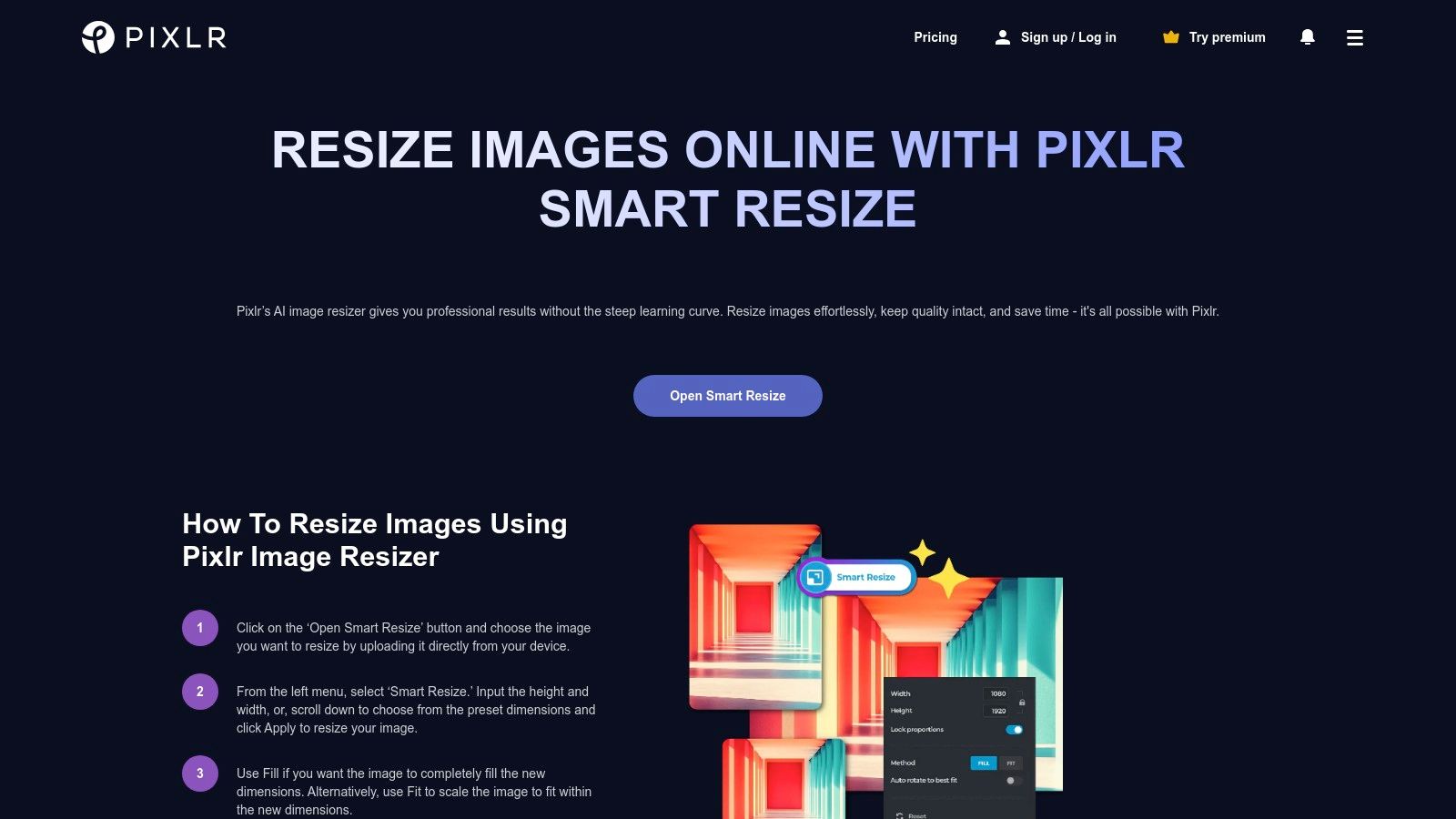
The user interface is clean and intuitive, providing controls like "Fit" and "Fill" to manage how your image frames within the new dimensions. Once resized, you can export to multiple formats including JPG, PNG, and WebP. For more advanced work, the resizer is integrated with Pixlr's full-featured E and X editors, allowing a seamless transition to deeper edits. This integration is ideal for workflows that start with a simple resize but may require additional adjustments. For generating social media graphics from scratch, you might also explore a specialized OG image generator.
Key Features & Assessment
- Processing: Server-side; files are uploaded for resizing.
- Core Functions: AI-assisted presets, Fit/Fill framing controls, one-click social media sizes.
- Supported Formats: JPG, PNG, WebP, PDF for export.
| Pros | Cons |
|---|---|
| Quick, Modern Browser UI: Easy to use with helpful presets. | Requires Online Upload: Not suitable for sensitive or private images. |
| Useful for Social Media: Perfect for content creation pipelines. | Upselling to Paid Tiers: Advanced AI features are behind a paywall. |
| Integrated with Editors: Seamlessly move to Pixlr E/X for more edits. |
Pixlr is an excellent choice for users who value a polished interface and need a fast, preset-driven tool for public-facing content. You can try it out on the Pixlr Smart Resize website.
3. BeFunky: Free Online Image Resizer
BeFunky offers a user-friendly and feature-rich free image resizer that strikes an excellent balance between simplicity and functionality. Designed for everyone from social media managers to casual bloggers, it provides an accessible web and mobile experience without a steep learning curve. The platform stands out by integrating its resizing tool within a broader suite of creative options, making it a great one-stop shop for quick edits beyond simple dimension changes.
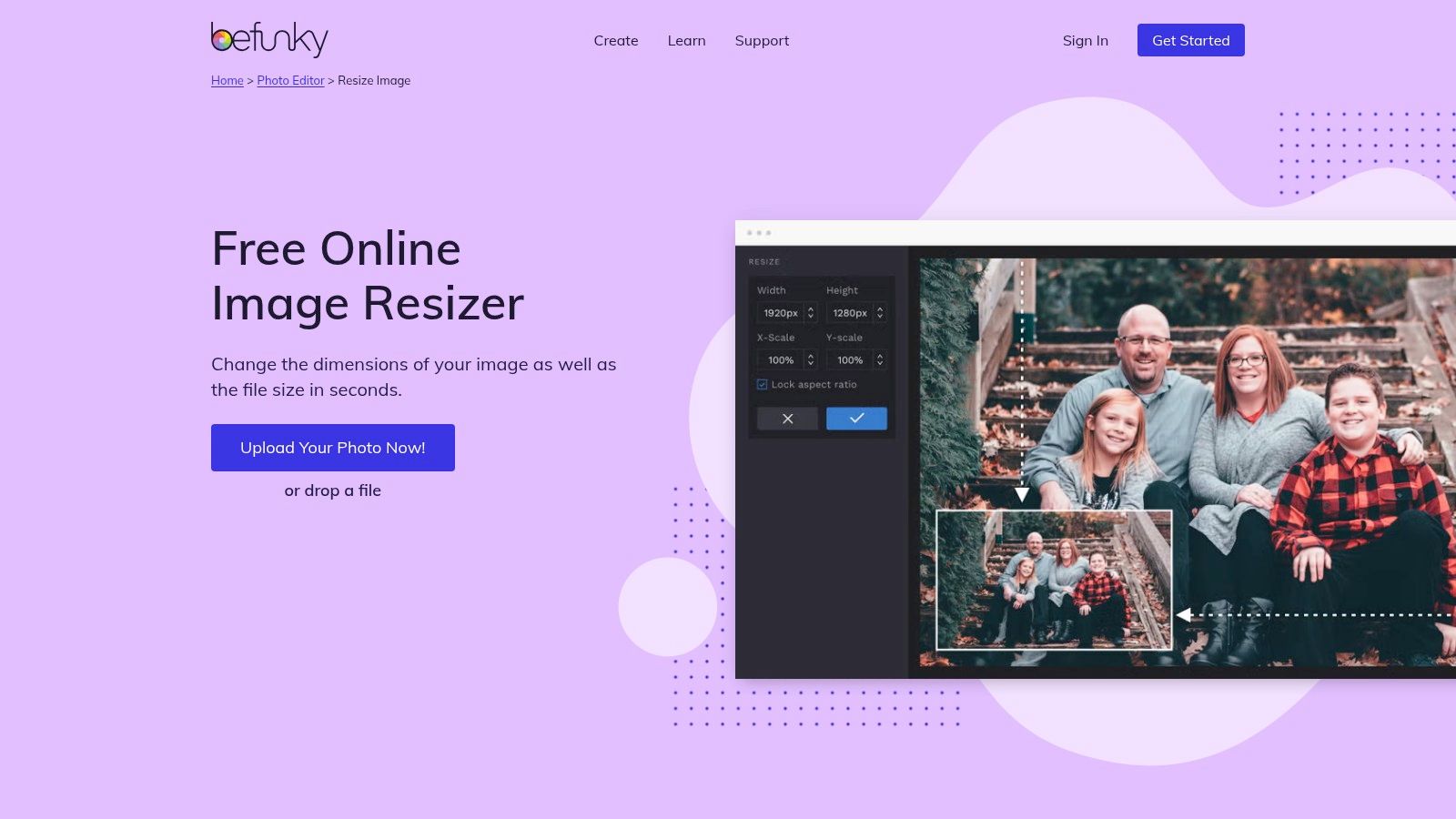
The interface is clean and intuitive, guiding users through resizing by specific pixels or percentages. A major advantage is its collection of presets for social media platforms, web banners, and print, which removes the guesswork for common tasks. While the core resizing is free, more advanced features like AI-powered enhancements are part of the BeFunky Plus subscription. Still, for standard resizing needs, the free version is robust and highly capable.
Key Features & Assessment
- Processing: Server-side; files are uploaded for processing.
- Core Functions: Resize by pixel/percentage, batch processing, social media presets.
- Supported Formats: JPG, PNG, and other standard formats.
| Pros | Cons |
|---|---|
| Easy Onboarding: Great for non-technical users. | Upload-Based: Not ideal for users with strict privacy needs. |
| Helpful Presets: Simplifies resizing for social and web. | Upsells: Advanced tools like AI Upscale require a paid plan. |
| Cross-Device Access: Available on web and mobile apps. |
This tool is a perfect choice for content creators who need a reliable, quick, and easy-to-use resizer with helpful guides. Get started by visiting the BeFunky image resizer page.
4. iLoveIMG: Resize Image
As a well-known suite of online document and image tools, iLoveIMG provides a popular and reliable free image resizer that balances simplicity with powerful features. It’s an excellent choice for users who need a dependable web-based tool for quick resizing tasks, especially when working with files stored in the cloud. The platform integrates directly with Google Drive and Dropbox, allowing you to import and export images without downloading them to your device first, streamlining your workflow significantly.
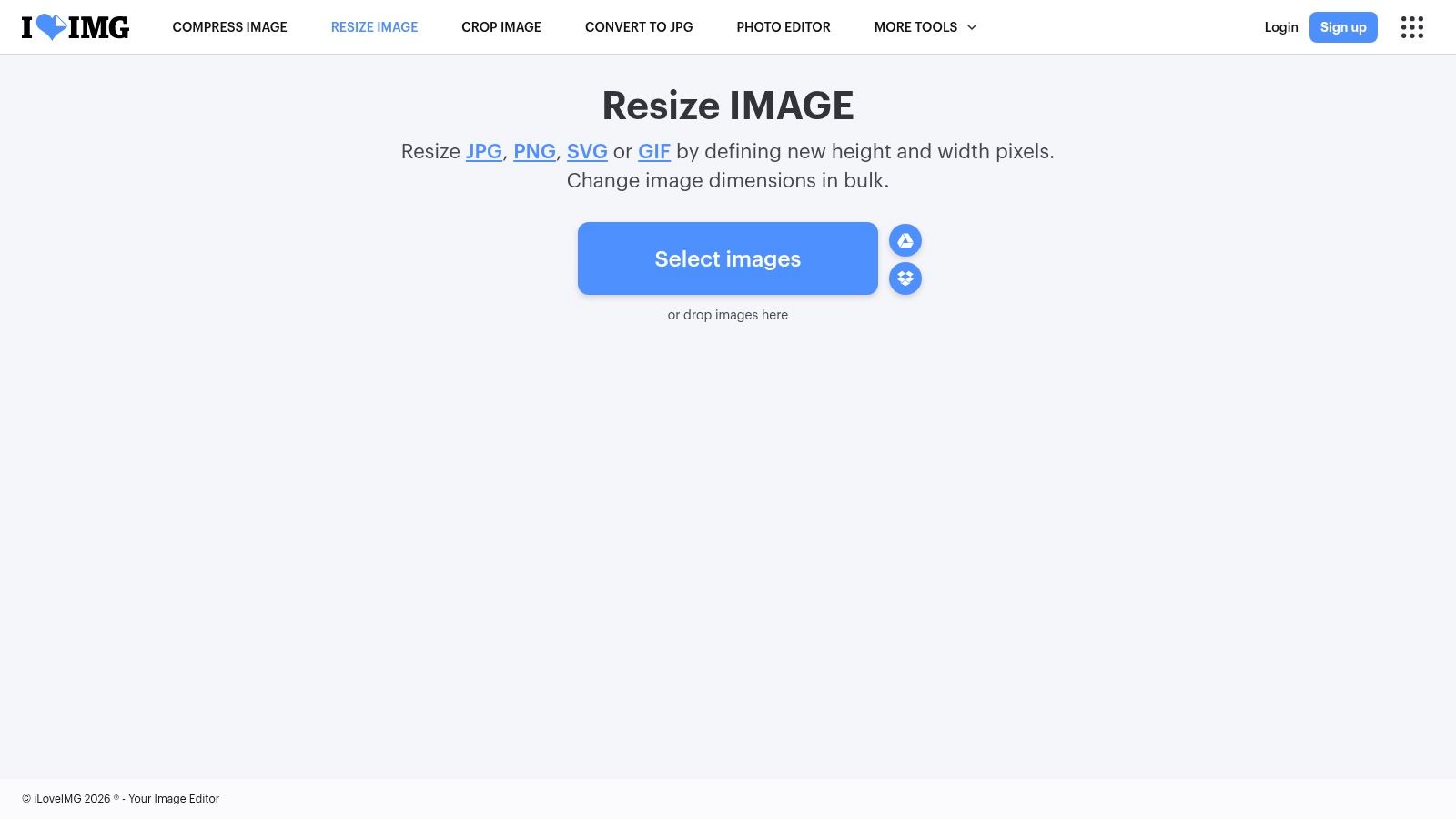
The user interface is straightforward, guiding you through selecting files, choosing dimensions by pixels or percentage, and processing your batch. It supports a variety of common formats, including JPG, PNG, SVG, and even animated GIFs, making it versatile for different content needs. While it requires uploading files to its servers for processing, the service is fast and consistent, making it a go-to for many marketing professionals and content creators who need predictable results without installing software.
Key Features & Assessment
- Processing: Server-side; files are uploaded for processing.
- Core Functions: Bulk resize by pixel/percentage, maintain aspect ratio, cloud integration.
- Supported Formats: JPG, PNG, SVG, GIF, and other common types.
| Pros | Cons |
|---|---|
| Cloud Integration: Seamlessly works with Google Drive/Dropbox. | Requires Upload: Not suitable for sensitive or private images. |
| Batch & Format Support: Handles multiple files and formats well. | Limited Free Tier: Heavier usage may require a subscription. |
| Simple, Clean UI: Very easy to use without a learning curve. | No Offline Mode: Requires an active internet connection to function. |
This tool is perfect for users who value convenience and cloud connectivity over local processing. You can start resizing your images by visiting the iLoveIMG Resize Image website.
5. SimpleImageResizer.com: The Quick and Accessible Web Resizer
SimpleImageResizer.com lives up to its name by providing a straightforward, web-based free image resizer perfect for quick, single-image adjustments or small batches. Its primary advantage is accessibility; the tool is extremely mobile-friendly and requires no software installation, making it ideal for resizing a photo on the go directly from your phone or tablet. The interface is clean and guides users through a simple select-resize-download process that takes just a few seconds.
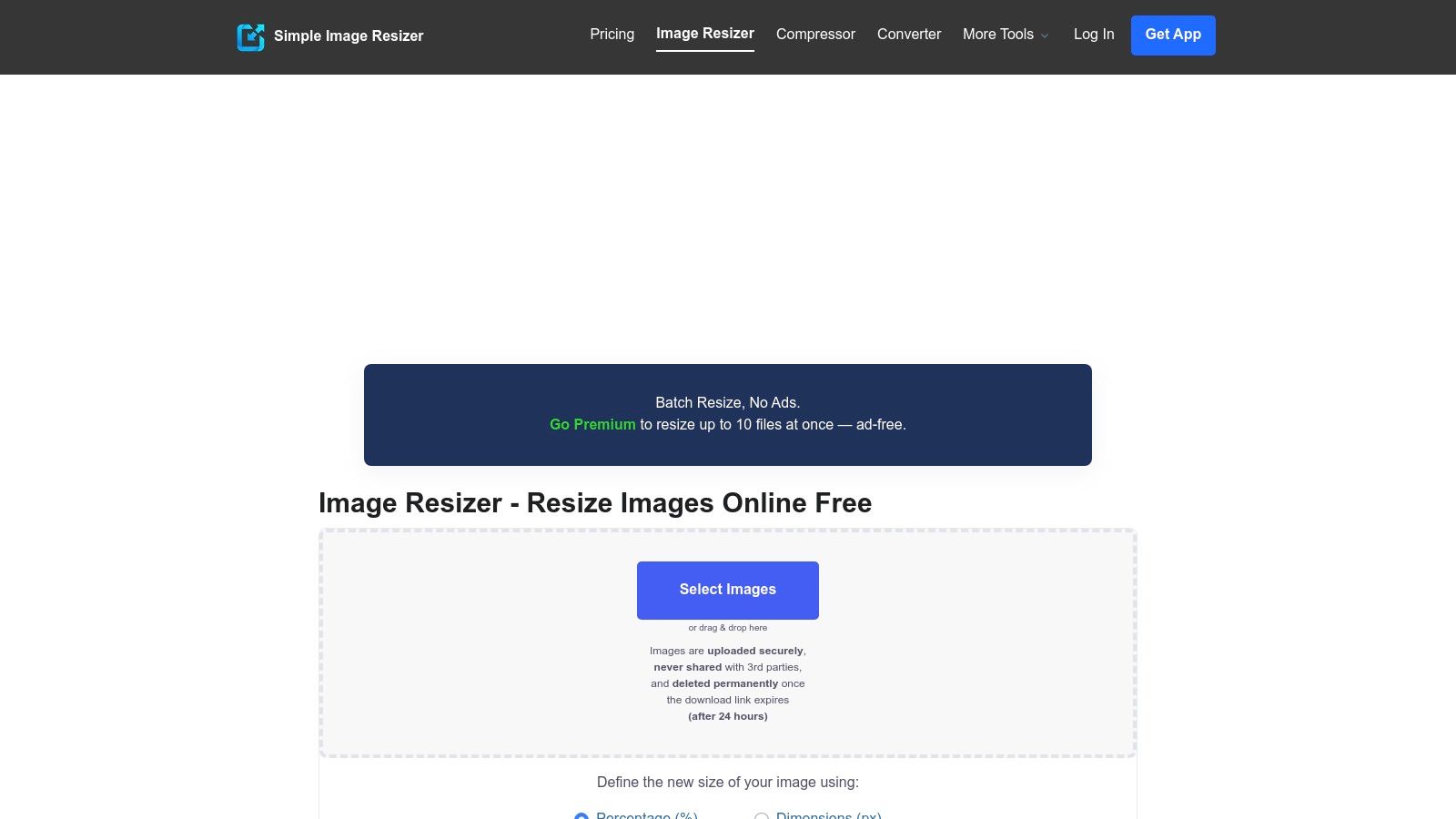
While it operates by uploading your files to a server, the platform is transparent about its processes with a clear FAQ section. The free version is supported by ads and has limitations on the number of images you can process in a batch, encouraging users with heavier needs to consider its premium plan. However, for occasional use like preparing an image for a social media post or a quick blog update, its simplicity and speed are hard to beat.
Key Features & Assessment
- Processing: Server-side; files are uploaded for processing.
- Core Functions: Resize by percentage or exact dimensions, basic image compression.
- Supported Formats: JPG, PNG, GIF, BMP, TIFF.
| Pros | Cons |
|---|---|
| Minimal Learning Curve: Extremely easy to use instantly. | Upload-Based: Not suitable for sensitive or private images. |
| Handy for Small Batches: Great for ad-hoc resizing tasks. | Free Batch Size is Limited: Small number of files per batch. |
| Mobile-Friendly: Works well on phones and tablets. | Displays Ads on Free Plan: Can be distracting for some users. |
This tool is best suited for users who need a no-fuss, fast solution for occasional resizing and are not handling confidential files. You can try it out immediately by visiting the SimpleImageResizer.com website.
6. Squoosh.app: The Developer-Focused Offline Image Optimizer
Squoosh.app is a powerful, open-source free image resizer and optimizer from the Google Chrome Labs team that runs entirely in your browser. Leveraging WebAssembly, it ensures your images never leave your device, offering a robust privacy-first approach ideal for developers and performance-focused users. Its main strength lies in providing granular control over modern codecs like AVIF and WebP, making it perfect for optimizing images for the web without sacrificing security.
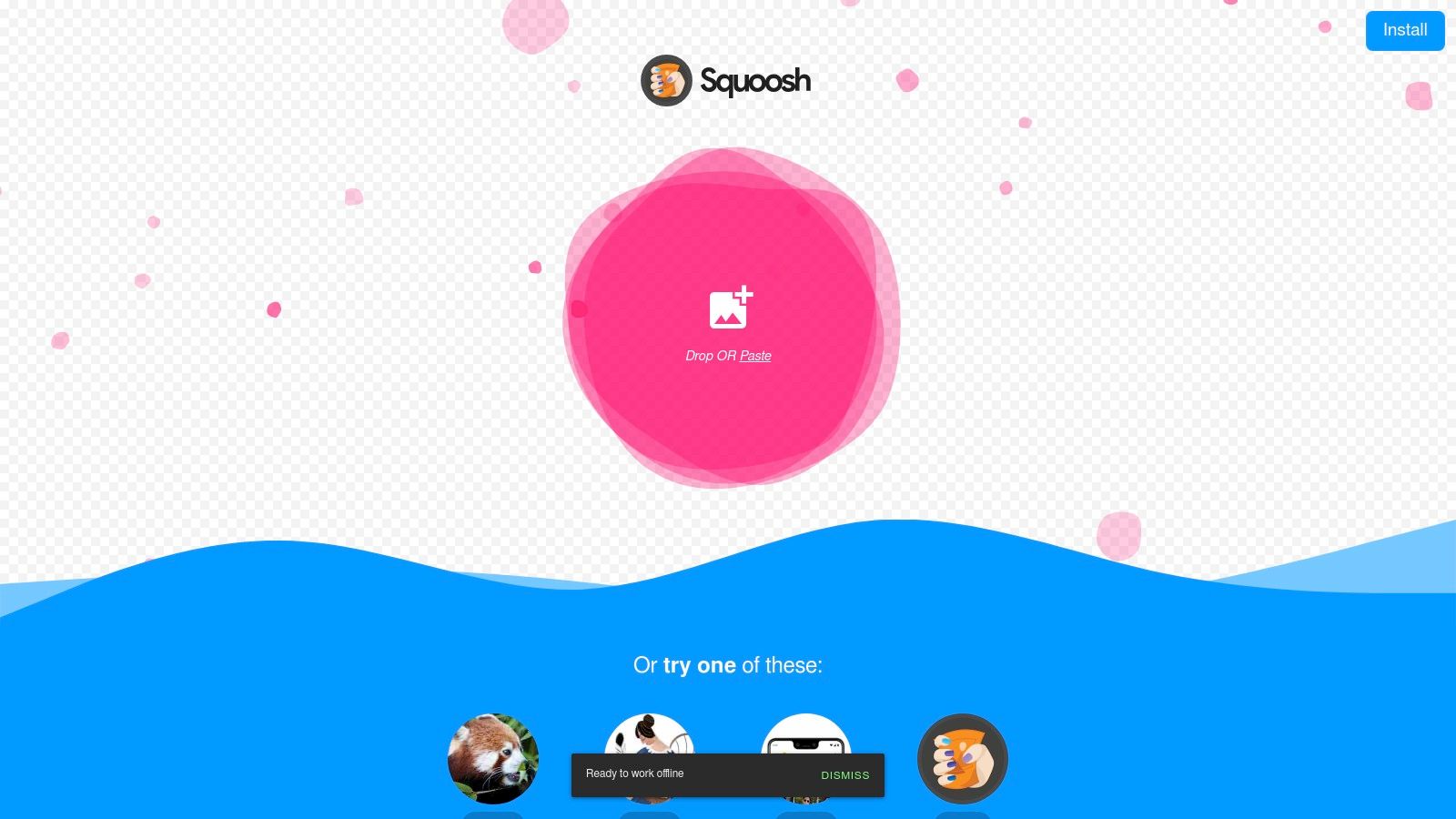
The platform features an excellent visual side-by-side comparison tool that lets you see the impact of your changes in real-time. You can resize, adjust quality, and experiment with advanced compression settings to find the perfect balance between file size and visual fidelity. As a Progressive Web App (PWA), Squoosh.app can even be "installed" on your desktop for quick, offline access, blurring the line between a web tool and a native application.
Key Features & Assessment
- Processing: 100% client-side; no image uploads to a server.
- Core Functions: Resize, compress, convert to modern formats (AVIF/WebP).
- Supported Formats: JPG, PNG, WebP, AVIF, and other web formats.
| Pros | Cons |
|---|---|
| Strong Privacy Posture: All processing is done locally. | No Batch Processing: Optimized for single-image workflows only. |
| Excellent Performance Tools: Fine-grained control over modern codecs. | Developer-Focused UI: May be overwhelming for casual users. |
| Offline PWA Capability: Works without an internet connection. |
This tool is best suited for web developers and designers who need precise control over image optimization for performance. Start experimenting by visiting the official Squoosh.app website.
7. BulkResizePhotos.com: The Privacy-Focused Bulk Image Processor
BulkResizePhotos.com is a powerful free image resizer that prioritizes privacy and performance by processing all images directly within your browser. Similar to other client-side tools, this means your sensitive or proprietary photos are never uploaded to a server, offering a secure solution for professional and enterprise workflows. Its primary strength lies in handling large batches of images efficiently, making it a go-to for users who need to process hundreds of files without server-side bottlenecks or privacy concerns.
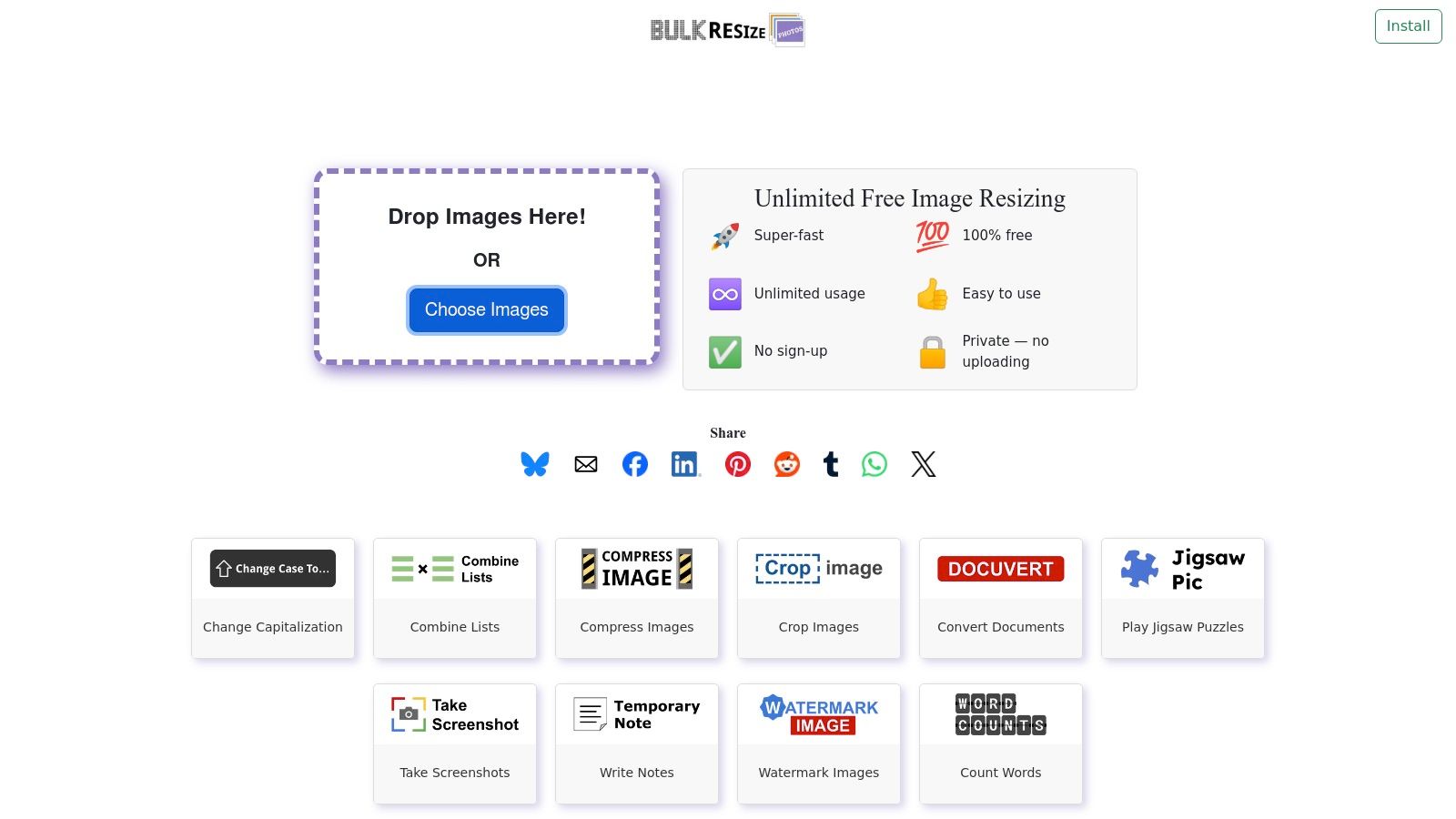
The platform offers essential resizing modes, including exact dimensions, percentage, and longest side, covering most common use cases. What makes it particularly convenient for frequent users are its browser extensions for Chrome, Edge, and Firefox, which integrate its functionality directly into your browsing experience. The interface is simple and task-oriented, allowing you to drag, drop, and resize with minimal friction, delivering a fast and reliable result every time.
Key Features & Assessment
- Processing: 100% client-side processing; no data is ever uploaded.
- Core Functions: Bulk resize by exact dimensions, percentage, longest side.
- Supported Formats: Common formats like JPG and PNG.
| Pros | Cons |
|---|---|
| Excellent Privacy: Ideal for sensitive enterprise workflows. | HEIC Not Supported: May cause issues with some iOS images. |
| Very Fast: Avoids server upload and download delays. | Device-Dependent: Performance relies on your computer's hardware. |
| Browser Extensions: Convenient integration for frequent use. |
This tool is perfect for users who need a secure, fast, and straightforward bulk resizing solution without any creative extras. You can start using it immediately by visiting the BulkResizePhotos.com website.
8. Photopea: The In-Browser Photoshop Alternative
Photopea isn't just a free image resizer; it's a comprehensive, browser-based image editor that mirrors the functionality of Adobe Photoshop. This makes it an incredibly powerful tool for users who need to perform complex edits, like layer adjustments or vector manipulation, before resizing an image. Its standout feature is the unparalleled file format support, allowing you to open and resize complex files like PSD, AI, and even RAW formats directly in your browser without any software installation.
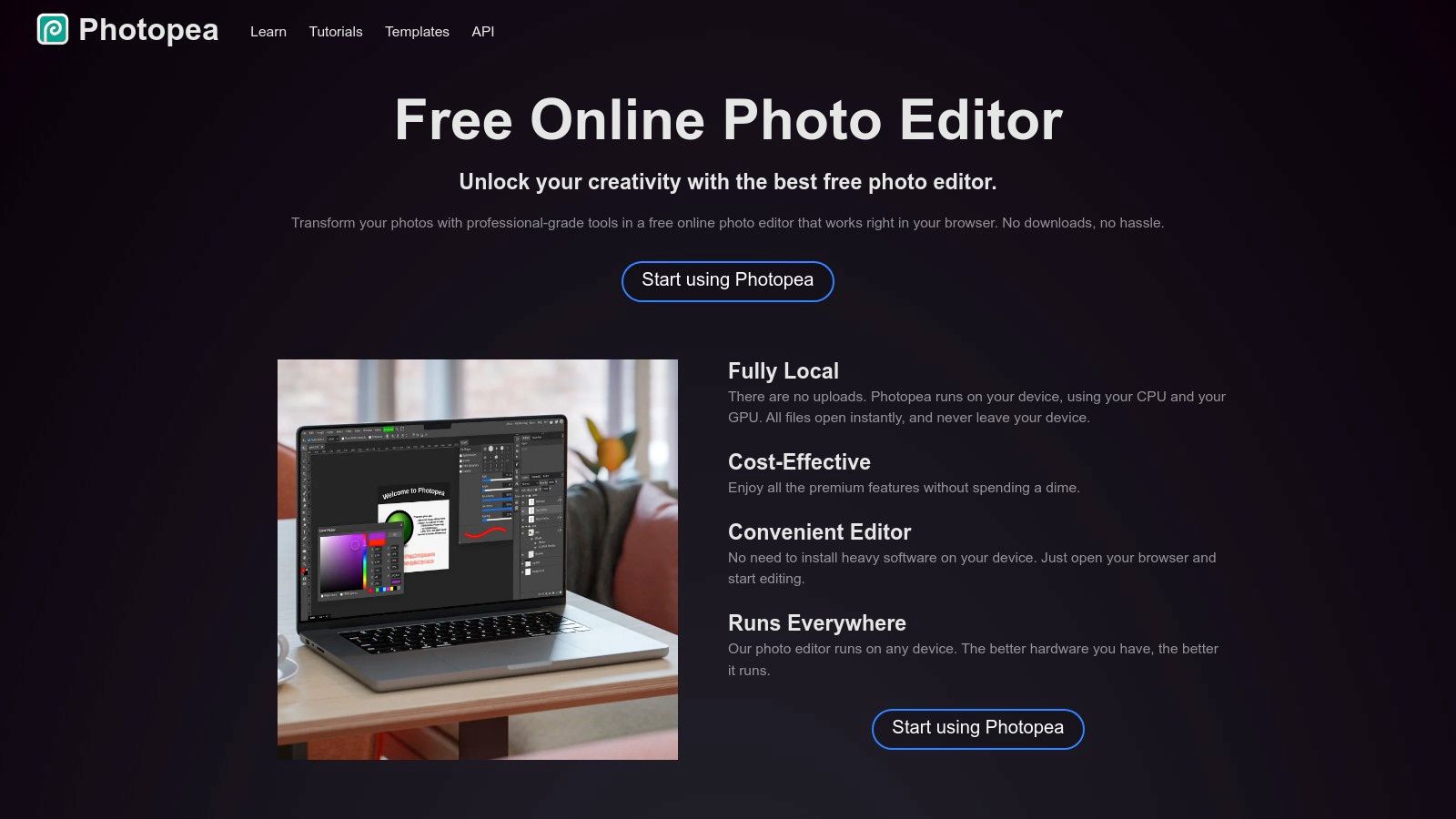
Resizing is handled through its "Image Size" and "Canvas Size" dialogues, giving you precise control over dimensions, resolution, and resampling algorithms. While the interface can be overwhelming for simple tasks, its versatility is a major advantage for advanced users. For example, you can resize an image to specific dimensions and then immediately use its tools to generate a favicon. This capability makes Photopea the go-to choice when resizing is just one step in a more involved editing workflow.
Key Features & Assessment
- Processing: Online, with files processed within the browser.
- Core Functions: Image/canvas resizing, layer manipulation, advanced editing tools.
- Supported Formats: PSD, AI, XCF, Sketch, XD, CDR, and all standard image types (JPG, PNG, GIF).
| Pros | Cons |
|---|---|
| Powerful Toolset: Goes far beyond simple resizing. | Ad-Supported UI: Free version includes advertisements on the sidebar. |
| Broad File Support: Handles professional design files. | Complex Interface: Can be overkill for quick resizing tasks. |
| No Installation: Runs on any machine with a web browser. | Online Use: Requires an internet connection for initial load. |
This tool is ideal for designers and power users who need advanced editing capabilities alongside resizing. You can start editing at the Photopea website.
9. Resize.com: Free Image Resizer
Resize.com offers a streamlined and efficient free image resizer designed for users who need to quickly process multiple images without software installation. Its web-based interface neatly combines resizing, conversion, and compression into a single workflow, making it a great choice for social media managers, bloggers, and anyone preparing images for the web. The platform is built for speed and simplicity, allowing you to get your task done with minimal clicks and no mandatory account creation for core features.
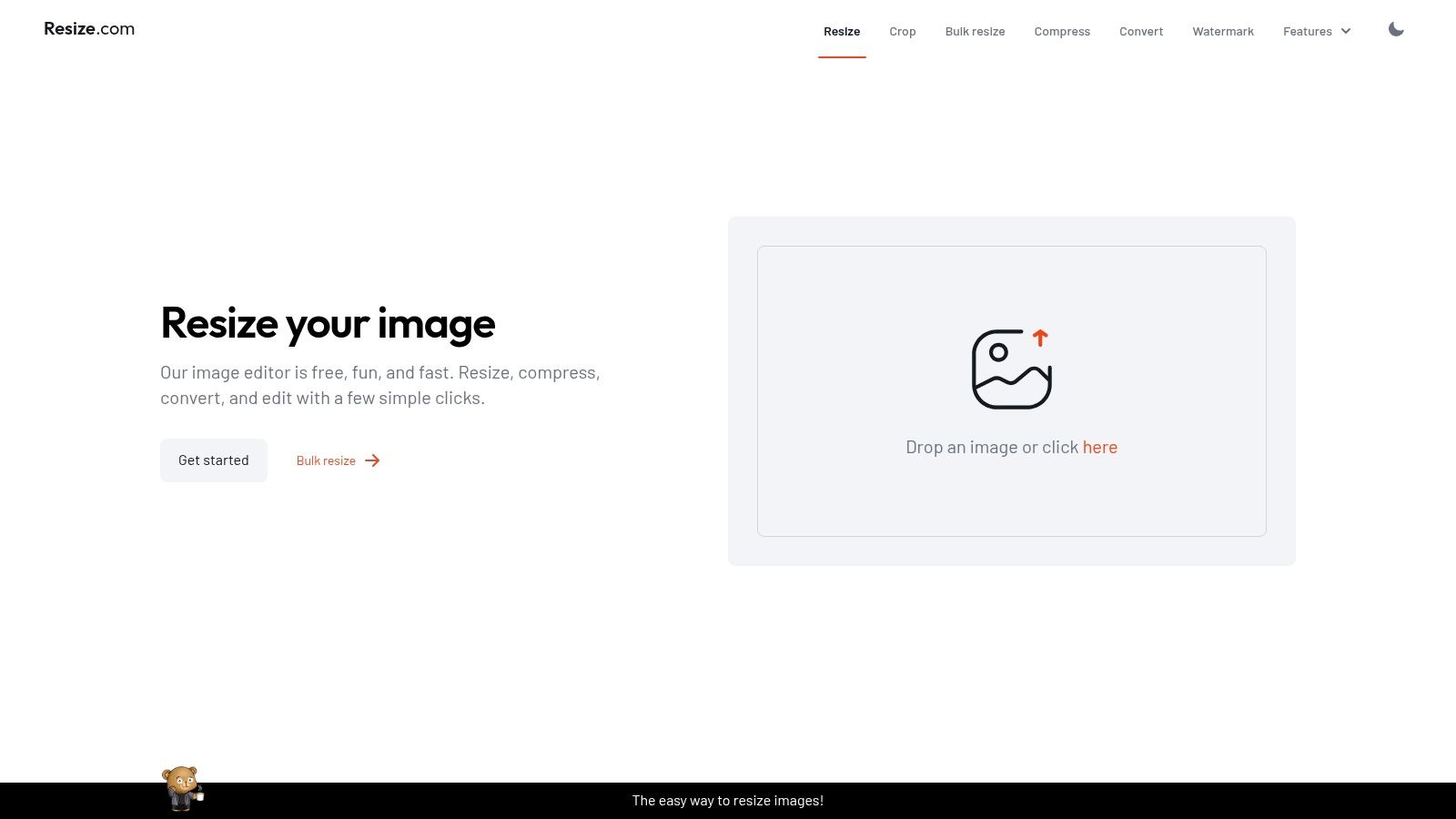
The user experience is clean and intuitive. You can drag and drop a batch of images and then choose to resize them by specific pixel dimensions or a percentage. During the same process, you can convert them to popular formats like JPG, PNG, or WebP and apply compression to optimize file sizes. This multi-functionality in a single step is a significant time-saver compared to tools that handle each task separately.
Key Features & Assessment
- Processing: Server-side; files are uploaded for processing.
- Core Functions: Bulk resize, resize by pixel/percentage, format conversion, and compression.
- Supported Formats: Common web formats like JPG, PNG, and WebP.
| Pros | Cons |
|---|---|
| Combines Common Tasks: Resize, convert, and compress in one flow. | Upload-Based: Not suitable for sensitive or private images. |
| No Account Needed: Core tools are accessible without sign-up. | Batch Limits Apply: The free tool has a limit of 20 images per job. |
| Clean, Modern UI: Very easy to navigate and understand. |
This tool is ideal for users looking for a fast, all-in-one solution for common image optimization tasks. You can start resizing your images by visiting the Resize.com website.
10. Microsoft PowerToys: Image Resizer
For Windows users seeking a deeply integrated workflow, Microsoft PowerToys offers a powerful free image resizer as a shell extension. This utility adds a "Resize pictures" option directly to the right-click context menu in File Explorer, making it one of the most efficient ways to resize images locally without opening any application. It is designed for speed and convenience, allowing users to process single or multiple images instantly with predefined or custom sizes right from their file browser.
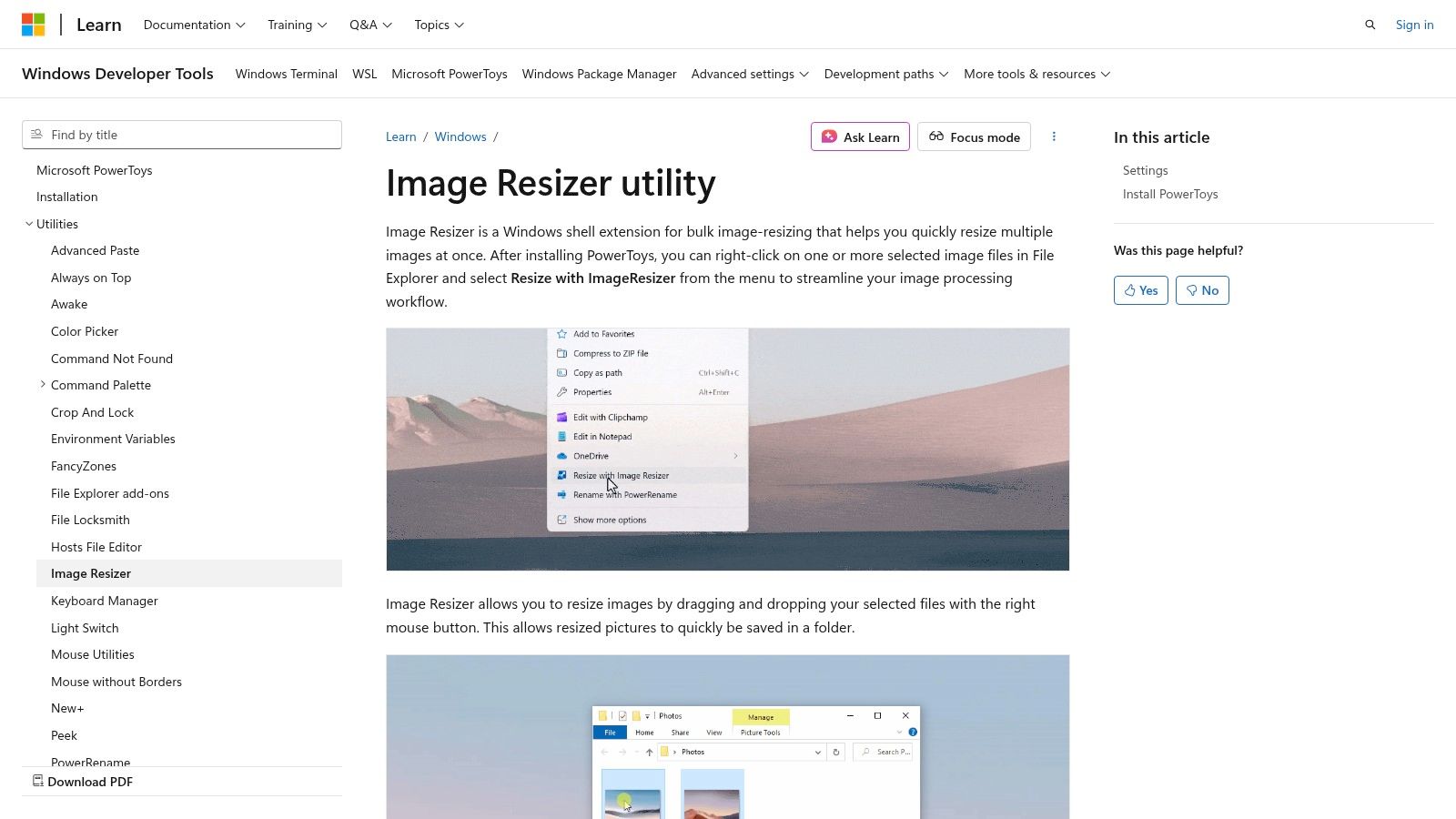
As an official Microsoft utility, PowerToys is reliable, secure, and built for enterprise-level workflows where data must remain offline. The Image Resizer handles batch operations flawlessly; simply select a group of files, right-click, and choose your resize settings. It intelligently manages file orientation and can create copies, so your original images are preserved. This tool is perfect for professionals who need to quickly prepare images for documents, emails, or web uploads without leaving their native file management environment.
Key Features & Assessment
- Processing: 100% local and offline; integrated into the Windows shell.
- Core Functions: Context menu resizing, batch processing, custom presets, orientation correction.
- Supported Formats: Common image formats recognized by Windows (JPG, PNG, TIFF, etc.).
| Pros | Cons |
|---|---|
| 100% Local Processing: Ultimate privacy as files never leave your PC. | Windows-Only: Not available for macOS or Linux users. |
| Seamless Explorer Integration: Extremely fast and convenient workflow. | Purely a Utility: Lacks any creative or advanced editing tools. |
| Free & Open-Source: A trusted utility maintained by Microsoft. |
This tool is the ideal choice for Windows power users who value efficiency and want a resizer built into their operating system. You can download it as part of the Microsoft PowerToys suite.
11. FastStone Photo Resizer: The Robust Desktop Batch Processor
FastStone Photo Resizer is a powerful and long-standing Windows desktop application that serves as a versatile free image resizer, converter, and renamer. It is designed for users who need to process large quantities of images offline with advanced options. Its strength lies in its comprehensive batch processing capabilities, allowing you to set up complex workflows that include resizing, cropping, color depth changes, watermarking, and renaming, all executed in a single operation on hundreds of files.
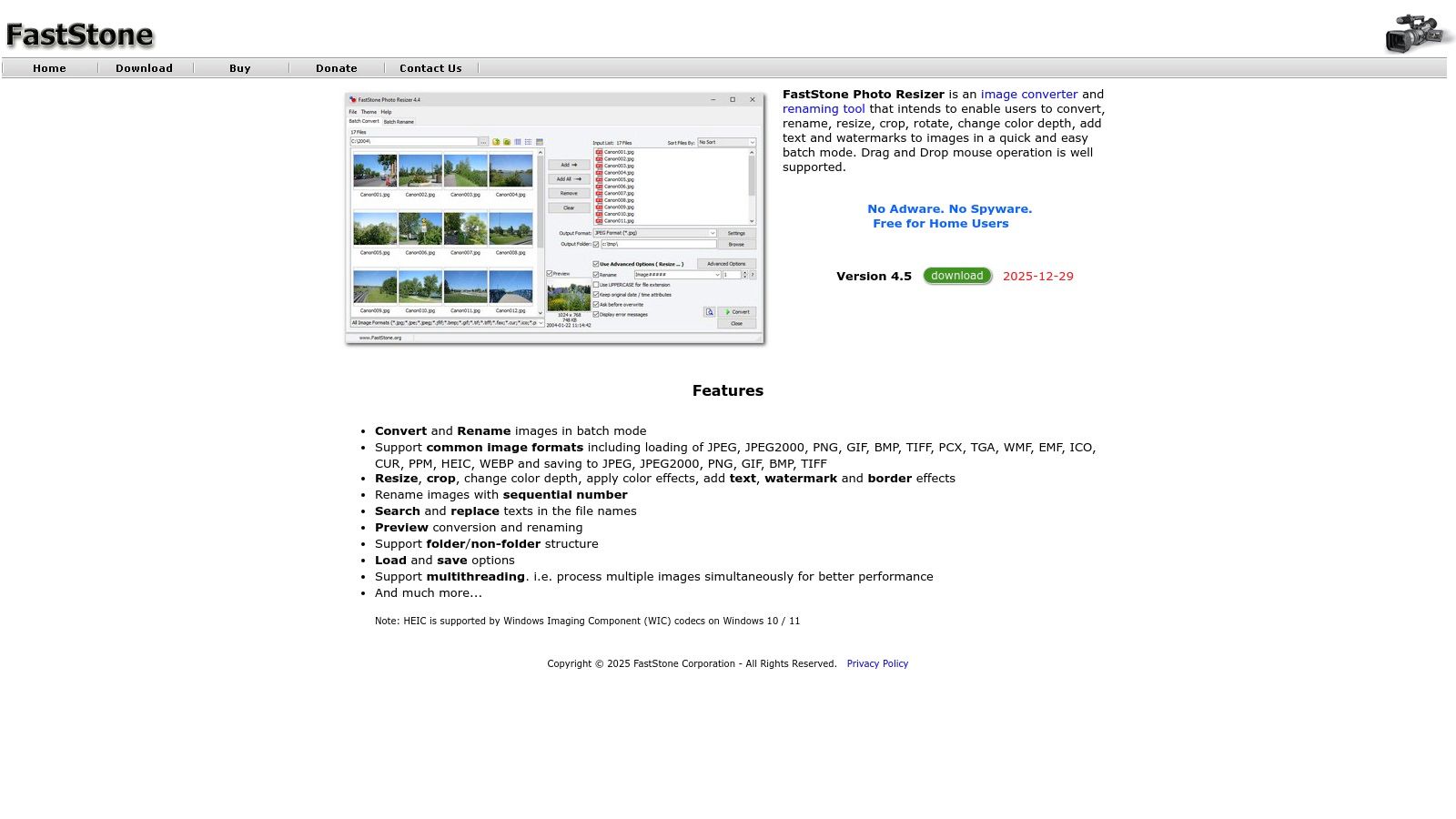
The tool is incredibly lightweight and fast, leveraging multithreaded processing to handle demanding tasks efficiently. It supports a vast range of formats, including modern ones like HEIC and WebP (via Windows codecs). While its interface is more utilitarian than modern, it provides clear, direct access to its powerful features. It’s a workhorse tool built for performance and function over aesthetics, making it a favorite among photographers and professionals on Windows.
Key Features & Assessment
- Processing: Offline desktop application for Windows.
- Core Functions: Batch resize, convert, rename, watermark, crop, change color depth.
- Supported Formats: JPG, PNG, BMP, GIF, TIFF, and modern formats like HEIC/WebP.
| Pros | Cons |
|---|---|
| Powerful Batch Options: Extensive controls for complex workflows. | Windows-Only: Not available for macOS or Linux users. |
| Fast & Lightweight: Optimized for speed and low resource usage. | Dated UI: The interface is functional but not visually modern. |
| Completely Free: No ads, spyware, or limitations. |
This application is ideal for Windows users who need a reliable, high-performance tool for heavy-duty batch image processing. You can download it directly from the FastStone Photo Resizer website.
12. IrfanView: The Veteran Desktop Image Resizer
IrfanView is a legendary Windows-based image viewer that has earned its reputation as a powerful and extremely fast free image resizer. For decades, it has been a go-to tool for developers, photographers, and IT professionals who need to perform reliable bulk operations. Its strength lies in its no-nonsense approach to image processing, offering a robust batch conversion and resizing tool that handles thousands of files with impressive speed and efficiency. It is exceptionally lightweight and operates entirely offline on your PC.
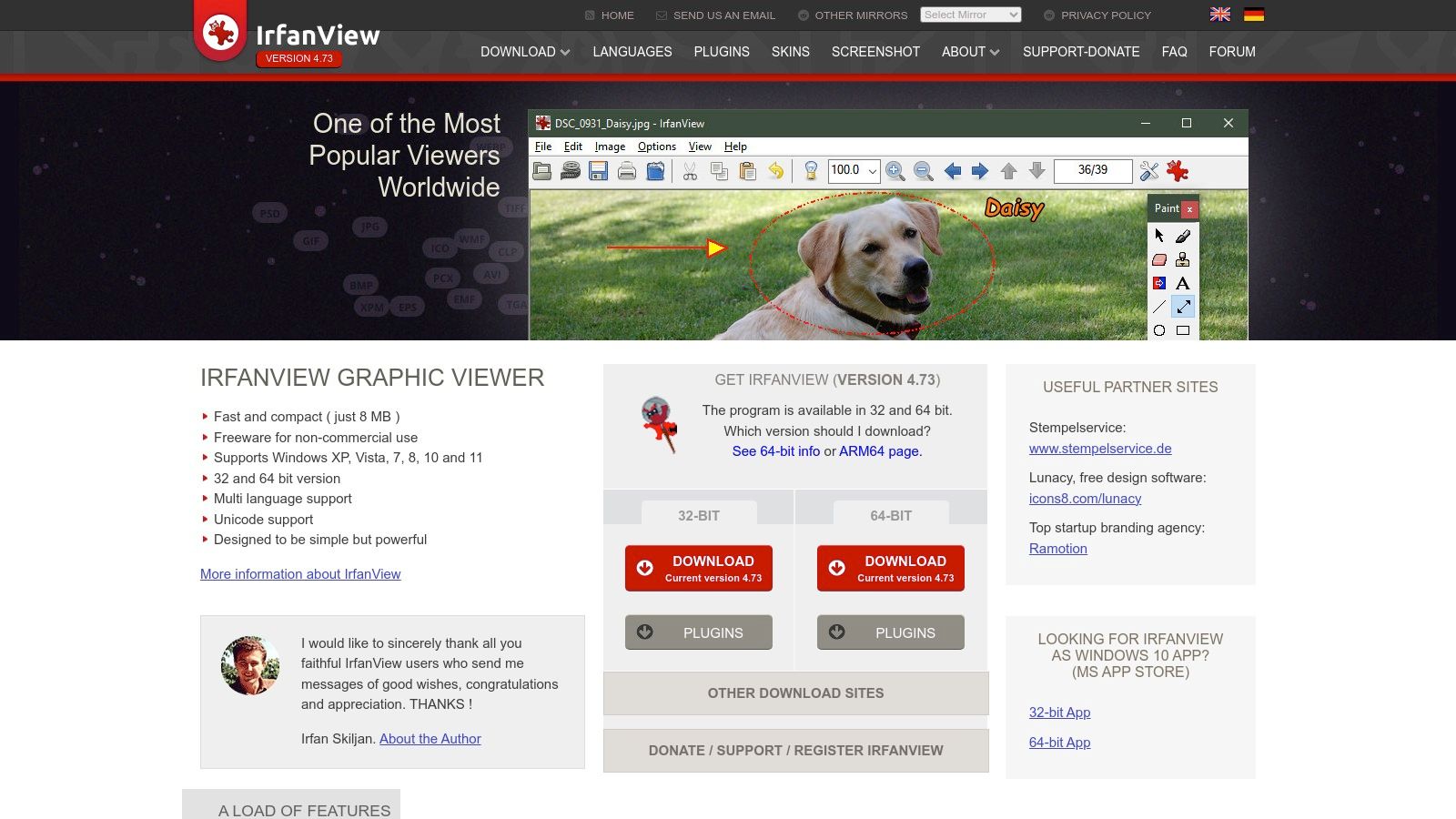
The platform’s batch processing window is its core feature for resizing, allowing users to set precise parameters for dimensions, apply filters, and convert formats simultaneously. While its user interface may appear dated compared to modern web tools, its functionality is deep and proven. With support for a vast range of formats via plugins, IrfanView is a versatile workhorse for technical tasks where performance and predictability are more important than a polished visual experience.
Key Features & Assessment
- Processing: Offline desktop application for Windows.
- Core Functions: Advanced batch conversion and resizing, format plugins.
- Supported Formats: Virtually all image formats with appropriate plugins.
| Pros | Cons |
|---|---|
| Fast and Reliable: Trusted for decades for speed and stability. | Windows-Only: Not available for macOS or Linux users. |
| Excellent for Bulk Tasks: Ideal for scripted or repetitive workflows. | Classic UI: The interface is functional but not modern. |
| Extremely Lightweight: Small footprint and minimal resource usage. | Free for Non-Commercial Use Only: A license is required for business use. |
IrfanView is perfect for Windows users who need a dependable, high-speed tool for batch resizing and are comfortable with a classic software interface. You can download it from the official IrfanView website.
Top 12 Free Image Resizers: Feature & Performance Comparison
| Tool | Core features | Privacy / Unique selling points (✨/🏆) | UX & Quality (★) | Best for (👥) | Price / Value (💰) |
|---|---|---|---|---|---|
| Adobe Express: Free Image Resizer | Presets (Instagram, FB, X, YT), custom px/aspect | Upload-based; integrates into full Express ✨ | ★★★★, guided, fast | 👥 Non-designers, social marketers | 💰 Free / Freemium |
| Pixlr: Smart Resize | AI-assisted Smart Resize, Fit vs Fill, multi-format export | Upload-based; some AI features paid ✨ | ★★★★, modern UI | 👥 Creators who want quick edits | 💰 Freemium (paid for advanced) |
| BeFunky: Free Online Image Resizer | Pixel/% resize, batch, social presets, mobile apps | Upload-based; broad beginner docs | ★★★, simple & approachable | 👥 Casual users & small businesses | 💰 Free / Plus paid |
| iLoveIMG: Resize Image | Bulk resize, JPG/PNG/SVG/GIF, Drive/Dropbox import | Upload-based; fast consistent flow | ★★★★, reliable for web tasks | 👥 Web teams & general users | 💰 Free / Paid developer API |
| SimpleImageResizer.com | Ultra-simple single/batch resize, mobile-friendly | Upload-based; free limits & ads | ★★★, minimal learning curve | 👥 One-off users, quick tasks | 💰 Free (limits) / Premium |
| Squoosh.app | Client-side WebAssembly, AVIF/WebP, PWA, side-by-side compare | ✨🏆 Fully local & offline; privacy-first | ★★★★★, precise controls for perf | 👥 Developers, privacy-minded users | 💰 Free & open-source |
| BulkResizePhotos.com | 100% client-side bulk resize, exact dim/percent/longest side, extensions | ✨🏆 Local-only; optimized for large batches | ★★★★★, very fast for bulk | 👥 Enterprises & privacy-first workflows | 💰 Free |
| Photopea | Photoshop-like editor in browser; PSD/AI/RAW support | Online (can be cached); ad-supported option | ★★★★★, powerful, multi-format 🏆 | 👥 Designers & power users | 💰 Free (ads) / Premium (no ads) |
| Resize.com: Free Image Resizer | Resize, convert (JPG/PNG/WebP), compress, bulk (≤20) | Upload-based; no account for core tasks | ★★★★, clean combined flow | 👥 Users needing quick multi-image jobs | 💰 Free (limits) / Paid tiers |
| Microsoft PowerToys: Image Resizer | Explorer context-menu, batch presets, orientation handling | ✨🏆 100% local/offline; integrates with File Explorer | ★★★★★, seamless Windows workflow | 👥 Windows power users & IT admins | 💰 Free / Open-source |
| FastStone Photo Resizer | Batch resize/convert/rename/watermark, multithreaded, portable | Local desktop; robust batch features 🏆 | ★★★★★, fast, lightweight | 👥 Photographers & heavy-batch users | 💰 Free / Donationware |
| IrfanView | Viewer + powerful batch conversion/resizing, plugins support | Local desktop; extendable via plugins 🏆 | ★★★★★, trusted, scriptable | 👥 Photographers, devs, bulk processors | 💰 Free (non-commercial); commercial license required |
Making the Right Choice for Your Image Resizing Needs
The journey to find the perfect free image resizer reveals a diverse landscape of tools, each with its own strengths tailored to specific workflows. We've explored everything from cloud-based creative suites like Adobe Express and Pixlr, which excel at social media optimization, to powerful desktop utilities like Microsoft PowerToys and FastStone Photo Resizer that offer unparalleled batch processing for Windows users. The ideal choice isn't about finding a single "best" tool, but about identifying the one that aligns perfectly with your priorities.
Navigating the Online vs. Offline Divide
A critical takeaway from our review is the fundamental difference between server-side and client-side processing. While online tools such as iLoveIMG and BeFunky offer convenience and accessibility from any device, they require you to upload your files to a third-party server. This step, though often seamless, introduces a layer of potential risk, especially for professionals handling sensitive client data, proprietary information, or personal photos.
This is precisely where the modern, privacy-first approach of browser-based, offline tools like Squoosh.app and Digital ToolPad becomes indispensable. These applications run entirely on your local machine, using your browser's processing power to resize images without ever sending them across the internet. You get the best of both worlds: the zero-installation ease of a web app combined with the uncompromising security and speed of a desktop program. For developers, IT administrators, and security-conscious teams, this model eliminates data exposure and ensures a completely private workflow.
Key Factors for Your Final Decision
As you select your go-to free image resizer, weigh these essential factors to ensure it fits your needs now and in the future:
- Privacy and Security: Do you handle sensitive images? If so, prioritize offline, client-side tools that process files locally in your browser or on your desktop.
- Batch Processing Needs: If you regularly resize dozens or hundreds of images, a dedicated desktop utility like FastStone or a browser-based tool like BulkResizePhotos.com will save you significant time.
- Workflow Integration: Consider how a tool fits into your daily tasks. Do you need something integrated into your operating system like Microsoft PowerToys, or a quick, bookmarkable web app for occasional use?
- Feature Set: Do you just need to resize, or do you also need compression, format conversion, or basic edits? Some tools, like Photopea, can handle resizing while also addressing broader image editing needs, offering a more all-in-one solution.
Ultimately, the power to resize images efficiently and securely is at your fingertips. By understanding the trade-offs between cloud convenience and local privacy, you can confidently select a tool that enhances your productivity without compromising your data. Your final choice should empower you to manage your visual assets with speed, precision, and complete peace of mind.
Ready to experience a fast, private, and deterministic image resizing workflow? Try Digital ToolPad today. Our collection of free, browser-based tools runs entirely on your device, ensuring your data always stays with you. Get started with Digital ToolPad and take control of your productivity.